

As part of its ongoing efforts to make photo editing as quick and easy as possible, Adobe is introducing Prompt to Edit in Lightroom. This feature lets you restore an old photograph by selecting one of Adobe’s example prompts or creating your own prompt. You can sharpen out-of-focus images, colorize black-and-white photographs, and adjust the color of photos with a dramatic color cast.

Children born in the past 20 years or so are likely to have high-quality photographs documenting many stages of their lives. Those of us born in the film photography days aren’t so lucky. Often, we have only a handful of old family photos, and these tend to be pretty bad. Maybe the color is faded or incorrect. Or there are scratches on the print. Many old family photographs are out of focus. We treasure these photographs despite their flaws. Prompt to Edit is designed to improve these photographs in the hopes of making them even more valued.
Prompt to Edit is located in the left panel of Lightroom and can also be accessed from the View menu. When you select the new tool, you will see example prompts for fixing and transforming photographs. These include Fix Dust and Scratches, Color Restoration, and Unblur, among others. Highlight a photo, select an example prompt, and click Generate. Lightroom will create a new DNG image with the effect applied while leaving your original file unmodified. The edited image appears next to the original in the filmstrip or, if you select Create Stack, in a stack with the original.
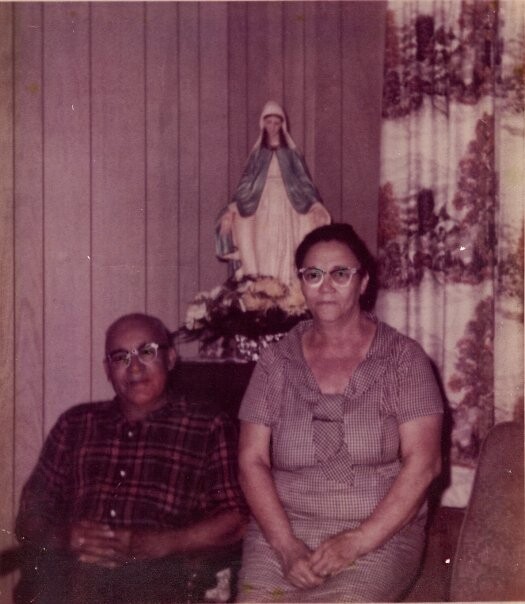

Previously, many of these types of edits were available in Photoshop. Photoshop centers on detailed editing of individual images, while Lightroom is designed to make it easy to organize and edit many images in a single session. I have never liked having to export a file to Photoshop and then return to Lightroom, so I’m glad to see this feature become available in Lightroom.
If you select one of the preprogrammed options, Lightroom will show you the full prompt that is being used to produce the adjusted image. For Color Restoration, the prompt reads in full, “The full image: restore all faded colors to their original vibrancy -- correct color casts, rebuild saturation in skin tones and skies, and recover contrast lost to fading. Base corrections on the hues already present in the photo rather than introducing new colors. Adjust saturation and lightness only -- do not shift hue values; each color should become more vibrant without changing its position on the color wheel. Preserve exact composition, facial features, identity, pose, and background details, including fine detail and edge sharpness on faces and hair. Keep skin tones natural. Restore moderately. No added objects, no altered identity, no softening or blurring of facial detail, no text or artifacts, no background changes.”
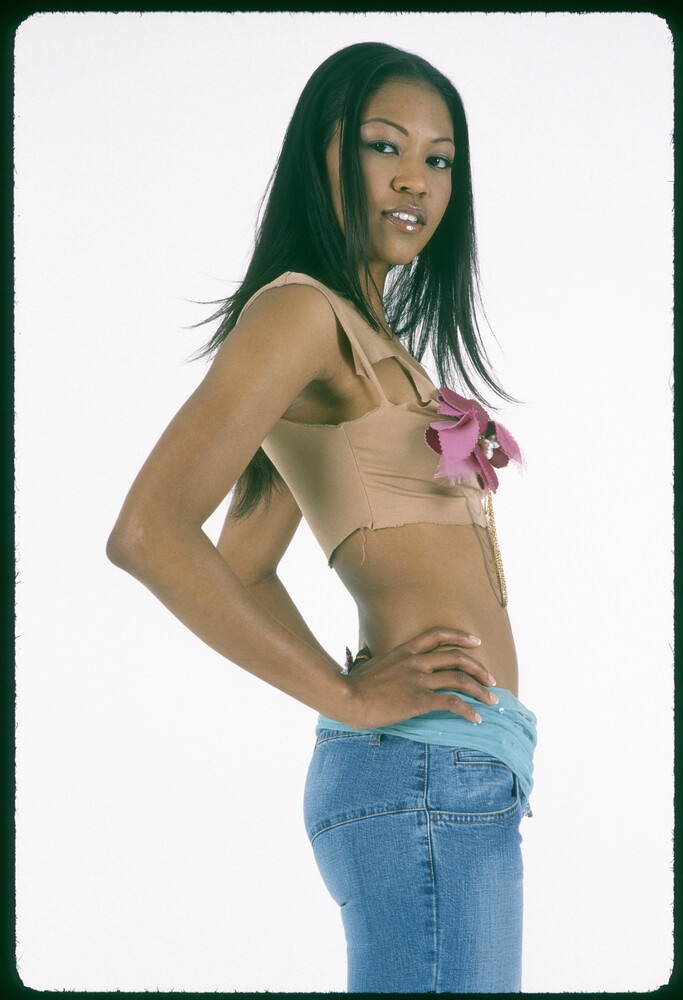

You can adjust this prompt as you desire. In my limited testing of the Color Restoration prompt, I found the color to be more saturated than I would have liked. I solved this problem by lowering the saturation of the image in Edit mode, but I could also have adjusted the prompt to read, “Apply only a small increase in saturation.” You also have the option of ignoring the example prompts and creating your own prompt using natural language. Your prompt can be just a few sentences. The more you experiment with different images and different prompts, the closer you will get to the result you desire.
One great thing about making these adjustments in Lightroom rather than a program like ChatGPT is that you have full access to all of the standard Lightroom adjustments. You can use Prompt to Edit for transformations such as replacing a sky while continuing to use Lightroom’s standard tools for masking, local adjustments, and object removal.
For photographers looking to go deeper into Lightroom’s broader editing workflow, Mastering Adobe Lightroom: How to Use Lightroom covers the application in greater depth.
Adobe describes Prompt to Edit as a tool for complex edits such as restoring, retouching, and transforming photographs. You can output images using Nano Banana 2 at either 2K or 4K resolution. I think it is logical to assume that Prompt to Edit will be improved to offer additional options at some point in the future. Images are currently generated using Nano Banana 2, but I think it is likely that other engines will eventually be added, giving users more control over the output.
Lately, I’ve been scanning some of my old slides on a 20-year-old Nikon Coolscan V using SilverFast software since Nikon no longer supports the device. The results are often excellent, but sometimes the scans have a dramatic color cast. Often, the color cast is visible on the slide itself, so it is understandable why it appears in the scan. Many of you are capable of color-correcting these scans. I am not. I was pleased with the results I got from using Color Restoration on my old slides.
It is important to note that Prompt to Edit is being introduced in Lightroom desktop as an Early Access feature. Adobe views Early Access as a way to develop features with feedback from users. Features introduced under this banner may continue to change as Adobe evaluates that feedback.
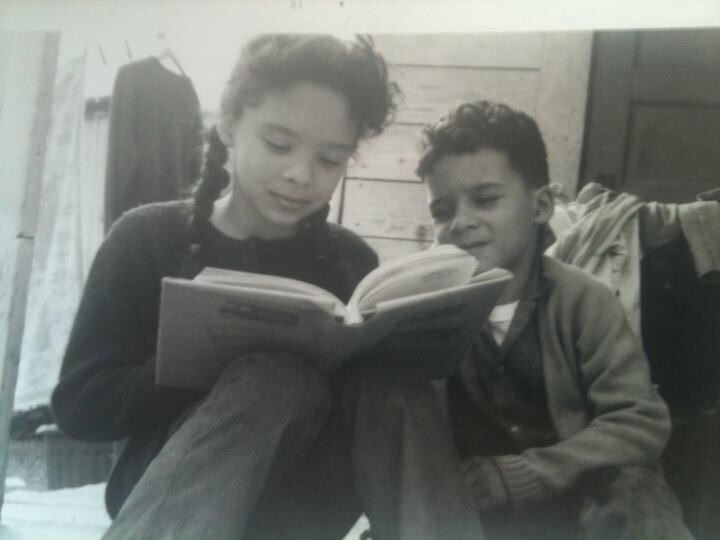
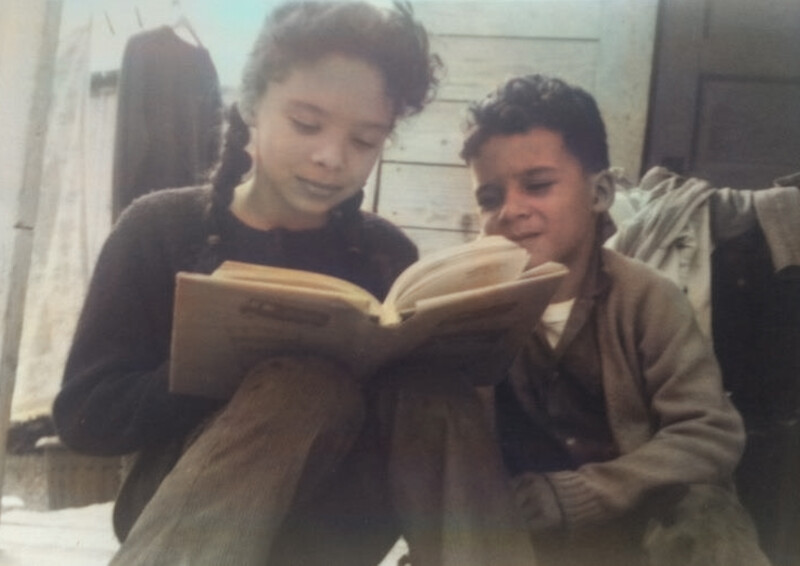

I’m certain there will be complaints in forums about odd or inconsistent results, and I’ve gotten a few myself. But the choice is yours to either focus on how Adobe is attempting to improve its software or to focus on where its efforts fall short. Despite my repeated attempts spanning many years, I was never able to master Photoshop, so I welcome every automated editing tool that Adobe introduces.

Prompt to Edit uses generative credits. Because Nano Banana 2 is a Google partner model, Adobe categorizes its use as a premium generative feature. Credit consumption varies by output resolution, and access to premium generative features depends on your Creative Cloud plan. You can check your remaining credits from the credit balance icon inside the Prompt to Edit panel or through your Adobe Account. More information about plans, premium features, and credits can be found on Adobe’s Generative Credits FAQ page.






Join the Fstoppers community for free
-
Post comments and join in the discussions
-
Browse the site ad-free
-
Share your work and get featured in the community
-
Compete in the photo contests for fun and prizes
5 Comments
as a pensioner with a yearly plan split into monthly payments, I was about to unsubscribe from the service when the resubscribe date came up in March but let it go by. How I wish I hadn't.
Things are getting well and truly out of hand in my opinion with Adobe and apart from opening the floodgates to all things Ai, the purchase of Topaz Labs has much to say about the future, because we don't know anything. Old habits die hard in Adobe.
Adobe seems to be going back to its old tricks of consuming the competition. That doesn't leave us with much... Capture which I have never liked seems less likeable than before. DxO? Maybe... undecided
but come next March Adobe, no way. That is decided
The endless subscriptions that plague our life are really a pain. I am glad at least that Adobe keeps innovating and noticeably improving the program. That said, if you take a more old school approach to photography and do minimal adjustments to your photographs, you don't need a Creative Cloud subscription, so there's that at least.
You know, I like the thought about being able to edit my older photos, but just how much would it cost a hobbyist to edit just one old family photo?
I read an article in Peta Pixel - Titled: " Adobe is now tracking generative credit use: What you need to know" this article dated June 24, 2025, that stated:
using firefly, the plans you have to choose are: "Firefly Standard at $9.99 month, then Pro - $29.99, Premium $199.99 per month, then creative cloud pro - $69.00 per month."
"A heavy Firefly user, Andi Kuonath of RedFishBlack Studio in New York City emailed PetaPixel about Generative Fill suddenly no longer working because of the new generative credit enforcement policy."
“As of yesterday, I was forced to switch to a Firefly Premium plan because Generative Fill suddenly stopped working under my U.S.-based subscription. As a heavy user — especially for hair retouching clients where I rely on Generative Fill [hundreds of] times per image — this came as a huge disruption,” Kuonath says."
“The tool has become essential to my workflow: it saves me significant time and delivers far better quality results. So it’s pretty frustrating to find out that something this critical is now limited and paywalled — and without any proper communication beforehand.”
So, just how many credits would it take to update an older photo?
In the article it states that AI is now essential to an editors process saving time, BUT at what cost is it doing it at?
Maybe it's just me overthinking this, but to me it seems expensive.
I think if you're running a successful photo studio, the cost is undesirable, but affordable. If you're a hobbyist and you want to indulge in all the cool new tools, it is unfortunate to have to spend a lot of money to get the latest features. Those of us who are a bit older, are accustomed to not having pay to play business models so I think it is extra hard for us to adjust to this model.