![[Editorial] Hard Drives: What, When, and Where to Buy in a Marked Up Industry](https://cdn.fstoppers.com/styles/large-16-9/s3/wp-content/uploads/2012/04/Hard-Drive-Internal1_jpg.webp)
Hard drives are something we all need. But in an industry that advances (i.e. depreciates) so quickly and with increases in price due to flooding in Thailand, how can we be sure we're getting what's right for us? And how can we stay technologically flexible with upcoming releases when we have 'old' hard drives? Do I need Thunderbolt? Do I need more than two hard drives? How can daisy-chaining help me? These are some of the starter questions that lead into an entire breakdown of what you might need in certain situations.
Off-Site Storage Update Below
Introduction:
Hard drive manufacturers have raised prices for about a year now due mainly to extensive monsoonal flood damage in Thailand. With the output of these factories significantly hampered, the price increase makes sense. So if you've seen those signs in Fry's Electronics that say you'll be limited to the amount of hard drives you may purchase -- that's why. In the tech world, it's hard drive rationing time. Additionally, mergers between top hard drive manufacturers Western Digital and Hitachi as well as between Seagate and Samsung don't help. So what do we do?
Below, I cover the basics of buying hard drives currently, options with some more advanced (and expensive) higher-end hard drives, some workflow ideas including what to use for live work and backup depending on your circumstances, and even how to stay current five years from now with the same gear you buy today. If you're looking to buy storage soon, look at this as a buying guide. If you are not quite ready to buy, there'll be enough good information in here to help you figure out what you'll want when the time comes. While some of us might dabble in electronics, we're artists. We are not all computer geniuses, so here is a little help. Don't have time for all this hoopla? Scroll down to the section that is applicable to you. Enjoy!
 The Basics:
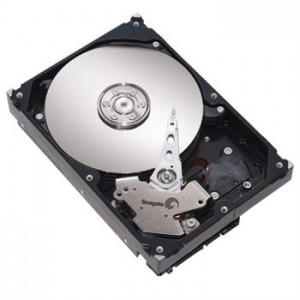
If you just need a plain 'old' (not literally) regular hard drive (the kind with moving parts), you can still get them- they're just more expensive. About two years ago, give or take, I got a 2TB 3.5 inch bare hard drive for about $70 on Amazon. That same drive today costs $120. You can see the issue of pricing I mentioned earlier. However, when all is taken into consideration, that is not too bad. Storage is still cheap, relatively speaking. For $60 more, you can get a 3TB drive. However, you are better off getting a 3TB Seagate GoFlex for $150 (I'll cover that more later). If you really need the hard drive bare, you can just take it out of its casing, if you're comfortable with that. The same goes for 4TB hard drives that are now out too, but have yet to come down in price at $300 a pop for a bare drive. You are better off getting the Seagate GoFlex version of that, too, for only $230. In these cases, you get the GoFlex drive enclosure included, as it's already set to go, of course.
For the bare drives at these prices, you'll undoubtedly need a hard drive enclosure. Those can be found easily online, but I'd be conscious of the kind you get. Sure, you can get some for less than $10. But keep in mind your needs in terms of connections, speed, and expandability or flexibility with different connections in the future. We'll talk about other options such as the Drobo system later, but if you're not up for putting a hard drive into an enclosure (this usually only requires unscrewing and re-screwing four screws together....anyone can do it with ease), then you're better off with a desktop drive.
2TB Western Digital Caviar Green for $120
3TB Western Digital Caviar Green Bare Drive for $185
3TB Seagate GoFlex for $150
(Western Digital has great prices on some hard drives, too. And they're a trusted brand. But they don't offer a system like Seagate's GoFlex, so I've left them out.)
Backup:
While it's not as common as losing a sock, hard drives don't exactly have the same record the airlines do, either. Some day, one will die on you (then again, some people never get in a car accident...but I still hope they get insurance). Any of the above drives will work just fine for backup. But depending on how much space you need to back up your system, you might want some other solutions. So assuming you need more than a single hard drive like a Seagate GoFlex or that you might want some automation, here are a few interesting options.
 Drobo: About $300/$500/$600...And Beyond
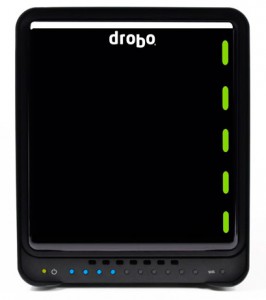
This one comes first for a few reasons. First, they are excellent. And second, I use one (as do Lee, Patrick, and countless other world-renowned geniuses). A Drobo can come in a variety of ways, but essentially, it holds four or more hard drives (depending on the model) and automatically creates redundancies based on your configuration and set preferences. The best part, though: it is the single most efficient backup drive -- period -- and here is why.
I would never have just one backup of my work. As unlikely as two sets of hard drives failing at the same time might be, it's one step away from the rather likely possibility of one failing. And why take my chances? The Drobo automagically (yes, automatically magically) backs up its own data so that you can lose one or more hard drives (depending on your settings and storage needs) and still have a complete copy of your backed up data. But that's not the brilliant part. You'd normally imagine that to do this, you would lose half of your data since the Drobo backs up itself (double the data). However, assuming you only need redundancy for one failed drive at a time (what's the likelihood that your computer hard drive will fail at the same time as two drives in your Drobo? Virtually zero), you only 'lose' the amount of data that the largest hard drive in the system can hold. So, for example, if you have four 2TB hard drives in your basic Drobo model, filling all available slots, you will have 6TB of actual data backup storage (not 4TB)! If you only have two slots filled with 2TB hard drives, you will only have 2TB of actual storage, which is half. But then you haven't used the full capacity of the Drobo anyway. In this sense, it does help to have four same-size hard drives, as upgrading your system of four 2TB hard drives by swapping just one out with a 3TB drive won't gain you any storage space, since you 'lose' the largest hard drive to redundancy. But it's a great system if you use it the right way. Even in the least beneficial scenario, you're in the same position you'd be in had you gone a different route. So it's really great even if you think it's something you'll only really take advantage of in the future.
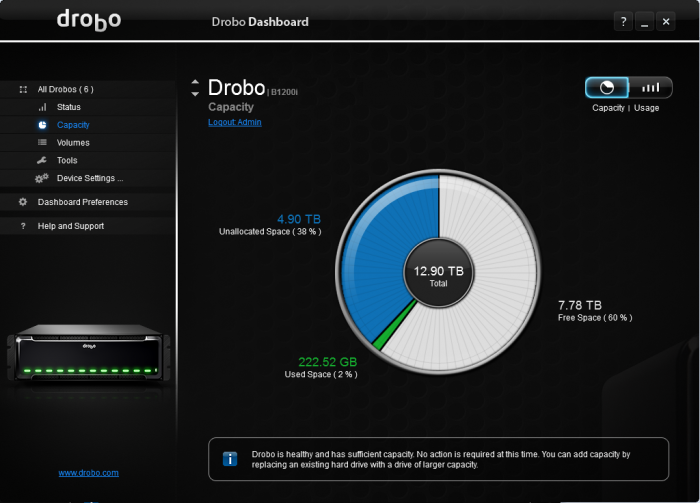
What's more: assume one of those four drives does go bad. All you do is go online or to the store, buy another drive of equal or more capacity, and swap them out. They're hot swappable: they literally just plug in and plug out, even when everything is on (but I recommend you make sure your computer isn't using the drive before you make a switch). As soon as you plug the new one in, Drobo automatically works for the next hour or few hours (depending on the amount of data you have) to repopulate the drive with the same information that was on the dead one you just took out. And voila! You're back in business. But wait a minute...you were never out of business. That's the beauty of Drobo.
The Drobo comes in a basic 4-bay version, a 5-bay version that you can add networking capabilities to, and various 8-bay and 16-bay monsters for small businesses or intensive media backup for those who need them. They all feature the same, great, top-secret functionality and great warranties. It is not the fastest hard drive system, but who needs crazy-expensive speed for a backup? Head to their website for more info -- you won't regret it.
 Apple Time Capsule: About $300/$500
If you have a Mac and don't care about pricing, get one of these. It will serve as one of the best wireless routers you can get and will let you wirelessly back up your data to the internal hard drive. If you need more space, just plug an additional hard drive into the back. You'll never even have to think about your backup again. No plugging in once a day. No pressing 'back up.' When you connect to your network every morning, afternoon, evening -- during your midnight snack -- you'll be automatically backed up.
That said, if you do care about money, get a wireless router that you can plug hard drives into and call it a day. Most routers these days allow for this, and while you'll likely have to deal with the occasional plugging in and unplugging of the router to reset it when it hangs (something that I've actually never had happen with an Apple router and always have happen with other routers), it may be a small price to pay for the extra dough you'll save. But it's up to you. You can even plug a normal or networked Drobo into these routers with an Ethernet cable (or USB, even), if your router supports it. Get the best of both worlds and plug your Drobo into a Time Capsule. I wish I had that setup.
Other options:
I feel it's my duty to inform you of other options, such as the Seagate BlackArmor systems
Speed Freaks:
So you want speed. You don't want to wait for Lightroom to load your preview or for Photoshop to apply your brushes. You want to show those shnazzy D800 files who's boss, and you probably want be able to edit RED footage in a breeze just to know you can (even if you probably won't for at least five years). Assuming you have enough RAM (8-16GB should do the trick for large photos, and you won't need as much for smaller photos), you'll need to pair your great system with some fast drive solutions (not necessarily fast hard drives...).
G-Tech is a Hitachi company that's known for its offering of extremely high-end hard drive solutions for professional applications. If you're like me, professional sounds a lot like personal. While I haven't used these drives myself, they have proven themselves time and time again. As we have covered before, Chase Jarvis uses these exclusively to run his massive workflow that's either crazy or awesome -- I'm still not sure.
2TB G-RAID for $280
4TB G-RAID for $375
6TB G-RAID for $585


Thunderbolt:
It's all the rage, now, isn't it? Everyone seems to want a Thunderbolt system. I agree with them, to some extent. It's a great standard. Some may think it's limited to Macs, but PCs are now starting to include Thunderbolt and more adapters are on the way. So what's the best route, now that we have these neat little ports?
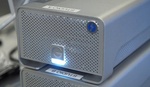
LaCie is equally synonymous with high quality and speed. They are one of the few manufacturers that currently offers Thunderbolt solutions that take advantage of the new connection speeds with RAID drives, meaning there are two hard drives in each enclosure running in RAID 0, which splits data between the two drives. While this is terrible for backup (if you lose one drive, you lose it all), it is excellent for the speed of live work and provides a great way to get a ton of performance from ordinary hard drives. If you need even more speed, there are solid-state hard drive options as well that come in similar enclosures. But don't think that won't come at a cost, especially given the premium you're already paying for Thunderbolt. Also often thought of as only being for Macs because of its support for Firewire 800 (FW800) in many of its products, as with G-Tech, you can use these drives with any system with a simple reformatting. If your PC has an ExpressCard slot, you can even get an adapter to accept FW800 and still get all the speed out of LaCie's other drives that a Mac user could. Of course, PC users have USB 3.0, now, which LaCie also supports. But that talk comes later.
 What you might want to consider as well is the recently announced LaCie eSata to Thunderbolt adapter. This allows you to use those older drives with the still-fast eSata connection and connect them to your Thunderbolt setup. Pictured left, the eSata hub is a neat little device that gives a meaning to the life of some of those hard drives that might be gathering dust.
LaCie Little Big Disk Thunderbolt Models (semi-portable)
LaCie 2big Thunderbolt Models (Desktop hard drives)
 Western Digital is another trusted company, much akin to Seagate. While they don't offer systems like the GoFlex drives, they're offerings are more similar to LaCie's, but come at a better price-point.
4TB Western Digital Thunderbolt Duo
6TB Western Digital Thunderbolt Duo
Promise Thunderbolt solutions
 Solid-State Hard Drives:
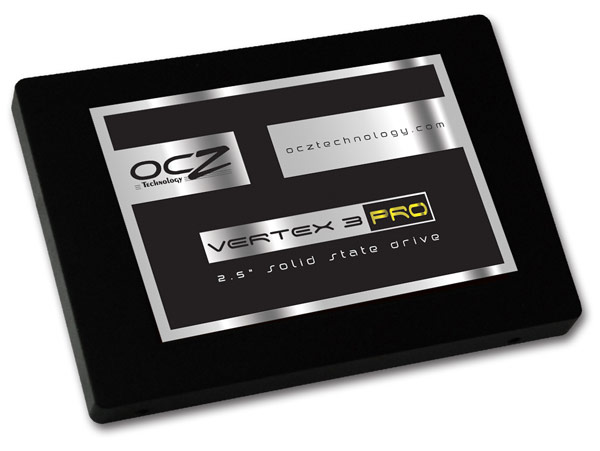
Thunderbolt is to USB as solid-state is to the traditional hard drive: fast and expensive. But for a small, portable drive to hold your live work, it is likely worth it. And there's only so much a single hard drive can do in terms of speed. Both OWC and OCZ are seen as leaders in the business of high-performance solid-state drives. Yes, Intel and other companies have great offerings, too, that you might want to check out, but if you want the best possible performance for the best possible price, these are a good start.
One thing to keep in the back of your mind is that solid-state drives are known as having some peculiar issues. This includes an issue of 'getting old' and 'bogged down' if data isn't erased properly in the background. While most drives support some form of this these days, be sure to look for solid-state drives that have TRIM support. With OCZ and OWC Mercury drives, you don't need to worry -- it's all taken care of.
Another thing to be weary of is whether your system is compatible with 3Gbit/s (3G) or 6Gbit/s (6G) drives. There's a difference, and you should always get the drive that works for your system. You'll hear that 6G drives are backwards compatible, which is true, but you won't get the same performance as you would out of an optimized 3G drive if your system only accepts that, so pay attention. Take a look at OWC's website for more information on them, too, as they have good comparisons between their technology and their competitors' tech. Yes, OWC is for Macs, but the same applies to the rest of the field.
Finally, you are paying a premium for speed. Be sure to look for read and write speeds of the hard drive you're looking to get. Some will have great read speeds and terrible write speeds. Don't be surprised if the write speed is half of the read speed, however, as read is easier and always more important, as it's what you're computer is doing 90% of the time. 'We' only write in small, short bursts in day-to-day use, generally speaking (unless we're constantly transferring large amounts of data). Below is a shortcut to some of the fastest and highest-end products you can get in this field. I've also included general links so you can find whatever you need to suit your needs.
OCZ Vertex 3 Drives
OWC Solid State Drives
Daisy-Chaining:
You don't need a solid-state hard drive to take advantage of the faster FW800 and Thunderbolt speeds. Both allow for daisy-chaining, which means you can hook one drive up to the next, and then another, and another, creating a line of drives all the way back to your computer (sorry USB, none for you). This means that you can connect all sorts of drives and still maintain transfer at their highest speeds. However, you won't really see a huge jump unless you get an external enclosure that allows for RAID 0, which is another option for you speed demons.
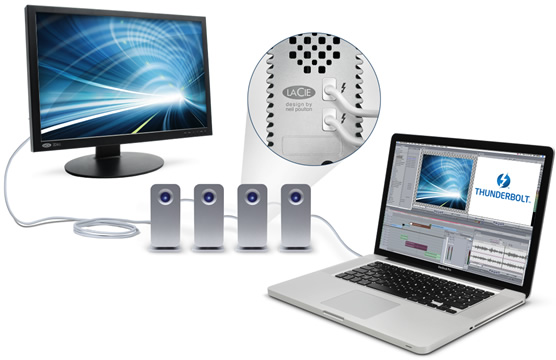
RAID 0:
As I have said before, RAID 0 is terrible for backup, but it sure helps speed. Aside from getting some of those drives we discussed earlier (the G-RAID, LaCie, WD, and Promise systems), you can get your own bare drives and put them into any number of various enclosures. Sans Digital's TowerSTOR enclosures
This ProBox 4-Bay enclosure
You can find plenty of other items that will serve your needs with a simple Google search as well, though.
Flexibility:
Thinking about future connections is smart and will always save you time and money in the end. And thinking about your past connections can help too. First though, here's an overview of the most popular connections:
 USB 2.0 (480Mb/s): If you're still on this for live work, I feel a little bad for you. These days, there are plenty of other cheap, perfectly good options that are faster than this.
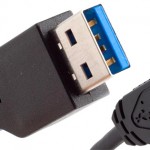 USB 3.0 (4.8Gb/s): Looks can be deceiving. This connection is quite speedy. However, you can't use it on a Mac without an adapter, and unfortunately there is no option for daisy-chaining. Still, USB 3.0 can take full advantage of the speed of today's solid-state drives.
 Firewire 800 (800Mb/s): This is Apple's brainchild. No, it's not prevalent everywhere quite yet. But until Thunderbolt, it was the only thing you could daisy-chain reasonably. It's still rather fast, but don't expect +100Mb/s transfer rates.
 eSATA (3.2Gb/s): It's fast, that's for certain. It's a little forgotten about, but a lot of your hard drives (the desktop drives that is) have these connections.
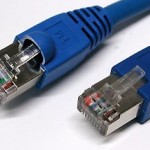 Gigabit Ethernet (1Gb/s): It's not the fastest in the world, but gigabit ethernet is so cheap it's a shame we neglect to remember it. There is plenty of speed in there, and it is perfect for connecting to our wireless routers so we can stick drives with these ports in the closet. Let me put it this way: there is a reason we still have it on our laptops...
 Thunderbolt (10Gb/s): Of course, this is the holy grail of connections. It's small, powerful, and daisy-chainable! Even if expensive, the future for this connection is virtually limitless. Fiberoptic cabling will increase the speed of these cables and is promised to be backwards compatible when it does come out. If you have a Thunderbolt port, use it. With the right adapters, you can connect any of these other connections through it.
If you're interested in all of this, you likely have old hard drives that you don't use much anymore either. But if they're not ridiculously small, finding a way to daisy-chain them and/or connect them to your network can save you money in the end. Perhaps they can still serve as last-resort backup storage.
Either way, new adapters are the key and Seagate is at the forefront with that. Their relatively new GoFlex drives (made in both portable and desktop versions) are brilliant. They have a second connection that allows for Seagate to create new adapters through which you can connect your hard drive when new standards come out. For example, now that USB 3.0 is out, you can get a USB 3.0 cable for your hard drive. Switching to a Mac? You can get a Firewire 800 cable for the same hard drive so that you don't have to buy a new one. Or, with a little more money, you can get yourself a -- you guessed it -- Thunderbolt adapter! It is a brilliant idea that's future-proof (as far ahead as I can see).
Seagate GoFlex Desk Models
Seagate GoFlex Portable Models
GoFlex Portable Thunderbolt Adapter
(The GoFlex Desk Thunderbolt Adapter is on its way, still, but will be able to accept any SATA hard drive that you'd want to put on it)

*All of the links in this are to Amazon, and there's a good reason: they consistently have some of the best prices (or within a buck or two) for hard drives. After free shipping and no tax in most states, how can you go wrong? Their customer service is great too.
Conclusion:
Hard drives are a paradox: you can find them quite cheap and then you can just as easily run across some that can break the bank. They can fail, and they can last for decades. But either way, unless we're hoarders we don't want to waste our money having these things laying around the house. Some of them may even have sensitive data on them. My advice is to examine your needs, add extra room and speed for the future of technology (50% over your needs might sound like a lot, but it will go faster than you think), and remember to buy smart storage solutions that are expandable, daisy-chainable (it's a form of expansion), or some kind of future-proof. You'll save yourself a lot in the end...and I don't just mean headaches.
***Update:
Off-Site Backup:
While we're concerned, here, with what to get to make sure you can do things efficiently and that you're backed up at home, you're never really backed up if you're backed up just at home. If you have a fire, a burglary, or if Nessie comes for a visit (as might happen to Chase Jarvis), you're S.O.L. without some kind of offsite backup. While I keep a giant hard drive somewhere safe and in another part of the state, that might not be enough. We should all consider online storage options. Such options include services that Lee and Patrick have advocated before, such as Mozy and Carbonite.
Additionally, if you have a friend with a computer he or she never uses or even one of your own that you couldn't pay someone to take from you, but that still runs, consider placing it offsite somewhere and connecting some hard drives to it. If you connect it to the internet and leave it there, on, forever...you can use programs similar to Tappin to make those drives 'reachable' by your computer at home. This could keep you from having to pay for online storage -- not bad.


I would be very wary of DROBO. I've been reading a lot of horror stories about them.
<a href="http://www.briancarlsonphoto.com/blog" rel="nofollow">Blog</a>
<a href="http://www.facebook.com/briancarlsonphoto" rel="nofollow">Facebook</a>
<a href="http://www.twitter.com/bcarlsonphoto" rel="nofollow">Twitter</a>
I've heard this as well but I love mine.
I have Drobo 4bay, and i tend to have problems from time to time with the autobackups not running and not letting me edit or even delete them to recreate them.
The main problem with Drobo is that you are SOL if the entire unit goes down, or even if you just want to recover data off a single hard drive. Unlike a simple RAID 1 system, you never know where ALL your data is on a Drobo. Drobo forfeits a considerable safety option (HDD recover-ability) in favor of greater capacity and beginner-friendliness. Bottom line- Even Drobo themselves acknowledge that it is EXTREMELY difficult to recover data off of a failed Drobo.
Whereas oppositely, a RAID 1 system always stores ALL your data on each drive, and in a format that can be easily read by any other docking station or external enclosure.
So while Drobo users are adding more and more capacity to their singular on-site device, putting a greater and greater amount of data at loss-risk caused by ANYTHING other than a single HDD failure, ...a RAID 1 user simply fills up their drives, then when the drives are full you just pull them out, pop them into cheap external enclosures for long-term access, ...and pop in two new HDD's. Because honestly, do you really need to have 8-16 TB of data at you fingertips? I can't remember the last time I said "dang, if only I didn't have to spend an extra 60 seconds to plug in my HDD with my 2004 photos, that'd be great!"
RAID 1 systems even offer you an on-going off-site backup option, again because of their identical mirroring function. Simply put- Buy a third drive, and any time your RAID 1 device is at idle, pull out one of the drives and presto, you have your off-site backup! Pop in the third drive, let it do it's duplication thing overnight, and you're good to go.
That's just my opinion. I wish I could highly recommend the Drobo as it is a brilliant concept, however the hardcore professional in me can't get past those shortcomings and risks. I prefer to recommend simple RAID 1 solutions. They may not be as sexy and as popular as the Drobo, but they're a proven workhorse for both on-site backup, off-site backup, and long-term safety.
Just two cents from a highly opinionated camera geek!
Agreed. I just buy drives and put them in a Wiebe Tech inclosure. When Thunderbolt becomes more available I'll move to a RAID.
Agreed as former IT professional, I can vouch that no photographer should ever consider a drobo as a reasonable back-up solution. Same thing goes for Time machine, but that's due to its limited capacity and capabilities.
NASs are also kinda silly, some work as advertised, others have no real recovery plan and can be a real pain to recover lost data. Seriously just build a server. It's easy, affordable, expandable, and more reliable than any other solutions. Trust me.
Also as far as external drives go, stay far far away from drives with their own enclosures, especially the seagate/maxtor/wd/etc branded enclosures. Also I know Lacie drives are super popular with photogs (mostly for their looks I believe) but they friggin suck. Believe I see return/rma stats for several very large electronics retailers..
Im all about G-drives... good stuff. Super pricey, but worth every penny..
1) Any time you talk about "backup" you should talk about off site backup. If your life's work only exists in one place and that place burns down or is robbed, too bad. Its one thing if we're talking about duplicating thousands of prints or slides - that may be prohibitively expensive. However, it is the 21st Century and today you can probably back up your life's work, and your entire family video and photo archive, for less than $200 more than your "on site" backup. I use an external eSATA dock:
http://www.newegg.com/Product/Product.aspx?Item=N82E16817153112
And a free sync program:
http://www.2brightsparks.com/download-syncback.html
I have three drives I use in that dock.
Drive 1 - Never moves
Drive 2 and 3 - One is always off site.
I store my work to Drive One (it always stays in the dock). I sync to drive Drive One to Drive 2 or 3. I swap 2 out for 3 or vice versa, on a 4-6 week basis and one of them is always at a friend's house. If I lose anything in that interval chances are very good full resolution JPGs are still up on Smugmug (where my clients buy prints).
Personally, I still have plenty of room using 2TB drives. 4TB drives will buy me enough runway on this system to get me to the next seachange in the industry.
If 4TB isn't enough for you you probably have already developed your own superior solution :)
If you don't need to backup your entire RAW collection and don't have a digital family archive to worry about then you're probably fine with Crash Plan, Amazon S3, Flickr or some other commercial online backup service.
2) Raid 0 with two lesser drives essentially always benchmarks less efficient than spending the same amount (or less) on one faster drive. I've tried it a few times over the years and read A LOT Of benchmark and tweaking data over the years - the only time I've ever seen it make sense is if money is no object and you are willing to pay a sick premium for a tiny increase in speed and even then only some of the time (sometimes its actually slower than one drive).
If you really want to know how to backup your files and know you're secure check out 'The DAM Book' by Peter Krogh. You can also check out dpbestflow.org to get a hint of what he is talking about. It's the most foolproof method of backing up your work. I've been slowly implementing it over the last few months and can walk away from my computer knowing everything would be fine fine if my house were to blow up.
Great setup you have there. I will try out the sync program you have, may solve the issues I'm having with mine. Thanks.
Quality article, great job! I learned a lot!
It should also be noted that USB never sees anywhere near the max theoretical speeds listed. Firewire has far more consistent and sustained read/write speeds. So while USB 2/3 are listed as 480mb/4.8gb per second respectively, you're much better off with Firewire 800 if you're doing *anything* other than using the external drive purely for backup... and even then you'll see quicker backups with the Firewire.
wow, killer article! You touched on everything and more
it took me forever to figure out my hard drives and how i wanted to store stuff, etc...basically i settled on this:
2 Glyph 1tb FW 800 drives
Drive A is the one i work on daily, store photos on, libraries, business related stuff...
Drive B is cloned daily from drive A, so it's a complete duplicate in case Drive A goes down...
I run a USB 1.5 tb segate drive as a time machine drive, that backs up the system drive, Glyph drive A.....so i have a real time, dated backup, as well as a scheduled clone every night...
I used to run the glyphs in raid 1 (mirrored), but i decided to do a daily clone instead, b/c with a RAID mirror array, all the drives are always being written to...where as, if my Glyph drive B is only seeing a FRACTION of the use of drive A, so (in theory) it should out last drive A....
Glyphs are amazing btw....no wall wart, USB, FW 800, 400, and eSATA connections, and they're bullet proof...their warranty is sick...1 year advance replacement, 2 years replacement, and 3 years data recovery....
Great job - I'm constantly running out of space and really need to develop a large - long time solution. Currently 19.5 TB (not counting drives for OS and apps 3TB) and not enough but holding for now. Thanks for the article!!
The lacie I had a few years ago was the worse buy ive ever made... they get super hot, came with maxtor drives (that failed 3 times) had to send them back to maxtor to get new ones and yeah they worked for a few weeks but then failed again..
Instead of Drobo I would use Netgear Readynas Ultra 4+ or Ultra6+
Much cheaper and has all the bells and whistles the drobo has..
Its network interfaced and with the right ie(gigabit ethernet/jumbo packet on) setup you can have atleast 80Mb/s throughput.
It has all the raid capabilites + Netgears very own Xraid2 which makes drives even hot-swappable if they fail during on hours, just change the drive and voila the thing is till access-able while it re-raids the new drive.
http://www.readynas.com/
+1 to drobo sucking big harddrive balls. I have 2 - 4bay + 5 bay and been nothing but problems. Actually just pulling the pin and buying the promise 8TB thunderbolt raid now. Heloooooo speed. (my drobos only work as usb2 on my systems, even though the droboS has triple interface and the drobo 2nd gen has 2).
and if you ever get to filling a drobo up it slows down impossibly its not really usable.
Always remember that it's not a question of "if" a hard drive will fail, but "when". On a long enough timeline they will all fail. Redundancy and separation should be your mantra.
That said, and take this with the appropriate grains of salt, all the hard drives that I've ever had fail (about 6 in fifteen years) were all Western Digital. After the second one we stopped buying them and only bought Seagates and Hitachis. YMMV.