Premiere Pro can now bleep out swear words on its own, and that's just the first of several tools buried in the software that most editors have never touched. If you've been cutting video for years, some of these will still catch you off guard.
Kelsey Brannan walks through a handful of overlooked Premiere features in a clear, hands-on run, and the swear-word censoring alone is worth the price of admission. Inside the Text panel, Premiere already builds a transcript that shows profanity. You add words to a censored list, then apply an effect: a bleep, a mute, a dog bark, a toy horn, a duck quack, or your own custom sound. Brannan even suggests asking an AI tool for a full list of swear words and importing it rather than typing each one by hand. For anyone editing reality TV or fast-turnaround social clips, this cuts a tedious job down to a few clicks.
The Search panel is the one Brannan calls the most underrated in the whole program, and it's easy to see why. Once you enable "analyze all imported media" under media analysis and transcription in settings, Premiere scans your footage in the background using media intelligence. From there you type plain descriptions like "woman by beach," "skateboard," or "sad," and it surfaces matching clips without any manual tagging. It reads the visuals themselves, not the file names or metadata. It searches audio too, so a keyword can pull a specific line from an interview or find a track like "sad piano." For editors sitting on folders of stock footage, this turns a slow hunt into a quick query.
Two of these features lean on generative AI. Generative Extend predicts and creates new frames at the end or start of a clip, giving you up to two seconds of extra room so a transition like a light leak has enough media to sit exactly where you want it, instead of forcing repeated frames and stutter. This lands as Adobe and its competitors race to bake generative tools directly into editing timelines rather than leaving them in separate apps. The practical takeaway: you no longer roll a clip inward and compromise your cut just to fit a transition. You extend the tail, drop the effect, and keep the edit exactly where you intended. Knowing where these AI helpers fit, and where a hand-cut trim still beats them, is becoming a core editing skill rather than a novelty. Worth noting, the transitions Brannan uses were formerly part of Film Impact and now ship inside the latest version of Premiere.
The math trick in the properties panel is the kind of thing that saves real time once you know it. Instead of dragging a value and guessing, you click a position or scale field and type an operation directly. Enter "+300" to move a logo 300 pixels right, "-300" to go left, "/2" to halve the scale, or "*2" when a client wants something twice as big. Scene Edit Detection is another quiet workhorse. Feed it a fully exported video with no project files, right-click, and it drops cuts at every detected edit point and can build a bin of subclips. Brannan also points out the audio solo button, the little "S" she admits she ignored for half her career, which plays back a single track so you can check whether your music sits around -8 to -25 dB and your dialogue near -6 to -12 dB.
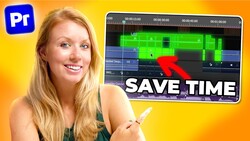
Rounding things out, Simplify Sequence cleans up a messy timeline by closing vertical gaps and stripping empty, disabled, or muted tracks, and it can remove graphics and transitions on a duplicated sequence before you hand off to a colorist. Hit play on the video above to watch Brannan demonstrate every one of these tools in real edits.



Join the Fstoppers community for free
-
Post comments and join in the discussions
-
Browse the site ad-free
-
Share your work and get featured in the community
-
Compete in the photo contests for fun and prizes
No comments yet