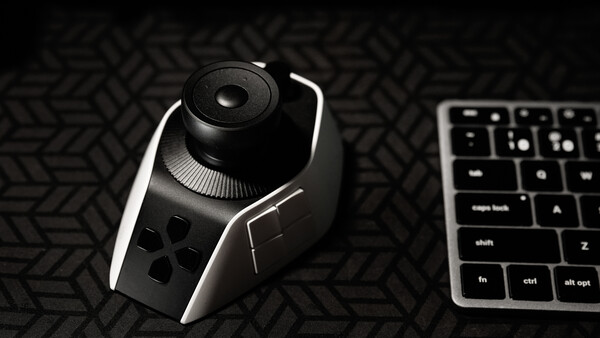
Imagine your editing workflow being enhanced by something that resembles the controllers you once played video games with. That, plus customizable efficiency, is what this editing console offers.
Editing consoles, while they exist in so many different shapes and sizes, have one primary goal and that is to make the editing process more efficient, seamless, and comfortable to the user. They exist in the form of modified mini-keyboards, remotes with screens, and even fully dedicated panels for specific editing softwares. XP-pen’s new Pilot Pro editing console however, takes the form of a joy stick accompanied by an array of buttons and dials made to be used with just one hand.
The XP-Pen Pilot Pro Editing Console
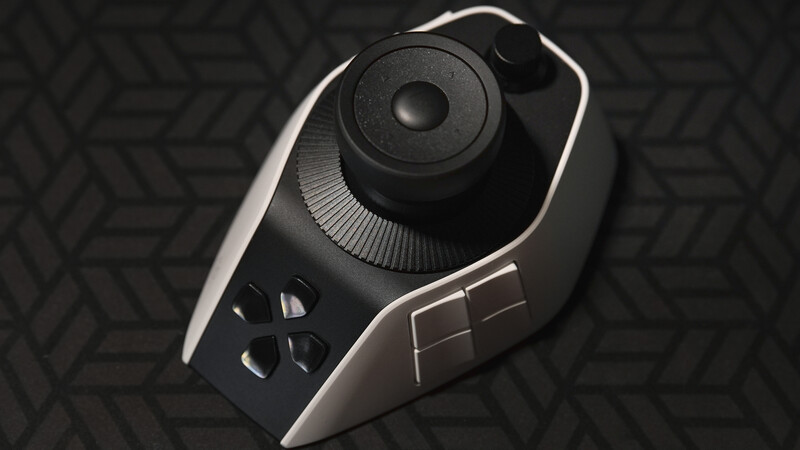
The XP-Pen Pilot Pro comes in a uniquely shaped tool that closely resembles a futuristic-looking mouse with a joystick on top of it. The device comes as a 130 x 92.5 x 66.9 mm asymmetrical hexagon (with all corners curved) that weighs 251 grams. It comes with a large protruding joystick position right smack in the middle with both the base and the top surfaces serving as independently customizable dials. At the very core of the joystick is a button that by default acts as look-up shortcut for all set functions, and above the whole joystick module is a small knob that offers additional shortcuts. The three dials/knobs are accompanied by a vibrating mechanism on the base that provides adjustable haptic feedback.
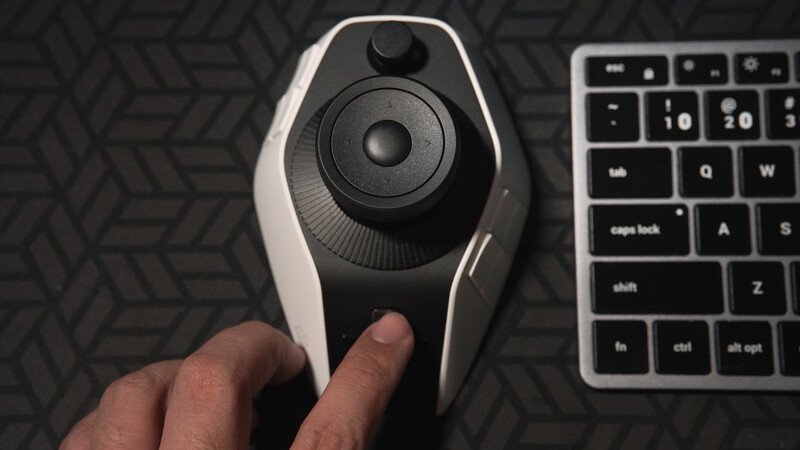
Below the joystick are four customizable directional buttons that are by default for directional adjustments but can also be configured to perform independent functions. To the lower right of the joystick is a set of four customizable buttons that were strategically placed to be used with the thumb, while on the opposite side is another set of four buttons that were placed to be used with the first three digits of the left hand.
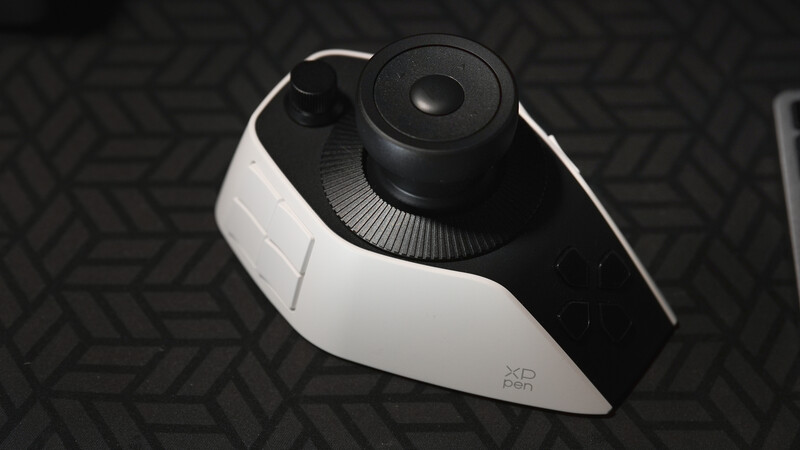
It is noticeable that the design intention was primarily for right handed users who would have their dominant hand on either the mouse or a pen (on a tablet). Though technically the console can be inverted to be used with the right hand, it doesn’t seem to be as ergonomically designed.
On the topmost part is a single USB-C port and a tiny indicator light. On the bottom surface is a power switch as well as a button for switching between two paired devices.
Compatibility and Connectivity
The Pilot Pro has three connectivity options. First is a straightforward wired connection with a USB-C cable that can be used while charging the device’s 1,900 mAh battery in preparation for the other two options. The second is a Bluetooth connection with an optional Bluetooth receiver, and the third is a direct Bluetooth 5.4 wireless connection to any Bluetooth-enabled device.
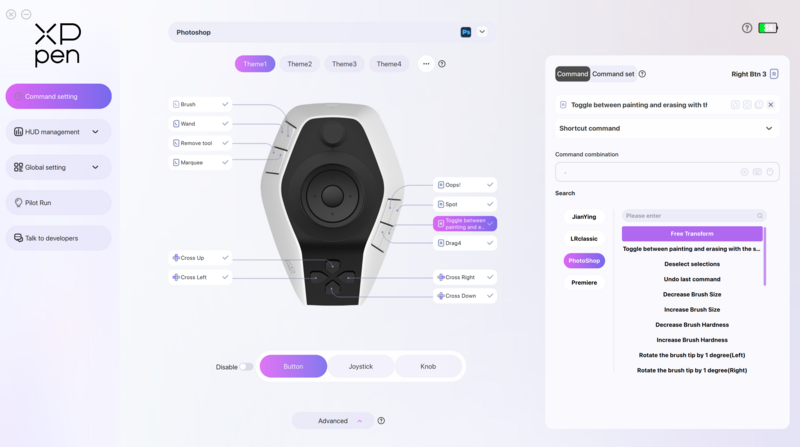
The Pilot Pro is compatible with any computer operating on Windows 10 onwards or macOS 11.0 or later versions. The editing console has optimized compatibility and built-in presets for the most popular photo and video editing apps such as Adobe Lightroom, Adobe Photoshop, Premiere Pro, and DaVinci Resolve. Of course it is also compatible with other editing apps such as CapCut, Final Cut Pro, and technically any other app that has dedicated keyboard shortcuts.
Setting Up
Getting the Pilot Pro connected to your computer is as easy as setting up a bluetooth keyboard or mouse. It can be done using a USB-C cable or by pairing as a bluetooth device. The biggest difference though is that unlike a keyboard, you will have to configure each button, dial, and joystick to specific commands and actions on each app that you’d like to use it on.
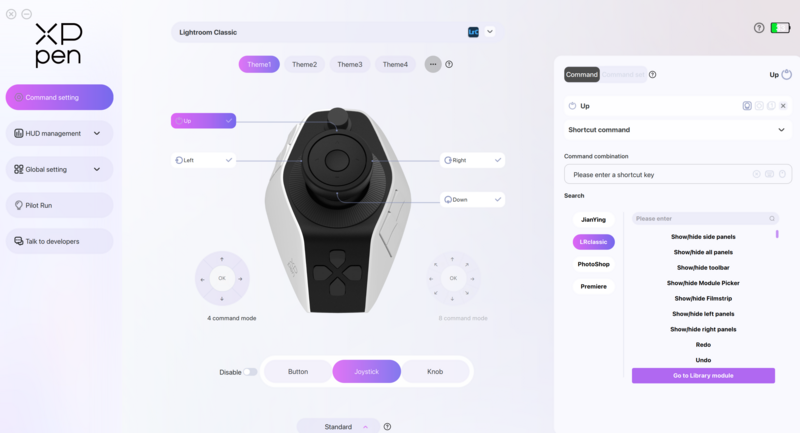
However you don’t really need to start from scratch. Along with the downloadable driver comes certain presets for apps like Adobe Lightroom Classic, Adobe Photoshop, Premiere Pro, and DaVinci Resolve. You can use these presets as the kick-off point for setting up then later on modify each button to what suits your workflow better.
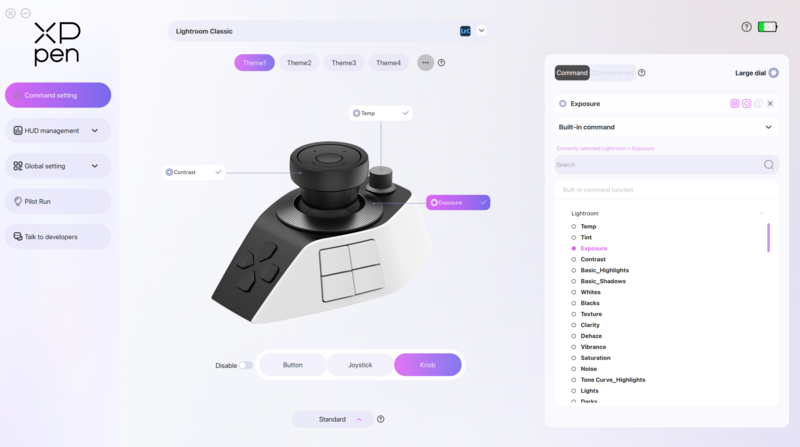
Regardless, each of the buttons, dials, and the joystick are fully customizable for most of the available controls and actions on your preferred editing apps. They can also be used generally in the computer’s OS regardless of the app being used which makes it generally functional for anything, probably even video games. The driver can also be set to automatically detect what app is being used so that it can switch to the dedicated functions.
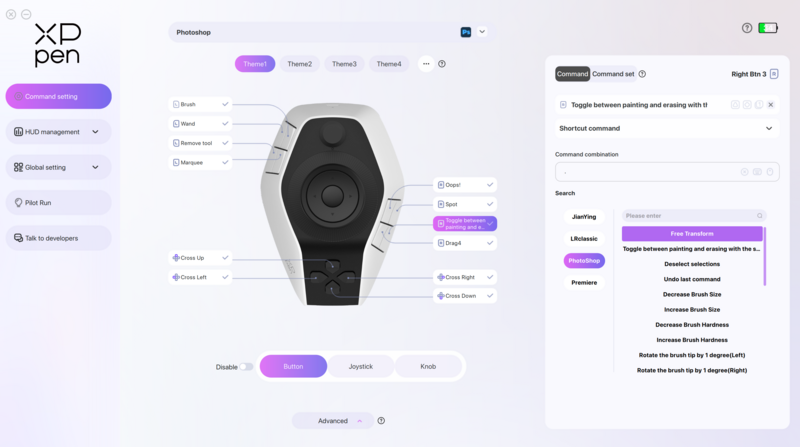
The 12 buttons can be assigned to a specific keyboard shortcut that leads to a tool or action, the knobs and dials can be configured for brush size, zoom, opacity, and on Adobe Lightroom, even specific sliders. The joystick can be used for directional adjustments as well as a physical control for color grading wheels on photo and/or video editing apps. Along with these functions, the user can adjust the scroll speed of each knob and even the intensity of the haptic feedback for each one.
User Experience and Application
Using the Pilot Pro for editing depends highly on the extent that the user utilizes features and tools on each app. For example, I consider myself as someone who uses tools on Adobe Lightroom and Photoshop more that most users, which is why each of the buttons and control functions of the Pilot Pro were assigned and used. On the other hand, my usage of video editing tools such as DaVinci Resolve is admittedly limited to basic functions which is why I would say that I didn’t quite maximize the editing console for that. Regardless, the abundance of buttons and dials makes room for a lot of workflow optimization for an advanced user.
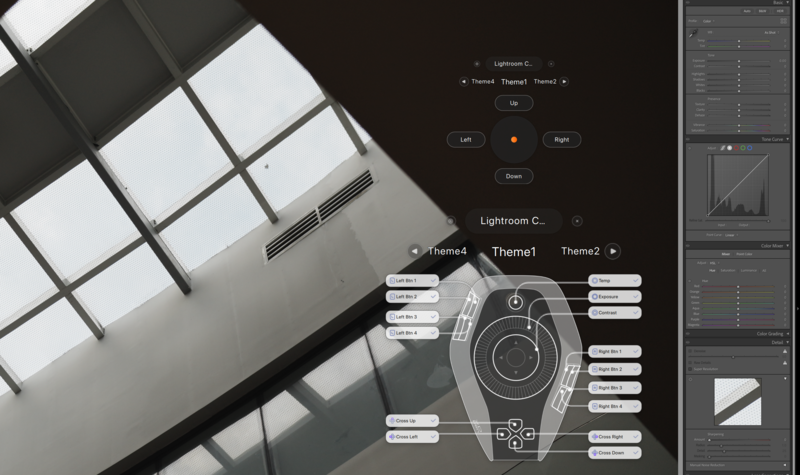
The XP-Pen Pilot Pro stands out the most among other editing consoles and shortcut remotes because of the unique button placement, the multi-modal joy stick, and the multiple dials that come with it. This translates to ergonomics that are not like other editing tools in the market as of now. The entire device was designed to be operated with just one hand without having to move around so much. The buttons were laid out so that each one would be within reach of any of the fingers, including the joystick and the dials. Perhaps the only limitation would be the fact that it was fit to be used with the left hand even though some users might prefer using this with the other hand regardless of whether they are right or left hand dominant.
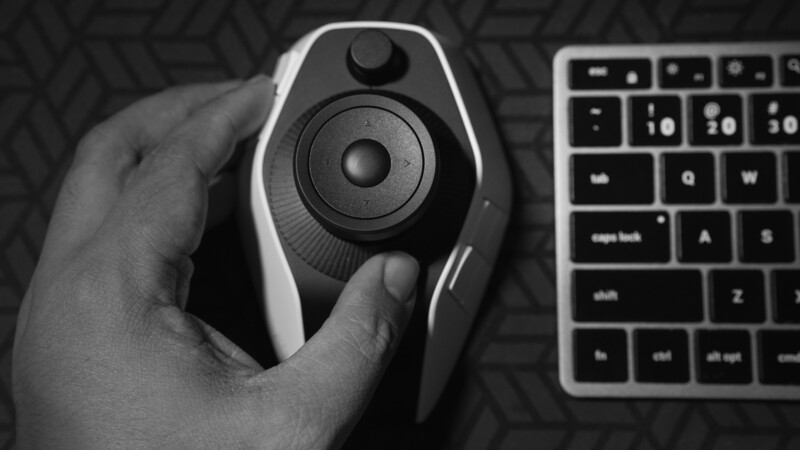
All things considered, this is definitely the most uniquely designed editing console we’ve seen and that translates to the extent of how can can be maximized by an advanced user. While the XP-Pen Pilot Pro resembles a video game controller, it can definitely be a helpful tool for serious creative work.
What I Liked
- Unique ergonomic design
- Full compatibility with app-specific functions
- Dials with haptic feedback
What Can Be Improved:
- More visible indicator light
- Possibly make the buttons of different shapes to for easier identification



Join the Fstoppers community for free
-
Post comments and join in the discussions
-
Browse the site ad-free
-
Share your work and get featured in the community
-
Compete in the photo contests for fun and prizes
1 Comment
Will it work with Avid?