The way you set up your Lightroom Classic catalog decides how fast you can find a shoot from two years ago and how much work your next backup will be. Most people make that call in their first month with the software, long before they have enough photos to see how it plays out.
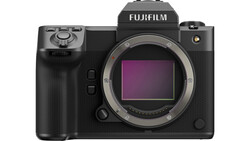
A lot of the advice out there says to make one catalog per session so a corrupted file can't take everything down with it. John Branch IV, who has shot weddings for about 12 years, doesn't care for that approach, and he walks through it alongside the two other common setups: one catalog per session type and one catalog per year. The per-type method gives portraits, families, and weddings their own catalogs. It's tidier than per-session, but you still end up in the File menu switching catalogs over and over. Branch runs one catalog per year, and he notes you could split that into quarters if a year gets heavy. His main kit feeds a lot of data into that system: a Fujifilm X-T5, a Fujifilm GFX100 II, and a Fujifilm GFX100RF, with the medium format files pushing a single wedding close to 500 GB.
The yearly catalogs live on his computer in a Lightroom folder, sorted by year, while the raw files sit on an external drive. Catalog files stay fairly small, so keeping the current year local costs little space. Older years can go to a NAS or backup drives once you're done with them. On the external drive, his folders run from raw imports to year to session type to the individual couple, and that structure matches what he sees in Lightroom's Folders panel. He doesn't bother splitting further by month. A few exceptions get their own catalogs, including work under NDA, where prerelease gear information has to stay locked down. With everything else in one place, you can also run the catalog through a free online dashboard and see how many frames you shot that year, which lens you used most, and which aperture you keep coming back to.
A single yearly catalog pairs well with the 3-2-1 backup rule: three copies of your data, on at least two kinds of storage, with one copy kept off-site. Branch's habit of backing up his catalogs to a NAS and external drives lines up with it. Lightroom Classic has its own backup prompt that runs when you quit the app, and it copies only the catalog file. Your raw files aren't part of it at all, so they need their own plan, whether that's a second drive, a NAS, a cloud service, or all three. File sizes keep growing, too. A 100-megapixel raw file from the GFX100 II is several times larger than what a 24-megapixel camera produced a decade ago, and even recent iPhones shoot 48-megapixel ProRAW. When one job can fill half a terabyte, hard drives belong in your yearly budget next to lenses and insurance. A clean folder hierarchy also makes the 3-2-1 approach far less painful, since copying a single year's folder to a new drive is one drag instead of dozens.
Collections and labels are where Branch's setup pays off most. He sorts each wedding's delivered images into collections broken down by parts of the day, such as getting ready, group portraits, ceremony, and reception, and each of those images carries a matching label. Because every wedding from the year lives in the same catalog, filtering by the reception label pulls up about 2,800 reception photos from every couple at once. That's handy when you need an Instagram post, a portfolio refresh, or examples to show a prospective client. He also covers the moment that makes a lot of people's stomachs drop: opening a catalog and finding question marks on every folder. The photos are fine. Lightroom lost track of them after they moved to a new drive, and Branch shows how to point it back to where they live now.
Branch's full walkthrough of his folder hierarchy, labels, and the relinking process is in the video above.





Join the Fstoppers community for free
-
Post comments and join in the discussions
-
Browse the site ad-free
-
Share your work and get featured in the community
-
Compete in the photo contests for fun and prizes
No comments yet