Drobo's parent company filed for bankruptcy in 2022, the brand stopped selling and supporting hardware in January 2023, and the case converted to a Chapter 7 liquidation that spring. A lot of photographers are still limping along on a stack of USB drives because nothing obvious replaced it. That is a worse position than it sounds. A drawer of bus-powered drives is not an archive, it is a pile of single points of failure, and the day one of them clicks is the day you find out which weddings you cannot deliver. A network attached storage box fixes the underlying problem: one always-on pool of redundant disks that every machine in the house can see, that your phone can back up to, and that can copy itself somewhere else while you sleep.
Three things decide which one you buy. The first is software, because a NAS is a small Linux computer and you will spend more time in its photo app and its backup scheduler than you will ever spend thinking about its processor. The second is the network, because gigabit ethernet is the bottleneck that makes people hate their NAS, and moving to 2.5, 5, or 10 gigabit changes how a Lightroom catalog on the network actually feels. The third is honest capacity planning, because raw terabytes are not usable terabytes once redundancy takes its cut.
This guide is organized by the shape of your library and your patience for tinkering, not by price alone. It also does something most NAS coverage refuses to do: it says out loud that RAID is not a backup, and it tells you what to do about that. Every pick below carries its real weakness in the text, and where the case rests on published specs and documented design rather than on our own hands-on testing, we say so in that entry.
At a Glance
- Best Overall: Synology DS925+
- Best Hardware for the Money: UGREEN NASync DXP4800 Pro
- Best Budget: TerraMaster F4-424
- Best for Large Libraries: Synology DS1825+
- Best Compact Two-Bay: TerraMaster F2-425 Plus
- Best All-Flash: Asustor Flashstor 6 Gen2 FS6806X
- Best for Data Integrity: QNAP TVS-h474
- Best for Backup and Archive: Synology BeeStation Plus 8TB
Best Overall: Synology DS925+
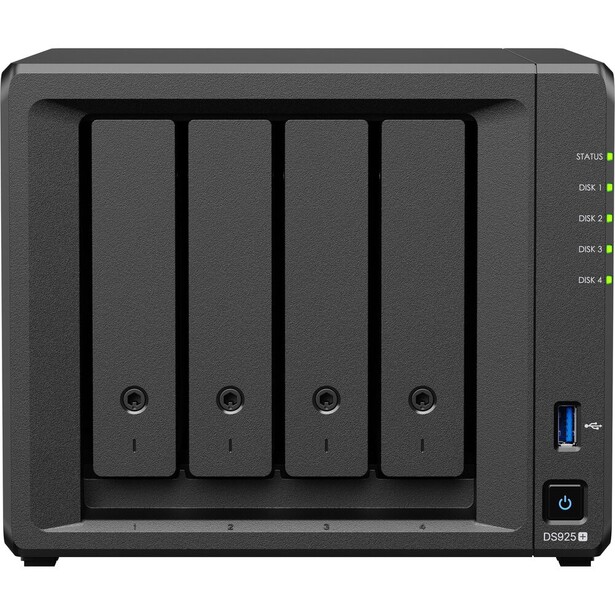
- Processor: AMD Ryzen V1500B, 4 cores and 8 threads at 2.2 GHz
- Memory: 4 GB DDR4 ECC, expandable to 32 GB across two slots
- Drive bays: 4 x 3.5-inch or 2.5-inch SATA, hot-swappable
- M.2 slots: 2 x M.2 2280 NVMe, usable for cache or a storage pool
- Networking: 2 x 2.5GbE
- Ports: 2 x USB 3.2 Gen 1, 1 x USB-C expansion port for the DX525 unit
- Operating system: DSM 7.4
- Price: $719.99 (B&H)
Buy a NAS and you are really buying its operating system for the next seven years. That is why the DS925+ wins here despite hardware that looks unremarkable next to what the competition ships at the same price. DSM is the most finished software in this category, and Synology Photos is the only native photo app that a working photographer can hand to a client or a spouse without an apology. It indexes raw files, runs face and subject recognition locally rather than in somebody's cloud, builds shared albums with expiring links, and backs up your phone automatically the moment you join the home network. Nothing else here does all four things well.
Underneath that, the DS925+ is a sensible four-bay box. Two 2.5GbE ports mean a real-world jump over gigabit, roughly two and a half times the throughput on a single link and more if you aggregate both into a managed switch. Btrfs snapshots give you a genuine safety net against the thing that actually destroys photo libraries, which is not disk failure but a bad sync, a ransomware event, or you emptying the wrong folder at midnight. Snapshot Replication can then push those snapshots to a second Synology somewhere else, which is how you turn one appliance into an actual backup strategy. The DX525 expansion unit adds five more bays over USB-C when you outgrow four.
The weaknesses are specific and worth knowing before you spend. The Ryzen V1500B has no integrated graphics, so this is a poor Plex transcoding server, and if streaming your video library is half the reason you want a NAS, look at the Intel-based boxes below. It ships with 4 GB of RAM, which is thin for indexing a large photo library, and the first upgrade you should budget for is more memory. And Synology's drive politics remain a live issue: DSM 7.3 walked back the worst of the 2025 lockout, so third-party hard drives now install, create storage pools, and behave normally, but M.2 NVMe caching is still restricted to Synology-branded SSDs. You can use third-party NVMe as a storage pool. You cannot use it as cache. That is a real cost, and it is the reason this pick is not unanimous.
We have not run a DS925+ through an Fstoppers review, so nothing here is our own uptime log. The published specification and Synology's long software support lifecycle describe a machine that is quiet, that gets updated for years, and that almost never demands attention once configured. For the photographer who wants storage to be boring, check the current price of the Synology DS925+ at B&H.
What We Like
- DSM and Synology Photos are the most polished software in the category
- Btrfs snapshots plus Snapshot Replication to a second unit
- Dual 2.5GbE with link aggregation
- Quiet, and expandable to nine bays with a DX525
What Could Be Better
- M.2 NVMe caching is still locked to Synology-branded SSDs
- No integrated graphics, so hardware video transcoding is off the table
- 4 GB of RAM out of the box is not enough for a big library
- Costs more than better-specified rivals
Best Hardware for the Money: UGREEN NASync DXP4800 Pro
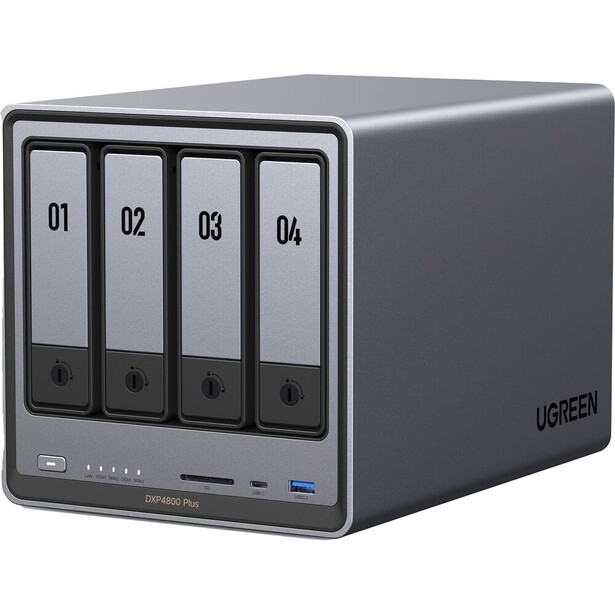
- Processor: Intel Core i3-1315U, 6 cores and 8 threads
- Memory: 8 GB DDR5, expandable to 96 GB
- Drive bays: 4 x 3.5-inch or 2.5-inch SATA
- M.2 slots: 2 x M.2 2280 PCIe 4.0 NVMe, plus a 128 GB SSD carrying the operating system
- Networking: 1 x 10GbE, 1 x 2.5GbE
- Ports: USB-C 3.2 Gen 2, USB-A, HDMI 4K, UHS-I SD card slot
- Operating system: UGOS Pro
- Price: $656.99 (B&H)
Look at what UGREEN puts in the box for the money and the incumbents start to look complacent. A six-core Core i3-1315U with integrated graphics. Ten-gigabit ethernet, standard, not as a card you buy later. DDR5. Two NVMe slots that take any brand of SSD you like. A separate 128 GB drive dedicated to the operating system, so your data volume is not carrying the OS. And on the front, an SD card slot, which is the single most photographer-shaped feature on any NAS in this guide: you can dump a card straight into the array without waking a laptop.
UGOS Pro has grown up faster than anyone expected. Its photo app does local face and subject recognition, the mobile apps work, Docker is there, and the interface is close enough to DSM that a Synology refugee will not be lost. The 10GbE port matters more than any other spec on this page if you edit off the network. Copying a 50 GB import over gigabit is a coffee break. Over 10GbE it is a pause, and a Lightroom catalog with previews on a fast NAS volume stops feeling remote.
The honest counterweight is time in service. UGOS Pro is a young operating system from a company whose main business is charging cables, and the thing you need from storage software is a decade of unglamorous security patches, not a fast start. Synology and QNAP have that record, for better and worse. UGREEN does not yet. Its third-party app ecosystem is thinner, and its snapshot and replication tooling is less developed than Btrfs snapshots on DSM. The hardware itself is not in question, but you are making a bet on a company's staying power in a category where staying power is the whole product.
No DXP4800 Pro has come through Fstoppers for hands-on testing, so the case here rests on the specification and the hardware's documented design, not on our own logs. If you want the fastest network port and the most processor per dollar, and you are comfortable being an early adopter of the software, check the current price of the UGREEN NASync DXP4800 Pro at B&H. Also consider the UGREEN NASync DXP4800 Plus if you want the same chassis and the same 10GbE port for less, and can live with the older Pentium Gold processor.
What We Like
- 10GbE built in at a price where rivals ship 2.5GbE
- Six-core Intel chip with integrated graphics for transcoding
- Front SD card slot ingests straight from the camera
- No restrictions on which SSDs or hard drives you use
What Could Be Better
- UGOS Pro is young, with a short security and support track record
- Snapshot and replication tools trail DSM
- Smaller third-party app catalog
- You need a 10GbE switch or a direct link to use the headline port
Best Budget: TerraMaster F4-424
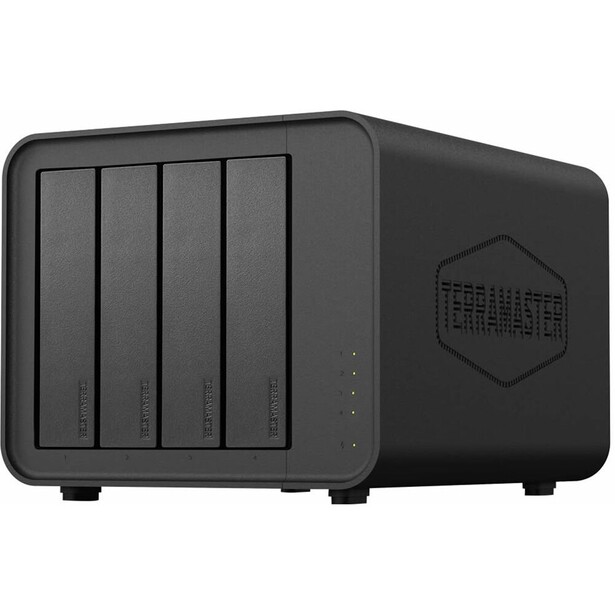
- Processor: Intel N95, 4 cores, up to 3.4 GHz
- Memory: 8 GB DDR5, expandable to 32 GB
- Drive bays: 4 x 3.5-inch or 2.5-inch SATA
- M.2 slots: 2 x M.2 2280 NVMe (PCIe 3.0 x1), for caching
- Networking: 2 x 2.5GbE with link aggregation
- Ports: 2 x USB 3.2 (10 Gb/s), 1 x HDMI 2.0b
- Operating system: TOS
- Price: $730.99 (B&H)
Four bays is the number that matters. It is the point where RAID 5 becomes sensible, where you can lose a disk and keep working, and where you can grow the array without starting over. The F4-424 is the cheapest way to get there without buying something you will resent. It ships with 8 GB of DDR5 where Synology gives you 4 GB of DDR4, it has two 2.5GbE ports, and the Intel N95 has integrated graphics, so it will transcode video that the DS925+ cannot. The drive trays are tool-free and lock on insertion, which sounds trivial until you have fought four sets of tiny screws.
What you give up is polish and, more importantly, reputation. TOS works. It has a photo app, Docker, snapshots, and the usual backup jobs, and once configured it stays out of your way. But it is visibly a generation behind DSM in interface design and in the depth of its documentation, and TerraMaster has a history of shipping devices with security issues that took too long to close. That is not a reason to avoid the brand in 2026, when its current software is meaningfully hardened, but it is a reason to keep the NAS off the open internet, to use its two-factor authentication, and to not lean on remote access as a headline feature. Every NAS in this guide deserves that treatment. This one earns it.
The other compromise is in the M.2 slots, which run at PCIe 3.0 x1. That is fine for a read cache and useless as a fast scratch volume, so do not buy this expecting an NVMe tier that keeps up with your editing machine. Nobody at Fstoppers has run an F4-424 long term, and this pick is made on the published specification and the hardware's documented design rather than on our own logs.
For a photographer with a few terabytes of raw files, a laptop, and no interest in becoming a systems administrator, this is the honest floor of a real four-bay NAS, so check the current price of the TerraMaster F4-424 at B&H. Also consider the UGREEN NASync DXP2800 if two bays is genuinely enough and you would rather spend the savings on better software.
What We Like
- The cheapest sensible four-bay NAS with DDR5 and dual 2.5GbE
- Intel N95 has integrated graphics, unlike the Synology
- Tool-free drive trays that lock on insertion
- Quiet in standby
What Could Be Better
- TOS is a step behind DSM in polish and documentation
- TerraMaster's security history warrants caution about remote access
- M.2 slots run at PCIe 3.0 x1, so they are cache only in practice
- Previous-generation processor
Best for Large Libraries: Synology DS1825+
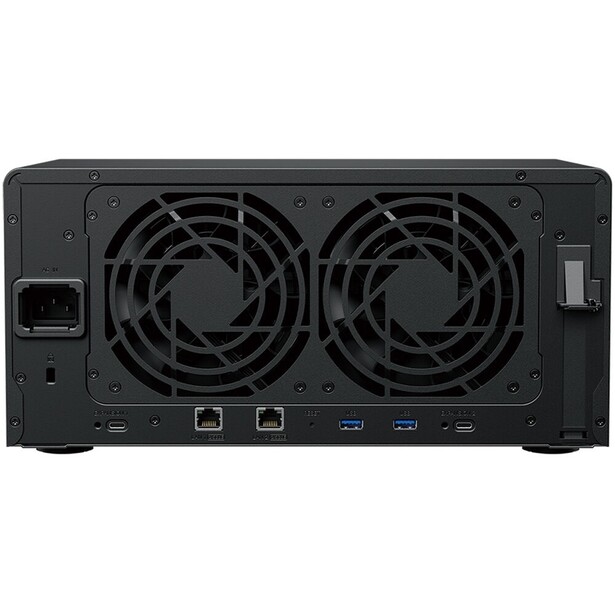
- Processor: AMD Ryzen V1500B, 4 cores and 8 threads at 2.2 GHz
- Memory: 8 GB DDR4 ECC, expandable to 32 GB
- Drive bays: 8 x 3.5-inch or 2.5-inch SATA, hot-swappable
- M.2 slots: 2 x M.2 2280 NVMe
- Networking: 2 x 2.5GbE, plus a PCIe Gen3 x8 slot (x4 link) for a 10GbE or 25GbE card
- Ports: 3 x USB 3.2 Gen 1, 2 x USB-C expansion ports for DX525 units
- Operating system: DSM 7.4
- Price: $1,259.99 (B&H)
Photographers underestimate how fast an archive grows, and then they buy a four-bay NAS twice. If you shoot weddings or commercial work, if you have fifteen years of files on a shelf, or if you have started recording video alongside stills, the DS1825+ is the box that stops the cycle. Eight bays in RAID 6 survives two simultaneous drive failures, which stops being paranoid the moment your array is big enough that a rebuild takes two days and hammers every remaining disk while it works.
The specification that justifies the price is the PCIe Gen3 slot on the back. Drop in a 10GbE card and the whole machine changes character: an eight-disk array has the raw spindle throughput to saturate a link far beyond 2.5 gigabit, and Synology quotes sequential reads up to 2,239 MB/s and writes up to 1,573 MB/s from this chassis. That is the difference between using the NAS as a place to park finished work and using it as the working volume you cull and edit from. Two DX525 expansion units bring the total to 18 bays, which is more storage runway than most one-person studios will use in a decade.
It carries the same Synology caveats as the DS925+, in bigger form. The Ryzen has no integrated graphics, so this is not your Plex server. The M.2 caching restriction to Synology SSDs still applies. It ships with 8 GB of RAM, which is workable but tight for an eight-bay array running Synology Photos over a large library, and 16 GB is the sensible number. And it is the most expensive pick in this guide by a wide margin before you have bought a single hard drive, which is easy to forget when eight drives can cost more than the enclosure.
No DS1825+ has come through Fstoppers for a review, so the case rests on the published specification and the hardware's documented design rather than our own rebuild logs. If your library is measured in tens of terabytes and growing, check the current price of the Synology DS1825+ at B&H. Also consider the UGREEN NASync DXP6800 Pro if you want six bays and two built-in 10GbE ports for less money and you are willing to trade DSM for UGOS Pro.
What We Like
- Eight bays, so RAID 6 is practical
- PCIe slot takes a 10GbE or 25GbE card
- Expandable to 18 bays with two DX525 units
- Same DSM software as the overall pick, with ECC memory
What Could Be Better
- Expensive before you buy any drives
- Still only 2.5GbE unless you add a card
- No integrated graphics for transcoding
- M.2 caching restricted to Synology SSDs
Best Compact Two-Bay: TerraMaster F2-425 Plus
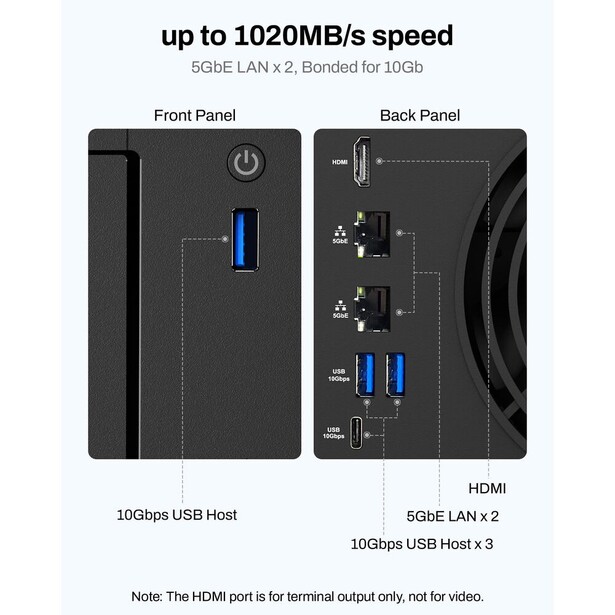
- Processor: Intel N150, 4 cores, up to 3.6 GHz
- Memory: 8 GB DDR5, expandable to 32 GB
- Drive bays: 2 x 3.5-inch or 2.5-inch SATA
- M.2 slots: 3 x M.2 2280 NVMe (PCIe 3.0 x1), usable as a RAID 5 flash volume
- Networking: 2 x 5GbE with link aggregation
- Ports: 4 x USB 3.2 (1 front, 3 rear), 1 x HDMI
- Operating system: TOS 7
- Price: $449.99 (B&H)
Most two-bay boxes are compromises you regret. The F2-425 Plus is a genuinely clever piece of design instead, because it is really a five-drive machine wearing a two-bay shell. Two hard disks handle bulk archive. Three separate M.2 NVMe slots sit behind them and can be pooled into a RAID 5 flash volume, which is where you put the current year's work, your Lightroom catalog, and your previews. That is a tiering setup you normally pay a lot more to build, and it fits on the corner of a desk.
The other headline is the network. Two 5GbE ports, at a price where the category standard is 2.5, and TerraMaster quotes sequential writes up to 1,020 MB/s from the flash pool. Practically, that means the NVMe volume is quick enough to edit from directly over the wire if your switch and your computer keep up, and the spinning disks behind it become the archive tier rather than the working one. Small studios that do not have room, budget, or noise tolerance for an eight-bay tower get most of the useful behavior of one.
Two hard drive bays is still two hard drive bays. In RAID 1 you get the capacity of one disk, so with 24 TB drives you have 24 TB of usable archive and no path to grow except replacing both disks with bigger ones. That is the ceiling, and it arrives faster than people expect. The M.2 slots also run at PCIe 3.0 x1, the same narrow lane allocation held against the F4-424 above, and the reason the flash tier works here anyway is that three of those slots striped in RAID 5 comfortably exceed what dual 5GbE can carry. Push the same drives into a machine with a faster network and the lanes, not the SSDs, become the limit. TOS is the same software story as the budget pick: capable, improving, not as refined as DSM, and deserving of a locked-down network posture. Our reviewer found the interface refreshingly approachable and the Photos app's subject and face recognition genuinely useful, but wished the documentation were clearer.
Two things from our time with it are worth knowing before you buy. The first is that this machine wants a wired connection: copying 35.5 GB over the LAN took about nine minutes, while the same transfer over Wi-Fi stretched to nearly half an hour. The second is that while the hard drive bays are tool-free and beginner-friendly, getting to the M.2 slots means taking the whole casing apart, which is a strange omission on a machine whose entire pitch is the flash tier. The fan, at least, is close to inaudible; our reviewer could barely hear it sitting right next to him.
For a photographer in an apartment, a second shooter who wants fast local storage without a rack, or anyone building a compact editing setup alongside the machines in our computers for photo editing guide, this is the most interesting small NAS on the market. Check the current price of the TerraMaster F2-425 Plus at B&H.
Read our full review: TerraMaster F2-425 Plus Review: Affordable NAS for Photographers
What We Like
- Three M.2 slots that can form a RAID 5 flash tier
- Dual 5GbE at a mid-range price
- Small, quiet, and easy to live with on a desk
- Hard disks and NVMe together in one small box
What Could Be Better
- Only two hard drive bays, so archive capacity has a hard ceiling
- M.2 slots run at PCIe 3.0 x1, so the flash tier is network-limited by design
- TOS trails DSM in polish
- 5GbE needs a switch most homes do not have
- Reaching the M.2 slots means disassembling the case
- No ECC memory
Best All-Flash: Asustor Flashstor 6 Gen2 FS6806X
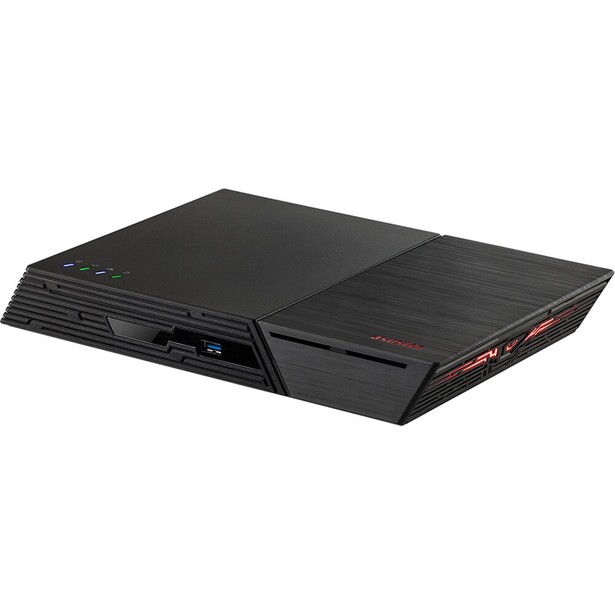
- Processor: AMD Ryzen Embedded V3C14, 4 cores at 2.3 GHz, burst to 3.8 GHz
- Memory: 8 GB DDR5-4800 ECC, expandable to 64 GB across two slots
- Drive bays: none, this is an M.2-only machine
- M.2 slots: 6 x M.2 2280 NVMe, all PCIe 4.0 (1 x x4, 3 x x2, 2 x x1)
- Networking: 1 x 10GbE
- Ports: 2 x USB4 Type-C (40 Gb/s), 3 x USB 3.2 Gen 2 Type-A
- Operating system: ADM
- Price: $1,040.99 (B&H)
There is a category of photographer for whom the NAS is not an archive at all. It is the working drive. If you are culling 3,000 raw files at a sitting, scrubbing 4K timelines, or running a shared catalog for two editors, spinning disks are the wrong tool and no amount of caching hides it. The Flashstor 6 Gen2 deletes the hard drives entirely: six M.2 NVMe slots on PCIe 4.0 lanes, a 10GbE port, ECC memory, and a chassis small enough to sit under a monitor without a fan you can hear across the room. Read the lane allocation closely, because Asustor does not give all six slots equal treatment. One slot gets a full PCIe 4.0 x4, three get x2, and two get x1. In a six-drive RAID 5 pool the array runs to the slowest members, and the practical answer is that even x1 on Gen4 lanes has more headroom than a single 10GbE port can drain. Asustor's own figures put the machine at 1,179 MB/s read and 1,181 MB/s write in RAID 5, which is the network saturating, not the SSDs.
The Gen2 revision fixed the original's real problems. The first Flashstor gave every one of its six slots a single PCIe 3.0 x1 lane and ran hot enough that owners took to strapping extra fans to the case. This one moves to Gen4 lanes, adds a heat-pipe cooling system over the SSD bank, and goes from 4 GB of DDR4 to 8 GB of DDR5 ECC that expands to 64 GB. It still has only the one 80mm system fan, so the fix is in the heat path rather than in brute-force airflow. The two USB4 ports are the underrated feature, because they let you hang a conventional hard drive enclosure off the back and keep your cold archive on cheap spinning storage while the flash pool does the work.
Flash is expensive, and that is the entire argument against this machine. Six NVMe drives large enough to hold a photo archive cost far more than six hard disks of equivalent capacity, and the gap widens as you scale. Asustor's ADM is also the least photographer-friendly software here, with a photo app that lags well behind Synology Photos, so plan on using it as fast network storage for Lightroom or Capture One rather than as a photo library manager. We have not tested this one, and the thermal and throughput figures above come from Asustor's published specification.
For an editor who wants their working volume on the network without the network being the bottleneck, nothing else here is close, so check the current price of the Asustor Flashstor 6 Gen2 FS6806X at B&H. Also consider the Asustor Flashstor 12 Pro Gen2 if six slots will not hold your working set. If you only need fast storage for one machine, a direct-attached drive from our portable SSDs guide costs a fraction of this.
What We Like
- Six PCIe 4.0 NVMe slots and a 10GbE port
- ECC memory, expandable to 64 GB
- Heat-pipe cooling over the SSD bank, a real fix for the first generation's thermals
- USB4 ports for hanging a cheap hard drive archive off the back
What Could Be Better
- Flash capacity costs several times what hard drives do
- ADM's photo app is well behind Synology's
- Only one of the six M.2 slots gets a full PCIe 4.0 x4 allocation
- A single 10GbE port with no PCIe slot to add more
- No hard drive bays at all, so the archive lives elsewhere
Best for Data Integrity: QNAP TVS-h474
- Processor: Intel Pentium Gold G7400, 2 cores and 4 threads at 3.7 GHz
- Memory: 8 GB DDR4, expandable to 64 GB across two slots
- Drive bays: 4 x 3.5-inch or 2.5-inch SATA
- M.2 slots: 2 x M.2 2280 NVMe (PCIe Gen3 x2), for cache or storage pools
- Networking: 2 x 2.5GbE, plus a PCIe Gen4 slot for 10GbE or 25GbE
- Ports: USB 3.2 Type-A and Type-C, HDMI
- Operating system: QuTS hero (ZFS) or QTS
- Price: $1,299 (B&H)
Bit rot is the failure mode nobody plans for. A file sits untouched for eight years, a handful of bits flip on the platter, and the JPEG you open in 2034 has a magenta band through the middle of it. Conventional RAID cannot see this happen, because it has no way of knowing which copy of a block is the correct one. ZFS can, and the TVS-h474 running QuTS hero is the most accessible way for a photographer to get it. Every block is checksummed on write and verified on read, and a scheduled scrub repairs silent corruption against the redundant copy before you ever see it.
QuTS hero brings the rest of the ZFS toolbox with it: effectively unlimited snapshots, inline deduplication and compression, and SnapSync replication to a second unit in near real time. For an archive that has to survive decades rather than years, that combination is a stronger guarantee than anything Btrfs offers on the Synology boxes. The chassis backs it up with a PCIe Gen4 slot, so a 10GbE or 25GbE card drops straight in, and QNAP's QuMagie photo app does AI face and object recognition, with an optional Google Edge TPU accelerating it if you want that.
The problems are the processor and the platform's age. QNAP sells the TVS-h474 in three processor variants, and the one to buy is the model you can actually find: the Pentium Gold G7400 configuration is the common retail SKU, with Core i3 and Core i5 versions above it. Check the CPU on the listing before you click, because the price gap between them is real. The G7400 is a dual-core chip, and ZFS is genuinely hungry for CPU and, more importantly, memory. Run QuTS hero with deduplication on 8 GB of RAM and you will regret it, so budget for a memory upgrade and treat it as part of the purchase price. The ceiling is 64 GB across two slots. QNAP's software is also the most complex in this guide, with a menu structure that assumes you enjoy this, and the company's history of ransomware incidents targeting internet-exposed units means you should keep this off the open web and behind a VPN. It is not a beginner's NAS, and the design dates to 2022, which makes it the oldest platform in this guide. You are buying it for the file system, not for the silicon.
Nobody at Fstoppers has run one of these long enough to speak from experience, and the ZFS behavior described here is documented rather than observed by us. For the photographer whose archive is the business and who wants provable data integrity, check the current price of the QNAP TVS-h474 at B&H.
What We Like
- ZFS checksumming and scrubs catch silent corruption
- Near-unlimited snapshots and SnapSync replication
- PCIe Gen4 slot for 10GbE or 25GbE
- QuMagie handles faces and objects well, with optional TPU acceleration
What Could Be Better
- Dual-core processor is thin for ZFS
- ZFS wants far more RAM than the 8 GB it ships with, and the ceiling is 64 GB
- The most complicated software here, and QNAP's security history demands care
- A 2022-era platform, the oldest design in this guide
Best for Backup and Archive: Synology BeeStation Plus 8TB
- Processor: Intel Celeron J4125, 4 cores at 2.0 GHz
- Memory: 4 GB DDR4
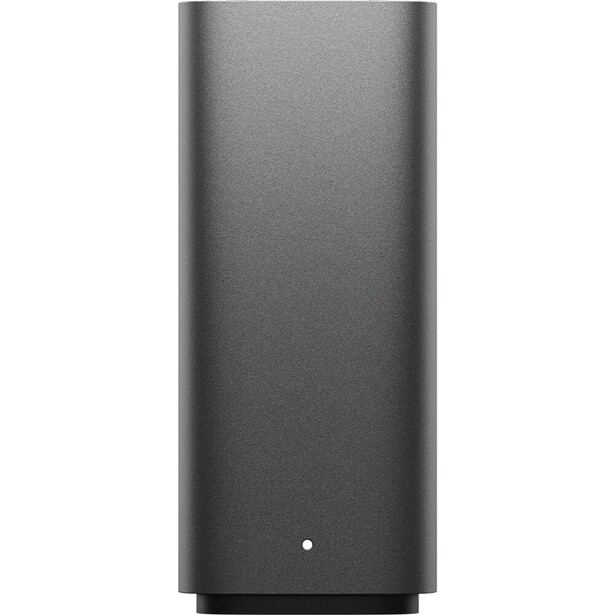
- Drive bays: sealed, with an 8 TB 7,200 rpm drive preinstalled
- M.2 slots: none
- Networking: 1 x Gigabit Ethernet
- Ports: 1 x USB-C 3.2 Gen 1, 1 x USB-A 3.2 Gen 1
- Operating system: BeeStation OS, with BeeFiles and BeePhotos
- Price: $593.99 (B&H)
This is the pick that makes the rest of the guide honest. A RAID array in your office survives a dead disk. It does not survive a fire, a burglary, a flood, or a ransomware payload that encrypts every share your laptop can reach. The third copy of your work has to live somewhere else, and the BeeStation Plus is the least painful way to put it there. It arrives with an 8 TB drive already inside, you plug it into ethernet, you scan a QR code, and it works. There is no RAID to configure and no volume to create, because there is nothing to configure.
Set one up at a parent's house or a friend's studio, point Synology's Hyper Backup at it from your main NAS, and you have a real offsite copy for a one-time cost instead of a cloud subscription that grows with your library forever. It will also serve as a standalone first NAS for someone who is not ready for one: BeePhotos does local face and subject recognition and phone backup, BeeFiles handles the Time Machine and PC backup jobs, and it runs Plex. The Celeron J4125 has integrated graphics, so it will actually transcode.
Be clear about what it is not. One drive means no redundancy at all, so a BeeStation on its own is a single point of failure and must never be your only copy. The single gigabit port caps transfers at roughly 110 MB/s, which is fine for an overnight backup target and frustrating as a working volume. Capacity is fixed at 8 TB and cannot be expanded internally, and the software is a deliberately simplified fork of DSM without the app catalog, the snapshot tooling, or the fine-grained permissions. This is not a review based on our own installation, and the AI features described are Synology's published behavior.
As the second appliance in a 3-2-1 setup, or as a first step for someone who would otherwise keep everything on one USB drive, it does exactly one job well, so check the current price of the Synology BeeStation Plus 8TB at B&H.
What We Like
- Genuinely plug-and-play, with the drive already inside
- An offsite target for a one-time price, not a subscription
- BeePhotos does local face recognition and phone backup
- Integrated graphics handle Plex transcoding
What Could Be Better
- One drive, so there is no redundancy whatsoever
- Gigabit ethernet only
- Fixed 8 TB capacity with no internal expansion
- Simplified software without DSM's apps or snapshots
How to Choose a NAS for Photography
RAID Is Not a Backup
Say it out loud before you spend anything. RAID protects you against a hard drive dying. It does nothing about the far more common ways photographers lose work: deleting the wrong folder, a sync client propagating that deletion to every device, ransomware encrypting every share your computer can write to, a power surge, a stolen NAS, a house fire. In all of those cases RAID faithfully replicates the disaster across every disk in the array, at speed. A NAS with RAID is a highly available working copy. It is not an archive, and treating it as one is the single most common mistake in this category.
The fix is the 3-2-1 rule: three copies of your data, on two different types of media, with one copy offsite. In practice that means the files on your computer or camera cards, the NAS in your office, and a third copy somewhere else, which is either a cloud service or a second NAS at another address. Cloud backup for a 20 TB library is expensive forever. A BeeStation or a second, older NAS at a relative's house, fed nightly by Hyper Backup or Snapshot Replication, is expensive once. Whichever you choose, enable snapshots on the primary NAS, because an immutable snapshot from last Tuesday is what saves you when the deletion or the encryption has already been synced everywhere else.
RAID Levels, Honestly
RAID 1 mirrors two disks, so you get the capacity of one and can lose either. It is the right answer for two-bay boxes and nothing else. RAID 5 stripes across three or more disks with one disk of parity, so a four-bay array of 20 TB drives gives you roughly 60 TB usable and survives one failure. RAID 6 uses two disks of parity, so the same four bays give you 40 TB usable but survive two simultaneous failures. That second parity disk matters more as arrays grow, because rebuilding a large RAID 5 array takes days, hammers every remaining disk, and is precisely when a second, already-stressed drive tends to fail. At four bays, RAID 5 is defensible. At six or eight bays with large modern drives, use RAID 6 or Synology's SHR-2 and accept the capacity hit. Whatever you pick, plan on losing 25 to 50 percent of your raw capacity to redundancy, and buy accordingly.
The Network Is Usually the Bottleneck
Gigabit ethernet caps out around 110 MB/s, which is slower than the USB drive you are trying to replace and the reason so many people conclude a NAS is slow. Moving to 2.5GbE takes you to roughly 280 MB/s, about two and a half times as much, and it is the single cheapest fix in this category. A 10GbE link, on an array with enough disks or on flash, gets you into the range where you can edit directly off the network. The catch is that the NAS is only half the purchase: you need a switch and a computer-side port to match. Budget for a 2.5GbE or 10GbE switch and, on most laptops, a Thunderbolt adapter. If you are not going to buy those, do not pay for the 10GbE NAS.
Drives, Memory, and the Boring Stuff
Buy NAS-rated drives, which means WD Red Plus or Pro, Seagate IronWolf or IronWolf Pro, or Toshiba N300. They are rated for continuous vibration in a multi-bay chassis in a way desktop drives are not. Buy them from different batches or different vendors if you can, because drives from the same production run have an unnerving habit of failing together. Add memory: almost every NAS here ships with less RAM than a large indexed photo library wants, and it is the cheapest performance upgrade you will ever make. And put the thing on an uninterruptible power supply, because a power cut during a write is one of the few events that can hurt an array badly.
What We're Looking For
We weigh the maturity and safety of the software far more heavily than raw processor specifications, because a NAS is a device you configure once and depend on for years, and the photo app, the snapshot tooling, and the backup scheduler are what you actually touch. After that we look at network throughput, expansion headroom, the file system's ability to protect against silent corruption, and whether the manufacturer lets you use the drives you already own. Every specification here was verified against the manufacturer's current documentation and a live retailer listing at the time of writing. On testing, we are being straight with you: none of the eight picks in this guide was written up from our own long-term use. One, the TerraMaster F2-425 Plus, has been through an Fstoppers review, and its entry reports what our reviewer found. For the other seven, where the text describes behavior, it comes from the manufacturer's published specification and the product's documented design, and each entry says so rather than implying a service history we do not have. Most picks across our buying guides come from gear our writers have used and reviewed hands-on. Where we have not, we say so in the entry.
Frequently Asked Questions
What Replaced Drobo?
No single product did, but the practical successors are the four-bay NAS boxes from Synology, UGREEN, QNAP, TerraMaster, and Asustor. Drobo's appeal was BeyondRAID, which let you mix drive sizes freely. Synology's SHR does the same thing and is the closest direct replacement, and TerraMaster's TRAID offers a similar mixed-capacity pool.
How Many Bays Do I Actually Need?
Four, for most photographers. Two bays in RAID 1 gives you the capacity of a single disk and no room to grow, which you will hit sooner than you think. Four bays lets you run RAID 5, survive a drive failure, and add capacity later. Go to six or eight only if your library is already in the tens of terabytes or you shoot video.
Can I Edit Photos Directly From a NAS?
Yes, if the network is fast enough. Over gigabit ethernet it is painful. Over 2.5GbE it is workable for raw files. Over 10GbE, or on an all-flash NAS, it feels close to a local drive. The usual approach is to keep the Lightroom catalog and previews on your computer's internal SSD and the image files on the NAS.
Is a NAS a Backup?
No. A NAS with RAID protects against a disk dying, not against deletion, ransomware, theft, or fire, all of which will happily destroy every copy in the array at once. Treat the NAS as one of three copies, keep snapshots enabled, and maintain a third copy offsite. That is the whole point of the 3-2-1 rule.
Do I Have to Use Synology-Branded Drives?
Not for storage, not anymore. DSM 7.3 restored support for third-party hard drives and SATA SSDs on 2025 and later models, and DSM 7.4, current as of this writing, keeps it. A stack of WD Red or IronWolf drives installs and creates storage pools normally. The restriction that remains is M.2 NVMe caching, which is still limited to Synology-branded SSDs.
Fstoppers may earn a commission from purchases made through links in this article. Our picks are made independently by our editorial team.