Buying an editing machine in 2026 means buying into a memory crisis. AI data centers have swallowed the world's DRAM supply, DDR5 kit prices have more than doubled year over year, and Apple has spent the spring quietly deleting its highest memory configurations rather than trying to source the chips. Dell, HP, and Lenovo have all raised prebuilt prices. That single fact reorders the usual advice: the amount of memory you buy today is the amount you will live with, because topping it up later will cost more than it does now, and on every Mac in this guide it is soldered in place and cannot be topped up at all.
The good news is that photo editing is a less demanding workload than the marketing suggests. Lightroom Classic and Photoshop lean hardest on single-core processor speed and on having enough memory to hold your catalog, your history states, and a stack of 60-megapixel layers at once. The graphics card matters far less than a spec sheet implies, right up until you touch AI denoise, AI masking, or video, at which point it suddenly matters enormously. Getting that balance right is most of the decision.
These picks span the Mac and Windows worlds, from a mini that costs less than a decent lens to a workstation that costs more than a medium format body. Two ground rules run through every entry. Each pick carries a note on where it sits in its product cycle, and the Mac mini and Mac Studio picks are Apple's new M6, M5 Pro, M5 Max, and M5 Ultra models, which went on sale on September 22, 2026. And where a machine has not come through Fstoppers for a hands-on review, we say so in its entry rather than implying a test we never ran. If you need a screen to go with it, our monitors guide covers that half of the purchase.
At a Glance
- Best Overall: Apple Mac Studio (M5 Max)
- Best Value: Apple Mac mini (M5 Pro)
- Best Windows Desktop: Dell Pro Max Tower T2
- Best Budget: Apple Mac mini (M6)
- Best for Heavy Retouching and Video: Apple Mac Studio (M5 Ultra)
- Best Compact Windows Workstation: Lenovo ThinkStation P3 Ultra SFF Gen 2
- Best All-in-One: Apple iMac (24-Inch, M4)
- Best Windows All-in-One: HP OmniStudio X 32
Best Overall: Apple Mac Studio (M5 Max)
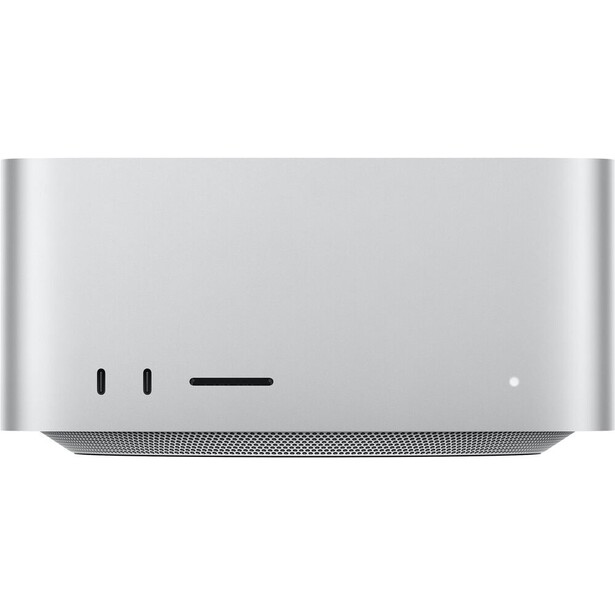
- Processor: Apple M5 Max, 18-core CPU with six super cores and 12 performance cores
- Graphics: 32-core GPU standard, 40-core GPU optional, with a Neural Accelerator in every core
- Memory: 36 GB unified standard, configurable to 48 GB, 64 GB, or 128 GB with the 40-core GPU; 460 GB/s bandwidth, 614 GB/s on the 40-core GPU configuration
- Storage: 512 GB SSD standard, up to 8 TB
- Display: not included
- Ports: four Thunderbolt 5, two USB-A, HDMI 2.1, 10 Gb Ethernet, front SDXC (UHS-II) and two USB-C
- Memory upgradable later: no, unified memory is soldered
- Size and weight: 7.7 x 7.7 x 3.7 inches, 6.0 lb
- Price: $2,499 (B&H)
The Mac Studio with the M5 Max earns this slot on balance: it has the ports, the graphics, and the memory ceiling a working photographer needs, at less than half the price of the M5 Ultra model. Its GPU, which is where Lightroom runs AI denoise and subject masking, now has a Neural Accelerator in every core, and Apple rates the M5 Max at up to three times the M4 Max's speed in the Magic Mask tool of DaVinci Resolve Studio. It starts with 36 GB of unified memory, which is enough headroom to keep a large cull moving while those AI tools run in the background, and Apple sells it with as much as 128 GB.
The details that matter to a photographer are the boring ones, and Apple kept them all. There is a UHS-II SD slot on the front, so ingesting a card does not mean hunting for a dongle, and four Thunderbolt 5 ports on the back mean a fast external array, a calibrated display, and a dock can all live on the machine at once without a hub. Ethernet is 10 Gb as standard, and this generation adds Wi-Fi 7 and Bluetooth 6. We reviewed the previous M4 Max Mac Studio in 2025, and it exported 235 edited raw and TIFF files from Lightroom in 2 minutes and 48 seconds, against 3 minutes and 39 seconds on an M1 Ultra Mac Studio, with no audible fan noise. We have not reviewed the M5 Max version, so those figures belong to its predecessor.
The memory choice is permanent, and it is tied to the GPU: anything above the 36 GB base requires the 40-core GPU version, which Apple prices from $3,099, and from there you can choose 48 GB, 64 GB, or 128 GB. For pure stills work, 36 GB is enough; if video or heavy compositing is in the mix, buy 64 GB. On the product cycle, this machine is as new as it gets, having gone on sale on September 22, 2026. Check the current price of the Apple Mac Studio (M5 Max) at B&H, and compare it with the Mac mini with M5 Pro below before you commit: with 64 GB of memory and a 1 TB drive, Apple charges $3,799 for this machine and $3,199 for the mini with its 18-core M5 Pro.
What We Like
- Neural Accelerators in every GPU core for AI work
- Front SDXC slot and four Thunderbolt 5 ports
- 10 Gb Ethernet standard for NAS-based workflows
- Memory configurable to 128 GB, twice the M4 Max's 64 GB cap
What Could Be Better
- Any memory above 36 GB requires the 40-core GPU version, from $3,099
- Memory is soldered, so the configuration you order is permanent
- Front USB-C ports run at 10 Gb/s rather than Thunderbolt speeds
- Storage upgrades from Apple remain punishingly expensive
Best Value: Apple Mac mini (M5 Pro)
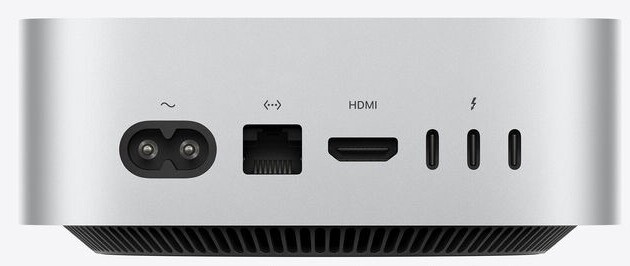
- Processor: Apple M5 Pro, 15-core CPU standard, 18-core CPU optional
- Graphics: 16-core GPU standard, 20-core GPU optional, with a Neural Accelerator in every core
- Memory: 24 GB unified standard, configurable to 48 GB or 64 GB; 307 GB/s bandwidth
- Storage: 512 GB SSD standard, up to 8 TB
- Display: not included
- Ports: three Thunderbolt 5, HDMI, 2.5 Gb Ethernet (configurable to 10 Gb), two front USB-C, headphone jack
- Memory upgradable later: no, unified memory is soldered
- Size and weight: 5.0 x 5.0 x 2.0 inches, 1.6 lb
- Price: $1,699 (B&H)
For pure stills editing, the Mac mini with the M5 Pro chip does most of what the Mac Studio does, in a box 5 inches square, for meaningfully less money. In our M5 Pro Mac mini review, the 18-core version with 48 GB of memory posted Geekbench 6 scores 13.0% higher in single-core work and 30.6% higher in multi-core work than published figures for the M4 Pro Mac mini. A single darktable export of 42-megapixel Sony raws ran at 119 images per minute while keeping 9.9 of its 18 cores busy. One-at-a-time AI work, such as masking a subject or running Denoise on the frame in front of you, felt close to instant, which is how Lightroom's AI masking gets used through most of an edit. A batch Denoise across hundreds of files is different, because it will not speed up in proportion to the 18 cores.
What you give up against the Mac Studio is mostly around the edges. There is no SD card slot, Ethernet is 2.5 Gb unless you pay for the 10 Gb option the Studio includes, and three Thunderbolt ports go quickly once you have a display, a drive, and a dock. The M5 Pro also has a single video encode engine: four simultaneous exports finished in about the time four sequential ones would take, so a long queue of video deliverables is the one job where the Studio pulls clearly ahead.
Spend on memory before cores. The M5 Pro model starts at 24 GB and can be configured with 48 GB or 64 GB, all of it soldered, and our reviewer's verdict is that the 15-core chip with more memory will serve a stills workflow better than the 18-core chip with less. Product-cycle position could not be fresher: this model went on sale on September 22, 2026. For most photographers who edit stills, shoot the occasional video, and do not need a 10 Gb network, this is the machine I would actually buy, so check the current price of the Apple Mac mini (M5 Pro) at B&H. Also consider the Mac Studio above if you need more than 64 GB of memory or a built-in SD slot.
What We Like
- Silent in our review, even through sustained all-core encodes
- Multi-core performance up 30.6% on the M4 Pro Mac mini in our testing
- Internal SSD measured at 12,231 MB/s read and 11,956 MB/s write
- Thunderbolt 5 and 2.5 Gb Ethernet as standard
What Could Be Better
- No SD card slot
- One video encode engine and no AV1 encode
- 10 Gb Ethernet costs extra, where the Mac Studio includes it
- Memory tops out at 64 GB and cannot be upgraded later
Best Windows Desktop: Dell Pro Max Tower T2

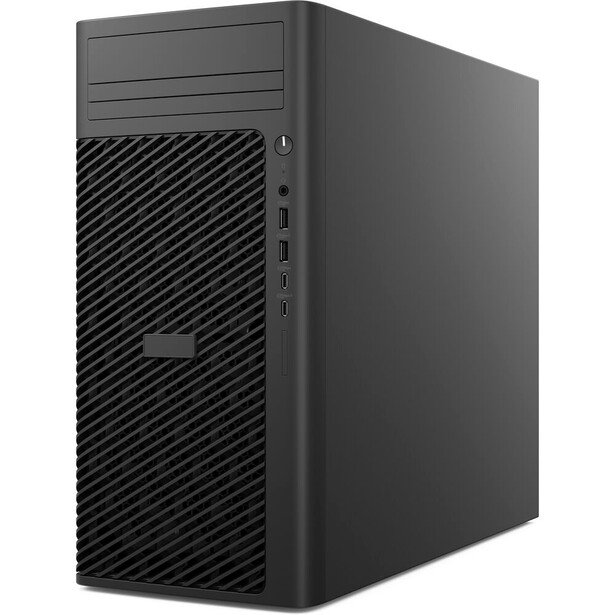
- Processor: Intel Core Ultra Series 2, up to Core Ultra 9 285K, 24 cores, 125 W base power and 250 W max turbo power
- Graphics: configurable up to NVIDIA RTX PRO 6000 Blackwell Workstation Edition, 96 GB GDDR7
- Memory: DDR5 across four DIMM slots, ECC optional, up to 128 GB
- Storage: up to 12 TB of SSD across three M.2 slots, plus HDD bays
- Display: not included
- Ports: optional Thunderbolt 4 module, USB-C 20 Gb/s, dual DisplayPort 1.4a, optional Wi-Fi 7
- Memory upgradable later: yes, standard DDR5 DIMMs
- Size and weight: 32-liter chassis, 17.2 x 15.2 x 7.4 inches
- Price: $3,754.89 (B&H)
Windows photographers have one structural advantage over Mac users this year, and the Dell Pro Max Tower T2 is the clearest expression of it: you can buy less memory now and add more when DRAM prices come back to earth. Its DIMM slots take ordinary DDR5, with ECC as an option, up to 128 GB. That matches the ceiling of the M5 Max Mac Studio, and you do not have to pay for it on day one. For anyone whose files are enormous, a stitched gigapixel panorama, a 40-layer composite, a focus stack pulled from 90 frames, that upgrade path is worth more than any benchmark.
The rest of the machine is an unglamorous professional tower and is better for it. Five PCIe slots (a Gen 5 x16 for the graphics card plus four x4 slots), tool-less access, power supply options of 360 W, 500 W, or 1,500 W, and a graphics ladder that runs from a modest RTX A400 to an RTX PRO 6000 Blackwell. Most photographers should stop well short of the top of that ladder, because Photoshop and Lightroom get almost everything they can from a mid-range card and the money is better spent on memory. The exception is if you also cut video, where a bigger GPU pays for itself in Resolve. We have not tested this tower at Fstoppers, and the configuration you order will define your experience far more than the badge on the case.
The compromises are the usual workstation ones. It is a 32-liter box that will sit on the floor, not the desk, and it is louder under load than any Mac here. Thunderbolt is an optional port module rather than standard, so specify it at order time if you want it, and check twice, because retrofitting is a nuisance. Dell has also raised prices in line with the rest of the industry. Product-cycle position is favorable: it runs Intel's current Core Ultra Series 2 platform, and the Arrow Lake Refresh chips that launched in March 2026 keep the socket alive, so it is not about to be orphaned. Check the current price of the Dell Pro Max Tower T2 at B&H and configure it with more memory than you think you need. Also consider the HP Z2 Tower G1i if you want the same idea from HP, which doubles the ceiling to 256 GB of non-ECC DDR5.
What We Like
- Memory is standard DDR5 and can be added later, which matters enormously in 2026
- Graphics options from modest to extreme, with real PCIe expansion
- ECC memory available for people who cannot afford a corrupted file
- Tool-less service access and a long parts supply
What Could Be Better
- Thunderbolt is an optional module, not standard
- 32 liters and audible under load
- Configuration menus are a maze, and it is easy to overspend on the wrong part
- Base configurations ship with too little memory for serious editing
Best Budget: Apple Mac mini (M6)
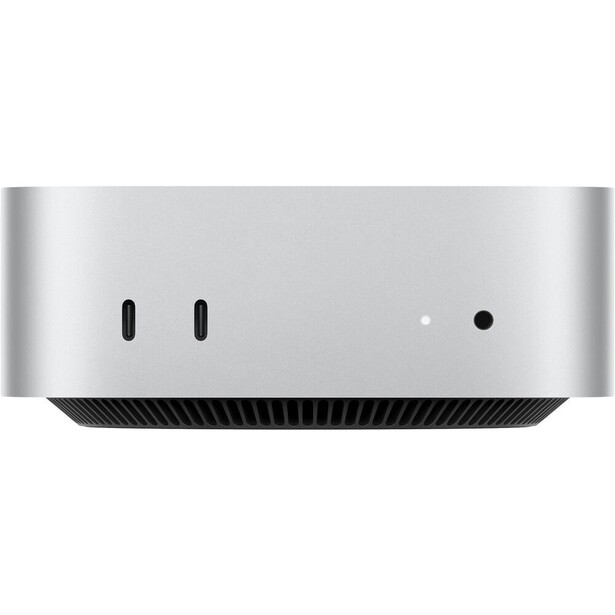
- Processor: Apple M6, 12-core CPU with two super cores, four performance cores, and six efficiency cores
- Graphics: 12-core GPU with a Neural Accelerator in every core
- Memory: 16 GB unified standard, configurable to 24 GB or 32 GB; 153 GB/s bandwidth, 170 GB/s with 24 GB or more
- Storage: 256 GB SSD standard, up to 2 TB
- Display: not included
- Ports: three Thunderbolt 4, HDMI, 2.5 Gb Ethernet (configurable to 10 Gb), two front USB-C, headphone jack
- Memory upgradable later: no, unified memory is soldered
- Size and weight: 5.0 x 5.0 x 2.0 inches, 1.5 lb
- Price: $899 (B&H)
The base Mac mini now runs Apple's M6, and Apple credits its 12-core CPU with the world's fastest single-threaded performance, the measure Lightroom Classic rewards most. Its 12-core GPU gains a Neural Accelerator in every core, a first for the Mac mini, and Apple rates the machine at up to four times the AI performance of the M4 Mac mini it replaces, with 40% faster CPU performance. It ships with 16 GB of unified memory, which stretches further than 16 GB on a Windows machine because the CPU, the GPU, and the media engines draw from one pool without copying data between them. For a photographer with a modest catalog and a firm budget, this is the entry point. We have not reviewed the M6 model at Fstoppers, so this entry rests on Apple's published specifications and documented design.
Its limits arrive where you would expect. The GPU has 12 cores against the M5 Pro's 16 or 20, and its memory bandwidth peaks at 170 GB/s against 307 GB/s, so batch work such as AI denoise across a whole shoot is where the gap shows. Memory tops out at 32 GB, enough for most raw work but not for a heavy compositing workflow. The ports are Thunderbolt 4 rather than 5, there is no SD slot, and the $899 configuration has just 256 GB of storage, which leaves little room for a catalog, its previews, and the current year's raw files.
Skip the $899 configuration if you can. Moving from 256 GB to 512 GB of storage adds $200 at Apple, and the $1,299 configuration, with 24 GB of memory and 512 GB of storage, is the one to buy: memory is the upgrade you cannot make later, and Apple raises the bandwidth from 153 GB/s to 170 GB/s once you choose 24 GB or more. Where it sits in the cycle: at the very start, since the M6 Mac mini went on sale on September 22, 2026. Check the current price of the Apple Mac mini (M6) at B&H. Also consider the M5 Pro version above if AI denoise across a whole shoot is part of your week or you want Thunderbolt 5.
What We Like
- A CPU that Apple credits with the world's fastest single-threaded performance
- Neural Accelerators in every GPU core, a first for the Mac mini
- Unified memory makes 16 GB go further than it does on Windows
- Small enough to travel with in a camera bag
What Could Be Better
- Only 256 GB of storage in the base configuration
- Memory soldered and capped at 32 GB
- Thunderbolt 4 rather than 5
- No SD card slot
Best for Heavy Retouching and Video: Apple Mac Studio (M5 Ultra)
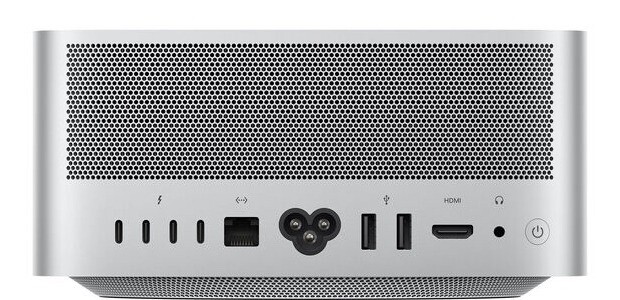
- Processor: Apple M5 Ultra, 30-core CPU standard, 36-core CPU optional
- Graphics: 64-core GPU standard, 80-core GPU optional, with a Neural Accelerator in every core
- Memory: 96 GB unified standard, configurable to 256 GB or, from late October, 512 GB; 1.2 TB/s bandwidth
- Storage: 1 TB SSD standard, up to 16 TB
- Display: not included
- Ports: six Thunderbolt 5 (four rear, two front), two USB-A, HDMI 2.1, 10 Gb Ethernet, front SDXC (UHS-II)
- Memory upgradable later: no, unified memory is soldered
- Size and weight: 7.7 x 7.7 x 3.7 inches, 8.0 lb
- Price: $5,499 (B&H)
Retouchers and hybrid shooters live in a different world from the rest of us. A beauty file with 60 layers of dodge and burn, frequency separation, and a dozen smart objects is a memory problem before it is a processor problem, and an 8K timeline is a bandwidth problem before it is anything else. The Mac Studio with the M5 Ultra answers both with 1.2 TB/s of memory bandwidth (the fastest M5 Max has 614 GB/s), four video encode engines, and 96 GB of unified memory feeding a 64-core GPU. Apple rates its media engine for playback of up to 33 streams of 8K ProRes 422 at 30 fps and says filmmakers can color-grade uncompressed 8K footage on it in real time. We have not reviewed the M5 Ultra at Fstoppers.
The Ultra is built from the same super and performance cores as the M5 Max: the 36-core chip has 12 super cores and 24 performance cores, exactly twice the M5 Max's complement, and the 30-core chip has 10 and 20. That gives it no faster cores for the lightly threaded work that dominates Lightroom, and Apple's CPU claim for it, up to 1.3 times the M3 Ultra, is about multithreaded performance. The Ultra earns its place on parallel work instead: GPU-accelerated retouching filters, batch AI denoise across a full wedding, video encoding, anything that can occupy 64 or 80 GPU cores at once. If your day is culling and toning raw files, buy the M5 Max and spend the difference on storage.
This generation lifts the memory ceiling that Apple's spring cuts had left at 96 GB on the M3 Ultra Mac Studio. The M5 Ultra starts at 96 GB and can be ordered with 256 GB now, and Apple says the 512 GB option, which requires the 36-core CPU and 80-core GPU version from $6,799, is coming in late October. If a file or timeline genuinely needs more than 128 GB, this is the only pick in this guide that goes past that. Its product cycle has only just begun: Apple announced it on August 25 and put it on sale on September 22, 2026. It is also the most expensive pick here by a wide margin, so make sure the work needs it, and check the current price of the Apple Mac Studio (M5 Ultra) at B&H.
What We Like
- 1.2 TB/s of memory bandwidth, the most of any Mac here
- Four video encode engines and four ProRes engines
- Six Thunderbolt 5 ports and 10 Gb Ethernet
- Memory configurable to 256 GB now and 512 GB from late October
What Could Be Better
- The most expensive pick here by a wide margin
- The 512 GB option needs the top chip and is not available until late October
- No faster cores than the cheaper M5 Max for lightly threaded Lightroom work
- Memory is soldered, so you pay for the ceiling up front
Best Compact Windows Workstation: Lenovo ThinkStation P3 Ultra SFF Gen 2
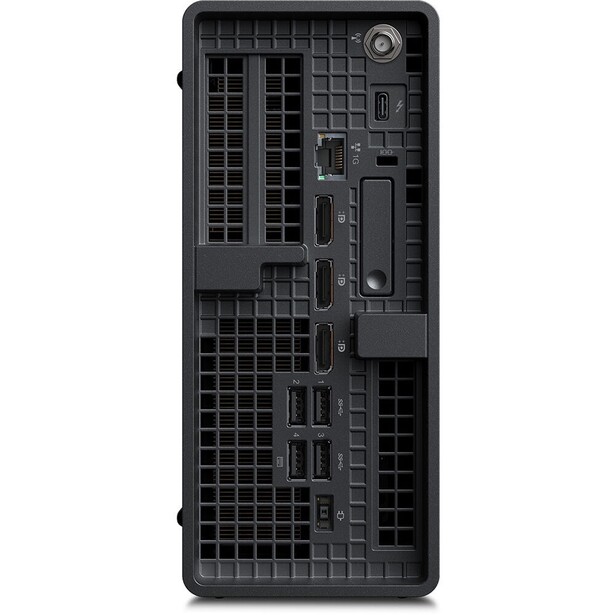
- Processor: Intel Core Ultra Series 2, up to Core Ultra 9 285K, 24 cores, 5.7 GHz max turbo
- Graphics: up to NVIDIA RTX 4000 SFF Ada Generation, 20 GB GDDR6 with ECC
- Memory: DDR5 SODIMM, up to 128 GB in two slots
- Storage: up to four M.2 NVMe SSDs, 2 TB each
- Display: not included
- Ports: Thunderbolt 4 via an optional add-in card, front USB-C 20 Gb/s, USB-A, DisplayPort outputs from the graphics card
- Memory upgradable later: yes, two DDR5 SODIMM slots
- Size and weight: 3.9-liter chassis, 3.4 x 8.8 x 8.0 inches, 7.9 lb
- Price: $4,823.85 (B&H)
Most Windows photographers do not want a floor-standing tower under the desk. They want the Mac Studio experience with a Windows license and an upgrade path, and the ThinkStation P3 Ultra SFF Gen 2 is the closest thing on the market. Lenovo fits a 24-core Core Ultra chip, up to 128 GB of DDR5, four NVMe drives, and a professional RTX 4000 SFF Ada card with 20 GB of video memory into a 3.9-liter box that sits comfortably on a desk. That is more video memory than most photographers will ever saturate, and Lightroom's AI denoise and Photoshop's neural filters are the tasks that draw on it.
Cooling a 125 W processor and a 70 W graphics card in four liters means fans, and under a long export they are audible in a quiet room. The two SODIMM slots take laptop-style memory, which in mid-2026 carries a premium over desktop DIMMs, so a 128 GB upgrade is not cheap. Thunderbolt is not built in at all: it arrives only as an optional rear add-in card, which means reading the order sheet carefully.
We have not tested this machine at Fstoppers, and Lenovo builds it for engineers and CAD users rather than photographers, which shows in a graphics ladder aimed at ECC-protected professional cards you do not need. The generation matters when you shop: the original P3 Ultra runs older Intel silicon, so confirm the listing says Gen 2 before you buy. Product-cycle position is otherwise healthy, with the Gen 2 on Intel's current platform and no imminent replacement. Check the current price of the Lenovo ThinkStation P3 Ultra SFF Gen 2 at B&H, and confirm the exact processor, memory, and graphics of the configuration in front of you, because this model ships in a very wide range of specifications.
What We Like
- Tower-class components in a 3.9-liter desktop box
- Memory and storage are both user-upgradable
- Professional graphics with up to 20 GB of video memory
- Four NVMe slots for a fast working-scratch setup
What Could Be Better
- Audible fans under sustained load
- SODIMM memory is expensive in the current market
- Thunderbolt only via an optional add-in card, never standard
- Configuration sprawl makes it easy to buy the wrong one, including the wrong generation
Best All-in-One: Apple iMac (24-Inch, M4)
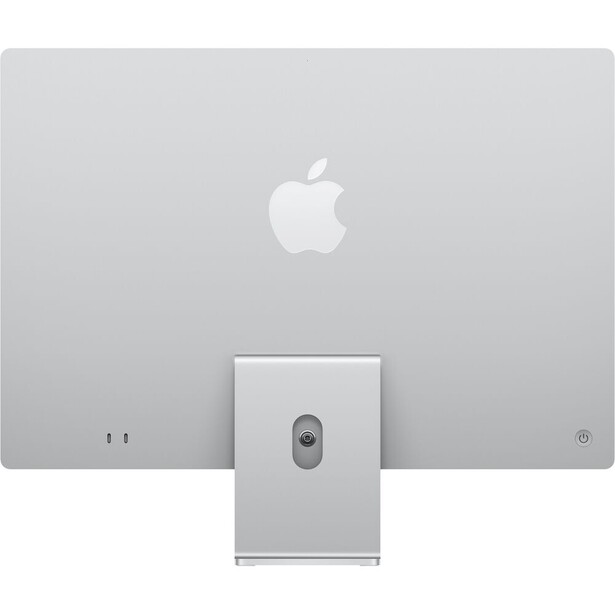
- Processor: Apple M4, 8-core CPU on the two-port model, 10-core CPU on four-port models
- Graphics: 8-core or 10-core GPU
- Memory: 16 GB unified standard, configurable to 32 GB
- Storage: 256 GB or 512 GB SSD standard, up to 2 TB
- Display: 24-inch 4.5K Retina, 4,480 x 2,520, 500 nits, P3 wide color, nano-texture glass optional
- Ports: two Thunderbolt 4 on the entry model, four on the 10-core models; headphone jack; Gigabit Ethernet in the power adapter, standard on four-port models and optional on the two-port
- Memory upgradable later: no, unified memory is soldered
- Size and weight: 21.5 inches wide, 9.74 lb (two-port) or 9.79 lb (four-port)
- Price: $1,399 (B&H)
An all-in-one is a compromise that suits a specific person: someone who wants one cable, a beautiful screen, and no decisions. The iMac serves that person better than any Windows equivalent, because the 4.5K panel is genuinely good, 218 pixels per inch, 500 nits, and full P3 coverage, which is enough to edit and soft proof color-critical work on without embarrassment. The optional nano-texture glass is the version to get if your room has windows behind you, and it is a meaningfully better anti-glare treatment than the matte films on rival machines. We have not reviewed this generation at Fstoppers.
The M4 chip inside is the one Apple's base Mac mini used until the M6 replaced it in September, so set expectations accordingly: excellent for Lightroom and Photoshop with normal files, adequate for light video, out of its depth on a 60-layer retouch. Watch the configuration, because the two-port entry model drops to an 8-core CPU and 8-core GPU and gives you only two Thunderbolt ports, which is not enough for a photographer with an external drive and a card reader. The four-port model is the one to buy.
The screen is also the ceiling. Twenty-four inches is small for a full editing workspace, and you cannot upgrade it, so in three years, when the computer is dated, you are throwing away a perfectly good display as well. A Mac mini plus a 27-inch 5K panel costs more, works better, and lets you replace either half independently, which is the argument our monitors guide makes at length. Product-cycle position: the M4 iMac has been on sale since late 2024, an M5 refresh is plausible during 2026, and Apple raised its price this year. If you want a computer to appear on a desk in one box and simply work, check the current price of the Apple iMac (24-Inch, M4) at B&H.
What We Like
- 4.5K P3 display that is good enough for color-critical work
- Nano-texture glass option genuinely tames reflections
- One cable, no setup, no decisions
- Excellent 12-megapixel camera and six-speaker audio for client calls
What Could Be Better
- 24 inches is a small canvas for serious editing
- Base two-port model is cut down in ways that matter
- Memory soldered and capped at 32 GB
- You replace the display every time you replace the computer
Best Windows All-in-One: HP OmniStudio X 32
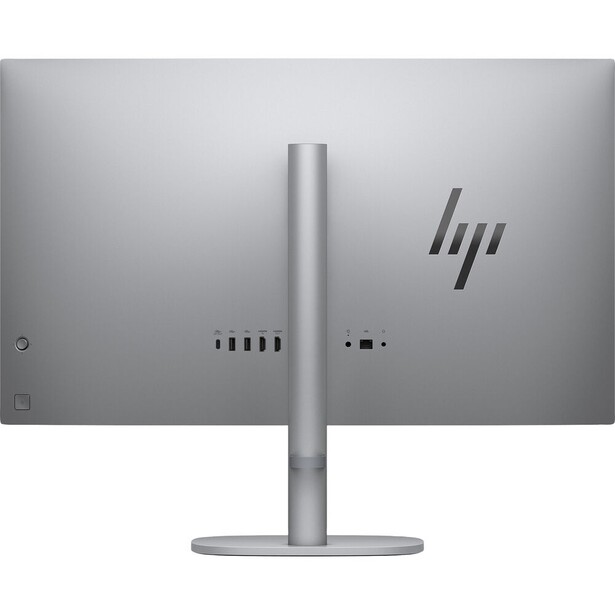
- Processor: Intel Core Ultra 7 256V, 8 cores
- Graphics: integrated Intel Arc
- Memory: 16 GB LPDDR5x, soldered
- Storage: 2 TB PCIe NVMe SSD
- Display: 31.5-inch 4K IPS, 3,840 x 2,160, HP rates it at 550 nits and 95% DCI-P3
- Ports: USB-C 20 Gb/s with DisplayPort 1.4 in and out, USB-A 10 Gb/s, HDMI in and out, Gigabit Ethernet, Wi-Fi 7
- Memory upgradable later: no, memory is soldered
- Size and weight: 31.5-inch class all-in-one on a fixed stand
- Price: $2,179.99 (B&H)
Windows users who want an iMac have never had a great answer, and the HP OmniStudio X 32 is the least compromised attempt in years. The reason to look at it is the panel: 31.5 inches at 4K, IPS, and rated by HP for 550 nits and 95% of DCI-P3. Treat those two numbers as HP's, not as measured fact, because panels in this class routinely measure a little below their rated brightness and gamut. Even so, this remains a large, bright, wide-gamut surface, and a far more comfortable canvas for a two-panel Lightroom layout than the iMac's 24 inches. Calibrate it before you trust it for color-critical work.
Be clear about what it is not. The Core Ultra 7 256V is a low-power laptop chip with eight cores and integrated Arc graphics, not a workstation processor. It will edit raw files happily, and it will run Lightroom's AI features slowly compared to any machine here with a discrete GPU. The 16 GB of memory is soldered LPDDR5x, which means the ceiling is fixed on day one, and 16 GB on Windows is a tighter fit than 16 GB on Apple silicon. This is a machine for a photographer with a manageable catalog who values screen real estate and a tidy desk over sheer throughput, and we have not put one through an Fstoppers review.
Its product-cycle position is mid-life and unremarkable, which for once is a compliment: HP refreshes the OmniStudio line steadily, and nothing about the current model looks about to be orphaned. For maximum editing performance per dollar, a Mac mini with an external monitor beats this comfortably. If you want a large, accurate screen and one power cable, check the current price of the HP OmniStudio X 32 at B&H, and verify the exact panel and memory specification of the unit you are buying, because HP ships this chassis in several variants.
What We Like
- 31.5-inch 4K panel, a far bigger working canvas than the iMac's
- Wide DCI-P3 coverage on HP's own numbers
- Ships with 2 TB of storage in the configuration B&H stocks
- Wi-Fi 7 and a clean, cable-free desk
What Could Be Better
- Low-power laptop processor with integrated graphics
- 16 GB of soldered memory is the hard ceiling
- Slow at AI denoise and AI masking compared to anything with a discrete GPU
- HP's rated brightness and gamut run optimistic for a panel in this class
- Specifications vary by SKU, so you have to check carefully
How to Choose a Computer for Photo Editing
Spend your money in this order: memory, then processor, then storage, then graphics. That order is not what the marketing implies, and in a year when memory has doubled in price, it is the only order that makes sense. For raw editing in Lightroom Classic or Capture One, 32 GB is the comfortable working minimum in 2026, 48 GB is the sweet spot for high-resolution files, and 64 GB or more is for compositors, panorama stitchers, and anyone who runs video and stills applications side by side. On a Mac, that number is fixed forever at the moment you click buy. On a Windows tower with DIMM slots, it is a decision you can revisit when DRAM prices fall, which analysts do not expect before 2027, with much of the industry pointing at 2028.
The processor matters next, and specifically its single-core speed. Lightroom Classic's develop module, its previews, and most of Photoshop's interactive tools are lightly threaded, so a chip with fewer, faster cores often beats a chip with many slow ones. This is why the 12-core M6 in Apple's least expensive Mac mini, which Apple credits with the world's fastest single-threaded performance, makes a capable Lightroom machine despite its modest core count, and why Intel's current Core Ultra parts are competitive with far more expensive workstation silicon for photo work.
Graphics is where most people overspend. Photoshop and Lightroom use the GPU for display acceleration, some filters, and not a great deal else, and a mid-range card gives you nearly everything a flagship does. Then AI arrived and complicated it: Lightroom's Denoise, Super Resolution, and subject masking are GPU workloads, and the difference between a capable dedicated card and no card at all is seconds versus minutes on a single high-resolution file. The practical rule is the one Adobe itself publishes: 8 GB of video memory is what Lightroom Classic wants for full GPU acceleration of the AI features, and 12 GB or more buys margin if you shoot high-resolution files and lean on Denoise daily. On a Mac, any chip with a Pro or Max suffix clears the bar. Above that, you are paying for video and 3D work, not photography.
Storage is simpler than it looks. Buy enough internal NVMe capacity for your operating system, your applications, your catalog, and the current year's work, then push the archive onto external drives or a NAS. Apple's internal storage upgrades are expensive enough that a Thunderbolt SSD is almost always the better purchase, and our portable SSD guide covers which ones survive being lived with. Your display is doing at least as much for your photographs as your processor, and a color-managed workflow starts with a calibrated screen, not a faster chip. If you would rather get more out of the software you already own than buy new hardware, Fstoppers' Mastering Adobe Lightroom course is the cheaper upgrade.
What We're Looking For
Our picks weigh memory capacity and whether it can ever be increased, single-core processor speed in the applications photographers actually use, GPU performance in the AI tasks that now dominate a raw workflow, port selection, noise, and where a machine sits in its product cycle. Every specification was verified against the manufacturer's current specification page and a current retailer listing at the time of writing, and the memory ceilings in particular were checked against Apple's live configuration options rather than launch-day figures, because Apple has cut them repeatedly this year. On testing, we are being straight with you: one of these eight machines, the M5 Pro Mac mini, has come through Fstoppers for a full hands-on review, and the M5 Max Mac Studio entry also cites our 2025 review of the M4 Max model it replaced, clearly labeled as results for that older machine. Each entry says whether we tested it rather than implying a testing history we do not have. For the other seven, where the text describes how a computer behaves, it comes from published specifications and the machine's documented design. Most picks across our buying guides come from gear our writers have used and reviewed hands-on. Where we have not, as with those seven, we say so in the entry.
Frequently Asked Questions
How Much RAM Do I Really Need for Photo Editing?
Thirty-two gigabytes is the comfortable working minimum for raw editing in 2026, and 48 GB is the sweet spot if you shoot 45 megapixels or more. Sixteen gigabytes works for smaller catalogs and modest files, especially on Apple silicon, where unified memory is used more efficiently. Buy more than you think you need, because memory prices are rising and Macs cannot be upgraded later.
Does the Graphics Card Matter for Photoshop and Lightroom?
Less than people assume, but more than it used to. Core editing tasks are processor-bound, and a mid-range card performs nearly as well as a flagship. AI denoise, Super Resolution, and subject masking are the exception: on a capable dedicated GPU they take seconds, and on integrated graphics they can take minutes. Adobe asks for 8 GB of video memory for full GPU acceleration, so treat that as the floor on a Windows machine and 12 GB as comfortable.
Should I Wait for the M5 Macs?
Not for a Mac mini or Mac Studio. Apple's new models, with M6, M5 Pro, M5 Max, and M5 Ultra chips, went on sale on September 22, 2026, and this guide recommends them. An outgoing M4 or M3 Ultra model is worth buying only at a real discount and only if its lower memory ceiling suits you; the M4 Pro Mac mini we reviewed remains a capable stills machine. Apple has not announced a new iMac, and the M4 model is late enough in its cycle that waiting for its replacement is reasonable.
Is a Mac Better Than a PC for Photo Editing?
Neither wins outright in 2026. Macs offer better performance per watt, near-silent operation, and unified memory that stretches further, but every configuration is fixed at purchase. Windows workstations are noisier and bulkier but let you add memory later, install a graphics card with as much as 96 GB of video memory, and repair or upgrade the machine for years.
Do I Need a Desktop at All, or Will a Laptop Do?
A laptop will do for most photographers, and current Apple silicon laptops give up very little to their desktop equivalents. Desktops still win on sustained performance under long exports, on port selection, on cooling and noise, and on price per unit of performance. If you edit primarily at one desk, a desktop plus a good monitor is the better value, and our laptops guide covers the other side of that choice.
Fstoppers may earn a commission from purchases made through links in this article. Our picks are made independently by our editorial team.