A laptop is the only piece of gear in your kit that decides what your photographs actually look like. The camera captures the file, but the screen you edit on determines the color you commit to, and if that screen is lying to you, every print and every client delivery inherits the lie. That single fact reorders the spec sheet. Processor speed and memory decide how long you wait; the panel decides whether the work is right.
The 2026 market has split cleanly. Apple silicon has taken over the top of the range on the strength of performance per watt, and the MacBook Pro's Liquid Retina XDR panel is still the reference against which everything else is judged. Windows has answered with OLED, and it has answered well: the best Windows creator panels now cover the DCI-P3 gamut completely and ship factory-calibrated, and some of them do it with a discrete GPU and a fast card reader Apple charges a fortune to approximate.
Every entry below states what its screen actually covers rather than repeating a marketing gamut claim, and every entry says where the machine sits in its product cycle, because buying a laptop two months before its replacement is an expensive mistake. Only one of these machines, the MacBook Pro 14-inch with M5, has come through Fstoppers for a full review, so the other entries are built from verified specifications, and every entry states its real weakness rather than a marketing gloss. If you edit at a desk more than you edit on a plane, our computers for photo editing guide makes the case for a desktop and a proper monitor instead.
At a Glance
- Best Overall: Apple MacBook Pro 14-Inch (M5)
- Best MacBook for Heavy Files: Apple MacBook Pro 16-Inch (M5 Max)
- Best Windows Laptop: Lenovo Yoga Pro 9i
- Best Display for Color-Critical Work: Dell XPS 16
- Best Budget: ASUS Vivobook S 16 OLED
- Best for Travel and Light Carry: Apple MacBook Air 13-Inch (M5)
- Best 2-in-1 and Tablet Hybrid: Microsoft Surface Pro 13-Inch
- Best for Editing and Gaming: Razer Blade 16
Best Overall: Apple MacBook Pro 14-Inch (M5)
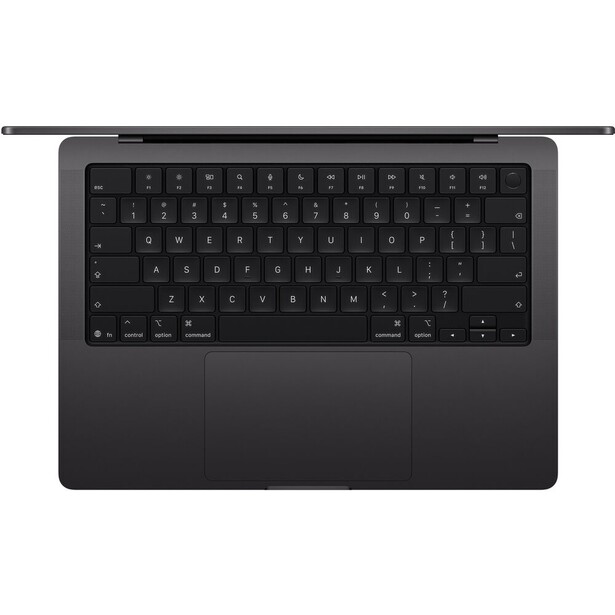
- Display: 14.2-inch Liquid Retina XDR, 3024 x 1964, ProMotion up to 120 Hz, P3 wide color, 1,000 nits sustained full screen and 1,600 nits peak in HDR
- Processor: Apple M5, 10-core CPU
- Graphics: 10-core Apple GPU with a Neural Accelerator in each core
- Memory: 16 GB, 24 GB, or 32 GB unified
- Storage: 1 TB to 4 TB SSD
- Card reader: SDXC
- Weight: 3.4 lb
- Battery: 72.4 Wh, up to 24 hours video streaming
- Price: $3,099 (B&H)
Nothing else in this guide gives a photographer as much of what actually matters for as little compromise as the MacBook Pro 14-inch with M5. The Liquid Retina XDR panel is the single best reason to buy it: a mini-LED display covering the P3 gamut with per-zone local dimming, holding 1,000 nits across the whole screen and peaking at 1,600 nits on HDR content, which means you can grade a high dynamic range image and see the highlight roll-off instead of guessing at it. No OLED laptop panel here sustains that kind of full-screen brightness. Apple also ships a reference-mode preset list that includes P3-D65 and sRGB targets, so you can pin the display to a known standard before you touch a raw file.
The M5 itself is a 10-core chip (4 performance cores and 6 efficiency cores) with 153 GB/s of memory bandwidth, up roughly 28% on the M4, and in practice that means the laptop stops being the thing you wait on. Lightroom's AI Denoise and a stack of 60 MP raw files no longer produce the fan-spinning stall that a comparable Windows ultraportable does, and the machine does it without the power brick. Two ports matter more to photographers than any benchmark: there is a real SDXC card slot in the side and an HDMI output, so a card dump on location is a card in a slot, not a dongle in a bag.
We reviewed the 14-inch M5 model when it launched, and it stayed cool and quiet through sustained editing and export work. The weaknesses are easy to name. The base M5 model runs Wi-Fi 6E and Thunderbolt 4, while the M5 Pro and M5 Max configurations get Wi-Fi 7 and Thunderbolt 5, and the cheaper MacBook Air has Wi-Fi 7 as well, which makes the omission look like a deliberate cut rather than a technical one. Memory tops out at 32 GB, which is enough for photography and thin for heavy video. Apple raised the price of its memory and storage upgrades in June 2026 in response to the industry-wide memory shortage, and since nothing on this machine can be added later, the configuration you buy is the configuration you keep for its whole life.
On product cycle: the 14-inch base model arrived in October 2025 and the M5 Pro and M5 Max versions followed in March 2026, which puts the line comfortably mid-cycle with no imminent replacement to wait for. Check the current price of the Apple MacBook Pro 14-inch (M5) at B&H. Also consider the Apple MacBook Pro 14-inch (M5 Pro) if you also cut video and want Wi-Fi 7 and Thunderbolt 5.
What We Like
- 1,000 nits sustained across the full screen, which no OLED laptop panel here matches
- Reference-mode presets that pin the display to P3-D65 or sRGB
- SDXC card slot and HDMI built in, so no dongle for a card dump
- Silent, cool, and quick under Lightroom AI Denoise and large raw stacks
What Could Be Better
- Wi-Fi 6E and Thunderbolt 4 on the base M5, while the Pro and Max chips get Wi-Fi 7 and Thunderbolt 5
- Memory ceiling of 32 GB
- Storage and memory upgrades are expensive and permanent
- No touchscreen and no pen input
Best MacBook for Heavy Files: Apple MacBook Pro 16-Inch (M5 Max)
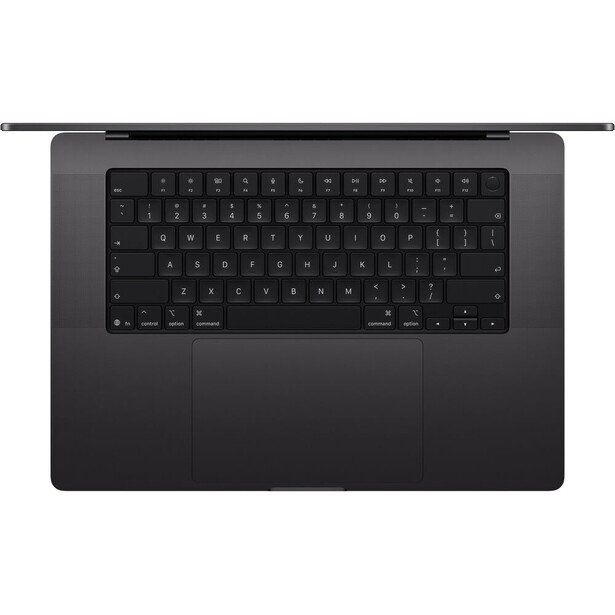
- Display: 16.2-inch Liquid Retina XDR, 3456 x 2234, ProMotion up to 120 Hz, P3 wide color, 1,000 nits sustained full screen and 1,600 nits peak in HDR
- Processor: Apple M5 Max, 18-core CPU
- Graphics: 32-core or 40-core Apple GPU
- Memory: 36 GB, 48 GB, 64 GB, or 128 GB unified
- Storage: 2 TB to 8 TB SSD
- Card reader: SDXC
- Weight: 4.7 lb
- Battery: 100 Wh, up to 22 hours video streaming
- Price: $6,899 (B&H)
Some photographers do not have a photography workload anymore. They have a hybrid workload: 100 MP medium format files in the morning, a multi-camera 4K edit in the afternoon, forty layers of retouching in between, and a client waiting. That person should buy the MacBook Pro 16-inch with M5 Max. The 40-core GPU configuration runs 614 GB/s of memory bandwidth (the 32-core version runs 460 GB/s), and the 128 GB unified memory ceiling means a panorama stitch or a 200-layer composite lives entirely in memory instead of thrashing a scratch disk.
The display is the same Liquid Retina XDR technology as the 14-inch model, just larger in the way that matters. A 16.2-inch panel at 3456 x 2234 gives you a Lightroom develop module with the filmstrip, the histogram, and the full panel stack visible at once without squinting. Add three Thunderbolt 5 ports, an SDXC slot, HDMI, and MagSafe, and it drives a color-managed external monitor and a RAID array without a hub.
We have not reviewed one, and the honest case against it is straightforward: it is heavy and it is expensive. At 4.7 lb before the charger, if you carry a camera bag as well you will feel it by the end of a shooting day. M5 Max configurations start at 36 GB of memory and 2 TB of storage, which is why the entry price is roughly double the 14-inch M5, and Apple's June 2026 price increases hit the memory and storage upgrades hardest of all. For a photographer who only edits stills, that money is better spent on a color-accurate desktop monitor and a cheaper laptop.
On product cycle: the M5 Pro and M5 Max MacBook Pro launched in March 2026, making this the newest machine Apple sells. If the price stings, the 16-inch M5 Pro configuration keeps the same display and chassis at a lower memory and GPU ceiling, so check the current price of the Apple MacBook Pro 16-inch (M5 Max) at B&H before you commit to the top chip.
Read our review of the 16-inch M5 Pro configuration: We Review the New MacBook Pro With M5 Pro: Apple Delivers Another Remarkable Leap
What We Like
- 128 GB memory ceiling and up to 614 GB/s of bandwidth on the 40-core GPU
- A 16.2-inch XDR panel large enough to replace a desktop for many people
- Three Thunderbolt 5 ports, SDXC, HDMI, and MagSafe
- Still quiet and cool under sustained export loads
What Could Be Better
- 4.7 lb is a real burden alongside a camera kit
- Configurations start high and Apple raised upgrade pricing in June 2026
- Overkill for a stills-only workflow
- No touchscreen, which some retouchers miss
Best Windows Laptop: Lenovo Yoga Pro 9i
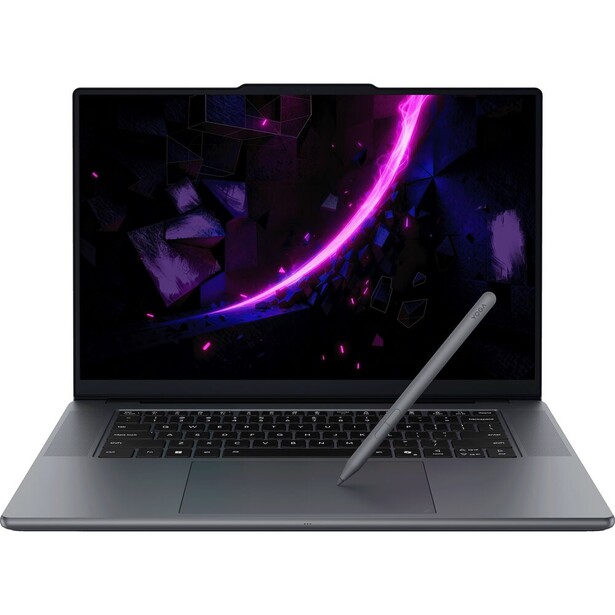
- Display: 16-inch 3.2K (3200 x 2000) tandem OLED touchscreen, 120 Hz, 100% DCI-P3 and sRGB, 99% Adobe RGB, 1,000 nits in standard dynamic range, matte finish, factory-calibrated
- Processor: Intel Core Ultra 9 386H, 16 cores
- Graphics: NVIDIA GeForce RTX 5060 Laptop GPU with 8 GB GDDR7 (RTX 5070 in the top configuration)
- Memory: 32 GB or 64 GB LPDDR5X
- Storage: 1 TB to 4 TB SSD
- Card reader: SD (UHS-II)
- Weight: 4.25 lb
- Battery: 92.5 Wh
- Price: $3,799 (B&H)
Windows photographers usually have to choose between a color-accurate panel, a real graphics card, and a full set of ports, because most machines give you two of the three. The Lenovo Yoga Pro 9i gives you all three in one chassis, which is why it takes the all-round Windows slot. The 16-inch screen is a 3.2K tandem OLED, a panel that stacks two emissive layers so it holds 1,000 nits in standard dynamic range instead of the 400 nits an ordinary OLED laptop fades to, and it does that across 100% of DCI-P3 and 99% of Adobe RGB. A matte finish keeps it easier on the eyes through a long culling session than the glossy screens most OLED laptops ship.
The discrete NVIDIA graphics are what separate it from a MacBook for a certain kind of editor. An RTX 5060 Laptop GPU with 8 GB of GDDR7 puts a real CUDA card behind Lightroom's AI Denoise, Topaz Photo AI, and Photoshop's neural filters, the exact jobs that turn a folder of raw files into a coffee break on integrated graphics. The Core Ultra 9 386H driving it is a 16-core Panther Lake chip with a 50 TOPS NPU for the on-device AI now built into editing software. Lenovo also fitted the ports a photographer reaches for without thinking: a full-size UHS-II SD reader, HDMI 2.1, two USB-A 3.2 Gen 2 ports, and two Thunderbolt 4 ports, so a card, a drive, and a color-managed monitor connect at once with no hub in the bag. The Wacom-powered Yoga Pen in the box turns the touchscreen into a surface for dodging, burning, and masking on the image itself.
The honest weaknesses are the cost of packing all of that in. This is a heavy, thick machine at 4.25 lb, closer to a workstation than a thin-and-light, and the bulk registers the moment it goes into a bag alongside a camera body. The graphics stop at an RTX 5060, with an RTX 5070 as the ceiling, so anyone leaning hard on GPU-bound video or the heaviest batch AI work will still finish faster on the Razer Blade 16 and its RTX 5090. Battery life is average for the class, since a bright tandem OLED and a discrete GPU both pull power, and the laptop ships with a 245 W slim-tip barrel charger to feed them. The Thunderbolt ports will charge it, but only at the 100 W that USB-C Power Delivery allows, which is not enough to hold full GPU performance under load.
On product cycle: the Gen 11 version, built on Intel's Panther Lake silicon, arrived in 2026 and is the current model, so there is no imminent successor to wait out. For the photographer who wants a single Windows machine that edits, accelerates AI tools, drives a monitor, and takes a pen, check the current price of the Lenovo Yoga Pro 9i at B&H.
What We Like
- 3.2K tandem OLED that holds 1,000 nits in standard dynamic range, far brighter than an ordinary OLED laptop
- 100% DCI-P3 and 99% Adobe RGB coverage, factory-calibrated
- Discrete RTX 5060 for genuine acceleration on AI denoise and upscaling
- Full-size UHS-II SD reader, HDMI 2.1, USB-A, and two Thunderbolt 4 ports
- Wacom-powered pen and touchscreen for retouching directly on the image
What Could Be Better
- Heavy and thick at 4.25 lb
- Graphics stop at an RTX 5060, with an RTX 5070 ceiling
- Average battery life for the class
- Full GPU power needs the bundled 245 W barrel charger, since USB-C tops out at 100 W
Best Display for Color-Critical Work: Dell XPS 16
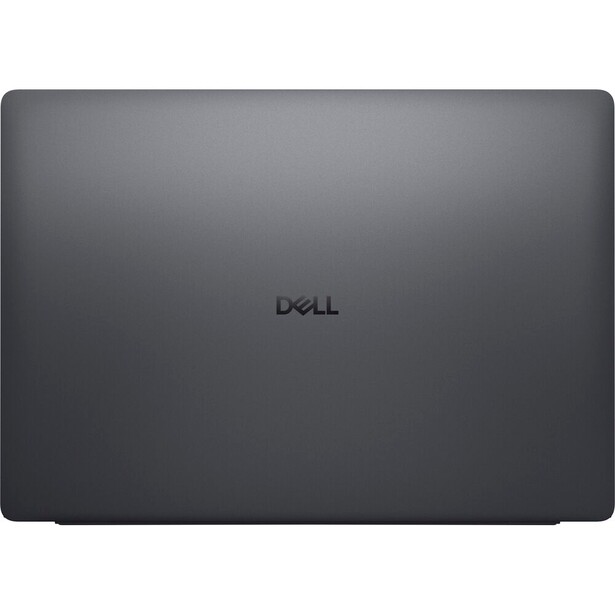
- Display: 16-inch 3.2K (3200 x 2000) tandem OLED touchscreen, variable 20 to 120 Hz, 100% DCI-P3 and 97% Adobe RGB measured, DisplayHDR True Black 500, anti-reflective coating
- Processor: Intel Core Ultra 5 325, Core Ultra 7 355, or Core Ultra X7 358H
- Graphics: integrated Intel Arc
- Memory: 16 GB or 32 GB LPDDR5X
- Storage: 512 GB or 1 TB SSD
- Card reader: none
- Weight: 3.65 lb
- Battery: 70 Wh
- Price: $1,913.41 (B&H)
Dell spent a year calling this laptop the Dell 16 Premium, listened to the resulting complaints, and brought the XPS name back for 2026. The panel is why it is here. The XPS 16 uses a tandem OLED, which stacks two emissive layers to raise brightness and, more usefully, to reduce the burn-in risk that makes conventional OLED a nervous choice for someone who stares at the same Lightroom interface for eight hours a day. The panel covers 100% DCI-P3, 100% sRGB, and 97% Adobe RGB, the same class of coverage as the Yoga Pro 9i, delivered on a variable 20 to 120 Hz panel instead of a fixed, sluggish 60 Hz one.
The detail that separates it is the anti-reflective, anti-smudge coating on the touchscreen. Glossy laptop panels are a menace on location, and the difference between judging a shadow on a mirrored screen and judging it on a treated one is not subtle. Dell has also gone back to a keyboard-side chassis opening so the SSD can be swapped without disassembling the machine, and it cut nearly a pound out of the design, so a 16-inch laptop now weighs 3.65 lb.
Two things will disqualify it for some readers, and we would rather say them now than bury them. The port selection is three Thunderbolt 4 sockets and a headphone jack. That is the entire list: no SD card reader, no HDMI, no USB-A, on a premium laptop aimed at creative professionals, which means a dongle lives permanently in your bag. And there is no discrete GPU option this year: you get Intel Arc integrated graphics, which handle Lightroom and Photoshop fine but lag well behind an RTX card on AI denoise and GPU-accelerated upscaling. We have not tested one in house, but the spec sheet is unambiguous on both counts: the panel is excellent and the port selection is stingy.
On product cycle: the 2026 XPS 16 launched at CES in January 2026 and is Dell's current flagship, with an XPS 14 alongside it and an XPS 13 announced to follow, so it is early in its life. If a treated, color-accurate panel matters more to you than a card slot, check the current price of the Dell XPS 16 at B&H.
What We Like
- Tandem OLED at 100% DCI-P3 and 97% Adobe RGB, running at 120 Hz
- Anti-reflective coating that makes on-location judgment far easier
- 3.65 lb for a 16-inch machine, nearly a pound lighter than before
- Serviceable SSD through a keyboard-side opening
What Could Be Better
- Three Thunderbolt 4 ports and a headphone jack, and nothing else: no card reader, no HDMI, no USB-A
- Integrated graphics only, so AI denoise is slow
- 70 Wh battery is small for a 16-inch laptop
- Around 400 nits in standard dynamic range
Best Budget: ASUS Vivobook S 16 OLED
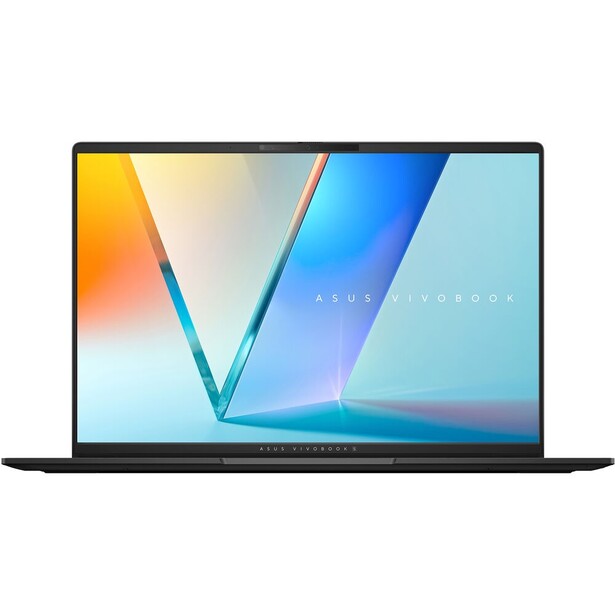
- Display: 16-inch 2.8K (2880 x 1800) OLED, 120 Hz, 100% DCI-P3
- Processor: Intel Core Ultra 9 285H, 16 cores
- Graphics: integrated Intel Arc
- Memory: 16 GB or 32 GB LPDDR5X
- Storage: 512 GB or 1 TB SSD
- Card reader: microSD
- Weight: 3.31 lb
- Battery: 75 Wh
- Price: $1,399.99 (B&H)
Here is the question this slot answers: what is the cheapest laptop you can edit on without lying to yourself about color? The Vivobook S 16 OLED is the answer, and the margin is not close. It puts a 2.8K OLED panel with full DCI-P3 coverage and a 120 Hz refresh into a laptop that sells for a fraction of what the MacBook Pro costs. Most machines in this price class ship an IPS panel with roughly 45% NTSC coverage that cannot show you a saturated red without clipping it, and no amount of calibration fixes a gamut the panel does not have.
ASUS has not cheapened the rest of the machine to get there. The Core Ultra 9 285H is a 16-core chip that culls and exports at a respectable pace, the 75 Wh battery in a 3.31 lb chassis is a sensible ratio, and there are two Thunderbolt 4 ports, two USB-A ports, and HDMI 2.1 on the sides. For a student, a second shooter, or anyone who wants a travel laptop that will not ruin a color decision, the value is obvious.
The compromises are exactly where you would expect them. The card slot is microSD, not full-size SD, so unless you shoot on a drone or an action camera a USB-C reader joins your kit permanently. Graphics are Intel Arc integrated, so Lightroom's AI Denoise on a folder of raw files is something you start and walk away from. The chassis flexes under a firm press in a way the Yoga Pro 9i and the MacBook do not. Resolution is the quiet compromise: at 2880 x 1800 this is a step below the 3.2K panels on the Yoga Pro 9i and the XPS. And OLED brings its own asterisk. Leave a bright, static Lightroom interface on screen for years and burn-in becomes a real risk, so set an aggressive screen timeout. We have not tested this one, and none of the independent measurements we have seen contradict ASUS on the panel.
On product cycle: the S5606 generation is current, and ASUS has been showing Vivobook models on newer Intel and Snapdragon silicon through 2026, so a refresh is likely within the next year. That makes now a reasonable time to buy the current model at a discount if you do not need the newest chip, so check the current price of the ASUS Vivobook S 16 OLED at B&H.
What We Like
- A full DCI-P3, 120 Hz OLED panel at a price nothing else matches
- 16-core Core Ultra 9 that culls and exports without complaint
- 3.31 lb with a 75 Wh battery, so it travels well
- Two Thunderbolt 4 ports, two USB-A ports, and HDMI 2.1
What Could Be Better
- microSD only, so no full-size SD card slot
- Integrated graphics make AI denoise slow
- Chassis flexes noticeably
- 2880 x 1800 is a step below the Yoga Pro 9i and the XPS on resolution
Best for Travel and Light Carry: Apple MacBook Air 13-Inch (M5)
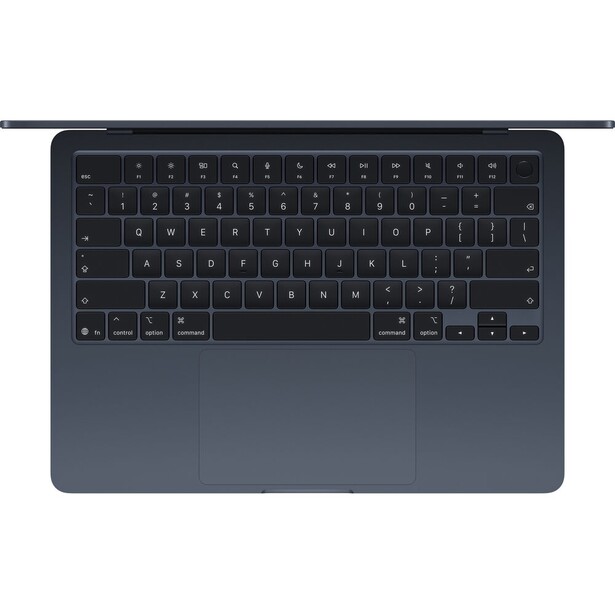
- Display: 13.6-inch Liquid Retina, 2560 x 1664, 60 Hz, P3 wide color, 500 nits
- Processor: Apple M5, 10-core CPU
- Graphics: 8-core or 10-core Apple GPU
- Memory: 16 GB, 24 GB, or 32 GB unified
- Storage: 512 GB to 4 TB SSD
- Card reader: none
- Weight: 2.7 lb
- Battery: 53.8 Wh, up to 18 hours video streaming
- Price: $1,259 (B&H)
Travel photographers keep buying the wrong laptop. They buy the workstation, carry it once through three airports with a camera bag on the other shoulder, then leave it in the hotel for the rest of the trip. The MacBook Air 13-inch with M5 is 2.7 lb, has no fan to clog with dust, and runs the same M5 chip as the entry MacBook Pro, so it culls, rates, and edits a day's raw files at a speed that would have been a desktop's job five years ago.
The March 2026 refresh fixed the thing that used to make the Air a bad recommendation for photographers. Base storage doubled from 256 GB to 512 GB, and Apple says the SSD now reads and writes twice as fast as the previous generation, which you feel every time you import a card. Base memory stays at 16 GB, which is where the M4 Air landed and where a stills workflow is comfortable. Battery is rated at up to 18 hours of video streaming from a 53.8 Wh cell, so a long-haul flight and an evening cull do not require a hunt for an outlet. The Air also gets Wi-Fi 7, which the more expensive base MacBook Pro does not.
The Air is a fanless machine, and physics has not been repealed. Sustain a long export or a heavy panorama merge and it will thermally throttle where the MacBook Pro will not, so the gap between the two grows with the length of the job. The 13.6-inch display is a good 500-nit P3 panel and nothing more: no ProMotion, no XDR, no HDR headroom, and 500 nits is not enough to judge an image in direct sunlight. There is no card reader. We have not run this one through an Fstoppers review either.
On product cycle: the M5 Air shipped in March 2026, so it is the current model and will be for a year. For the photographer whose real constraint is what they are willing to carry, check the current price of the Apple MacBook Air 13-inch (M5) at B&H. Also consider the Apple MacBook Air 15-inch (M5) if you would rather have the larger screen than the smaller bag.
What We Like
- 2.7 lb and completely silent, with no fan intake to fill with dust
- The same M5 chip as the entry MacBook Pro
- 512 GB of storage and Wi-Fi 7 are now the starting point, not an upgrade
- Genuine long-haul battery life
What Could Be Better
- Fanless design throttles on long exports
- 500 nits, no ProMotion, and no HDR headroom
- No card reader and only two Thunderbolt ports
- Not the machine for heavy video work
Best 2-in-1 and Tablet Hybrid: Microsoft Surface Pro 13-Inch
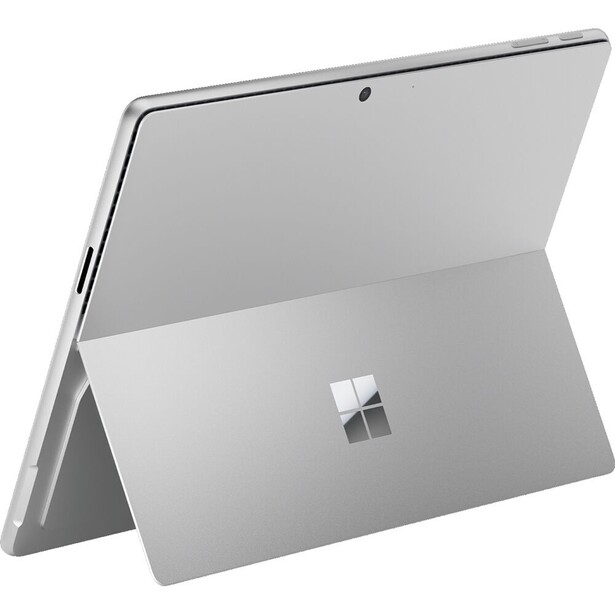
- Display: 13-inch 2880 x 1920 OLED touchscreen, 120 Hz, roughly 600 nits measured in standard dynamic range, 98.8% DCI-P3 and 89% Adobe RGB, Delta E of about 1.3 out of the box
- Processor: Qualcomm Snapdragon X2 Elite (12-core) or Snapdragon X2 Plus (10-core)
- Graphics: integrated Qualcomm Adreno
- Memory: 16 GB, 32 GB, or 64 GB
- Storage: 256 GB, 512 GB, or 1 TB, user-replaceable M.2 2230 SSD
- Card reader: none
- Weight: 1.97 lb (tablet only, without the keyboard)
- Battery: 53 Wh, up to 15.5 hours local video playback
- Price: $2,699.99 (B&H)
The case for a tablet hybrid in a photographer's kit is retouching. Dodging, burning, and masking with a pen directly on the image is faster than pushing a mouse, and the Surface Pro 13-inch is the only machine here that does it properly. Fold the keyboard away, pick up the pen, and you are working on a 120 Hz OLED panel that independent testing puts at 98.8% DCI-P3 with an out-of-box Delta E around 1.3, better factory calibration than most photographers ever bother to check on their desktop monitor. Buy carefully, because Microsoft also sells this machine with an LCD screen, and the color argument for it disappears entirely on that panel.
The 2026 model, the 12th edition, moved to Qualcomm's Snapdragon X2 chips, and the compatibility argument that used to sink Windows on Arm has largely collapsed. Photoshop, Lightroom, and Capture One all run natively on Arm now, and Capture One offloads some of its AI processing to the Snapdragon NPU. The tablet weighs 1.97 lb on its own, the lightest full computer in this guide by a wide margin, and the M.2 2230 SSD can be swapped by the owner.
Be clear about what it is not. It is not a primary editing machine for a busy professional: the integrated Adreno graphics are no match for an RTX card, the case gets hot under sustained load, and there is no SD card reader and no headphone jack, only two USB-C ports. The keyboard and the pen are sold separately and together they add meaningfully to the price. And Adobe RGB coverage lands near 89%, so it is a P3 screen rather than a print-proofing screen. We have not tested this one at Fstoppers; the color measurements above come from independent lab testing.
On product cycle: this generation launched in June 2026, making it the freshest Windows machine in the guide. For a retoucher who wants a pen on glass and a laptop in one bag, check the current price of the Microsoft Surface Pro 13-inch at B&H. Also consider the ASUS ROG Flow Z13 if you want a detachable with far more graphics power and can accept worse battery life.
What We Like
- Excellent factory calibration, around Delta E 1.3 at 98.8% DCI-P3
- Pen-on-glass retouching in a device that is also a real Windows laptop
- 1.97 lb as a tablet, the lightest computer here
- User-replaceable M.2 2230 SSD
What Could Be Better
- Keyboard and pen cost extra
- No card reader, no headphone jack, two ports total
- Integrated graphics and high case temperatures under load
- 89% Adobe RGB, so it is not a print-proofing display
Best for Editing and Gaming: Razer Blade 16
- Display: 16-inch QHD+ (2560 x 1600) OLED, 240 Hz, 500 nits in standard dynamic range and up to 1,100 nits peak in HDR, 100% DCI-P3, VESA DisplayHDR TrueBlack 1000
- Processor: Intel Core Ultra 9 386H, 16 cores
- Graphics: NVIDIA GeForce RTX 5080 or RTX 5090 Laptop GPU at 165 W
- Memory: 16 GB, 32 GB, or 64 GB LPDDR5X-9600
- Storage: 1 TB or 2 TB PCIe SSD from Razer
- Card reader: UHS-II SD
- Weight: 4.6 lb
- Battery: 90 Wh, up to 15 hours video playback
- Price: $3,499.99 (Amazon)
Plenty of photographers also game, and the usual advice is to buy two machines. The Blade 16 is the argument against that. It is 14.9 mm thick, wrapped in a CNC-milled aluminum unibody with no visible gaming styling, and it hides an RTX 5090 running at 165 W, the most graphics power in this guide by a distance. That GPU is not decoration: Lightroom AI Denoise, Topaz Photo AI, and Photoshop's neural filters all lean on CUDA, and the difference between an RTX 5090 and an integrated Arc GPU on a folder of 200 raw files is measured in coffee breaks.
Razer also solved the ports problem the thin-and-light crowd keeps ignoring. There is a UHS-II SD card reader, HDMI 2.1, three USB-A ports, Thunderbolt 5, and Thunderbolt 4, so a card, a drive, a tablet, and a monitor all connect without a hub. The 2026 model moved to Intel's 16-core Core Ultra 9 386H with LPDDR5X-9600 memory, and Razer ships the panel factory color-calibrated, rated at 100% DCI-P3 and certified to VESA DisplayHDR TrueBlack 1000.
The panel is where the compromise lives. At 2560 x 1600 it is the lowest-resolution screen in this guide, and on a 16-inch laptop that is a visible step down from the Yoga Pro 9i's 3.2K OLED when you are pixel-peeping at 100%. Razer publishes DCI-P3 coverage but not an Adobe RGB figure, which for a print-focused photographer is a gap worth verifying yourself with a calibrator. This is also a loud machine under load, and it is expensive: the entry configuration costs more than a MacBook Pro 14. We have not reviewed one at Fstoppers.
On product cycle: the 2026 Blade 16 was announced in March 2026 and is Razer's current flagship, so there is no successor to wait for. If your photo work and your evenings both want a serious GPU, check the current price of the Razer Blade 16 at Amazon.
What We Like
- Up to an RTX 5090 at 165 W, the fastest AI denoise here by far
- UHS-II SD reader, HDMI 2.1, USB-A, and Thunderbolt 5
- Restrained, professional aluminum chassis at 14.9 mm
- 240 Hz OLED with DisplayHDR TrueBlack 1000
What Could Be Better
- 2560 x 1600 is the lowest-resolution panel in this guide
- No published Adobe RGB coverage figure
- Loud fans under sustained load
- Costs more than a MacBook Pro 14 to get in the door
How to Choose a Laptop for Photography
Start with the panel, because it is the only component you cannot upgrade or work around. The number to look for is not brightness and it is not resolution, it is gamut coverage, and specifically Adobe RGB coverage if you print. A screen that covers 100% of sRGB and nothing more will refuse to show you the saturated greens and cyans your printer can lay down, and you will only discover the mismatch when the print comes back flat. Look for a measured figure from an independent review, not a manufacturer's "100% DCI-P3" marketing line. Then calibrate it. A hardware calibrator is a one-time purchase and the cheapest upgrade in your workflow.
Memory matters more than the processor. Lightroom and Photoshop are happy at 16 GB for most stills work, but the moment you stack a panorama, open a 200-layer composite, or run both applications with a browser full of client tabs, 32 GB is the number that stops the swapping. That memory is soldered on a Mac and soldered on most of the thin Windows machines here, so buy it up front. The processor is the spec people obsess over and the one that matters least at this level: every chip in this guide culls and edits raw files quickly.
A discrete GPU is worth real money if, and only if, you use AI tools. Lightroom's Denoise, Topaz Photo AI, and Photoshop's generative features are GPU-bound, and an NVIDIA RTX card is transformatively faster than integrated graphics on those jobs. If your workflow is exposure, contrast, color, and a bit of cloning, you will never notice the GPU. Our Mastering Adobe Lightroom course is a fair way to find out how much of your time these tools would actually save.
Finally, count the ports and weigh the bag. A built-in SD card reader is the difference between offloading a card while you eat lunch and rummaging for a dongle you left in a different bag. The MacBooks Pro, the Yoga Pro 9i, and the Blade include a full-size slot, the Vivobook gives you microSD only, and the MacBook Air, the XPS 16, and the Surface Pro give you nothing. A 4.7 lb workstation is the right answer for a studio retoucher who moves the machine twice a week and the wrong answer for a travel photographer, who will leave it behind. Plan the external monitor too, since a laptop panel is a compromise no matter which one you buy, and our monitors for photo editing guide covers what a color-accurate desktop display costs.
What We're Looking For
Our picks weigh display gamut coverage and factory calibration first, then memory ceiling, then whether the machine has the ports a photographer actually uses, then sustained performance under a real editing load rather than a benchmark score. Every specification here was verified against the manufacturer's current specification page and a current retailer listing at the time of writing. On testing, we are being straight with you: only one of these eight machines, the MacBook Pro 14-inch with M5, has had a full Fstoppers review. Where the text describes how a laptop behaves, that is drawn from its verified specifications and its documented performance, and each entry states its real weakness rather than a marketing gloss.
Frequently Asked Questions
How Much Memory Do I Need for Photo Editing in 2026?
Buy 32 GB if you can afford it and 16 GB if you cannot. Lightroom and Photoshop run comfortably on 16 GB for single-image editing, but panorama stitching, large layered composites, and running both applications at once will push past it. Memory is soldered on almost every laptop in this guide, so you cannot fix the decision later.
Is a Mac Really Better Than Windows for Photography?
Not inherently, but Apple currently wins on two things photographers care about: display quality and performance per watt. The Liquid Retina XDR panel sustains brightness no OLED laptop matches, and the machines run silently on battery. Windows wins on price, on discrete NVIDIA graphics for AI tools, and on touchscreen and pen support.
Do I Need a Discrete GPU for Photo Editing?
Only if you use AI tools. Lightroom's Denoise, Topaz Photo AI, and Photoshop's generative features all run dramatically faster on an NVIDIA RTX card than on integrated graphics, often by a factor of several. Traditional raw editing, culling, and retouching are mostly processor and memory bound, and integrated graphics handle them fine.
Does OLED Burn-In Matter for a Photo Editing Laptop?
It is a real risk worth managing, not a reason to avoid OLED. Editing software puts bright, static panels and toolbars in the same screen positions for hours, which is the exact condition that causes burn-in. Set a short screen timeout, enable pixel-shifting if your laptop offers it, and hide panels you are not using. Tandem OLED panels, like the Dell XPS 16's, are more resistant.
Fstoppers may earn a commission from purchases made through links in this article. Our picks are made independently by our editorial team.