Nothing exposes a bad monitor like a print. You spend an hour dialing in skin tones, send the file off, and the proof comes back muddy and green, and the file was never the problem. The screen was lying to you. That is the argument for treating a display as professional equipment rather than the last thing you buy with whatever is left after the camera and the lenses.
Three things decide this purchase. The first is color gamut, meaning how much of sRGB, Adobe RGB, and DCI-P3 the panel can actually reproduce, because a monitor cannot show you a color it is physically incapable of making. The second is hardware calibration, which writes a correction directly into the monitor's own lookup table instead of nudging your graphics card and throwing away tonal steps. The third is resolution, which in 2026 has quietly become a real decision again now that 6K panels are no longer priced like medical equipment.
The picks below run from a 27-inch 4K panel that costs less than a decent zoom lens to a reference display that costs more than a mirrorless body, and each entry says plainly what the monitor gives up to hit its price. Every entry is built from the manufacturer's current specifications and verified against current retailer listings. If you are also rebuilding the machine behind the screen, our computers for photo editing guide is the other half of this decision.
At a Glance
- Best Overall: ASUS ProArt Display 6K PA32QCV
- Best 4K: BenQ PhotoVue SW272U
- Best 6K: LG UltraFine evo 32U990A
- Best Budget: ASUS ProArt Display PA279CRV
- Best Color-Accurate Reference Display: EIZO ColorEdge CG2700X
- Best Ultrawide: Dell UltraSharp U4025QW
- Best for Mac: Apple Studio Display (2026)
- Best OLED for Retouching and HDR: Dell UltraSharp U3226Q
Best Overall: ASUS ProArt Display 6K PA32QCV
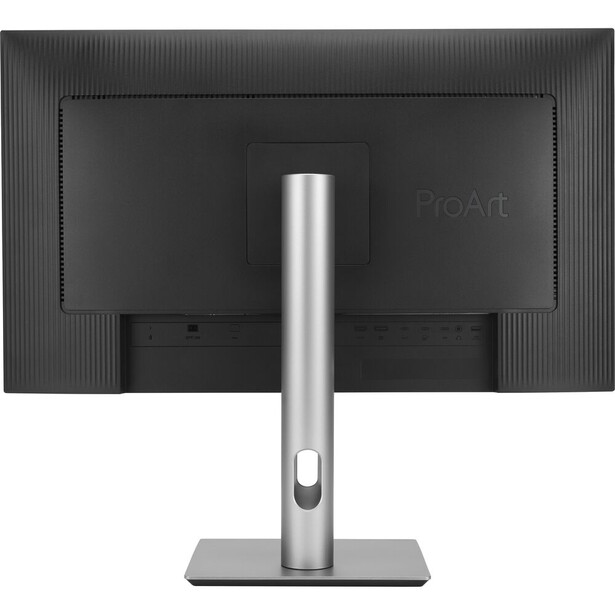
- Size and panel: 31.5-inch IPS with ASUS' LuxPixel anti-glare, low-reflection coating
- Resolution: 6016 x 3384 (6K), 218 ppi
- Color gamut: 100% sRGB, 98% DCI-P3, 10-bit color
- Brightness and contrast: 400 cd/m² typical, 600 cd/m² HDR peak, 1500:1
- Color management: Calman Verified, Delta E under 2, software calibration through ASUS DisplayWidget
- Connectivity: 2x Thunderbolt 4 with daisy chaining and 96 W power delivery, HDMI 2.1, DisplayPort 1.4
- Refresh rate: 60 Hz
- Price: $1,299 (B&H)
Two years ago a 6K panel with Thunderbolt was a five-figure conversation. The ProArt Display 6K PA32QCV is the monitor that ended that, and it is why it takes the overall slot. At 218 ppi it matches Apple's Retina pixel density, so a 45-megapixel raw file renders with the pixel structure invisible from a normal seat, and the extra vertical real estate over 4K is exactly where Lightroom's filmstrip and Photoshop's panels go to stop stealing space from your image. Dual Thunderbolt 4 ports mean a laptop arrives on one cable and leaves with 96 W of charge.
This is the most thoroughly specified panel in the guide, and the numbers hold up. ASUS quotes 98% DCI-P3 coverage, 10-bit color, a factory Calman verification with a stated Delta E under 2, and an anti-glare treatment that kills the reflections a glossy screen throws back at you in a bright room. Contrast is quoted at 1500:1 typical, above the 1000:1 most IPS panels settle for, and it carries VESA DisplayHDR 600 certification with a 600 cd/m² peak.
The weakness is one photographers specifically need to hear. ASUS does not publish an Adobe RGB figure for this display, and its Adobe RGB coverage lands near 88%. If you soft-proof prints in Adobe RGB, this panel cannot show you the deep cyans and greens that gamut contains. That is a real limitation, not a rounding error, and it is why the BenQ and the EIZO exist further down this page. There is also no built-in colorimeter and no hardware calibration to the monitor's own lookup table.
Aim this at the photographer who delivers to screens, wants the most pixels per dollar available in 2026, and is not soft-proofing to a paper profile every week. That is most of us. Check the current price of the ASUS ProArt Display 6K PA32QCV at B&H.
Read our full review of the ASUS ProArt Display 6K PA32QCV.
What We Like
- 218 ppi 6K resolution at a price no 6K panel used to approach
- Dual Thunderbolt 4 with 96 W charging and daisy chaining
- Matte, low-reflection coating that survives a bright room
- DisplayHDR 600 and above-average 1500:1 contrast
What Could Be Better
- Adobe RGB coverage measures around 88%, so print soft-proofing suffers
- No built-in colorimeter and no true hardware calibration
- 60 Hz only, which video editors will notice more than photographers
- No shading hood included
Best 4K: BenQ PhotoVue SW272U
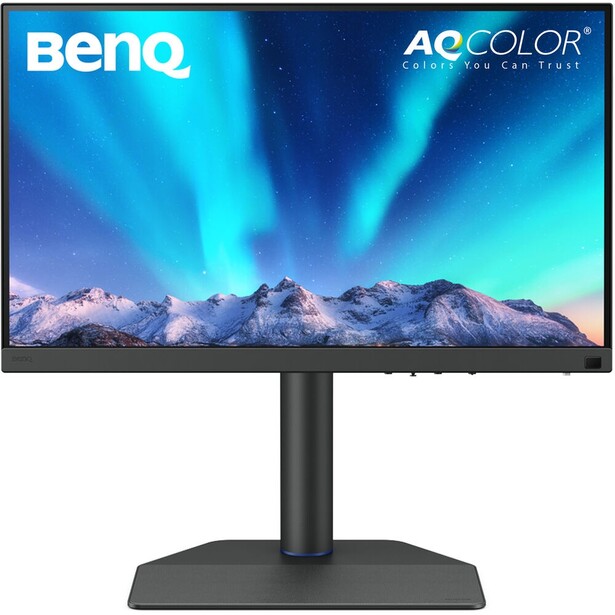
- Size and panel: 27-inch IPS with BenQ's Nano Matte anti-reflection coating
- Resolution: 3840 x 2160 (4K), 163 ppi
- Color gamut: 100% sRGB, 99% Adobe RGB, 99% DCI-P3, 1.07 billion colors
- Brightness and contrast: 400 cd/m² typical, 1000:1
- Color management: hardware calibration with a 16-bit 3D lookup table, average Delta E of 1.5 or lower, Pantone Validated and Calman Verified
- Connectivity: USB-C with 90 W power delivery, HDMI, DisplayPort, USB hub
- Refresh rate: 60 Hz
- Price: $1,499.99 (B&H)
Every other monitor in this guide is a professional display that photographers happen to use. The SW272U is built for photographers and nobody else, and the difference shows up in the accessories box before it shows up on the panel. A shading hood ships in the carton, and so does the Hotkey Puck G3, a wireless dial that sits next to your keyboard and switches the monitor between Adobe RGB, sRGB, and a black-and-white preview mode without opening an on-screen menu.
The panel is the reason to buy it. BenQ quotes 99% Adobe RGB, 99% DCI-P3, and 100% sRGB, so a single screen covers the web gamut, the print gamut, and the video gamut without you picking a favorite. Behind that sits a 16-bit 3D lookup table and genuine hardware calibration, so when you run a colorimeter through BenQ's Palette Master Ultimate software (which BenQ is rebranding as AQCOLOR Pilot) the correction lands inside the monitor. Your graphics card keeps sending full-range data, and you do not lose tonal steps to a software LUT. That is the most important spec difference between a photo monitor and a nice office monitor.
The Nano Matte coating is the other thing people underrate. It kills reflections without the sparkly grain that cheaper anti-glare films throw over fine detail, so at 100% zoom on a landscape file you are looking at your grain rather than the panel's. The tradeoff is contrast: 1000:1 is ordinary, blacks look gray next to any OLED, and the HDR support is a checkbox rather than a reason to buy. At 163 ppi it is sharp, but not the invisible-pixel experience the 6K panels deliver.
Buy this if you print, if you soft-proof, or if you have ever had a color-managed workflow break and wanted a screen that removes one variable from the equation. Check the current price of the BenQ PhotoVue SW272U at B&H. Also consider the BenQ PhotoVue SW272Q for the same 99% Adobe RGB coverage, hardware calibration, and hood at 1440p and for less money, if you can live with 109 ppi and 300 cd/m².
What We Like
- 99% Adobe RGB and 99% DCI-P3 from one panel
- Real hardware calibration to a 16-bit 3D lookup table
- Shading hood and wireless Hotkey Puck included, not sold separately
- Anti-reflection coating that does not add grain to fine detail
What Could Be Better
- 1000:1 contrast is unremarkable and HDR is nominal
- 163 ppi looks coarse next to the 6K panels here
- USB-C tops out at 90 W, short of a hungry 16-inch laptop's draw
- Costs meaningfully more than the 6K ASUS
Best 6K: LG UltraFine evo 32U990A
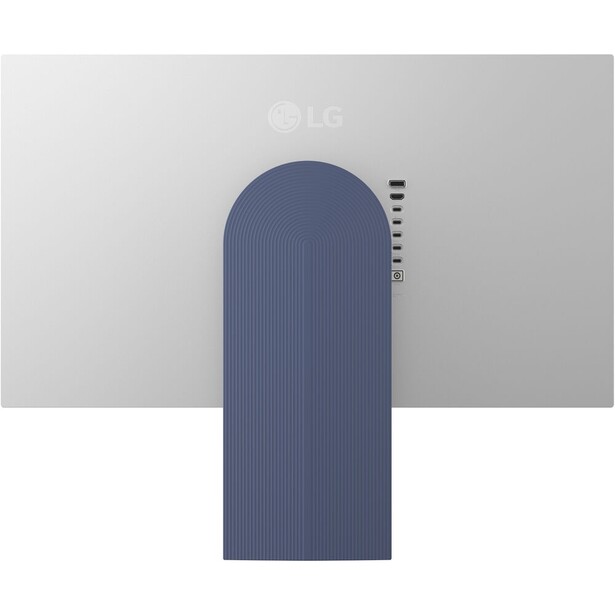
- Size and panel: 31.5-inch Nano IPS Black
- Resolution: 6144 x 3456 (6K), 224 ppi
- Color gamut: 99.5% Adobe RGB, 98% DCI-P3, 10-bit color
- Brightness and contrast: 450 cd/m² typical, VESA DisplayHDR 600, 2000:1
- Color management: hardware calibration through LG Calibration Studio with a supported colorimeter (not included)
- Connectivity: 2x Thunderbolt 5 with 96 W power delivery, HDMI 2.1, DisplayPort 2.1, USB-C
- Refresh rate: 60 Hz
- Price: $1,299.99 (B&H)
Here is the monitor that does what the ASUS could not. The UltraFine evo 32U990A pairs a 6144 x 3456 panel with 99.5% Adobe RGB coverage, the combination photographers have been asking for since 5K arrived and then stalled. At 224 ppi it is denser than Apple's Retina threshold, so text is crisp and a 100% view of a raw file is genuinely a 100% view. It is also the first 6K display with Thunderbolt 5, which matters less for the bandwidth headline than for the fact that one cable now carries the display, the dock, and 96 W of laptop charging.
Nano IPS Black is LG's answer to the flat, washed-out blacks of conventional IPS panels, and it doubles the usual contrast ratio to 2000:1. Shadow detail in a night shot separates instead of collapsing into one gray mass, which is the closest an LCD gets to OLED without OLED's burn-in question hanging over a screen that shows the same Lightroom interface eight hours a day. LG supports hardware calibration through its Calibration Studio software, so a colorimeter's correction lands in the monitor rather than in your GPU. You supply the colorimeter yourself, since none ships in the box.
The price is the problem. This costs substantially more than the ASUS 6K panel, and the difference buys Adobe RGB coverage, Thunderbolt 5 instead of Thunderbolt 4, and better contrast. If none of those three changes your workflow, buy the ASUS and put the savings into a lens. It is also 60 Hz, and the built-in speakers are exactly as good as monitor speakers ever are.
The right buyer is the photographer who prints, works in Adobe RGB, and wants maximum resolution without stepping into reference-display money. Check the current price of the LG UltraFine evo 32U990A at B&H.
What We Like
- 99.5% Adobe RGB coverage at 6K resolution
- 224 ppi, the densest panel in this guide
- Nano IPS Black doubles typical IPS contrast to 2000:1
- Thunderbolt 5 with 96 W charging and a full port hub
What Could Be Better
- Significantly more expensive than the 6K ASUS
- No built-in calibration sensor at this price
- 60 Hz, so nothing here helps a video timeline scrub
- Speakers are an afterthought
Best Budget: ASUS ProArt Display PA279CRV
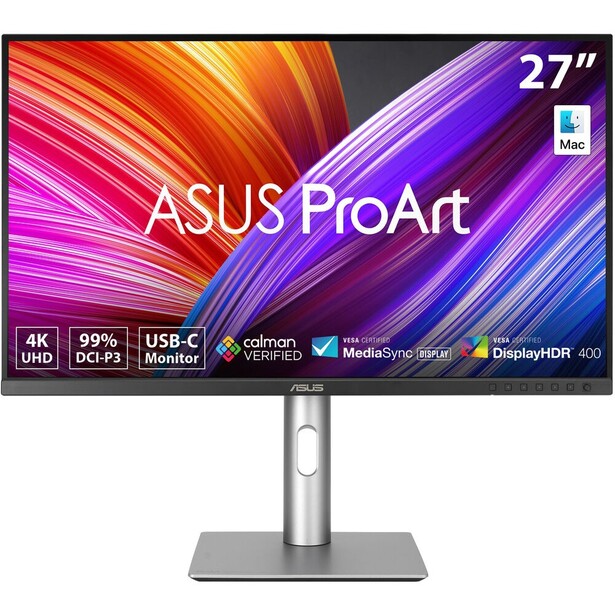
- Size and panel: 27-inch IPS
- Resolution: 3840 x 2160 (4K), 163 ppi
- Color gamut: 100% sRGB, 99% Adobe RGB, 99% DCI-P3, 10-bit color
- Brightness and contrast: 350 cd/m² typical, 400 cd/m² HDR peak, 1000:1
- Color management: Calman Verified, Delta E under 2, factory-calibrated presets, no hardware LUT calibration
- Connectivity: USB-C with 96 W power delivery, 2x HDMI 2.0, 2x DisplayPort 1.4 with daisy chaining
- Refresh rate: 60 Hz
- Price: $399 (B&H)
The PA279CRV carries a spec line that should not exist at this price: 99% Adobe RGB and 99% DCI-P3, on a 4K panel, for roughly what a mid-range zoom costs. Most budget "creator" monitors cover sRGB, call it a day, and leave you unable to see a third of the colors your printer can lay down. ASUS ships this one factory-calibrated with a Calman verification and a stated Delta E under 2, plus 96 W of USB-C charging, so a laptop docks and charges from the same cable.
The compromises sit where a budget buyer can absorb them. Brightness is 350 cd/m² typical, fine in a controlled room and thin next to a window, and contrast is a flat 1000:1. The DisplayHDR 400 badge is close to meaningless. Most importantly, there is no hardware calibration to an internal lookup table, so your colorimeter's correction lives in a software profile that a driver update can quietly break, and that you will want to re-run every month or two.
None of that changes what this is: the cheapest honest entry into a color-managed workflow, and the screen we would hand to someone graduating from a laptop panel or an office monitor. Pair it with an entry-level colorimeter and you will see a bigger improvement in your finished files than any camera upgrade at the same price would deliver. Check the current price of the ASUS ProArt Display PA279CRV at B&H.
What We Like
- 99% Adobe RGB coverage at a price nothing else matches
- 4K at 27 inches for a genuinely sharp 163 ppi
- 96 W USB-C charging and DisplayPort daisy chaining
- Full ergonomic stand with pivot for portrait work
What Could Be Better
- No hardware calibration to an internal lookup table
- 350 cd/m² is dim in a bright room
- 1000:1 contrast and a nominal DisplayHDR 400 rating
- No shading hood or color-mode controller
Best Color-Accurate Reference Display: EIZO ColorEdge CG2700X
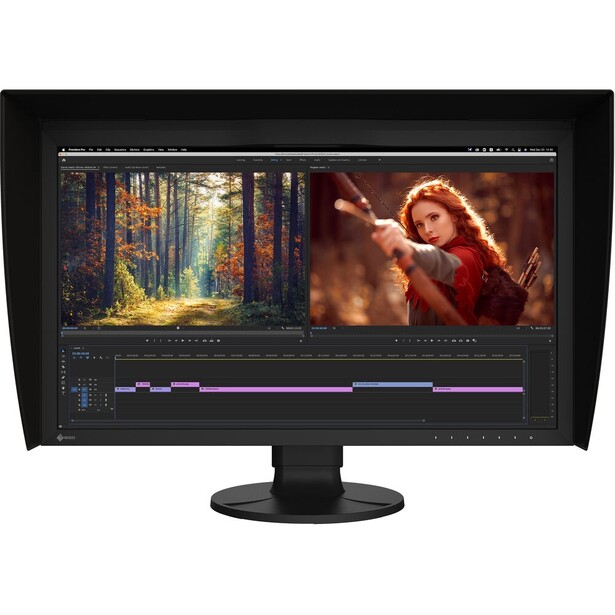
- Size and panel: 27-inch IPS with a wide-gamut LED backlight
- Resolution: 3840 x 2160 (4K), 163 ppi
- Color gamut: 99% Adobe RGB, 98% DCI-P3, 1.07 billion colors, 10-bit
- Brightness and contrast: 500 cd/m² typical, 1450:1
- Color management: built-in retractable calibration sensor, 3D LUT, digital uniformity equalizer, ColorNavigator 7
- Connectivity: USB-C with 94 W power delivery, HDMI, DisplayPort, USB hub, RJ-45 Ethernet port that puts the connected computer on a wired network over the USB-C cable
- Refresh rate: 60 Hz
- Price: $3,094 (B&H)
Retouchers and print shops keep buying EIZO for one reason, and it is not the panel. It is the sensor that swings down out of the top bezel on a schedule you set and recalibrates the display while you are at lunch, without you touching a colorimeter or noticing that the screen has drifted three months into a busy year. The ColorEdge CG2700X is the 4K version of that idea and the one that suits photographers, since the CG2700S beside it in EIZO's lineup is a 1440p panel aimed at video.
Around the sensor sits the most thoroughly engineered display here. The digital uniformity equalizer corrects brightness and color across the panel, so a gray card fills the screen evenly instead of glowing hot in the middle and dying at the corners, the failure mode that quietly wrecks retouching on cheaper screens. There is a 3D LUT fed from a 16-bit lookup table, 99% Adobe RGB coverage, 500 cd/m² of brightness, a hood in the box, ColorNavigator 7 to drive the whole thing, and a five-year warranty.
The cost is brutal, and it should be. This screen costs more than several of these monitors combined, and it is 60 Hz, 4K, and 163 ppi like the BenQ that costs a fraction as much. You are not buying pixels. You are buying the guarantee that what you saw on Tuesday is what you see in March. If you retouch commercially or run a print operation, that guarantee is cheap. If you deliver files to clients on the web, it is not, and the BenQ gets you most of the way for far less.
Check the current price of the EIZO ColorEdge CG2700X at B&H. Also consider the EIZO ColorEdge CS2740 if you want EIZO's 4K panel, Adobe RGB coverage, and ColorNavigator hardware calibration but can live without the built-in sensor and run an external colorimeter yourself.
What We Like
- Built-in sensor recalibrates on a schedule with no user effort
- Digital uniformity equalizer for even brightness corner to corner
- 99% Adobe RGB, 500 cd/m², hood included
- Five-year warranty, plus a six-month zero-bright-pixel guarantee
What Could Be Better
- Costs several times what an excellent 4K photo monitor costs
- 163 ppi and 60 Hz, same as displays a fraction of the price
- 1450:1 contrast is good for IPS and poor next to OLED
- Overkill for anyone delivering only to screens
Best Ultrawide: Dell UltraSharp U4025QW
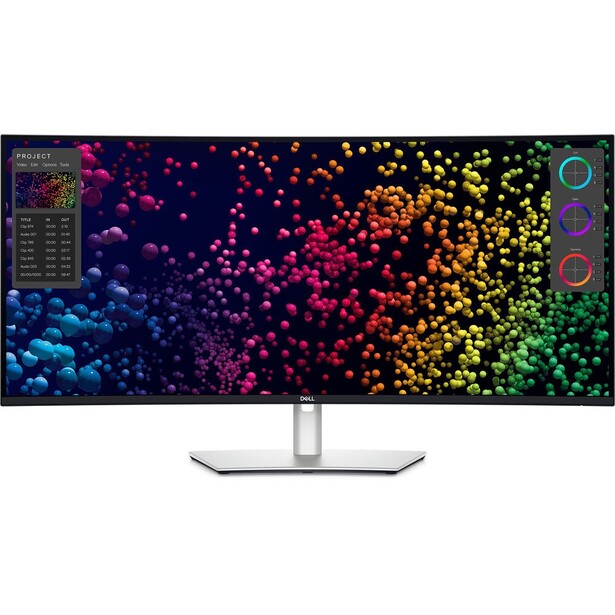
- Size and panel: 39.7-inch IPS Black, 2500R curve, 21:9
- Resolution: 5120 x 2160 (5K2K), 140 ppi
- Color gamut: 100% sRGB, 99% DCI-P3, 99% Display P3, 100% BT.709
- Brightness and contrast: 450 cd/m² typical, 600 cd/m² HDR peak, 2000:1
- Color management: factory calibrated to Delta E under 2, no hardware LUT calibration
- Connectivity: Thunderbolt 4 with 140 W power delivery, second Thunderbolt 4 for daisy chaining, HDMI 2.1, DisplayPort 1.4, 2.5 GbE Ethernet, USB hub
- Refresh rate: 120 Hz
- Price: $1,499.99 (B&H)
An ultrawide is a workflow decision rather than an image-quality one. The argument for the UltraSharp U4025QW is that a 5120 x 2160 panel gives you a Lightroom develop module with the filmstrip open, both side panels expanded, and the photo still large enough to judge, all without a second monitor and its second bezel, profile, and power cable. Photographers who also cut video get the other half of the argument free, since a 21:9 canvas is the shape a Premiere or Resolve timeline wants, and this panel runs at 120 Hz.
Dell's IPS Black panel is the reason this works as a color-managed display and not just a big desktop. Contrast is 2000:1, double the IPS norm, and Dell factory-calibrates each unit to a stated Delta E under 2 across sRGB, DCI-P3, and BT.709. The Thunderbolt 4 hub is the most complete here, with 140 W of charging, 2.5 gigabit Ethernet, and enough downstream ports to retire a dock.
Two caveats matter. Dell does not quote Adobe RGB coverage for this panel, and its published gamut figures are P3 and Rec. 709, which tells you where its priorities sit. This is a display for photographers who deliver to screens and for hybrid shooters, not for someone soft-proofing a fine-art print. And at 140 ppi, a 100% view is noticeably softer than what the 6K panels show you. The 2500R curve is mild enough that straight architectural lines do not visibly bend, though anyone who works against a grid overlay all day should try one first.
Check the current price of the Dell UltraSharp U4025QW at B&H.
What We Like
- 5120 x 2160 replaces a two-monitor setup with one calibrated panel
- IPS Black contrast of 2000:1 and 450 cd/m²
- 140 W Thunderbolt charging, 2.5 GbE, and a full port hub
- 120 Hz, the only high-refresh panel in this guide
What Could Be Better
- No published Adobe RGB coverage, so print soft-proofing is a gamble
- 140 ppi looks soft at 100% next to a 6K display
- No hardware calibration to an internal lookup table
- The curve takes adjustment if you work with straight lines
Best for Mac: Apple Studio Display (2026)
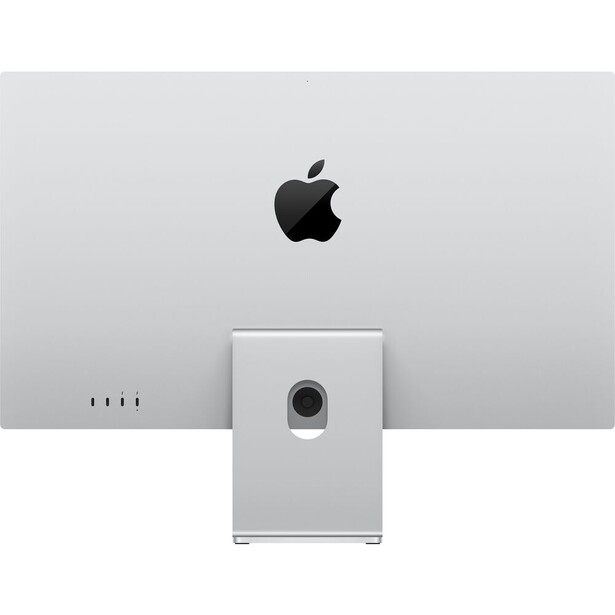
- Size and panel: 27-inch 5K Retina LCD, standard or nano-texture glass
- Resolution: 5120 x 2880 (5K), 218 ppi
- Color gamut: P3 wide color, 1 billion colors, True Tone
- Brightness and contrast: 600 nits, contrast not published by Apple
- Color management: factory calibrated reference modes, no hardware calibration and no Adobe RGB mode
- Connectivity: 2x Thunderbolt 5 (one upstream with 96 W host charging, one downstream for daisy chaining another display), 2x USB-C
- Refresh rate: 60 Hz
- Price: $1,539 (B&H)
Apple finally refreshed this display in March 2026, and the update is narrower than the four-year wait implied. The Studio Display keeps the same 27-inch 5K panel at 218 ppi, the same 600 nits, and the same 60 Hz refresh rate, and adds Thunderbolt 5, a 12-megapixel Center Stage camera with Desk View, and a six-speaker system. That is a 2022 spec sheet with the ports and the webcam brought current. Anyone hoping for the mini-LED, 120 Hz panel Apple was rumored to be building should look at the Studio Display XDR, which is exactly that display at roughly double the price.
What it still does better than anything else is be a Mac display. macOS drives 5K at 218 ppi at exactly 2x scaling, so text renders the way Apple's designers intended rather than through a fractional-scaling compromise. Color out of the box is excellent, and the display wakes, sleeps, and charges a MacBook Pro on one Thunderbolt cable without the handshake gremlins that plague third-party monitors on Apple silicon. The nano-texture glass option is an effective matte treatment, worth the upcharge if you work near a window.
The photographic case against it is straightforward. There is no Adobe RGB mode, no hardware calibration, and no built-in colorimeter, so the color pipeline the BenQ and the EIZO are built around does not exist here. There is also no height adjustment unless you pay Apple extra for the adjustable stand. Buy it if you work in P3 and sRGB and value the Mac integration above all. If you print, buy the BenQ and put a Mac in front of it. Check the current price of the Apple Studio Display (2026) at B&H. Also consider the Apple Studio Display XDR for the mini-LED backlight, 2,000 nits of HDR peak brightness, and 120 Hz this model lacks.
What We Like
- 218 ppi 5K, which macOS scales perfectly at 2x
- Flawless single-cable behavior with Apple silicon Macs
- Nano-texture glass is a genuinely good anti-glare option
- Excellent out-of-box P3 accuracy and a strong camera and speakers
What Could Be Better
- No Adobe RGB mode and no hardware calibration
- Panel is unchanged from 2022: still 600 nits and 60 Hz
- Height-adjustable stand costs extra
- Expensive for what the panel actually delivers
Best OLED for Retouching and HDR: Dell UltraSharp U3226Q
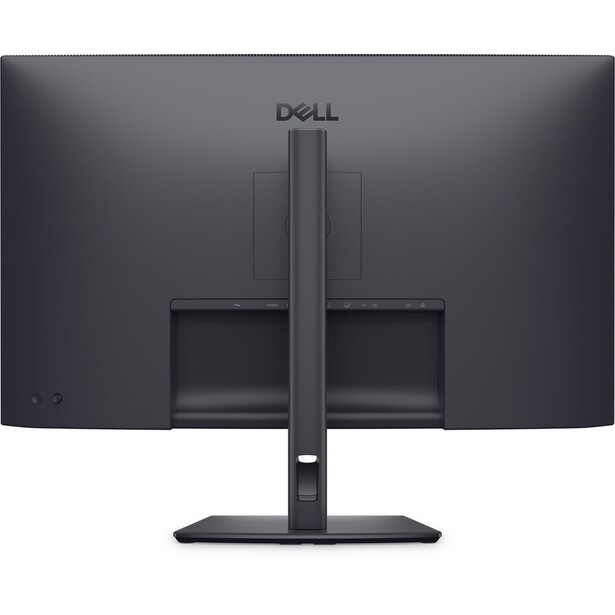
- Size and panel: 31.5-inch QD-OLED
- Resolution: 3840 x 2160 (4K), 140 ppi
- Color gamut: 100% sRGB, 99% DCI-P3, 99% Display P3, 94% Adobe RGB, 10-bit color
- Brightness and contrast: 300 cd/m² typical, 1,000 cd/m² HDR peak, 1,500,000:1
- Color management: built-in colorimeter with automated recalibration, Dolby Vision, DisplayHDR True Black 500
- Connectivity: Thunderbolt 4 with 140 W power delivery, 2x HDMI 2.1, DisplayPort 1.4, 2.5 GbE Ethernet, USB hub
- Refresh rate: 120 Hz
- Price: $2,599 (B&H)
Look at a black-and-white conversion on an OLED once and going back to IPS is genuinely unpleasant. Each pixel makes its own light, so black is off rather than dark gray, and the 1,500,000:1 contrast figure on the UltraSharp U3226Q is not marketing arithmetic in the way LCD contrast numbers usually are. Shadow separation in a low-key portrait, the roll-off in a night cityscape, the moment where dodging stops helping because the panel has run out of dark: those are the things this screen shows you and an IPS panel cannot.
Dell built this one for color work rather than for gamers who happen to edit. It carries a built-in colorimeter that runs an automated recalibration while you are away from the desk, a feature that until recently belonged to EIZO alone, and it covers 99% DCI-P3 and 94% Adobe RGB with 10-bit color. The Thunderbolt 4 hub delivers 140 W, and it runs at 120 Hz with Dolby Vision support.
Two things should give a photographer pause. The first is full-screen brightness: 300 cd/m² typical is dim, the standing OLED compromise, and in a bright room this screen washes out where the LG or the EIZO would not. The second is burn-in. Dell includes the usual pixel-shift and panel-refresh mitigations, but a retoucher who stares at the same Photoshop panel layout eight hours a day, five days a week, is the exact usage pattern OLED handles worst. At 94% Adobe RGB it is also still not the print-proofing screen the BenQ is.
This is the pick for the retoucher who works in a controlled, dim room, who cares about shadow rendition above everything, and who wants to see what an HDR export actually looks like. Check the current price of the Dell UltraSharp U3226Q at B&H. Also consider the ASUS ProArt Display PA32UCDM if you want a 4K QD-OLED without paying for the built-in colorimeter.
What We Like
- Per-pixel black levels that no LCD in this guide can approach
- Built-in colorimeter with hands-off automated recalibration
- 140 W Thunderbolt hub with 2.5 GbE
- 120 Hz with Dolby Vision for HDR video work
What Could Be Better
- 300 cd/m² full-screen brightness is dim for a bright room
- Burn-in risk with static editing interfaces on screen all day
- 94% Adobe RGB, so not a print-proofing display
- Among the most expensive picks here
How to Choose a Monitor for Photo Editing
Start with gamut, the only spec here that a monitor physically cannot fake. sRGB is the small, safe color space the web runs on. Adobe RGB is larger, extends mostly into the cyans and greens, and is the space that matters if your files end up on paper, since inkjet printers reproduce colors that fall outside sRGB. DCI-P3 is a similarly sized space that extends into the reds instead, and it is what Apple devices, phones, and video delivery use. A monitor covering 99% Adobe RGB and 99% DCI-P3, like the BenQ, covers everything you are likely to need. One that covers only sRGB is fine for web delivery and will fail you the day you soft-proof a print.
Then look at how the monitor gets calibrated, because this is where the money quietly goes. Software calibration measures the panel with a colorimeter and writes a correction into your graphics card's output. It works, and it is what most photographers do, but it costs you tonal steps, since the GPU achieves the correction by throwing some away. Hardware calibration writes the correction into the monitor's own lookup table instead, so the display corrects itself and your computer keeps sending full-range data. The BenQ, the EIZO, the LG, and the Dell OLED offer that, and the EIZO and the Dell OLED go further by building the colorimeter into the bezel. The two ASUS panels, the Dell ultrawide, and the Apple do not. Bit depth belongs in the same conversation: a 10-bit panel with 1.07 billion colors gives smooth gradients where an 8-bit panel bands a sunset sky, and every pick here is 10-bit.
Resolution is a comfort decision rather than a quality one. A 27-inch 4K panel gives you 163 ppi, which is sharp. A 32-inch 6K panel gives you 218 to 224 ppi, sharp enough that you stop seeing pixels at all, and enough desktop that the tool palettes stop crowding the image. Neither makes your photograph better. Both make judging it more pleasant, and if you spend hours a day in front of the thing, that is worth real money.
Three practical points people learn the expensive way. Buy a colorimeter, because an uncalibrated reference display is less accurate than a calibrated budget one. Control your light, since a hood and a room without a window behind you do more for color judgment than an extra 20% of gamut. And brightness spec is not brightness setting: edit at roughly 120 cd/m² in a dim room regardless of whether the panel can hit 500. Confirm your machine can drive the display you want, which our laptops guide covers, and Fstoppers' Mastering Adobe Lightroom course covers the software half of the color chain.
What We're Looking For
We weigh real color gamut coverage over marketing claims, hardware calibration support, panel uniformity, port and dock capability, and whether each monitor's compromises land somewhere a photographer can absorb them. Every specification here was checked against the manufacturer's current documentation and a live retailer listing at the time of writing, and where a panel's real coverage falls short of the manufacturer's claim, as with the ASUS 6K panel's Adobe RGB, we say so in the entry. Most picks across our buying guides come from gear our writers have used and reviewed hands-on, and where we have not, we say so in the entry and write from the verified specifications instead.
Frequently Asked Questions
Do I Need an Adobe RGB Monitor for Photo Editing?
Only if you print. Adobe RGB contains cyans and greens that sRGB cannot reproduce and inkjet printers can, so a wide-gamut panel is what lets you see a soft proof honestly. If your photographs live on the web and on phones, a 100% sRGB and 99% DCI-P3 panel shows you everything your audience will ever see.
What Is Hardware Calibration and Is It Worth Paying For?
Hardware calibration writes a colorimeter's correction into the monitor's own lookup table rather than into your graphics card, so no tonal steps are discarded and an operating system update cannot silently break your profile. It is worth paying for if you calibrate often or print. If you deliver to screens, a good software-calibrated panel is fine.
Is 6K Worth It Over 4K for Photographers?
It is a comfort upgrade, not an image-quality one. At 218 ppi and above, pixels disappear at a normal viewing distance, and a 32-inch 6K panel gives you enough desktop to keep the tool palettes off your photograph. Neither improves the file you deliver, but if you edit six hours a day, both are worth paying for.
Should I Buy an OLED Monitor for Photo Editing?
OLED is the right choice for a retoucher working in a dim, controlled room who cares most about shadow rendition, and the wrong choice for anyone editing in a bright space or leaving a static interface on screen all day. Full-screen brightness is low by LCD standards, and burn-in remains a real consideration with fixed panel layouts, even with the mitigations built into current displays.
How Bright Should My Monitor Be for Editing?
Set it to roughly 120 cd/m² in a dim room, far below what any of these panels can produce. Editing on a screen cranked to maximum is the most common reason prints come back darker than expected, because you compensate by brightening files that were never dark. Peak brightness matters for HDR work and for fighting a sunny window, not for daily editing.
Fstoppers may earn a commission from purchases made through links in this article. Our picks are made independently by our editorial team.