
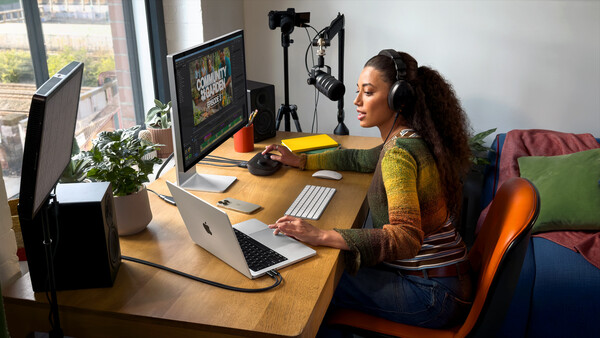
The right laptop edits a wedding on a hotel bed as happily as it does at your desk; the wrong one turns every export into a fan-screaming, battery-draining compromise. Here's how to tell them apart in 2026, and which machines are actually worth carrying.
A laptop asks you to give something up. The desktop on your desk can hold its clocks through an hour-long export, swallow four internal drives, and drive a 5K reference display, and it never has to fit in a bag or survive on a battery. A laptop trades some of that away for the one thing a desktop can't do: it comes with you, to the shoot, to the hotel room, to the client's kitchen table. The trick to buying one well is knowing exactly which compromises are worth making and which ones will quietly sabotage your editing. Here's how to spend where it counts in 2026, what the specs mean once portability enters the picture, and which machines are worth carrying.
What Changes When the Computer Has to Travel
If you've read our desktop buying guide, the core components rank the same way for photography: per-core CPU speed first, enough memory second, fast storage third, and a capable-but-not-flagship GPU fourth. What changes on a laptop is that four new constraints get bolted onto every one of those decisions, and they interact in ways that catch people out.
- Heat is now the ceiling on performance. A tower has room for a big air cooler and case fans; a thin laptop chassis does not. When a mobile chip gets hot, it throttles, dropping its clock speed to protect itself, so the processor you paid for delivers its peak only in short bursts unless the cooling can keep up. This is why two laptops with the same chip on the spec sheet can export at noticeably different speeds: the one with the better thermal design sustains its performance, and the thin-and-light one gives it back after a few minutes. For photography, where a long batch export is a real workload, sustained performance matters more than a headline peak.
- Battery life is a real spec, not a footnote. The whole point of a laptop is untethered work, and two things determine whether you get it: how long the battery lasts, and whether the machine throttles when you unplug it. Some Windows laptops run markedly slower on battery than plugged in; Apple silicon is unusual in holding essentially full performance either way, which is a large part of why it dominates this category.
- The display is built in, so you can't shop for it separately. On a desktop you buy the monitor as its own decision. On a laptop the panel is welded to the machine, and if it can't show you accurate color, no external habit fixes that when you're editing on location. The screen is part of the buying decision now, not an afterthought.
- Ports and a card reader are daily friction. A tower has room for everything; a laptop makes choices. Whether there's an SD or CFexpress reader, how many USB-C or Thunderbolt ports you get, and whether there's HDMI all decide how many dongles live in your bag. For a photographer offloading cards every day, a built-in reader is a small thing that pays off constantly.
Keep those four in mind and the rest of the decision follows the same logic as any editing machine, with the thumb pressed a little harder on efficiency and cooling.
The Core Components, Briefly
The reasoning here is the same as for a desktop, so this is the short version; if you want the full argument, it applies unchanged.
Strong single-threaded performance helps Lightroom feel responsive through the brush strokes, slider adjustments, and moving between images that fill a Develop session, while additional cores improve heavily parallel work such as exports, preview generation, and image merges; the practical balance matters more than either specification alone, so a high-volume event shooter benefits from more cores in a way a portrait editor culling and editing does not. On the Windows side, Intel Core Ultra and AMD Ryzen AI chips both do this well; on the Mac side, Apple's M5 family handles it with a large efficiency advantage.
For memory, 16 GB is the floor, 32 GB is the right answer for most working photographers, and 64 GB is for heavy Photoshop compositing or very large files. This matters more on a laptop than a desktop for one reason: most laptop memory is soldered to the board and cannot be upgraded later, so whatever you buy is permanent. Given that, size up rather than down. On a Mac, unified memory lets the CPU and GPU share the same pool, but the capacity you need still depends on file size, application mix, and workload, and there's no fixed conversion ratio to a PC's RAM.

Storage should be a fast internal SSD, and here laptops force a discipline desktops don't: you usually get one drive, so you can't split your OS, catalog, and library across separate internal disks. Buy enough internal capacity to hold your OS, your Lightroom catalog, and the shoot you're actively working on, and lean on a fast external drive for the rest. A Thunderbolt NVMe SSD is quick enough to edit from directly when you need to, which takes the pressure off internal capacity.
The GPU accelerates Adobe's AI features, Denoise, the masking tools, and the like, but a flagship GPU is poor value for photography specifically. On Windows, target at least 8 GB of dedicated VRAM for full Lightroom GPU acceleration and AI features; a mid-range mobile card clears that comfortably, and you only need the top tier if you also do serious video or 3D. On a Mac, the GPU is part of the chip, so there's no separate decision to make.
The Recommendation: Lean Toward a MacBook
For most photographers buying a laptop in 2026, a MacBook is the machine to get, and portability is exactly why the case is even stronger here than on the desktop. Apple silicon's efficiency is most visible unplugged: the machines run cool and quiet, hold close to full performance on battery, and deliver the kind of all-day runtime Windows laptops still struggle to match. The displays are excellent out of the box, the integrated GPU provides strong acceleration for many of Adobe's GPU-intensive and AI-assisted tools, and the whole thing largely gets out of your way, with little of the driver management, fan noise, or on-battery throttling that a high-power Windows laptop can subject you to.
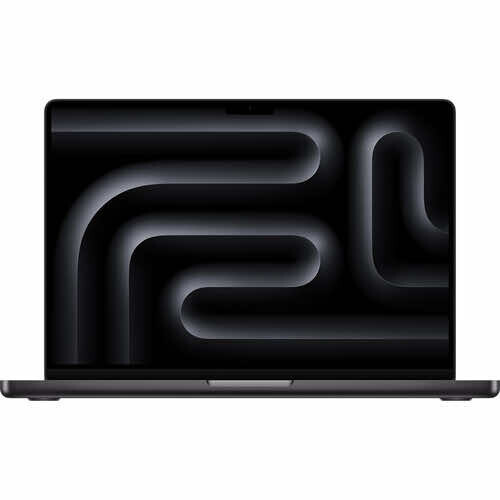
The M5 generation debuted in late 2025, followed by the M5 Pro and M5 Max in March 2026. It leans hard into AI acceleration, with a Neural Accelerator in each GPU core and a large jump in machine-learning performance over the M4 chips. For a photographer editing on location, that combination of speed, efficiency, and a trustworthy screen in one sealed package is hard to argue with.
The principal tradeoff is the same as on the desktop, and slightly sharper: a MacBook can't be upgraded after purchase. The memory and storage you choose at checkout are permanent; there's no swapping anything later, and Apple's storage upgrades are expensive when purchased at checkout. That's a planning constraint, not a dealbreaker: right-size the machine when you buy it and keep it for the many years these laptops tend to last. Configure with headroom, especially on memory.
The Sweet Spot: 14-Inch MacBook Pro (M5 Pro)
For a photographer who wants one machine that does everything and travels, the 14-inch MacBook Pro with the M5 Pro chip is the pick. It pairs a genuinely portable size with the pro-grade Liquid Retina XDR display and the full port selection photographers actually use. As configured from Apple it starts at $2,349, and the standard build is:
- M5 Pro chip (15-core CPU, 16-core GPU)
- 24 GB of unified memory
- 1 TB SSD
- Liquid Retina XDR display (3024 x 1964), 120 Hz
- Three Thunderbolt 5 ports, HDMI, and an SDXC card slot
- Wi-Fi 7 and a 12 MP Center Stage camera
The built-in SDXC reader and the XDR panel are the parts that matter most day to day: you offload cards without a dongle, and the screen is suitable for serious location editing and many color-managed workflows, though exacting print proofing still benefits from calibration, controlled lighting, and a dedicated reference display. For most working photographers, 24 GB is still comfortable; step up to 48 GB, or 64 GB on the higher-end M5 Pro configuration, if you regularly combine heavy Photoshop compositing with Lightroom, remembering you can't add it later.
If you want the bigger canvas, the 16-inch MacBook Pro with M5 Pro starts at $2,899 and brings a larger 120 Hz XDR display and longer runtime. Apple rates it for up to 24 hours of video streaming or 17 hours of wireless web use, though demanding photo work will produce substantially shorter figures. The tradeoff is more weight in the bag.
When to Go Further, or Spend Less
Most photographers don't need more than the M5 Pro, but two ends of the range are worth knowing.
The MacBook Pro with M5 Max is the machine to reach for only if this laptop is your sole computer and you push it hard: very high-resolution files, huge panoramas, heavy video alongside stills. It adds far more GPU power and memory bandwidth and supports up to 128 GB of unified memory. For pure photo work, it's more than most people will use, and the money is better spent on memory and storage in the Pro.
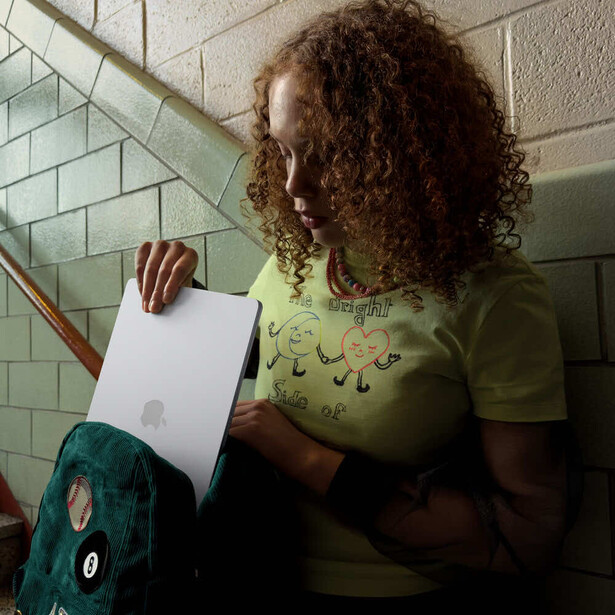
At the other end, the MacBook Air with M5 is a legitimate photographer's laptop if you value weight and price over sustained power. It handles Lightroom and moderate Photoshop work remarkably well for its size, starts at $1,249 for the 13-inch, and is the lightest way into Apple silicon. Its limits are real: the fanless design means it throttles under a long sustained export where the Pro would hold steady, and the display, while good, isn't the XDR panel. But for travel, culling, and everyday editing it punches well above its weight. If you go this route, configure extra memory, since the Air's base is where it feels the squeeze first and it's soldered for life.
The Alternative: A Windows Laptop, if You Have a Reason
A Windows laptop makes sense for a real subset of photographers: if you're invested in Windows, want a touchscreen or a pen, need a specific piece of Windows-only software, or want more raw GPU power per dollar for mixed photo-and-video work. Many high-performance Windows creator laptops sacrifice some battery life and acoustic comfort to sustain higher CPU and GPU power limits, and some run slower on battery than plugged in, though the result varies considerably by model and power profile. The best of them are genuinely excellent and pair a color-accurate screen with serious power.
Three are worth your attention:
ASUS ProArt P16 (H7606)
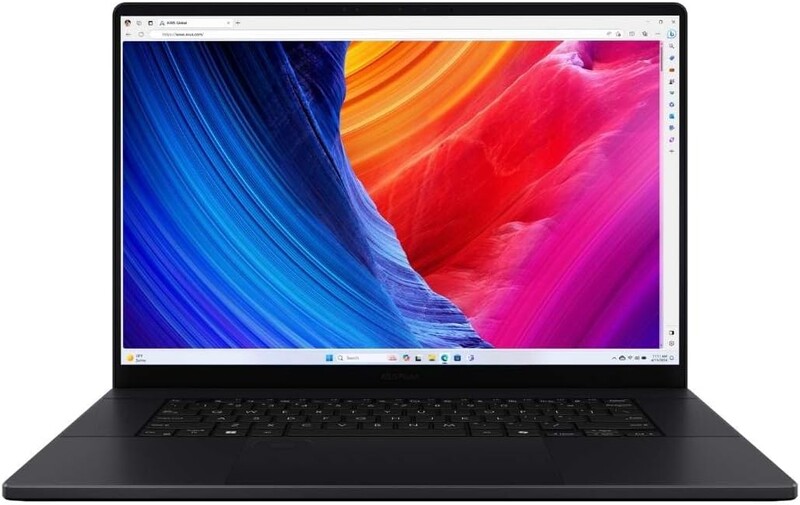
The standout Windows creator laptop, and a natural companion if you already run an ASUS ProArt display at your desk. It's built specifically for creators, and in its higher configurations offers a 16-inch 4K OLED (3840 x 2400) touchscreen covering 100% of DCI-P3, an AMD Ryzen AI 9 HX 370 processor, an NVIDIA GeForce RTX 50-series GPU up to the RTX 5090, a full-size SD Express card reader, and the ASUS DialPad for tactile control in Photoshop and Lightroom. Its display, GPU, and dimensions vary by configuration; depending on the build, it weighs roughly 4.1 to 4.3 lb and measures 0.59 to 0.72 inches thick, so confirm the exact specification you're buying. It's the Windows machine that most directly rivals the MacBook Pro for photographers, particularly if your work leans into GPU-heavy AI tools or video.
Lenovo Pro 9i Aura Edition
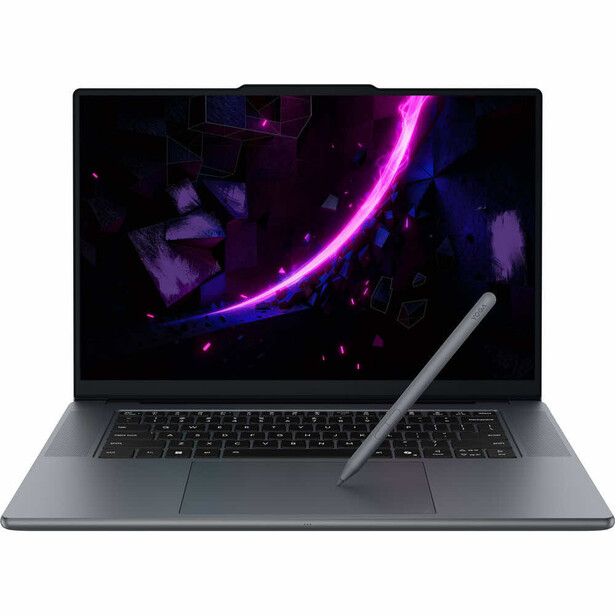
The pick if the display is your priority. Its 16-inch OLED panel covers 99% of Adobe RGB in the linked configuration, while the higher-end 3.2K Tandem OLED option is rated for 100%, which matters for print-critical work in a way DCI-P3 alone doesn't. It pairs an Intel Core Ultra 9 processor with a discrete RTX 50-series GPU, so strong single-threaded speed keeps Lightroom responsive while the graphics handle batch exports and AI masking without complaint.
Dell XPS 16
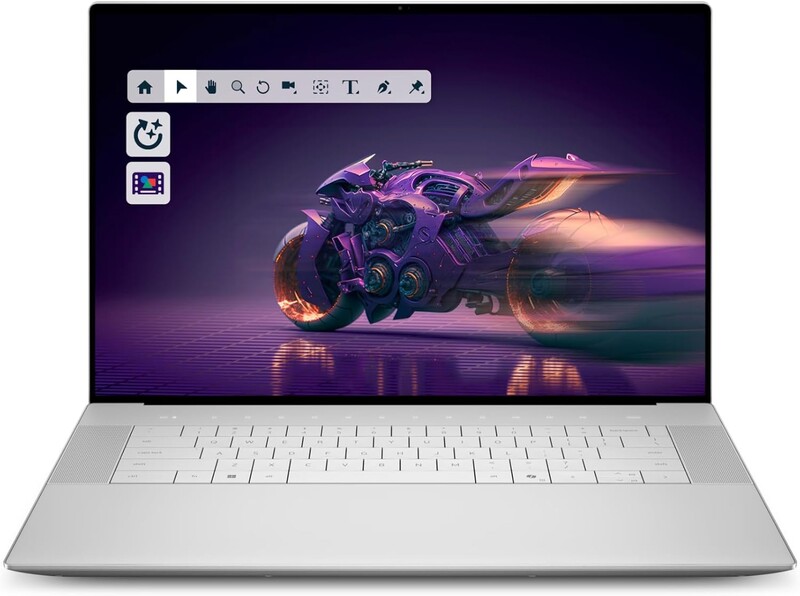
The premium thin pick, with a gorgeous OLED display, a clean design that doubles as an everyday machine, and robust performance for photo and light video work. It's the crossover choice for editors who want one polished laptop rather than a dedicated workstation.
Whichever you choose, the component targets are the same as on any editing machine: a current-generation CPU, 32 GB of memory (64 GB if you work large files hard), a 1 TB or larger NVMe SSD, and a mid-range mobile GPU with at least 8 GB of dedicated VRAM. And use the NVIDIA Studio Drivers rather than Game Ready, since they're tuned for creative applications.
Don't Trust a Screen You Haven't Checked
On a laptop the display is part of the purchase, so match the panel to what you deliver. Verified full sRGB coverage is the baseline for web and screen work; sRGB plus wide P3 suits general photo editing; and print-critical work wants strong Adobe RGB coverage, which is why the Pro 9i Aura Edition's Adobe RGB panel stands out among Windows machines and why any laptop you plan to grade on deserves a close look at its stated gamut numbers rather than marketing adjectives.
Two honest caveats specific to laptops. First, OLED panels, common on the best creator laptops, deliver exceptionally deep blacks and high contrast, which can make dark tonal relationships easier to see, but near-black rendering, reflections (many are glossy, though some offer matte or anti-reflective finishes), and calibration behavior should all be checked carefully rather than assumed, and OLED carries a small long-term burn-in risk with static interface elements. Second, no laptop panel truly replaces a dedicated calibrated desktop display for the most exacting print work. Many photographers use the laptop screen on location and do final color at a desk on an external monitor, which is a sound way to work; a laptop that can drive a good external display over Thunderbolt gives you the best of both.
However good the panel, if color truly matters, calibrate it with a hardware colorimeter rather than trusting the factory profile indefinitely. That habit only pays off if your editing is built to use it, and if you want to tighten the workflow that runs on this machine, two Fstoppers tutorials pair naturally with a color-accurate setup: Mastering Adobe Lightroom: How to Use Lightroom for building a fast, portable catalog and editing process, and The Complete Capture One Editing Guide if Capture One is your raw processor of choice.
The Short Version
Buy for where your time actually goes, and account for the four things a desktop never made you think about: heat, battery, the built-in screen, and the card reader. For most photographers in 2026 the answer leans toward a MacBook, because Apple silicon's efficiency turns into real advantages on the road: cool and quiet operation, strong performance on battery, all-day runtime, and a trustworthy display in one sealed package. A 14-inch MacBook Pro with the M5 Pro chip is the sweet spot, right-sized on memory at checkout since you can't add it later; drop to a MacBook Air if weight and price matter more than sustained power, or step up to the M5 Max only if this is your one machine and you push it hard. Go Windows if you're already invested in the platform, want a touchscreen, or do GPU-heavy video work. In that case, the ASUS ProArt P16 leads, followed by the Lenovo Pro 9i for its Adobe RGB screen and the Dell XPS 16 as the premium thin pick. Either way, prioritize strong per-core performance, 32 GB of memory or more (24 GB is comfortable on a Mac), a color-accurate panel, and cooling that can hold its clocks, and the laptop stops being a compromise you tolerate and becomes the thing that lets you work anywhere.

Join the Fstoppers community for free
-
Post comments and join in the discussions
-
Browse the site ad-free
-
Share your work and get featured in the community
-
Compete in the photo contests for fun and prizes
7 Comments
The MacBook Pro is a great choice, but it only covers 89% of the AdobeRGB gamut. I wonder why Apple does this, anyone?
It depends on your work. For digital work for websites, video etc P3 is well suited. For serious print work Adobe RGB might be better. So you have to get a dedicated external monitor
Yes, I know. But as my camera uses AdobeRGB, that's what I want to see. I just do not understand Apple not supporting AdobeRGB. Is it a money issue? Do they not want their users to produce nice prints?
Even their external Apple Studio Display XDR only covers 86% of the AdobeRGB colorspace.
Apple probably think P3 is better (it’s not just different) but , and I’m an Apple fan boy, I agree it’s strange as adobe rbg is a standard in the printing world.
Hate it: for general use sending photo's in sRGB is the safe choice. Apple users see a more colourful image if I send them P3 and when I want to print I use AdobeRGB. IT and standardisation 😬👍
There is one point for a monitor many may want or thy to figure if needed, I went thru the wide info about back in 2024. If your computer and monitor support HDR or HDR1o or HDR10+. first understand about all of these then find a computer and monitor both will handle. As far as a laptop the question here is bout bult in but also next like my self I went from having a Laptop and a Tower to just a laptop and a external monitor.
As far as my monitor I thought just because it stated for photographers, well still look at specs.
The reason for it all is in Lrc there is a HDR edit selection that is great sort of but you get to edit more bright areas or the more of the histogram that is to the right. You then can export the image But unless the viewer has a computer and monitor that has say HDR10+ will they see what you have edited and if a print is done does the printer company need to know how the image was edited kind of like back in the film days if you used a faster ISO setting on the dial that the film speed the processor of the film had to know or your film would not be any good, sad!
Laptops and Monitors and editing profiles used what if no one could see what you see. Like if posting to a media site a jpeg you may also need to know if they accept your style of a image.
Maybe you'd have to convert the color space to that used by the vast majority of monitors (it used to be sRGB — don't know if that's still the standard). In print media days, I'd have to edit colors for CMYK printing. When you converted from RGB to CMYK, if the RGB gamut was outside CMYK specs, you could see the whole photo change (the same was true for photos for the web where the standard was sRGB — you could watch the conversion from Adobe RGB to sRGB change when you did the conversion). I ended up editing my files so that I didn't see appreciable color changes when I converted them — restricting files to be shared to the lowest common color space.