
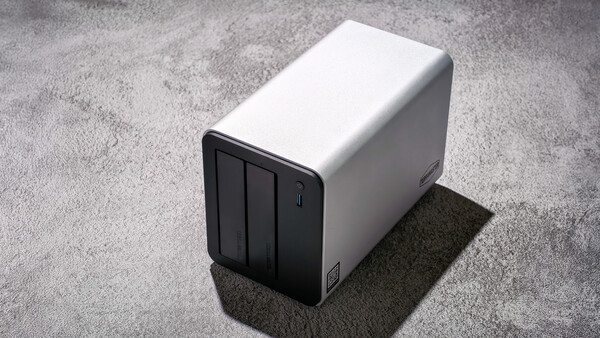
In recent years, NAS devices have quietly regained relevance, particularly among photographers and small creative teams. This resurgence is driven not only by concerns over cloud storage costs and data ownership but also by improved affordability and the accessibility of modern NAS technology. The TerraMaster F2-425 Plus enters this space as an affordable flagship hybrid NAS, combining high-speed networking, NVMe expansion, and a more approachable setup experience—features that were once reserved for far more expensive systems.
In this review, we take a closer look at how well the TerraMaster F2-425 Plus delivers on that promise, from its physical design and hardware choices to performance, software experience, and real-world usage as a working photographer’s storage solution.
Build Quality
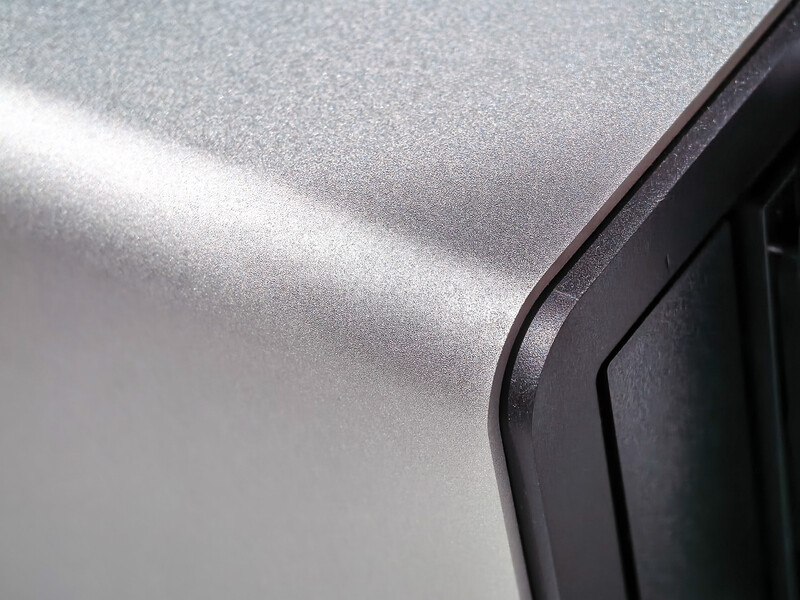
The TerraMaster F2-425 Plus feels reassuringly solid the moment you take it out of the box. Despite its relatively compact footprint at approximately 150 mm x 122 mm x 219 mm and a net weight of around 2.2 kg, the NAS feels rather hefty, suggesting it’s built for durability rather than cost-cutting. The main chassis that wraps around its body is made with a 3 mm aluminum-alloy casing. Using a combination of aluminum and alloy for most of its body is also a smart choice, as aluminum is known for its high thermal conductivity, allowing it to rapidly absorb heat from a source and transfer it to the surroundings. Meanwhile, alloy helps overcome aluminum’s natural softness, which contributes significantly to its overall sturdiness and rigidity. The aluminum-alloy surface leans toward a slightly rougher texture rather than a smooth or polished finish, and the same finish continues to the plastic surfaces. Overall, it gives a utilitarian rather than a premium look. While it may not look like a statement piece, it does fit well in a workspace or studio office environment.
Port Layout and Exterior Design
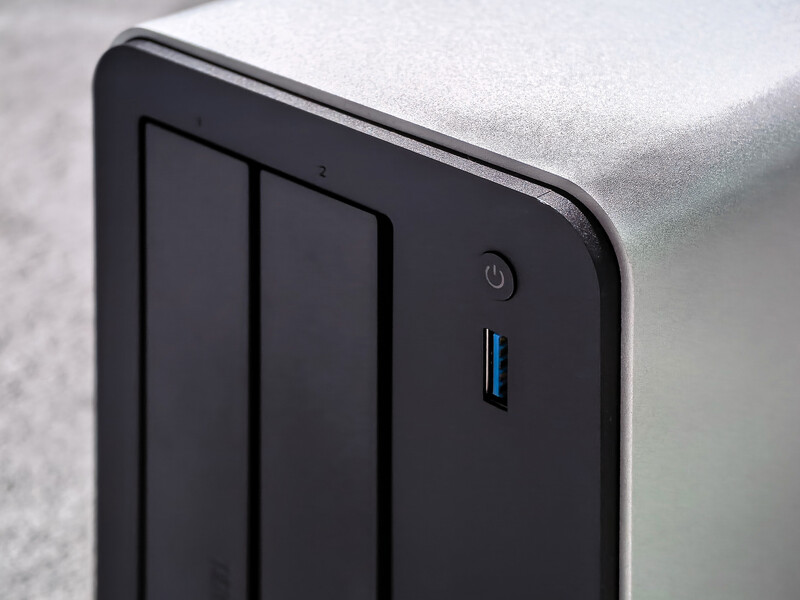
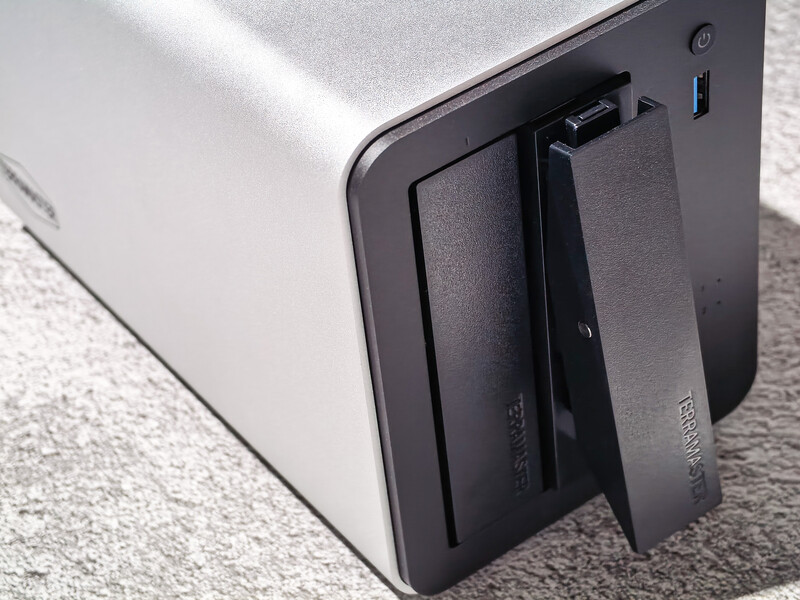
On the front, the F2-425 Plus keeps things minimal. All you can find is a power button, a single 10 Gbps USB 3.2 Gen 2 Type-A port for quick access, along with three LED indicators that clearly show system power and the status of the two installed hard drives. The drive trays themselves are unlabeled, which can be mildly inconvenient, but TerraMaster includes sticker labels to help users keep track of drive order if needed. Personally, I do think having an additional USB-C port on the front would further expand its usability.
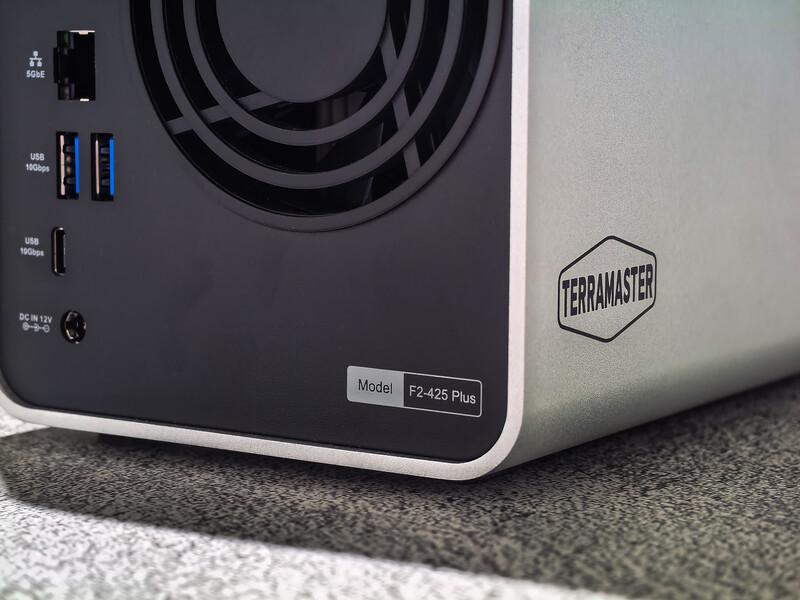
Around the back is where you find all the ports you need. A large rear exhaust fan dominates most of the panel, accompanied by an HDMI port, two 5 GbE Ethernet ports, a 10 Gbps USB-C port, two additional 10 Gbps USB 3.2 Gen 2 Type-A ports, and the power input. Thankfully, TerraMaster has avoided the legacy 1 GbE Ethernet ports, which would feel out of place at this price point and performance tier. You can also find a power adapter and a LAN cable included in the box, allowing users to get up and running without sourcing additional accessories.
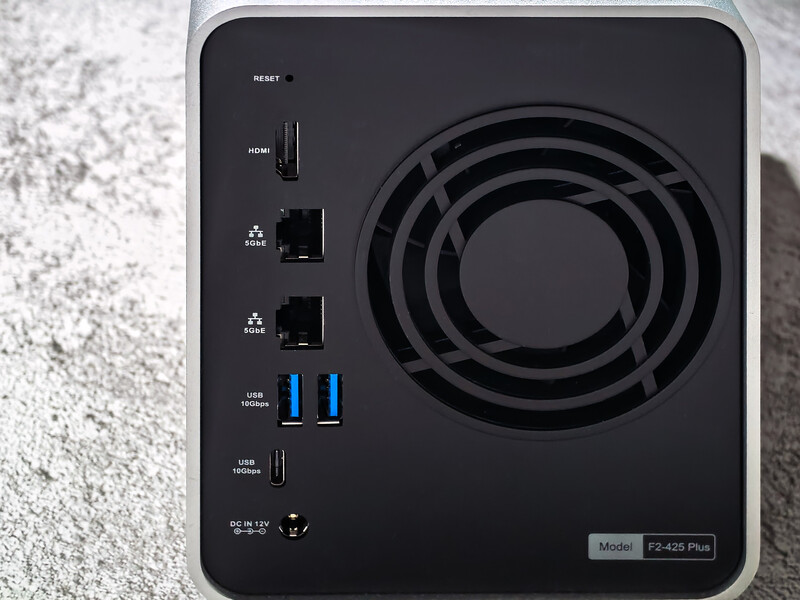
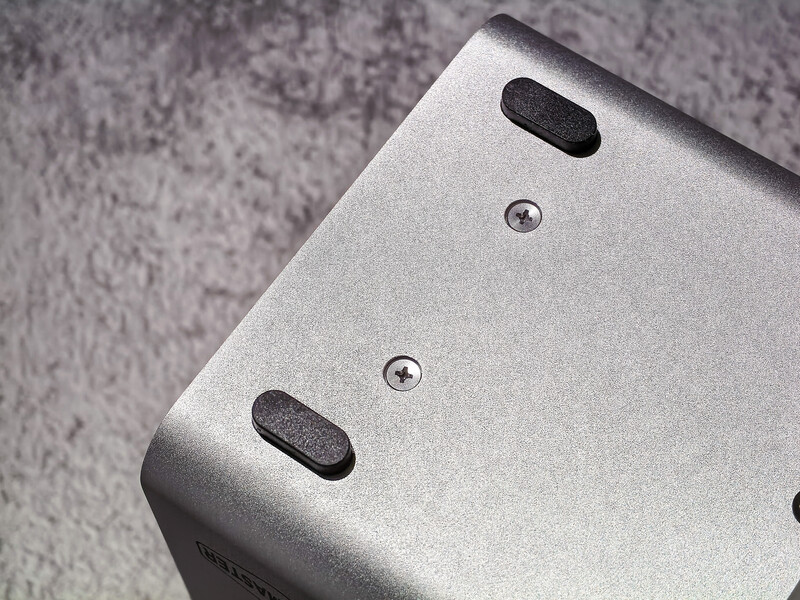
Cooling is handled by a single large fan, which intelligently ramps down when the system is not under load. In practice, noise levels are impressively low, as I could barely hear the NAS even when it was placed right beside me. However, note that there are no dust filters installed, so over time, dust can be drawn directly into the chassis; regular cleaning is recommended to prevent airflow restrictions. At the bottom, there are four rubber feet that help dampen any possible vibration while also slightly elevating the unit from the surface, which likely helps with airflow and overall heat dissipation.
Drive Bays and Expandability
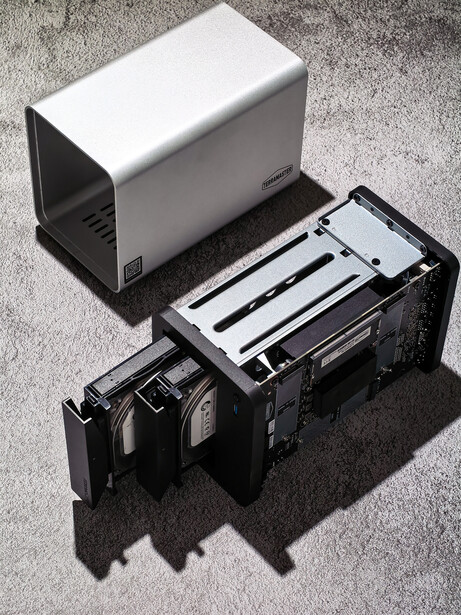
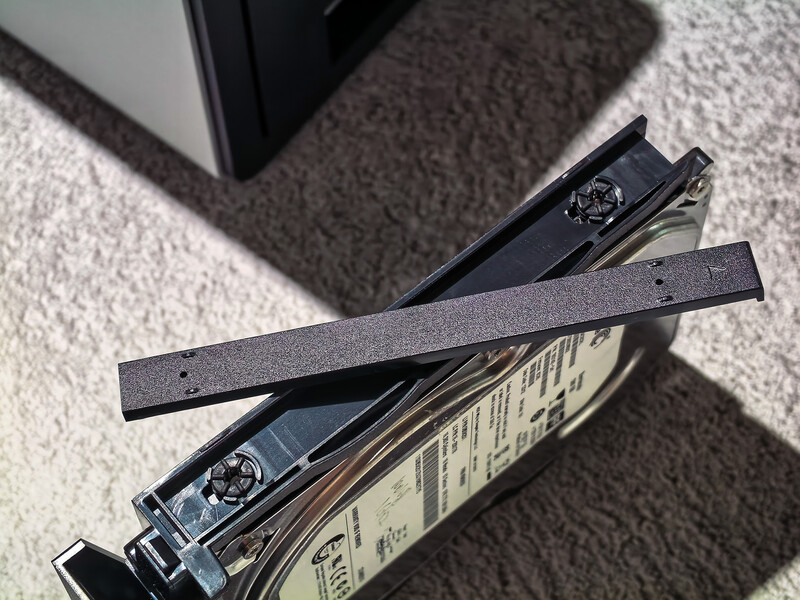
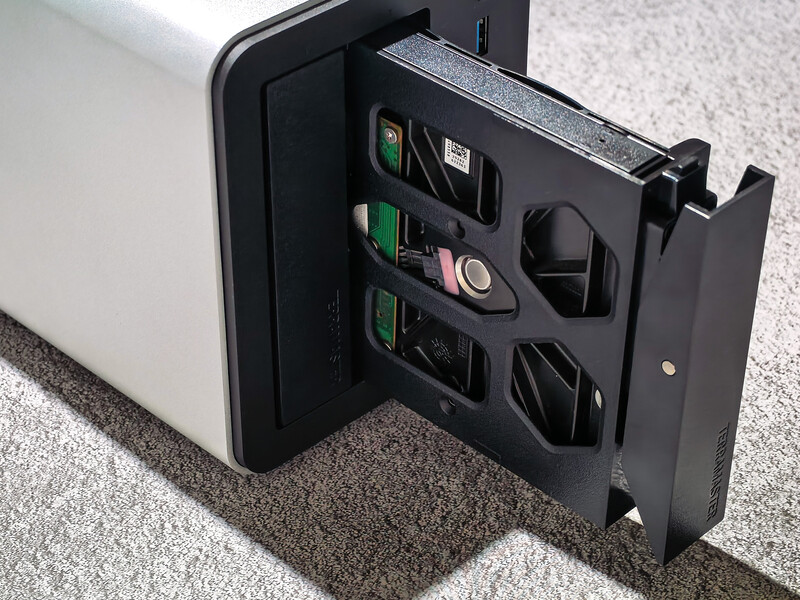
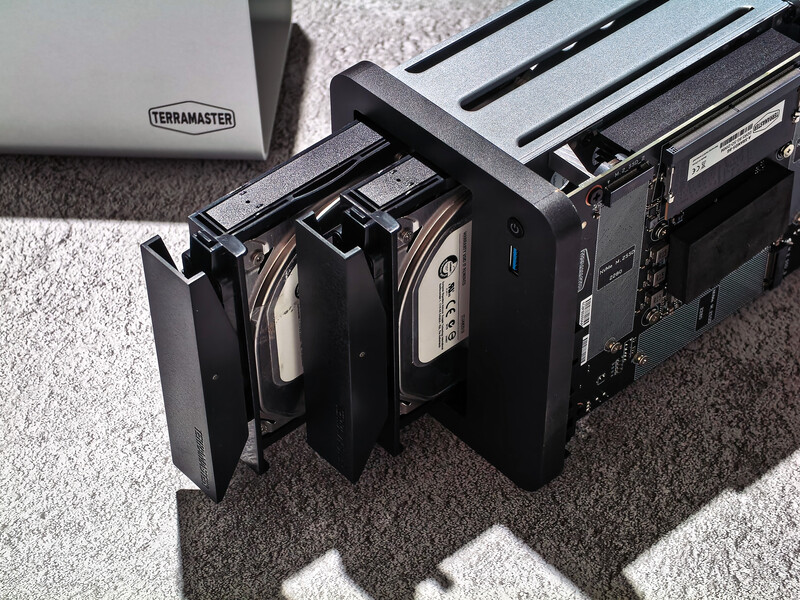
Installing 3.5-inch hard drives requires no tools. The process is rather straightforward; all you need to do is slide open the bay, remove the plastic attachment holders on the side, mount the drive, reattach the holders, and slide it back into the bay. The trays feel reasonably sturdy, and the drives slide in smoothly once attached. That said, the plastic attachment holders may be a long-term durability concern. Fortunately, they seem like simple, generic parts that could likely be replaced via aftermarket options or even 3D-printed if needed. Drive access is also very convenient. When configured with TRAID, the F2-425 Plus supports hot-swapping, with the condition that the replacement drive is equal to or larger than the existing one—an important detail for users planning future upgrades.
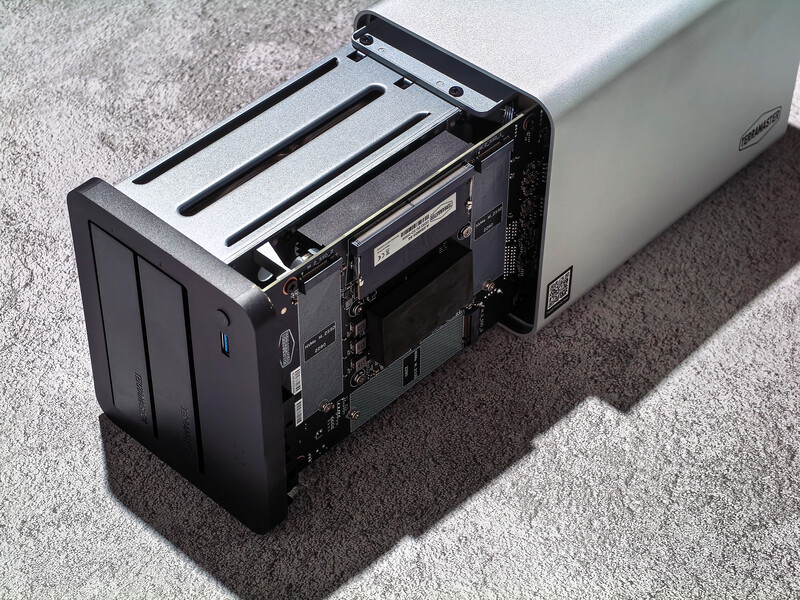
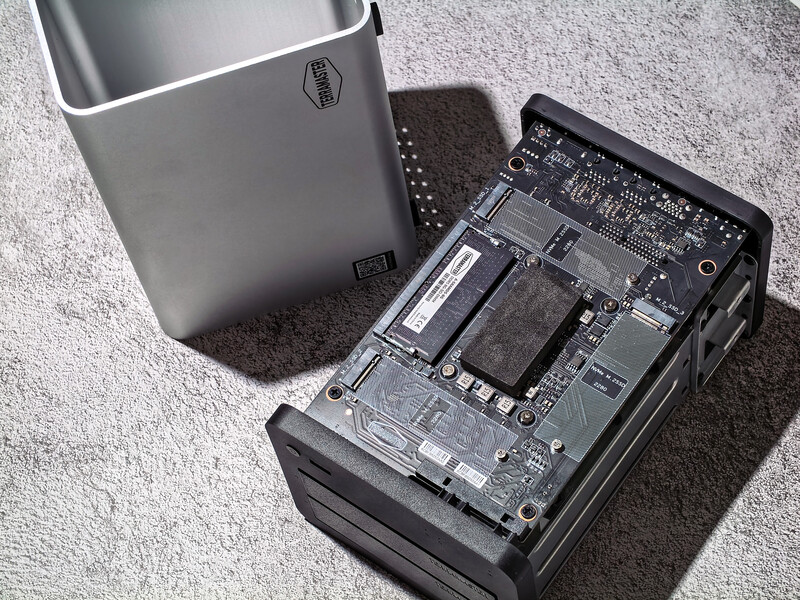
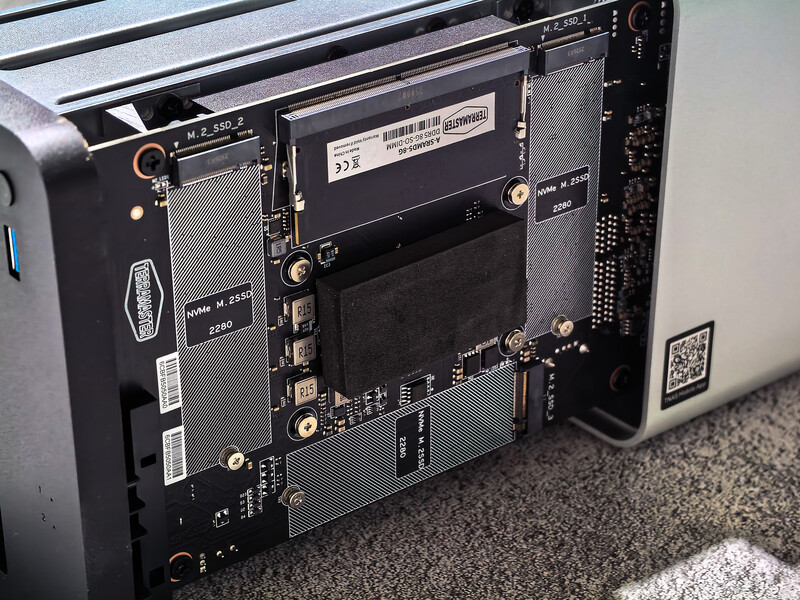
Accessing the M.2 NVMe slots and RAM, however, is not as seamless. These components require disassembling the entire casing by removing the two bottom screws, which feels slightly cumbersome. I think having a dedicated access panel would have been a more user-friendly solution, especially for users who plan to upgrade memory or cache drives over time.
Features and Specs
At the heart of the TerraMaster F2-425 Plus is an Intel N150 quad-core processor, capable of boosting up to 3.6 GHz. While it isn’t designed for heavy enterprise workloads, in day-to-day use, this system is sufficient to feel responsive even when handling light multi-user access at once—whether that’s file transfers, background backups, media indexing, or running lightweight services in parallel. Paired with 8 GB of DDR5 memory (expandable up to 32 GB), this marks a noticeable step forward from earlier TerraMaster systems that relied on DDR4, particularly when multitasking or working with larger datasets.
Hybrid Storage Flexibility
One of the main selling points of the F2-425 Plus is its hybrid storage design. The system supports two 3.5-inch or 2.5-inch SATA drives, alongside three M.2 2280 NVMe SSD slots (PCIe 3.0 x1). This layout allows users to build a storage setup according to their needs that balances capacity, speed, and cost, rather than being locked into a single approach.
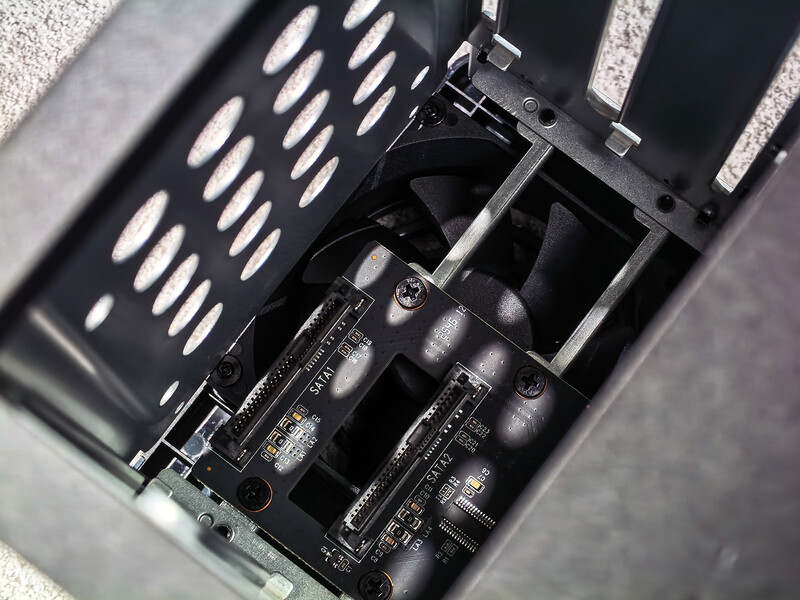
Fully populated, the system supports up to 84 TB of total storage (2 x 30 TB HDDs and 3 x 8 TB NVMe SSDs). The NVMe slots can be configured in several ways: as a high-speed SSD storage pool, including a RAID 5 configuration with the SSDs, or as cache drives to accelerate traditional hard disks. This flexibility makes the F2-425 Plus well suited for workflows that involve large photo libraries, 4K video files, or virtualized environments where fast random access matters.
RAID, TRAID, and Storage Expansion
TerraMaster gives users a wide range of storage configuration options. You can choose between Single Disk mode, traditional RAID levels (0, 1, 5, or 10), or TerraMaster’s own TRAID systems. Traditional RAID works best when all drives are identical in size, but it can be inefficient when mixing capacities, as usable space is limited by the smallest drive. TRAID addresses this by automatically optimizing disk layouts, allowing users to mix and match drive sizes without wasting capacity. It also supports single-drive redundancy, similar to RAID 5, while making future upgrades far simpler—you can replace or add larger drives gradually instead of rebuilding the entire array at once. This makes TRAID particularly appealing for users reusing older drives or expanding storage over time.
Network Connectivity and Performance
For networking, the F2-425 Plus is equipped with dual 5 GbE Ethernet ports, a significant upgrade over the previous 2.5 GbE generation. With link aggregation, the system can deliver up to 10 Gbps of aggregated bandwidth, improving performance for multi-user access and providing redundancy and failover. While there’s no dedicated 10 GbE port for single-link transfers, the dual 5 GbE setup strikes a practical balance between speed, flexibility, and cost.
Data security is handled at the hardware level through AES-NI encryption, ensuring encrypted transfers don’t come with a noticeable performance penalty. Combined with 256-bit TLS transmission, OTP two-factor authentication, SPC app protection, and HyperLock-WORM tamper-proof technology, the system offers a solid security foundation for both personal and professional data.
Backup, Collaboration, and Remote Access
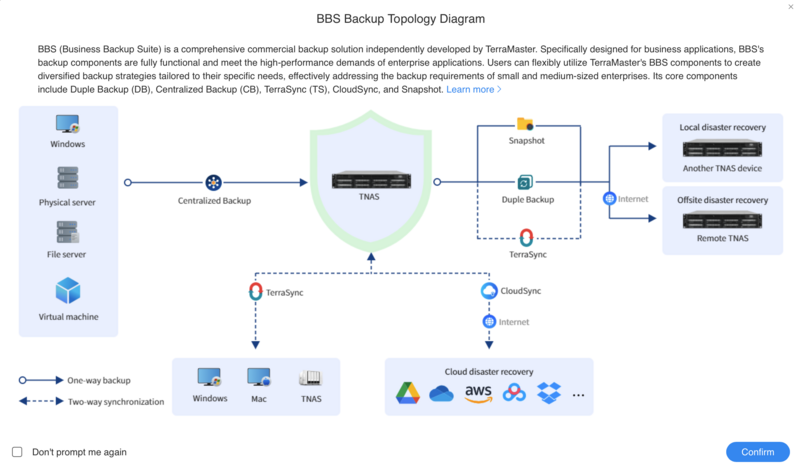
On the software side, TerraMaster bundles a comprehensive Business Backup Suite (BBS). This includes Duple Backup, Centralized Backup, TerraSync for multi-device synchronization, CloudSync recovery, and snapshot-based ransomware protection. For teams or households with shared usage, user-friendly interfaces with features like role-based permissions, shared folders, and TNAS.online remote access make collaboration straightforward without requiring advanced networking knowledge.
AI, Virtualization, and Multimedia
A standout feature is the AI-powered photo management system, which uses local, offline algorithms to recognize faces, pets, objects, and scenes. Albums are generated automatically without any data leaving the NAS, offering a privacy-first alternative to cloud-based photo services—something photographers and privacy-conscious users will appreciate.
The F2-425 Plus also supports Docker and VirtualBox, enabling containerized applications and virtual machines for more advanced users. Thanks to integrated Intel graphics, the system handles 8K video decoding and supports popular media platforms like Plex, Emby, and Jellyfin, allowing it to double as a capable home media server when needed.
Real-World Usage, Performance, and Software Experience
Before diving into performance numbers or features, it’s worth saying this upfront: a NAS is not a plug-and-play external hard drive replacement. You do need to invest some time to understand what a NAS is, how it fits into your workflow, and how you can potentially extract its benefit for data backup. Personally, I found it to be a bit of a rabbit hole—the more you learn, the more you realize its potential, and the more ways you can find to adapt it into your day-to-day work.
I would say the biggest learning curve mainly revolves around understanding basic concepts like network-attached storage, remote access, RAID, and how different array layouts (RAID 0, RAID 1, TRAID, etc.) affect performance, redundancy, and usable capacity. It’s not difficult, but it does require some reading and experimentation, especially if this is your first NAS.
Initial Setup and Storage Configuration
Setting up the F2-425 Plus does take some time, and it’s important to note that the initial disk setup will erase all existing data on the drives. During my setup, the system automatically defaulted to TRAID without prompting me to manually choose a RAID configuration, which, in a way, is convenient for beginners. However, if you are tech-savvy and have your own preference, you are required to remove the RAID configuration and redo it yourself. An important point to note: for a two-bay system like this, only TRAID (not TRAID+) is supported, as TRAID+ requires at least four drive bays.
Again, for users unfamiliar with TerraMaster’s approach, you may read them again here. If you’re unsure which RAID mode to choose, leaving it at TRAID is honestly a safe and sensible option. For those who prefer traditional setups, a RAID 1 configuration still makes the most sense on a two-bay NAS, offering straightforward redundancy with minimal complexity. TerraMaster’s RAID calculator is a useful tool if you want to visualizse capacity and redundancy trade-offs before committing to a setup.
Hybrid Storage in Practice
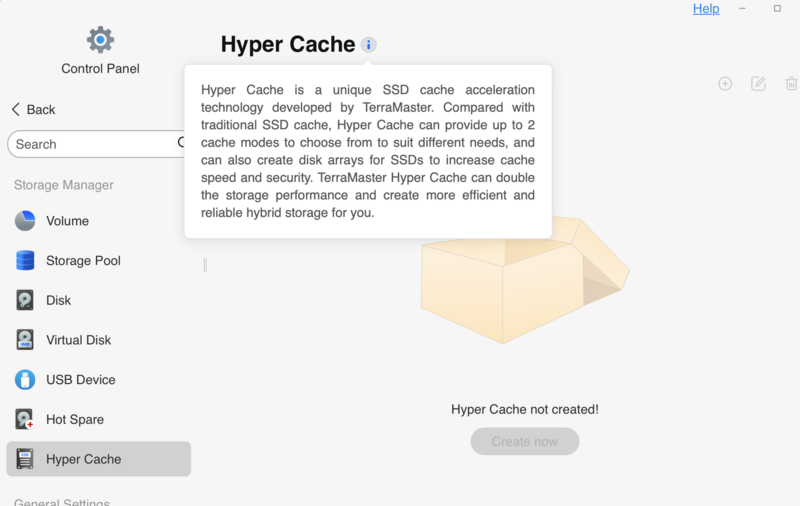
Personally, I think one of the biggest strengths of the F2-425 Plus is its hybrid design. With the combination of multiple drive bays, you can create a fast SSD-based volume for active projects, a larger HDD-based volume for archival or completed work, and an optional NVMe SSD cache to accelerate frequently accessed data. This allows you to keep “hot” data—such as ongoing photo edits or video projects—on SSDs, while moving older or less frequently accessed files to slower, higher-capacity hard drives. Even without an NVMe cache installed, this layered approach of having everything in one place already feels far more organized than juggling multiple external drives.
To me, the presence of three M.2 NVMe slots also adds long-term value. Even if you don’t populate them now, they give you options to either expand storage or improve performance later without replacing the entire system. It is important to note that because the NVMe slots run at PCIe 3.0 x1, there’s little benefit in installing high-end PCIe 4.0 or 5.0 SSDs. Here, the interface itself becomes the bottleneck long before those drives are capable of reaching their potential. That said, it makes more sense to save your money and get the much more reasonably priced PCIe 3.0 SSDs.
Having said that, a hybrid-series NAS like the F2-425 Plus adds another layer of flexibility, allowing you to fine-tune the system around your workflow rather than forcing your workflow to adapt to the hardware. You get the speed benefits of NVMe where it matters, paired with the cost efficiency and capacity of HDDs for long-term storage. For users who want a balanced setup without committing fully to all-SSD storage, this hybrid approach will make a lot of sense.
Software Experience: TOS 6.0
TerraMaster’s TOS 6.0 interface is refreshingly approachable even for a first-timer like me. Everything runs through a web-based interface, so don’t panic if the desktop app looks empty—the browser UI is where all the functionality lives. I would say the layout is clean, logical, and easy to navigate, though I have no experience with other platforms to comment further.
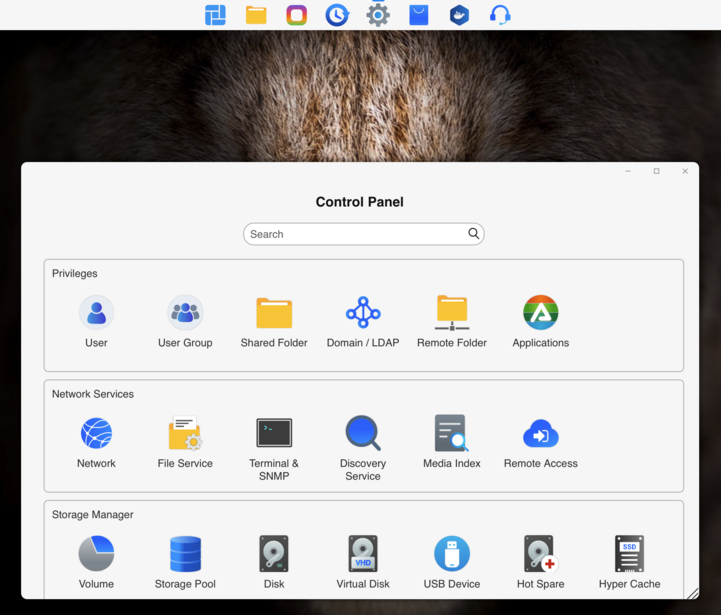
The setup assistant walks you through the setup flawlessly and automatically, from setting up a user account all the way to IP linking. All you need to do is wait for everything to finish and customize the shared folders and basic services in a way that you would like them to be. There is also an information icon to explain certain terms if you are not familiar with computing language. Installing additional apps does require an active network connection, but once connected, the app ecosystem covers most common use cases. On top of that, you can also use the software to schedule power on and off, manage storage pools, check disk health, manage automated backups, and everything you will ever need.
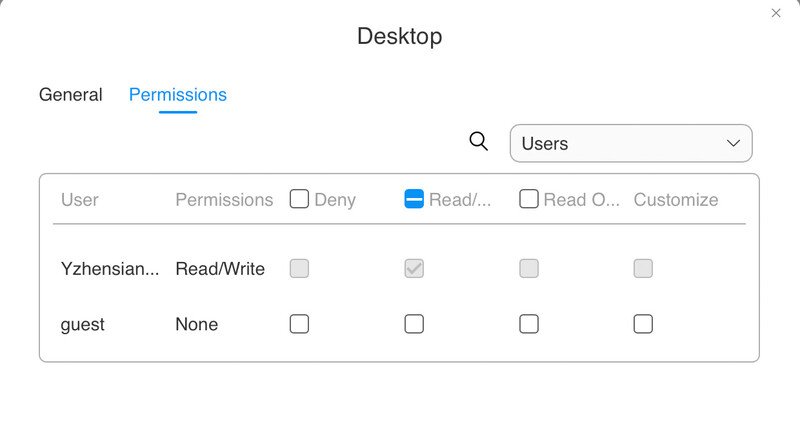
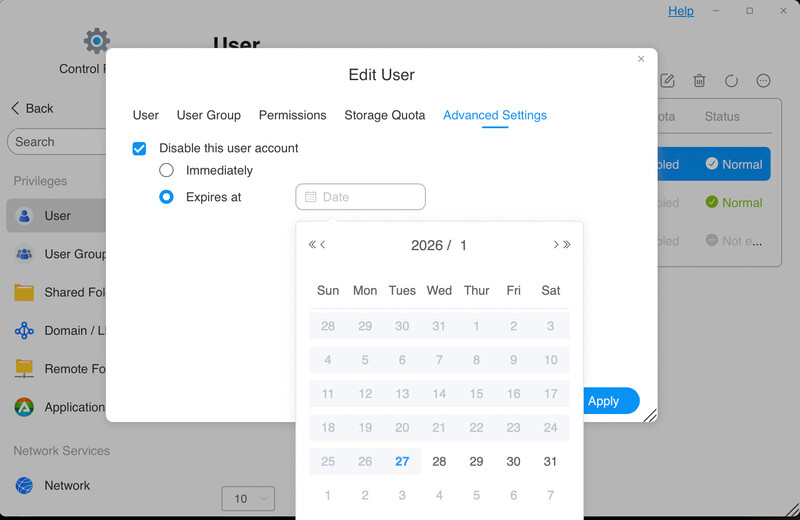
The mobile app works seamlessly for quick remote access and file retrieval. Just sign in to your account, and it will automatically link it to the NAS. Personally, the folder-sharing function is particularly useful for client delivery and team collaboration. You can create users, set folder access permissions, limit drive usage, set expiration dates, and even generate a QR code for direct folder access without signing up—very handy for creators who are delivering their final content without relying on cloud transfers. Though you should be very careful about who you share the link with, as you might be exposed to ransomware.
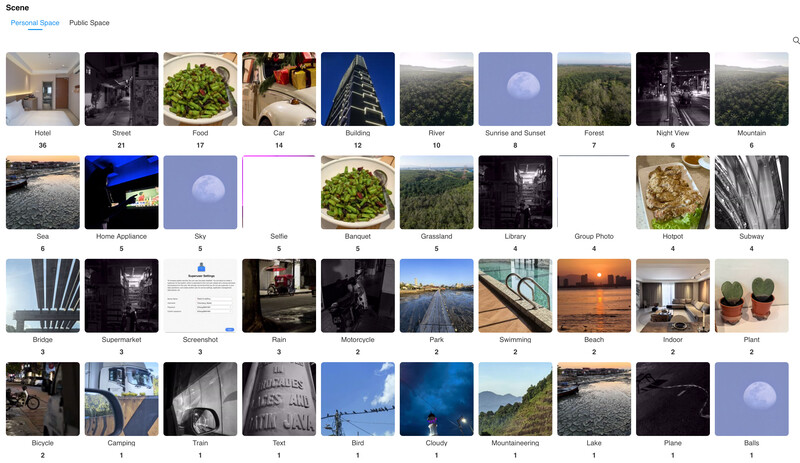
The Photos app is one of the more polished features. AI recognition for people, subjects, and scenes works well, and the app also allows you to map specific folders for indexing without disrupting your existing folder structure, so you can choose which folders you want your images to appear from in the app. There is also the capability to separate private and public spaces to further safeguard your privacy.
Backup functionality is quite comprehensive and clearly explained in the interface. Rather than overwhelming you, the system starts by showing different backup types and letting you choose what fits your needs—whether that’s system backup, file sync, or snapshot-based protection.
Performance, Bottlenecks, and Practical Limitations in Daily Use
To clarify things upfront, my testing was done without any NVMe SSDs installed for caching, and I am using the standard Seagate Barracuda 3.5-inch HDDs, which are not the fastest drives available. I am also not using the fastest router or Wi-Fi speeds. So, do take my figures with a pinch of salt, as they can only be faster than what I got here if you have a much better setup.
Wired LAN connection:
- Copying 35.5 GB into the NAS took approximately 9 minutes.
- Moving the same data back to the computer took around 13 minutes.
Wireless connection:
- Uploading the same 35.5 GB took roughly 27 minutes.
- Downloading it stretched the waiting time close to 40 minutes.
These results prove that a wired network connection is strongly recommended if you want to get the most out of this NAS. If your computer lacks an Ethernet port, investing in a USB network adapter is well worth it. And here is what I learned from my research: in real-world use, performance is shaped by several factors:
- Network speed (wired vs. Wi-Fi)
- RAID or TRAID configuration
- Filesystem choice
- Drive type (HDD vs. SSD)
- Available system memory
The included 8 GB of DDR5 RAM is sufficient for light to moderate workloads, but for heavier usage—large photo libraries, virtualization, or multiple simultaneous users—upgrading to 32 GB would improve caching and overall responsiveness. It is also worth experimenting with different RAID configurations early on. Filesystem choice and RAID layout can directly impact throughput, and once you settle into daily use, rebuilding arrays later can become very inconvenient. Having SSDs installed will also greatly expand its usability and workflow speed.
Summary
The TerraMaster F2-425 Plus is built around an Intel N150 quad-core processor (up to 3.6 GHz) paired with 8 GB of DDR5 memory (expandable to 32 GB). This CPU delivers efficient performance for NAS tasks such as Time Machine backups, media storage, file sharing, and light multi-user access, but it isn’t designed for heavy enterprise workloads or intensive parity-based RAID calculations.
One of the key hardware features of the F2-425 Plus is its three M.2 NVMe slots, each wired as PCIe 3.0 x1. While PCIe 3.0 x1 doesn’t deliver the full potential of high-end PCIe Gen 4 SSDs, it still provides strong local storage performance—typically around 600–900 MB/s per drive in simple read/write workloads. In real-world NAS usage, these speeds are often constrained by network throughput or RAID configuration rather than the SSD interface itself.
On the networking side, the unit includes two 5 GbE Ethernet ports with link aggregation support. A single 5 GbE link can realistically deliver sustained transfers in the ~400–500 MB/s range, and with link aggregation configured on a compatible switch, combined throughput can reach ~900–1,000 MB/s in ideal conditions from multiple clients or parallel streams. Even with aggregation, a single client session will still be limited by the speed of one 5 GbE link.
Overall, the F2-425 Plus balances efficient computing with strong network bandwidth and solid local storage performance. The primary performance ceilings for typical network-based workflows are dictated more by network and RAID configuration itself than by raw SSD speed or CPU horsepower.
Taken together, the TerraMaster F2-425 Plus is best suited for photographers, content creators, and small teams who want flexible storage, strong networking, and modern features without stepping into enterprise pricing. It’s also a compelling option for advanced home users who value data ownership, gradual upgrade paths, and a NAS that can grow alongside their workflow rather than needing to be replaced outright.
What I Liked
- Price: Very competitive for the hardware and feature set offered
- Ease of setup: Almost no tools required, beginner-friendly
- User interface: Clean, mature, and easy to navigate
- Hardware capabilities & future expandability: Hybrid SSD + HDD support allows flexible storage and performance upgrades
- No drive restriction: Accepts any compatible drives without artificial lock-in
- TRAID (TerraMaster RAID): More efficient storage utilization with easier expansion compared to traditional RAID
- App ecosystem and backup tools: Good range of built-in apps and backup solutions for different workflows
What Could Be Improved
- Documentation: Setup guides could be clearer, especially on initial connections and configuration
- Networking: Dual 10 GbE ports would benefit users needing higher single-link transfer speeds
- Two-bay limitation: Storage expansion relies on higher-capacity drives, which can become costly
- No front USB-C port: Including a front USB-C port would be more convenient for quick backups from modern devices
- No dedicated dust filter for the rear fan intake: Regular cleaning is required to maintain airflow over time
- Tool access for RAM / M.2 upgrades: Requires unscrewing the chassis; a dedicated access panel would improve serviceability
Final Thoughts
In practice, a two-bay NAS like the F2-425 Plus hits a sweet spot. It offers redundancy, expandability, and centralized storage without the cost and complexity of larger systems. For me, it replaced a messy collection of external drives and the constant guessing game of “which drive holds what.” And if you must know, the most expensive part of any NAS setup will always be the drives themselves, especially with recent price increases. In that sense, a two-bay system is not just simpler—it’s also more economical, while still delivering most of the benefits that make NAS worthwhile in the first place.
Personally, what makes the F2-425 Plus particularly appealing is that it doesn’t demand everything upfront. You can start with just a pair of hard drives and grow into the system over time. Add M.2 SSDs later for “hot” data or performance boosts when your needs evolve—or when budget allows. That gradual upgrade path is one of the more underrated strengths of a well-designed NAS, and it’s something TerraMaster gets right here.
If you’re curious about NAS but hesitant to dive in headfirst, the TerraMaster F2-425 Plus is a sensible place to start. Pair it with NAS-rated drives like the Seagate IronWolf, and you’ll have a reliable, flexible network storage system that can grow alongside your workflow. At US $429.99, it positions itself well as an approachable entry into serious network storage—without feeling like a compromise.






Join the Fstoppers community for free
-
Post comments and join in the discussions
-
Browse the site ad-free
-
Share your work and get featured in the community
-
Compete in the photo contests for fun and prizes
2 Comments
$500 for a diskless 2 drive NAS is overpriced by 50%. For you to complain that 10gb ports "would benefit..." is silly; 5gb exceeds virtually all networks this device would be used on, and with spinning or even SSD SATA drives it outpaces the transfer rate of the drives anyway. The interface is legacy - SATA. For this to have a chance at using 10gb bandwidth they would need to be U.2. The reviewer is not qualified to review this product.
Flagship Hybrid NAS ? in my wildest dreams a 2 bay box will never be a "Flagship".