The card comes out of the camera, goes into the reader, and the computer says it needs to be formatted. Or the folder is empty. Or the last file of the wedding is a 4 GB video that will not open in anything. That moment is the reason this category exists, and the most useful thing to know is that the software is the second decision, not the first. What you do in the next ten minutes decides how much of the shoot you get back, and most of what people instinctively do makes things worse.
Recovery tools split into two groups solving two different problems, and buying the wrong one wastes both money and your one good attempt. Undelete and carving tools read a card that is still physically fine and reconstruct files whose directory entries are gone. Repair tools take a file you already have, one that copies fine but opens as garbage, and rebuild its internal structure. A truncated video from a camera that lost power needs the second kind, and no amount of scanning with the first will help.
The picks below cover both, plus the free tools that cost nothing to try first and the lab you call when the hardware itself is dead. None of these have come through Fstoppers for hands-on testing in their current versions, so every entry is written from the vendor's current documentation, and each entry says so. Prices move constantly here, so treat the vendor page as the source of truth.
Our Picks
 Best Overall CleverFiles Disk Drill PRO
 Best Free PhotoRec
 Best Free for Windows CCleaner Recuva
 Best for Mac EaseUS Data Recovery Wizard for Mac
 Best for Windows Stellar Photo Recovery Premium
 Best for Corrupted Video Grau GmbH Video Repair Tool
 Best for Power Users R-Studio
 Best Professional Service DriveSavers Data Recovery
What to Do the Moment a Card Fails
Stop using the card. That is the whole of the advice, and it is worth more than any product in this guide. A deleted or formatted file is almost always still sitting there intact, because deleting removes the pointer to the data rather than the data itself, and every new write risks landing on top of the photos you want back.
Take the card out and set it aside. Do not shoot one more frame on it, even to test it. Do not let the camera format it, and do not accept the camera's offer to repair the card, because that routine writes to it. Do not run chkdsk or Disk Utility First Aid either: those tools exist to make a volume mountable, not to preserve your images, and they write as they work.
Then work on a copy. Every serious tool here can make a byte-level image of the card, a sector-for-sector clone in a single file, and scan that instead of the physical media. Disk Drill and R-Studio build these images natively, and on Mac and Linux the free GNU tool ddrescue does it while working around read errors. Recover to a different drive than the one you are reading, always, since writing recovered files back to the source card overwrites the ones you have not rescued yet.
Two hardware notes. Use a card reader rather than plugging the camera in, because most current cameras present themselves over MTP and recovery software cannot see them as raw storage. And an SSD is a different animal: TRIM tells it to erase deleted blocks proactively, so files deleted from an internal SSD are often gone within minutes. Cards and most external drives do not run TRIM, which is why a card is the most recoverable storage a photographer owns.
Best Overall: CleverFiles Disk Drill PRO
One license spans macOS and Windows, and version 6.2's Advanced Camera Recovery module targets camera video from Sony, Insta360, Leica, and Panasonic, previewing every file before you pay.

If you buy one tool before you need one, buy Disk Drill PRO. It is the most photographer-aware of the mainstream recovery apps, it runs on both operating systems from one license, and its free edition previews everything it finds before you have paid a cent, with a recovery chance rating beside each file that saves a lot of false hope.
Version 6.2, released in March 2026, earns the slot. Its Advanced Camera Recovery module targets the failures photographers actually hit, and the release notes cite improved detection and processing of video from Sony, Insta360, Leica, and Panasonic cameras plus better handling of H.265 files. The same release added an online video repair service for files too damaged to reassemble locally, which makes this the rare tool with an answer for both halves of the problem. Byte-level backup is built in, so imaging a card and scanning the clone is a two-click job.
We have not run the current version of Disk Drill through an Fstoppers review, so treat this as a spec-based recommendation. What most buyers miss is the free tier's asymmetry: Windows gives you 100 MB of real recovery for nothing, while on macOS the free edition previews only. Plan on paying for the Mac rescue.
The limits are worth knowing. There is no local repair engine, so a corrupt video goes off to CleverFiles' online service, and direct camera-to-computer recovery works only for the shrinking number of bodies that mount as USB Mass Storage. CleverFiles also states that PRO purchases, both the lifetime license and the one-year subscription, are non-refundable except where consumer protection law requires otherwise, which raises the stakes on running the free scan first. For a photographer who wants one license covering the laptop and the studio machine, check the current price of Disk Drill PRO at CleverFiles.
What We Like
- Scans and previews everything free, so you know before you buy
- Advanced Camera Recovery module tuned for camera video, updated March 2026
- One license covers macOS and Windows, three machines
What Could Be Better
- No offline file repair; damaged video goes to an online service
- Free recovery allowance applies to Windows only, not macOS
- Purchases are non-refundable except where consumer law requires otherwise
- Cameras that use MTP are not seen directly, so a card reader is mandatory
Best Free: PhotoRec
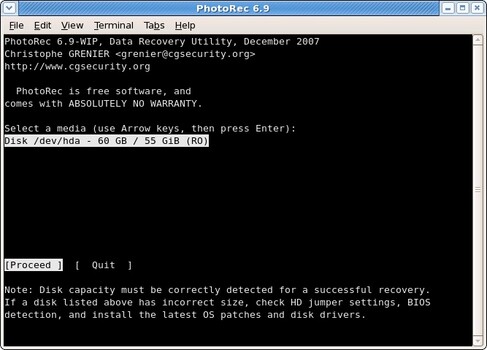
Free and open source with no recovery cap, PhotoRec carves raw sectors to rebuild more than 480 file types, though it recovers file contents without the original names.
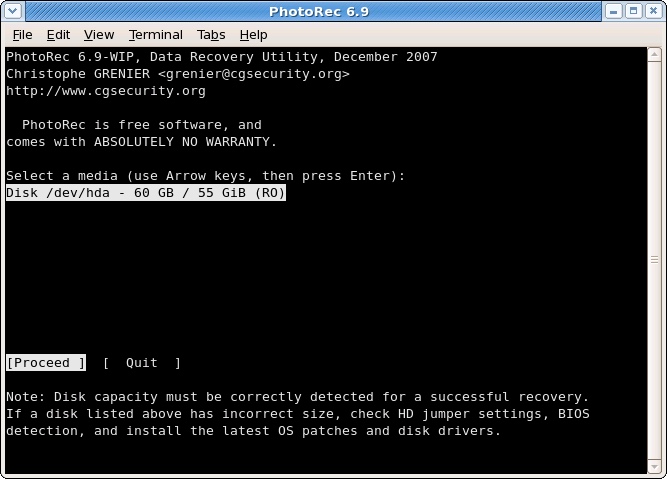
Nothing else here costs nothing and works this well. PhotoRec is a file carver: it ignores the file system and reads raw sectors, hunting the byte signatures that mark the start of a JPEG, a Nikon NEF, a Canon CR3, a MOV.
The compromise is baked into carving. PhotoRec recovers file contents but not file names, because the name lived in the directory entry that was destroyed. You get folders of machine-named files sorted by type, and reuniting them with your catalog is manual labor. There is no preview and no repair. The stable 7.2 release runs in a text-mode window, though the bundled QPhotoRec adds a plain graphical front end that most people find perfectly usable.
Its companion TestDisk solves the adjacent problem: a card whose partition table is damaged rather than whose files are deleted. If the card mounts but looks empty, run PhotoRec. If it will not mount, TestDisk can often rebuild the partition and hand back the file system with names intact. Neither tool has an upsell or a watermark.
We reviewed PhotoRec in 2019 but have not tested the current release in house. PhotoRec has been the reference free tool here for two decades, and its stable release is now over two years old, which says something about both its maturity and its pace. Run it before you spend anything, so download PhotoRec from CGSecurity and see what a free scan finds. Also consider pairing it with GNU ddrescue if the card throws read errors, since ddrescue images the failing media and PhotoRec can then carve the image safely.
What We Like
- Genuinely free and open source, with no recovery cap
- Reads raw sectors, so a broken file system does not stop it
- Recognizes more than 480 extensions, camera raw included
What Could Be Better
- File names and folder structure are lost, always
- No preview before recovery and no file repair
- Text-mode interface unless you use the QPhotoRec front end
- Stable release dates to February 2024
Best Free for Windows: CCleaner Recuva
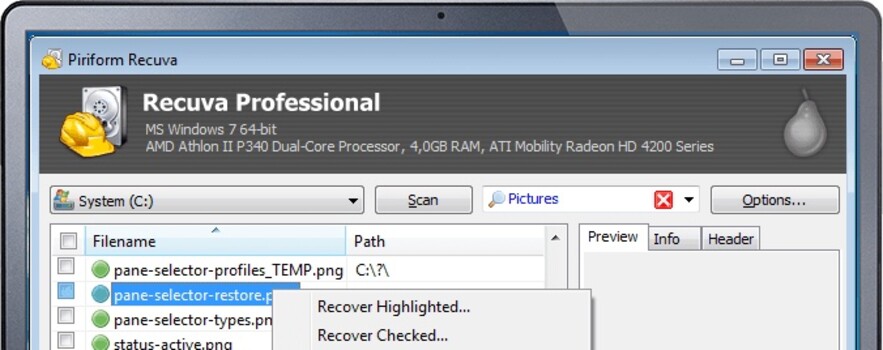
Recuva hands a panicking beginner a wizard, a colored condition indicator predicting which images return clean, and a thumbnail preview, all free with no cap and Windows only.
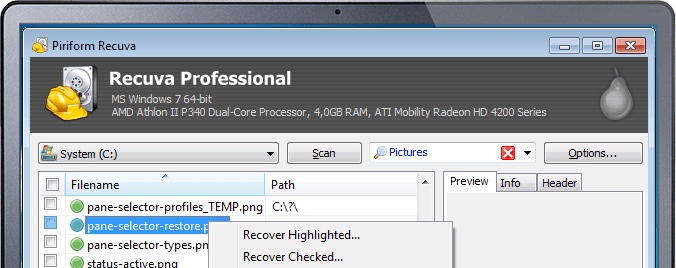
Recuva is the tool to hand a panicking friend. A wizard asks what kind of file you lost and where it lived, results arrive with a colored condition indicator showing which images should come back clean, and a thumbnail preview lets you check before committing. For the most common disaster, images deleted in camera or a card formatted by accident an hour ago, Recuva's free version does the job with no cap on how much you restore.
Where it stops is worth being blunt about. It is Windows only. Its deep scan is slower and less thorough than the carving engines in Disk Drill or PhotoRec, and its camera raw coverage is thinner, so an unusual raw file may come back unrecognized. It repairs nothing. The development history is uneven, too: Recuva went from June 2016 to early 2022 without a new release, and the current build, 1.55.133 from June 2026, is a maintenance update for EU regulatory compliance rather than a new engine.
The Professional license buys automatic updates, virtual hard drive support, and priority support rather than a materially better engine, so buy it for the support line, not because you expect more images back. Recuva's current build has not been through an Fstoppers test, and the assessment above rests on the vendor's documentation. Reach for it first on a Windows machine when the mistake was simple and recent, then escalate to a carving tool if the results look thin. Finding out costs nothing, so download Recuva and see what the free scan turns up before you reach for a credit card.
What We Like
- Free recovery with no size limit
- Wizard interface a nervous beginner can follow
- Condition indicator and thumbnail preview before you recover
What Could Be Better
- Windows only
- Weaker deep scan and thinner camera raw coverage than the paid engines
- No file repair of any kind
- Erratic release cadence, with a near six-year gap in the recent past
Best for Mac: EaseUS Data Recovery Wizard for Mac
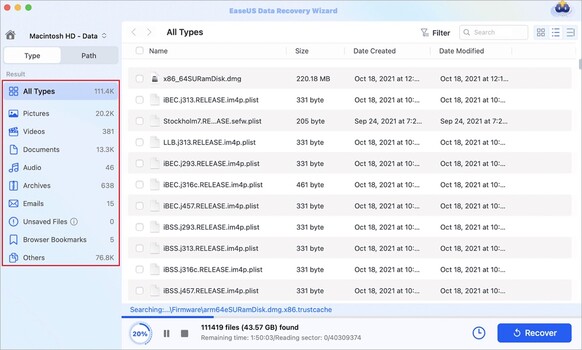
Aimed at external media, the paid EaseUS app pairs its scanner with video repair and reads APFS, Time Machine, and iCloud drives, though its Mac support matrix stops at macOS 14.
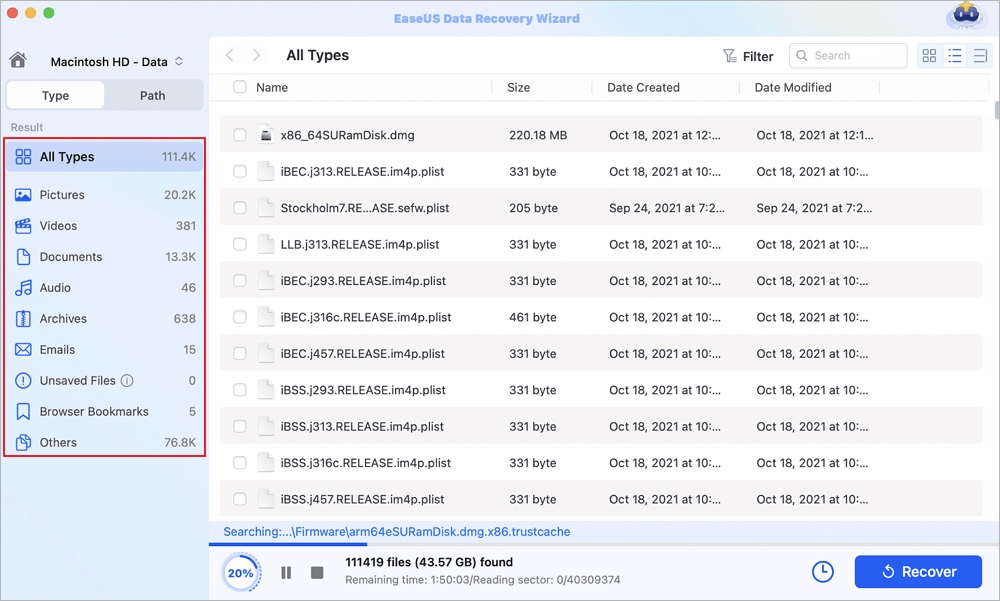
Mac recovery carries a catch the marketing pages skip. On an Apple silicon Mac the internal drive is hardware-encrypted with TRIM enabled, so files deleted from it are usually unrecoverable no matter what you buy. Recovery software on a Mac is really for external media: the card from the camera, the shuttle SSD that got yanked, the backup drive that stopped mounting. EaseUS Data Recovery Wizard for Mac is the most complete package for that work.
Coverage is its edge. It handles APFS and HFS+ properly, reads Time Machine drives, pulls files back from iCloud, boots a dead Mac from recovery media, and the paid app adds a video repair function alongside the scanner, so one purchase covers both the card that was formatted and the clip that will not play. Photo and document repair is not in that box: EaseUS sells that as a separate product called Fixo. The free tier is the most generous here, though the 2 GB headline is really 500 MB plus a social-media share.
Nobody at Fstoppers has tested it, and the caveats come from the vendor's own materials. EaseUS runs a sprawling catalog with heavy cross-promotion, the checkout nudges you toward a subscription rather than the lifetime license, and deep scans of large drives are slow. The one to check before you buy is compatibility: EaseUS's published Mac support matrix still stops at macOS 14, with no entry for the releases after it, so confirm your version is covered. For most Mac photographers this still covers the widest range of what can go wrong on one bill, so check the current price of EaseUS Data Recovery Wizard for Mac at EaseUS. Also consider Prosoft Data Rescue 6 if you want a long-established Mac-first alternative, with the same caveat only worse: Data Rescue's last update was version 6.0.9 in 2024 and its stated requirement is simply macOS 10.12 or later, so confirm compatibility before paying.
What We Like
- Scanning plus a built-in video repair function in one purchase
- Proper APFS, Time Machine, iCloud, and unbootable-Mac support
- 2 GB free tier, the largest among the mainstream paid tools
What Could Be Better
- Most of the free allowance requires a social-media share
- Photo and document repair is a separate purchase (Fixo), not part of this app
- Published Mac support matrix stops at macOS 14
- Deep scans on large drives are slow
- Upsell-heavy checkout that steers toward a subscription
- Cannot defeat encryption and TRIM on an Apple silicon internal drive, and nothing can
Best for Windows: Stellar Photo Recovery Premium
Stellar builds around camera raw and video rather than office files, and the Premium edition pairs its scanner with repair engines that rebuild corrupt stills and video from a failing card.

Most recovery software treats photographers as a subset of general computer users. Stellar built its product the other way around, and the file-format list shows it. Stellar Photo Recovery Premium is organized around camera raw, camera video, and the ways cards fail, and the Premium edition pairs the scanner with repair engines for corrupt stills and video, the combination a photographer with a bad card actually needs.
A disclosure: Fstoppers' previous coverage of Stellar was a sponsored post, and this pick is not based on it. It earns its place on what the software is documented to do: a scanner organized around camera raw and camera video, paired with repair engines that rebuild corrupt stills and video pulled from a reformatted or failing card. That combination, not the earlier article, is why it is here.
The Windows build is the one Stellar keeps current, and 12.6.0.0 landed in May 2026. The scanner previews what it finds before you pay, and the free tier restores 10 media files of up to 100 MB each, enough to prove the tool works on your card and not much more. Repair is the real differentiator, and it is a job the free tools cannot do at all.
The weaknesses are the edition split and the pricing theater. Features are divided across Standard, Professional, Premium, and Technician in a way that makes it easy to buy the wrong tier: photo repair does not appear until Professional, and video repair only at Premium. List prices are almost always shadowed by a discount. Deep scans drag. For a Windows photographer who wants one tool that recovers and repairs, check the current price of Stellar Photo Recovery Premium at Stellar, and make sure the edition in your cart is the one with video repair in it.
What We Like
- Built around camera raw and camera video rather than office files
- Premium edition recovers and repairs in a single purchase
- Preview before purchase, plus 10 free file recoveries
What Could Be Better
- Four-edition split that puts photo repair in Professional and video repair only in Premium
- Permanent-discount pricing makes the real cost hard to read
- Slow deep scans on large volumes
- Fstoppers' prior coverage was sponsored, so we hold no independent hands-on record of our own
Best for Corrupted Video: Grau GmbH Video Repair Tool
Built for the unfinalized or truncated file that no player will open, Grau's tool lifts structural metadata from a matching reference clip to rebuild the broken movie.
Here is the failure that ruins a shoot. The camera loses power or the card is pulled mid-write, and the video file never gets its footer written. The data is all there. The index that tells a player how to read it is not, so QuickTime, Premiere, and Resolve all shrug, and scanners do not help because nothing was deleted. Fixing that is what the Grau GmbH Video Repair Tool exists for, and it is the specialist tool for exactly that job.
Its method explains why it works and what it needs from you. You give it the broken file plus a reference: an intact clip from the same camera, same codec, same settings. It lifts the structural metadata from the healthy file, applies it to the raw stream data in the broken one, and rebuilds a playable movie. The closer the reference matches, the better the result, which is a good reason never to delete a working clip from that card until the rescue is done.
The codec list runs unusually deep for a small tool: H.264 and H.265, ProRes in all its flavors, XDCAM, DVCPRO, and the proprietary corrupt-movie formats Canon, Sony, and Panasonic write when a recording dies mid-take. The demo repairs half the movie, so you watch the first half of your rescued clip and know precisely what you are buying.
We have not tested the current version, and the rough edges are real. The website looks like it was built in another decade, the license is locked to one machine, the vendor states there are no refunds under any circumstances, and the Mac requirements still specify an Intel-based Mac, which Apple silicon owners should query before buying. It cannot invent data that was never written, either. What it can do, no scanner can, so check the current price of the Grau GmbH Video Repair Tool at Grau once the demo proves it repairs your file.
What We Like
- Fixes the exact failure that kills camera video: an unfinalized or truncated file
- Very deep codec support, including ProRes, XDCAM, and camera-specific corrupt formats
- Reference-file method delivers results generic repair engines miss
What Could Be Better
- License is bound to one computer, with a stated no-refunds policy
- Mac requirements still list an Intel-based Mac
- Dated website and interface
- Needs a good reference clip from the same camera to do its best work
Best for Power Users: R-Studio
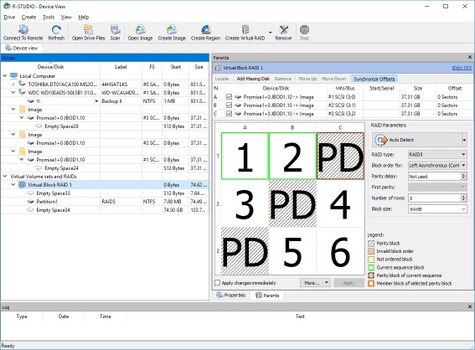
Written for professionals, R-Studio exposes a hex editor, manual scan control, and genuine RAID reconstruction, so it can rebuild a dropped array member that consumer tools cannot touch.
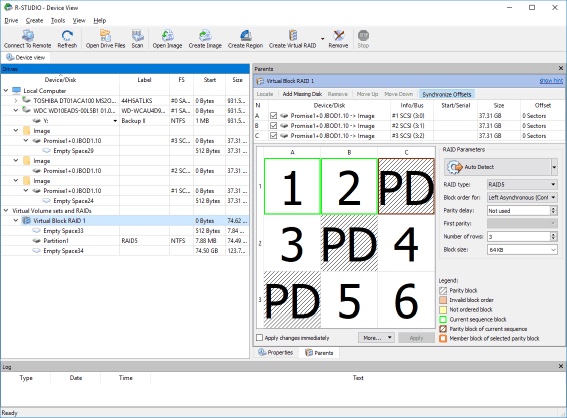
Everything else in this guide hides the disk from you. R-Studio does the opposite, and that is the point. You get a hex editor, a file-system browser, manual scan parameters, RAID reconstruction with configurable block order and offsets, disk imaging, network recovery, and a bootable emergency version. It was written for data recovery professionals and then given a friendlier face, rather than the other way around, and it shows in both directions.
The case for it is narrower than the marketing suggests. If you run a RAID or a NAS and a member drive dropped out, R-Studio can rebuild the array logically and pull the images off, which consumer apps cannot do. If you are comfortable telling a scanner which sectors to read and which signatures to hunt for, it finds files the point-and-click tools miss. If neither sentence describes you, buy Disk Drill and be happier.
The demo is the most useful thing about the pricing. It scans, previews, and recovers any file under 1,024 KB, so a scan confirming your raw files are visible and intact costs nothing. The editions ladder from a cheap FAT-only or NTFS-only build through the standard license to Corporate and Technician, and the license is tied to one platform, so a Mac key will not register the Windows build. Check the file system your card uses before you choose a tier. Most camera cards are exFAT, and only the full license covers everything a photographer is likely to plug in.
We have not tested it, and there is no pretending the interface is pleasant. It is dense, it assumes vocabulary, and it will let you make a mess. That is a fair trade for software that can reconstruct a broken RAID at two in the morning, so check the current price of R-Studio at R-TT if the failure in front of you is bigger than a single card. Our NAS guide covers the arrays this tool is built to rescue.
What We Like
- Genuine RAID and NAS reconstruction, which consumer tools lack
- Hex editor, manual scan control, and network recovery
- Demo previews everything and recovers small files, so you can validate first
What Could Be Better
- Steep learning curve and an unfriendly interface
- No file repair for corrupt images or video
- The cheap editions are locked to a single file system
- Overkill for a simple deleted-card recovery
Best Professional Service: DriveSavers Data Recovery
When the hardware itself has failed, DriveSavers works in a certified ISO Class 5 cleanroom under a no-data, no-charge policy, evaluating the device and quoting before any work begins.

There is a hard line in this category, and crossing it with software turns a recoverable disaster into a permanent one. If the drive is clicking or grinding, if the card is physically snapped, if the device took a swim, or if the images are worth more than the recovery will cost, stop running scanners and send it to a lab. Every scan on failing hardware is a few thousand more read operations on a dying mechanism, and one of those attempts can be the one that finishes it.
DriveSavers is the lab most working photographers end up at, for structural reasons rather than sentimental ones. It has been doing this since 1985, it works in a certified ISO Class 5 cleanroom, which is what opening a hard drive without destroying it requires, and it holds SOC 2 Type II certification, which matters when the images belong to a client. Evaluation is free, you get a quote before anything happens, and the company runs a no-data, no-charge policy: no files back, no bill for the attempt.
Lab work is expensive, and that is the honest headline. DriveSavers publishes no price list at all. You are quoted a range after the free evaluation, and the company commits to two things in writing: the final bill will never exceed the top of that first quote, and a successful recovery generally lands in the top third of the range. Cost tracks the complexity of the damage and the turnaround you pick, so a rush job costs more. It is also the only thing that works when a platter is scratched or a card's controller is dead, and cheaper than reshooting a wedding you cannot reshoot.
We have not commissioned a recovery and cannot report firsthand. What is verifiable is the credentialing, the free shipping label, the free evaluation, and the no-data-no-charge policy, the term to check with any lab, since some competitors define "no fee" in ways that still bill you for the attempt. If the hardware is the problem rather than the file system, request a quote and check the current price of a DriveSavers Data Recovery case before you run one more scan. Also consider Ontrack for a second quote.
What We Like
- Certified ISO Class 5 cleanroom and SOC 2 Type II certification
- Free evaluation and a quote before any work begins
- No-data, no-charge policy on recovery attempts
What Could Be Better
- By far the most expensive option here
- No published pricing; you only learn the range after the evaluation
- Faster turnaround raises the price
- The device leaves your possession for days or weeks
How to Choose Photo Recovery Software
Diagnose which of the two problems you have first, because buying the wrong category is the most common and most expensive mistake here. Files missing, wiped by a format or gone from the folder: you need a scanner, so Disk Drill, PhotoRec, Recuva, EaseUS, Stellar, or R-Studio. Files present but broken, a JPEG that opens as a gray band or a video no player will touch: you need a repair engine, so the Grau tool for video, Stellar Premium for stills and video, the paid EaseUS Mac app for video. A scanner will not fix a corrupt file, and a repair tool cannot find a file that is not there.
Then check the free tier, because here the free tier is the trial and the trial is the entire evaluation. Every reputable tool will scan your card and preview what it can recover before you pay, and a vendor who will not show results before payment does not deserve the sale. Run several free scans, since carving engines differ and a file one misses another often finds.
Weigh the license terms harder than the feature list. This is software most people buy once, in a panic, and never open again, which is why lifetime licenses usually beat subscriptions even though the subscription looks cheaper at checkout. Read the refund policy first: several of these vendors state that recovery software is non-refundable once the key is issued.
The feature that matters more than people think is disk imaging, the ability to clone a failing card and scan the clone. It turns a one-shot rescue into an experiment you can repeat with different tools without touching the fragile media again. The spec that matters less is scan speed. A recovery you only get to attempt once is no place to optimize for minutes, and the slow, thorough deep scan finds the file the quick scan missed.
Price the alternative, too. A tool that saves one shoot has paid for itself, but a workflow that never loses the shoot is cheaper still: a second card slot writing a backup, cards retired on a schedule, and an offload routine that copies before it deletes. Our memory cards guide covers which cards earn that trust, and our portable SSDs guide covers what to offload them onto in the field.
What We're Looking For
Our picks weigh how a tool handles camera-specific formats rather than office documents, whether you can verify results before paying, whether the license terms are fair, and whether the product solves recovery, repair, or both. Every specification above was verified against the vendor's current documentation at the time of writing, including version numbers, platform support, and free-tier limits, and anything we could not confirm from a live source was left out rather than guessed. On testing, we are being straight with you: none of these tools has come through Fstoppers for a hands-on review in its current version, and we say so in each entry. Where the text describes behavior, it comes from vendor documentation. One further disclosure: Fstoppers' earlier coverage of Stellar was a sponsored post, and that pick rests on the software's documented capabilities, not on that article.
Frequently Asked Questions
Can I Recover Photos From a Formatted Memory Card?
Usually, yes. A standard in-camera format rewrites the file system without erasing the image data, so the photos generally sit intact until something overwrites them. Stop shooting on that card immediately, then run a carving scanner such as PhotoRec or Disk Drill. Your odds drop sharply with every new frame you write.
Is Free Photo Recovery Software Good Enough?
Often it is. PhotoRec recovers as much raw image data as most paid engines, at no cost and with no cap, and Recuva handles simple deletions on Windows well. What you give up is convenience: PhotoRec loses your file names, and neither tool repairs corrupt files. Run the free tools first and pay only if they come back short.
What Is the Difference Between Photo Recovery and Photo Repair?
Recovery finds files that have gone missing from a card or drive. Repair fixes files you already have that will not open. A deleted folder is a recovery job; a video that copies fine but plays as static is a repair job. Some products do both, such as Stellar Photo Recovery Premium.
Can Photos Be Recovered From an SSD?
Often not. TRIM instructs a solid state drive to erase deleted blocks proactively, which frequently destroys deleted files within minutes, and on Apple silicon Macs the internal drive is hardware-encrypted as well. Cards and most external drives do not run TRIM, which is why they stay far more recoverable.
When Should I Pay for a Data Recovery Service?
When the hardware is physically damaged rather than logically broken. Clicking, grinding, a drive that never spins up, a snapped card, fire or water damage: those need a cleanroom, and running scanners on failing hardware can finish it off. Get a free evaluation from a lab such as DriveSavers, and confirm the no-data, no-charge terms before you ship anything.
Fstoppers may earn a commission from purchases made through links in this article. Our picks are made independently by our editorial team.