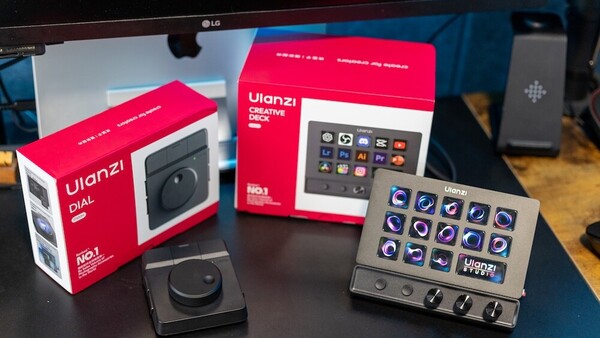
Most editing tools promise to speed up your workflow. Very few actually change how you work. After testing the Ulanzi D200X and Dial in real-world use, I wanted to see if either could genuinely reduce time at the desk or if they just add another layer to the process.
As a photographer and videographer, I spend more time at my desk than I would like to admit. A large part of running a photography business happens away from the camera. Editing, file management, emails, and planning all take time, so having a setup that supports workflow, efficiency, and comfort matters.
My current setup is solid. I use a sit-stand desk, a comfortable chair for when I need it, and I know my way around my computer well enough to work efficiently. Still, I would always rather be out in the landscape, either capturing images or working with clients. The reality is that this side of the job is not always as straightforward.
Because of that, I am always looking for ways to improve output and reduce the time spent at the desk. Over the past while, I have seen more studio-style control products appearing: devices with dials, knobs, and programmable buttons that promise quicker access to software and tools. The idea is simple: reduce repetitive actions into single button presses.
As someone who already relies heavily on keyboard shortcuts when editing both photos and video, this type of solution makes sense.
First Look at the Ulanzi D200X
I had previously come across the Ulanzi D200, which positioned itself as an alternative to the Elgato Stream Deck. It offered similar functionality at a lower price, with 14 customizable keys.
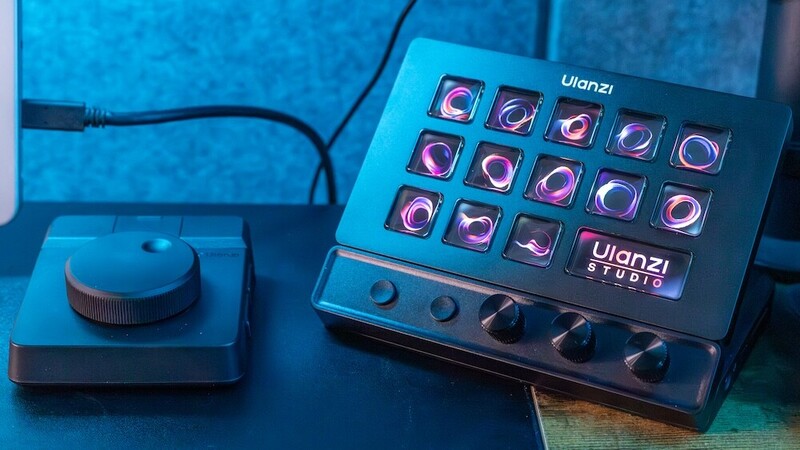
The updated version, the D200X Creative Deck, builds on that idea.
At a glance, it offers:
- 13 fully customizable buttons
- 1 larger display button (time, system info, or custom image)
- 3 programmable dials
- Expanded connectivity including:
- SD card reader
- TF (microSD) card reader
- 3.5mm headphone/mic jack
- 4K HDMI output
- USB-C 3.2 and USB-A ports (up to 10 Gbps)
- USB-C PD port for laptop charging
On paper, it looks like more than just a shortcut device. It also aims to improve cable management and act as a small hub within your setup.
Setup and First Impressions
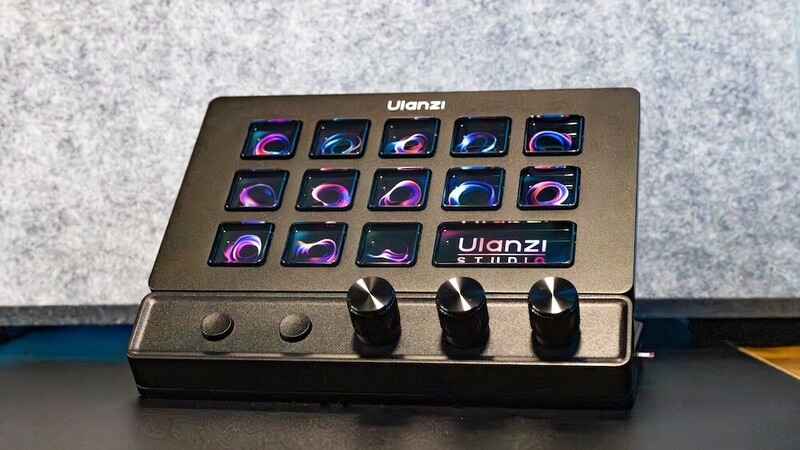
Unboxing is straightforward. Everything is self-contained, and unlike the previous D200, the D200X is fixed in place on its base, so you cannot adjust the viewing angle.
You get a USB-C to USB-C cable, with an adapter for USB-A if needed. A physical manual is included, which is useful, although most of the functionality is explained within the software.
The device requires the Ulanzi Studio app, available on both Mac and PC. Installation is simple, and once connected, the unit is recognized immediately.
Software and Customization
The software is where the D200X becomes useful.
Out of the box, you are presented with default profiles that cover common actions:
- Volume control
- Screenshot capture
- Screen recording
- Quick app launching
These are all handled through hotkeys, combining multiple inputs into a single button press. On a Mac, for example, taking a screenshot usually involves multiple key combinations. Here, it is reduced to one press.
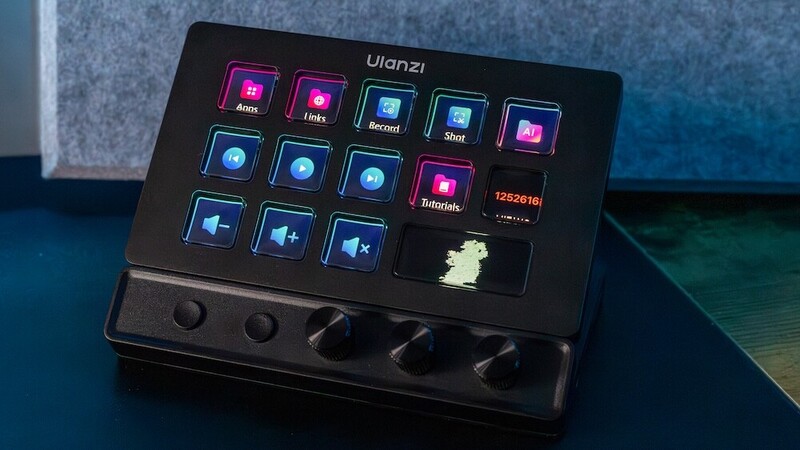
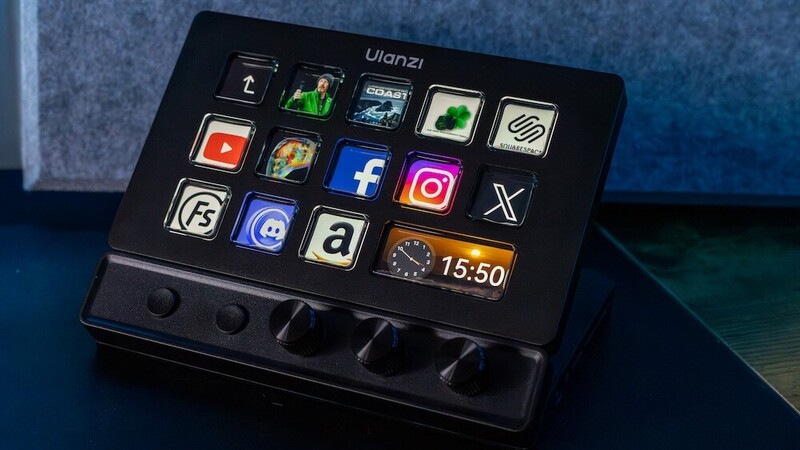
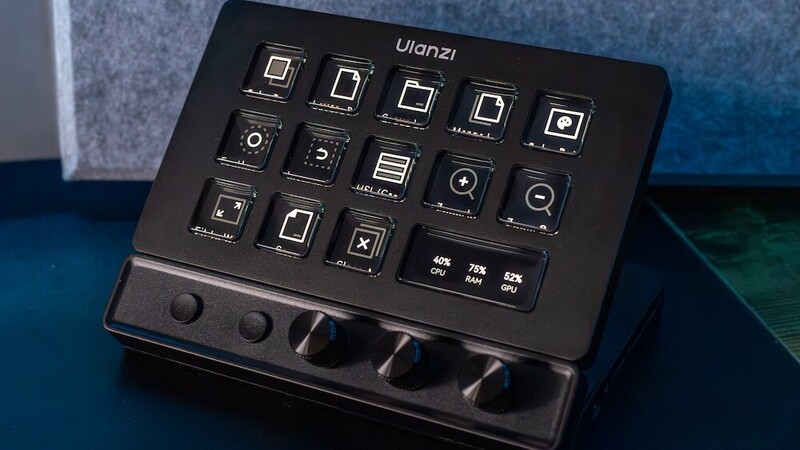
All 13 buttons are fully customizable, and you can create multiple profiles depending on your workflow. The larger display button can show time, system stats (CPU, RAM, GPU), or a custom image.
Real Workflow Use
The most interesting part is how the device integrates with editing software.
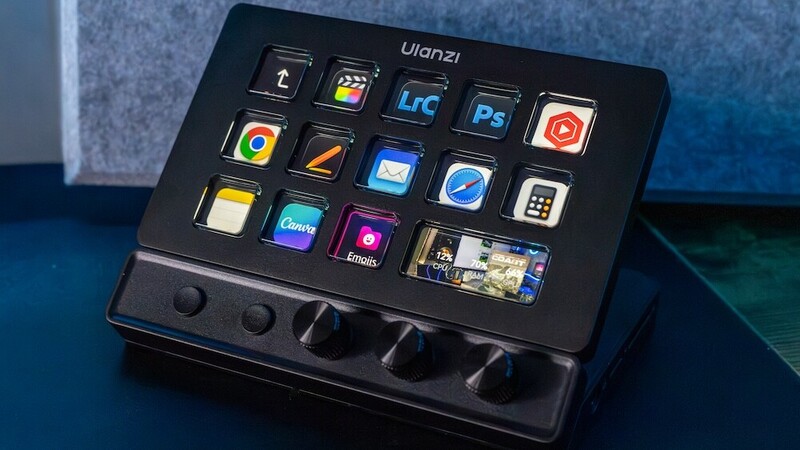
You can download specific profiles for applications like Lightroom and Photoshop. Once launched:
- The buttons automatically change to relevant actions.
- The dials can control precise adjustments such as exposure, contrast, and color.
This adds a more tactile approach to editing, which is something a mouse and keyboard do not offer. If you want to get the most out of Lightroom alongside a device like this, Mastering Adobe Lightroom: How to Use Lightroom is a solid starting point.
Alongside editing, one area where I found immediate value was website access. I regularly move between Fstoppers and my own website, particularly when writing blogs, preparing newsletters, or sharing resources. Normally, that means opening tabs, searching bookmarks, or typing URLs repeatedly throughout the day.
With the D200X, I set these as dedicated buttons.
At the press of a single button:
- Fstoppers opens instantly.
- My own website loads to the exact pages I use most.
- Blog and newsletter sections are ready without extra steps.
It removes small but repeated actions from the workflow. Each one only saves a few seconds, but across a full working day, it becomes noticeable.
I am also able to connect my various devices and use it as a hub. The SD and microSD card readers have been used most, with their easy access at the side.
Build, Design, and Day-to-Day Use
The unit is well built and sits cleanly on the desk. It adds something different visually, with customizable icons and lighting across the buttons.
Each button is effectively a small display, allowing you to assign your own icons or images. This helps when working quickly, as you can identify actions at a glance.
It also has a clear "cool factor." It stands out on the desk and draws attention straight away.
For me, that came from my kids. They were immediately interested in it, not from a workflow point of view, but because they could customize the buttons with their own images and interact with it. To them, it felt more like something to play with than a tool.
That reaction says something about the design. It is engaging and visually appealing. For my use, the functionality matters more, but the design is still a positive.
Setup Friction and Limitations
While setup is mostly straightforward, there are a few points worth noting:
- Some functionality requires separate downloads (e.g., Lightroom profiles and icons).
- This could be simplified into a single install process.
- The software includes tutorials, which are useful but necessary to understand deeper features.
None of these are major issues, but they do slow down the initial setup slightly.
Overall Thoughts on the D200X
The D200X offers strong value for what it does:
- Good build quality
- Extensive customization
- Wide range of use cases
The main challenge is not the device itself, but changing existing habits. Moving from keyboard shortcuts to a hardware-based workflow takes time. However, the potential to streamline repetitive tasks is clear.
One point I noticed after use is that it is difficult to see the text for the action based on the viewing angle. A simple move of this text to the top would resolve it, so perhaps it can be done with a software/firmware update.
At this stage, it is something I can see becoming part of my setup, provided I continue to integrate it into daily use.
Ulanzi Dial: A Simpler, Focused Tool
Alongside the D200X, I also tested the Ulanzi Dial.
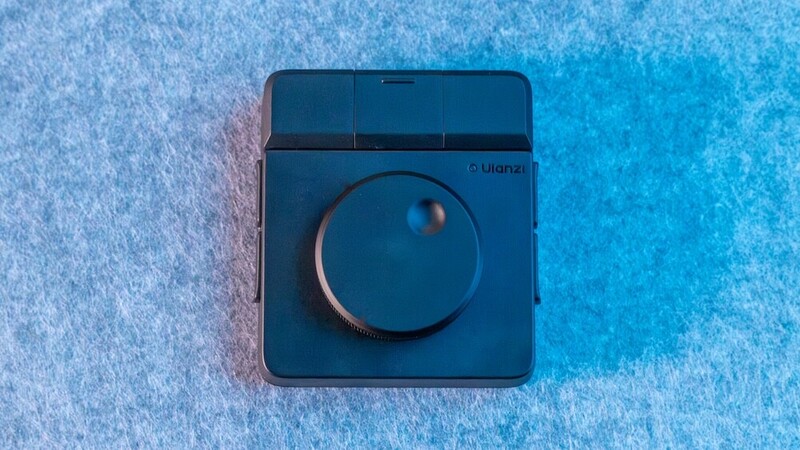
This is a more minimal device—a single large dial with programmable buttons. Like the D200X, it is fully customizable and supports multiple profiles, but without visual icons.
Each button also supports secondary functions, effectively doubling the number of available actions.
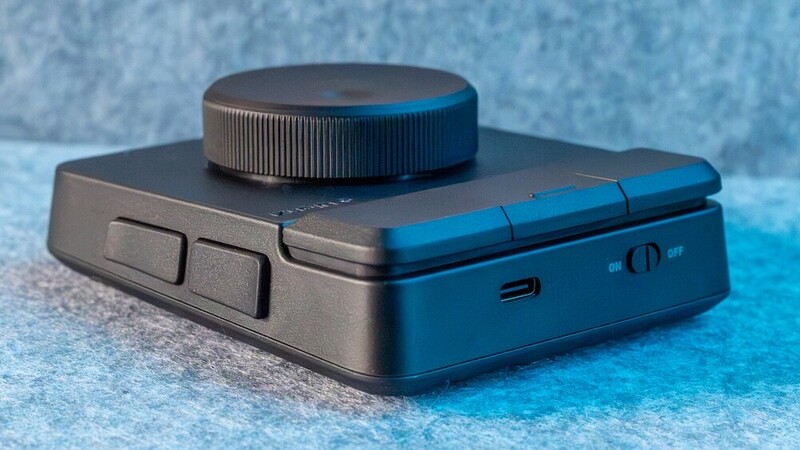
Use Case: Video Editing
For me, the Dial fits best with video editing, particularly in Final Cut Pro.
Typical uses include:
- Scrolling through the timeline
- Cutting clips
- Deleting sections
- Marking points
- Undoing actions
This type of control is clearly inspired by studio setups. It offers a more hands-on way of navigating edits, which can become more efficient over time. For anyone moving from photography into video, Introduction to Video: A Photographer's Guide to Filmmaking pairs well with this kind of tactile setup.
Value and Performance
The Dial is priced at around $35, which is low compared to similar devices like Loupedeck.
It is also:
- Wireless
- Connects to up to three devices via Bluetooth
For the price, it provides solid functionality, particularly for video-focused workflows.
Verdicts
After spending time with both devices, they each solve a slightly different problem, even though they sit in the same category.
The D200X is positioned as a central control unit for your desk. It combines shortcut control, system monitoring, and hub-style connectivity into a single device. The level of customization is where it stands out most. Between the programmable buttons, dynamic profiles, and tactile dials, it has the potential to replace a lot of repetitive actions across editing, admin work, and general day-to-day use.
The key point is potential. Out of the box, it works well, but the real benefit only comes once you commit to building it into your workflow. If you already rely heavily on keyboard shortcuts, there is a transition period where it may feel slower before it becomes faster. That said, the addition of dials for more precise adjustments does offer something different that a keyboard cannot replicate.
The Dial, on the other hand, is more focused. It does not try to do everything. Instead, it offers a simple, tactile control method that works particularly well for video editing. It is easy to set up, quick to understand, and does not require the same level of commitment to see benefits.
In practical terms, the D200X is a broader workflow tool, while the Dial is more of a targeted editing accessory.
Ulanzi D200X: Pros
- Strong level of customization across buttons, dials, and profiles
- Visual feedback with fully customizable icons on each button
- Useful for both editing and general tasks like website access and app launching
- Dials add precise, tactile control for adjustments in editing software
- Built-in connectivity helps reduce cable clutter
- Good overall build quality
Ulanzi D200X: Cons
- Takes time to integrate into an existing workflow
- Requires additional downloads for full functionality (profiles, icons)
- Fixed viewing angle may not suit all desk setups and can be difficult to view
- Some overlap with keyboard shortcuts, depending on how you already work
Ulanzi Dial: Pros
- Simple and quick to set up
- Effective for timeline-based editing, particularly in video
- Compact and wireless, with multi-device support
- Secondary button functions increase usability
- Strong value for the price
Ulanzi Dial: Cons
- No visual feedback for assigned functions
- Less versatile than the D200X
- More limited use cases outside of editing
- Relies on memory for button functions over functionality
Final Thoughts
If you are looking to restructure how you interact with your editing software and reduce repeated actions across your entire workflow, the Ulanzi D200X offers more flexibility and long-term value.
If your focus is more specific—particularly around video editing and timeline control—the Ulanzi Dial is a simpler and more immediate solution.
Neither replaces skill or experience, but both can remove small inefficiencies. Whether that translates into meaningful time saved depends on how willing you are to adapt your workflow around them.





Join the Fstoppers community for free
-
Post comments and join in the discussions
-
Browse the site ad-free
-
Share your work and get featured in the community
-
Compete in the photo contests for fun and prizes
2 Comments
Wow. I've seen these on a few podcasts but honestly never knew what they were. Pretty cool really.
They are both interesting and useful in terms of workflow