Spend an hour dodging and burning a portrait with a mouse and your wrist will tell you why retouchers switched to pens decades ago. A stylus gives you pressure, tilt, and the same fine motor control you use to sign your name, which turns a frequency-separation pass or a hair-by-hair cleanup from a chore into something closer to drawing. The hard part is not deciding whether to buy one. It is deciding whether you need a screen you draw directly on, or a plain slate you draw on while looking at your calibrated monitor, because that single choice sets your budget, your desk layout, and how the tool feels for the next five years.
Retouching also makes different demands than illustration does. An artist drawing from scratch cares about latency and pen feel above all else. A retoucher cares about color, because the pixels on that screen are the ones you judge skin tone against. That is why a pen display with a mediocre panel can be a downgrade from a cheap slate paired with a good monitor, and why the spec everyone quotes, pressure levels, is close to meaningless in 2026.
The picks below run from entry-level slates to reference-grade displays and cover all four brands that matter: Wacom, Huion, XPPen, and Xencelabs. Every spec here was pulled from the manufacturer's current specification page rather than a press release, and every entry says plainly where its claims come from. Prices move constantly in this category, and these devices go on sale harder than almost any other photo gear.
Our Picks
 Best Overall Pen Display XPPen Artist Ultra 16
 Best Pen Tablet Without a Screen Wacom Intuos Pro (2025, Medium)
 Best Budget Pen Display Huion Kamvas 13 (Gen 3)
 Best Portable Pen Display Wacom Movink 13
 Best Large-Format Pen Display Huion Kamvas Pro 27
 Best for Color-Critical Retouching Xencelabs Pen Display 24+
 Best for Beginners XPPen Deco Pro MW (Gen 2)
 Best for Precision Masking Xencelabs Pen Tablet Medium Bundle
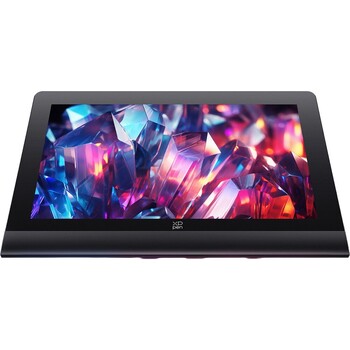
Best Overall Pen Display: XPPen Artist Ultra 16
A 4K OLED across 15.6 inches, it pairs 99 percent Adobe RGB with a factory Calman report under Delta E 1.1, though OLED burn-in threatens a static editing interface.
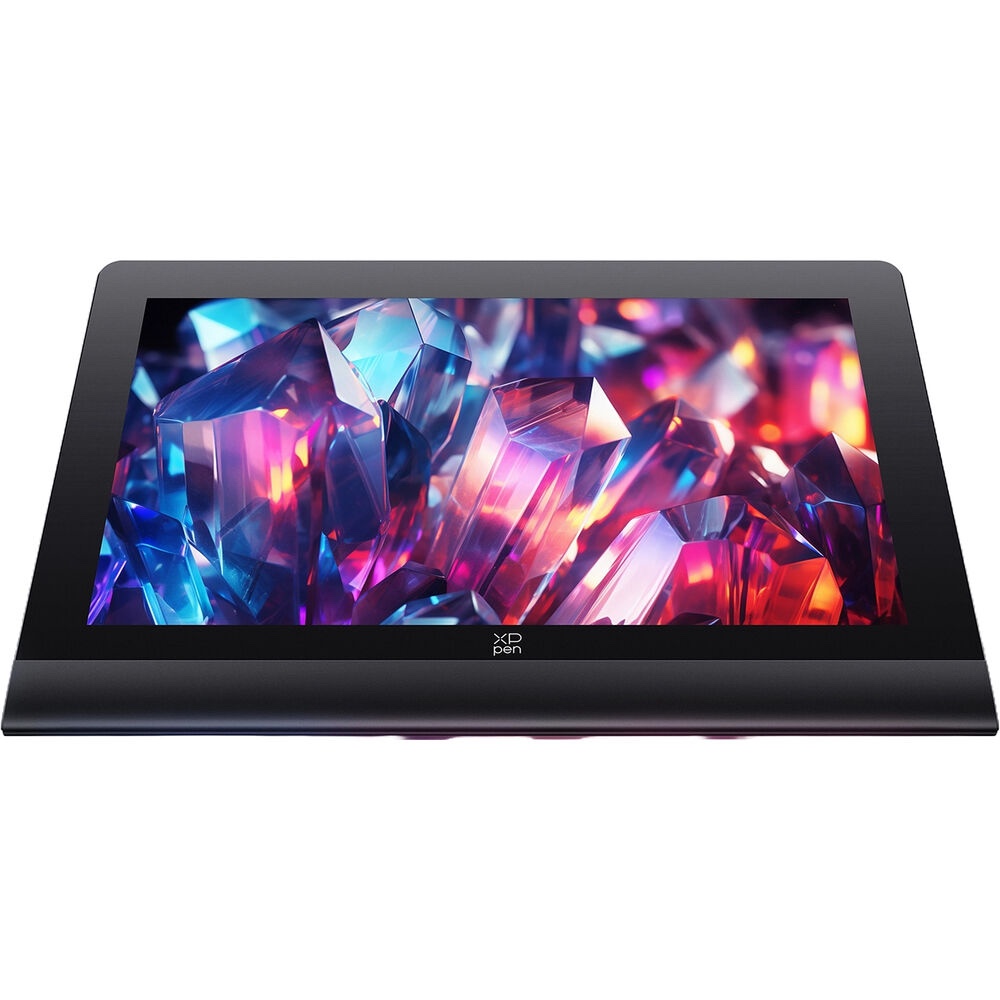
An OLED panel is a strange thing to put in front of a retoucher, because the same infinite blacks that make it seductive for video can flatter shadow detail you are supposed to be judging honestly. The Artist Ultra 16 earns its place anyway, because the rest of the panel is the most photo-friendly thing in its price class: 4K resolution across 15.6 inches, native 10-bit color, and 99% Adobe RGB coverage, the number that actually matters if your work goes to print. XPPen ships it Calman Verified, with a factory calibration report in the box quoting an average Delta E under 1.1.
The rest of the spec sheet backs that up. Full lamination puts the cursor essentially underneath the nib, the sub-1 ms panel response keeps the line from lagging your hand during long masking strokes, and the anti-glare etched glass has tooth without shredding a nib every week. There are no express keys on the panel at all. XPPen ships the ACK05 instead, a wireless remote with 10 keys (four switchable groups of them, so 40 shortcuts per app) and a dial you can park wherever your left hand sits. Brush size, flow, undo, and layer toggles land under your thumb.
Two honest caveats. First, 15.6 inches is a working size, not a luxurious one, and dropping to it from a 27-inch monitor feels cramped until you learn to zoom more aggressively. Second, OLED brings burn-in risk, and a retoucher who parks the Photoshop toolbar and layers panel in the same place for eight hours a day is exactly the user profile that produces it. XPPen includes pixel-shift mitigations, but an IPS panel simply does not have the problem. When we reviewed it, the color held up to the Calman verification in practice, and our reviewer's main complaint was the stand: its two stages give you three usable angles and no more.
For most retouchers this is the sweet spot: enough color accuracy to trust, enough resolution to zoom into pores, and a price that does not require justifying to an accountant. If you want the same idea in a bigger, longer-lived IPS panel, the Huion Kamvas Pro 27 below is the upgrade path. Otherwise, check the current price of the XPPen Artist Ultra 16 at B&H.
What We Like
- 99% Adobe RGB and native 10-bit color, verified with a factory calibration report
- 4K resolution on a 15.6-inch panel, so fine detail is genuinely fine
- Two styluses in the box, including a thin one for detail work
- Wireless shortcut remote you can position anywhere on the desk
What Could Be Better
- OLED burn-in is a real risk for static editing interfaces
- 15.6 inches feels tight after a big monitor
- Included stand is basic for a display this good
- Deep blacks can flatter shadow judgment
Related posts
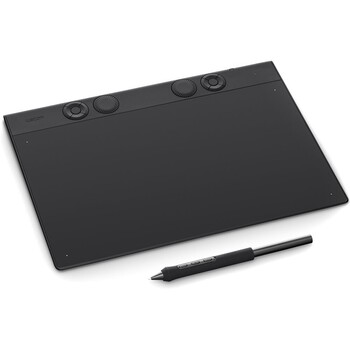
Best Pen Tablet Without a Screen: Wacom Intuos Pro (2025, Medium)
Keeping your eyes on the monitor you already calibrated, this screenless slate moves its keys and dials clear of your palm and takes the highly configurable Pro Pen 3.
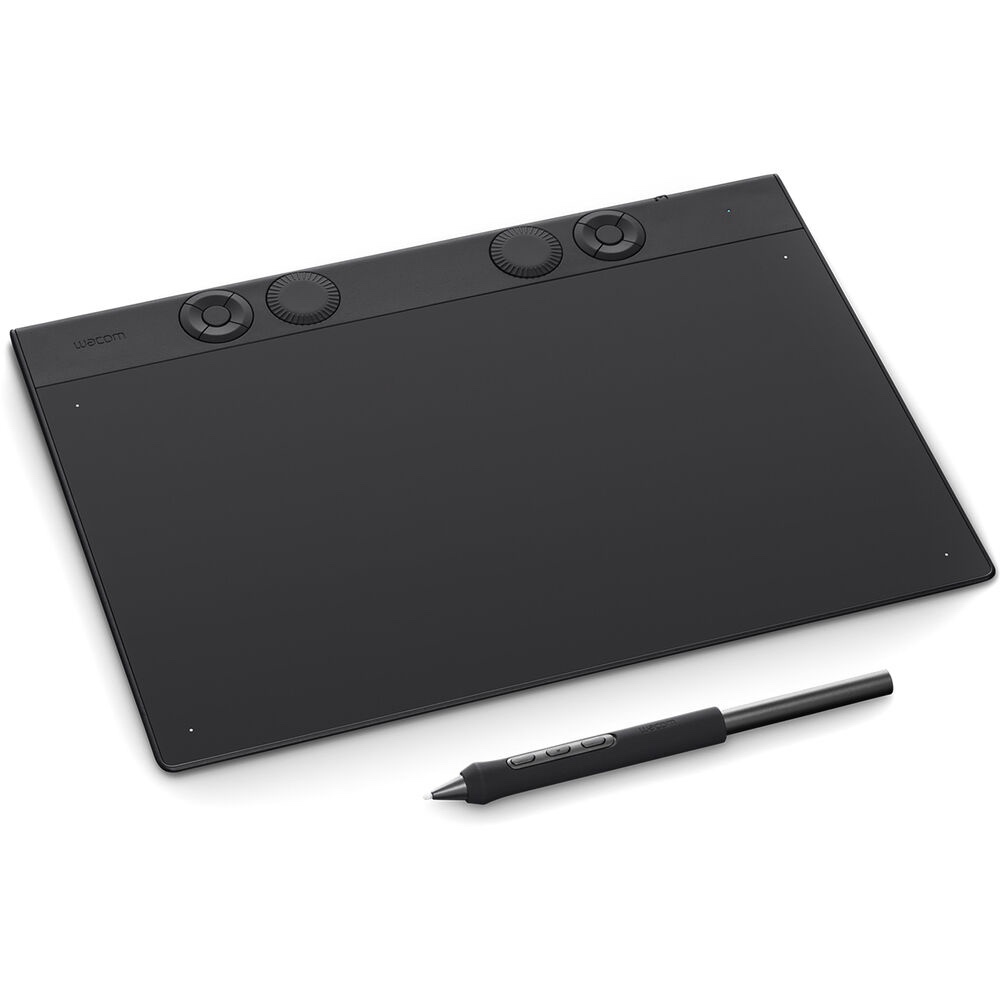
Here is the argument almost nobody makes to photographers: for retouching, the screenless tablet is often the better buy. You have presumably already spent money on a calibrated monitor you trust. A pen display asks you to abandon it and judge color on a second panel that may or may not match, while a slate like the Intuos Pro keeps your eyes on that monitor and simply replaces the mouse, for a fraction of the price and almost no desk space.
Wacom rebuilt this line in 2025, its first real redesign since 2017, and the changes are the kind you only appreciate after a few hours. The ExpressKeys and dials moved from the left edge to the top, so your palm no longer rests on them, and the old touch ring gave way to two raised physical dials you can turn without looking. The active area went to a 16:9 shape that maps cleanly onto a widescreen monitor. It runs over USB-C or Bluetooth 5.3, rated to 16 hours per charge, and the Pro Pen 3 is configurable in a way no rival matches: swappable grips, adjustable weight, three nib types, and a choice of two or three buttons.
The weakness is price. This costs more than several perfectly good rivals with longer feature lists, and its 8,192 pressure levels are half what Huion and XPPen advertise. You will not feel that gap, for reasons covered below, but you are paying Wacom's tax for driver stability and build quality rather than a spec win. The hand-eye separation is also a real adjustment, so give it a full week before you judge it. The figures above come from Wacom's current specification pages, and the notes on how the redesign behaves are drawn from its documented design rather than our own testing.
Buy the medium unless you have a very large monitor or a very small desk. For the photographer who owns a good display and wants better control over a brush, check the current price of the Wacom Intuos Pro (2025, Medium) at B&H. Also consider the Wacom Intuos Pro (2025, Large) if you run dual monitors.
What We Like
- Keeps you working on the monitor you already calibrated
- Redesigned top-mounted keys and dials stay clear of your palm
- Pro Pen 3 is the most configurable stylus available
- Bluetooth 5.3 with a long battery life and a genuinely thin body
What Could Be Better
- Expensive next to Huion and XPPen slates with more features
- Only one pen in the box, where rivals include two
- Hand-eye separation takes about a week to internalize
- Battery is built in and not user-replaceable
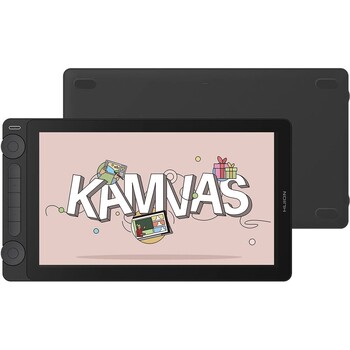
Best Budget Pen Display: Huion Kamvas 13 (Gen 3)
Fully laminated with a factory calibration report, this budget 13.3-inch display wakes its pen at just 2 grams of pressure, though a 1080p 8-bit panel rules out pixel-level color work.
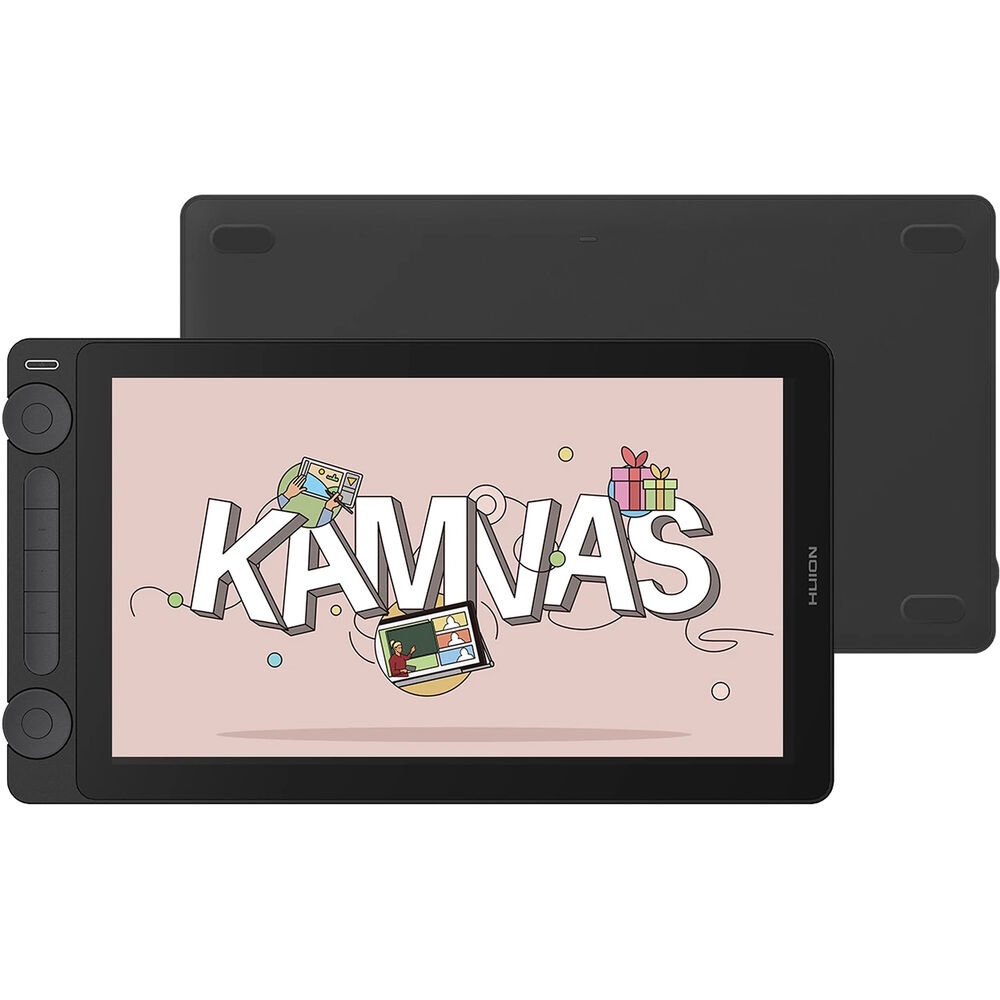
Cheap pen displays used to be a trap. The panels were dim, the parallax was awful, and the drivers fought your operating system every time it updated. The Kamvas 13 (Gen 3) ends that argument for photographers on a tight budget. It is fully laminated, so the cursor sits right under the nib instead of floating below the glass, it ships with a factory calibration report claiming Delta E under 1.5, and Huion rates it at 99% sRGB, 99% Rec. 709, and 90% Adobe RGB. That last figure is decent for the money and short of a color-critical panel, and Huion does not pretend otherwise.
The pen is the surprise. Huion's PenTech 4.0 stylus wakes at 2 g of initial activation force, the number that actually decides whether a light feathering stroke registers or gets swallowed, and it is competitive with anything Wacom sells. Two dials and five press keys sit on the panel itself, so brush size and undo are covered without a separate remote. At 865 g it is light enough to throw in a bag with a laptop, and it connects to a computer or an Android phone through a single full-featured USB-C cable.
What you give up is worth stating clearly. It is a 1080p, 8-bit panel, so at 13.3 inches you cannot zoom into skin texture with the crispness 4K gives you, and there is no finger touch at all. Brightness tops out at 220 nits, dim for a bright room. Ninety percent Adobe RGB with an 8-bit panel is not a surface to make final print decisions on, so keep judging color on a proper monitor and treat this mostly as an input device with a picture on it. The build is plastic and the stand is a simple wedge.
None of that undermines the point. If you have never used a pen display and do not want to spend real money finding out whether you like one, this is the least risky way to try, and it stays useful as a travel unit if you upgrade later. Everything above comes from Huion's current specification page for this generation. Check the current price of the Huion Kamvas 13 (Gen 3) at B&H.
What We Like
- Full lamination and a 2 g activation force at an entry price
- Factory calibration report in the box
- On-panel dials and keys, no separate remote needed
- Single USB-C cable connection, works with Android too
What Could Be Better
- 1080p on 13.3 inches is not enough resolution for pixel-level work
- 220 nits is dim in a bright room
- 90% Adobe RGB on an 8-bit panel is not a color-judging surface
- No finger touch
- Basic plastic build and a simple wedge stand
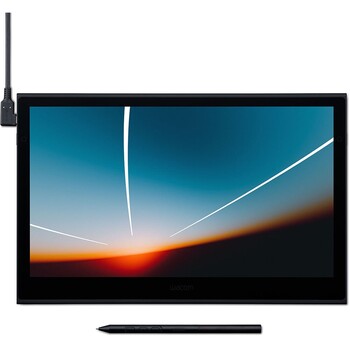
Best Portable Pen Display: Wacom Movink 13
Four millimeters thick and 420 grams, it is the only pen display here you can genuinely carry, with a Samsung OLED covering 100 percent of DCI-P3 for portrait skin tones.
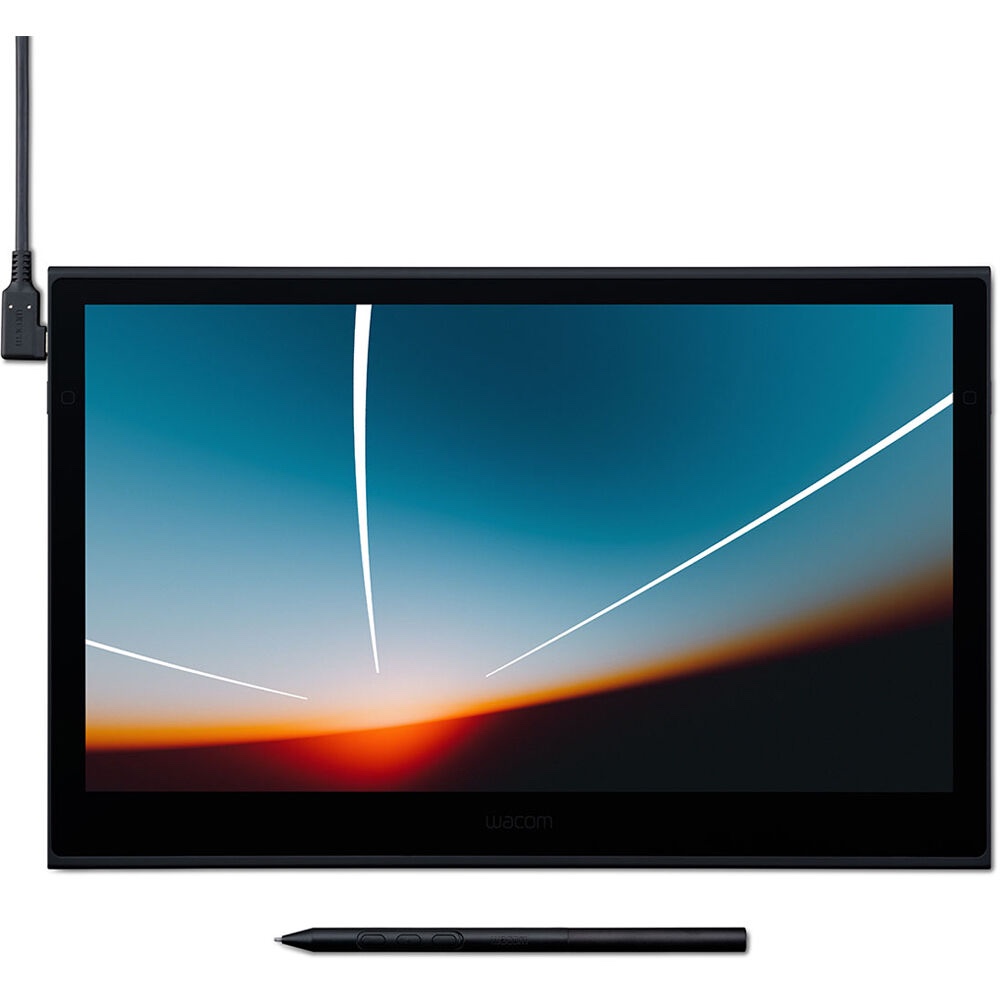
Four millimeters thick and 420 grams. Those two numbers are the entire product. The Movink 13 weighs less than most 13-inch laptops and slides into the same sleeve, which makes it the first pen display a working photographer will actually take on a job. Retouching client selects in a hotel room, showing a subject a before-and-after on set, cleaning up headshots on a train: nothing else here does those jobs.
Wacom's Pantone SkinTone validation is a marketing badge, but it points at something real for portrait work, and the panel behind it is a Samsung OLED covering 100% of DCI-P3 and 95% of Adobe RGB. That is better color than the 1080p resolution deserves, and it means the Movink doubles as a portable second monitor when you are not drawing on it. Power and video run down a single USB-C cable, it works with Windows, macOS, Android, and ChromeOS, and the Pro Pen 3 in the box is the same customizable stylus Wacom puts in the Intuos Pro.
The honest gripes are resolution and price. It is 1080p, which on a panel this color-accurate feels like a missed opportunity next to the 4K OLED XPPen sells for less. Nothing to prop it up ships in the box either: Wacom sells the foldable stand, the sleeve, and the pen case as a separate accessory pack, so out of the box the Movink lies flat on the desk. Those were our reviewer's gripes too: he came away wondering what a 2.5K panel would have done for it, and noted that no stand, no case, and no calibration report ship in the box. He still concluded the Movink raised the bar for portable pen displays, and found it thinner and lighter than some portable monitors that do not even take a pen.
Buy it because it is portable and the color is genuinely good, not because it is the best value pen display on the page. It is not. It is the only one you can carry. Check the current price of the Wacom Movink 13 at B&H. Also consider the Xencelabs Pen Display 16 if you want a sharper 4K OLED in a portable size and can accept nearly three times the weight, at 1.2 kg.
What We Like
- 4 mm thick and 420 g, genuinely portable
- 100% DCI-P3 and 95% Adobe RGB on a Samsung OLED
- Single USB-C cable, works with phones and Chromebooks
- Doubles as a portable second display
What Could Be Better
- 1080p is low for a panel this good
- No stand, sleeve, or case in the box
- Priced above sharper rivals
- Only two express keys on the panel
Related posts
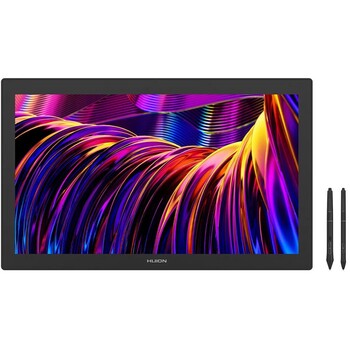
Best Large-Format Pen Display: Huion Kamvas Pro 27
Working at 27 inches and 4K keeps the whole frame visible at 100 percent, and 98 percent Adobe RGB with 3D LUT calibration undercuts Wacom's equivalent by a wide margin.
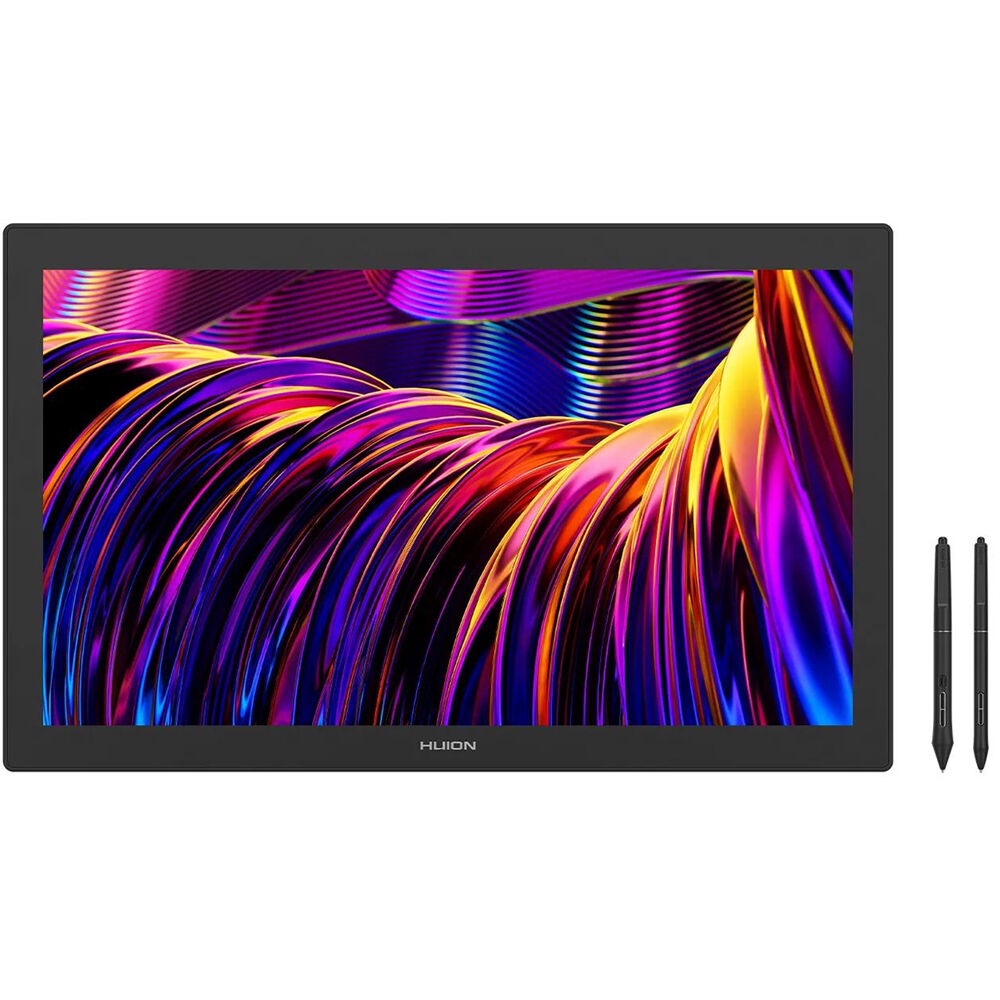
Working large changes retouching in a way that is hard to explain until you have done it. A 27-inch canvas at 4K keeps the whole frame visible while you clean a blemish at 100%, and long dodge-and-burn strokes become arm movements instead of wrist movements. The Kamvas Pro 27 is the sensible way to get there, delivering the size, the resolution, and 98% Adobe RGB coverage for well under what Wacom charges for the equivalent.
Huion uses quantum dot backlighting to hit that gamut, supports 3D LUT hardware calibration with a claimed Delta E under 1.5, and etches the glass so the surface has tooth without the sparkle anti-glare coatings often add. Two styluses come in the box, the PW600 and the slim PW600S, both running PenTech 4.0 with a 2 g activation force. Ten-point finger touch is a Windows feature; Huion supports it on macOS only through a beta driver, a caveat Mac users should register before buying. Put it on a VESA arm: the integrated stand tilts to 20 degrees and no further, and a display this heavy at a bad angle will wreck your shoulders.
The compromises are what you would expect at this size. Eight kilograms is not something you reposition casually, 300 nits is modest, and at 27 inches the pixel density is lower than on the 15.6-inch 4K panels above. Huion also sells a 144 Hz version, worth a look if cursor smoothness matters more than saving money, though it is overkill for still-image work. We reviewed the Kamvas Pro 27 in 2024, and our reviewer, who edits almost daily, called working at this size a game-changer. The figures above come from Huion's live specification pages for the 60 Hz model B&H stocks.
For a retoucher who spends full days in Photoshop and wants the image at arm's length, this is the pick. If you want the same size with Wacom's driver ecosystem and a 120 Hz panel, the Wacom Cintiq Pro 27 is the alternative, at a considerably higher price and with no stand included. Otherwise, check the current price of the Huion Kamvas Pro 27 at B&H.
What We Like
- 98% Adobe RGB with 3D LUT hardware calibration
- 4K across 27 inches, so the whole frame stays visible at 100%
- Two styluses included, both with a 2 g activation force
- Far cheaper than the Wacom equivalent
What Could Be Better
- 8 kg, and the integrated stand tilts to only 20 degrees
- Finger touch is Windows-only outside a beta macOS driver
- 300 nits is modest for a bright studio
- Lower pixel density than smaller 4K panels
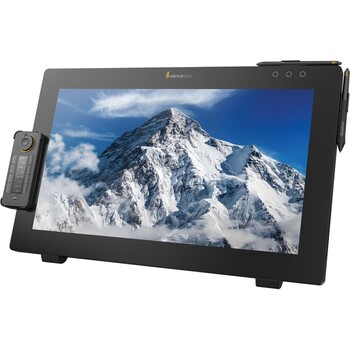
Best for Color-Critical Retouching: Xencelabs Pen Display 24+
First pen display with Calman Ready built in, it lets a color-managed studio write a corrected LUT into the panel's own hardware, backed by 99 percent Adobe RGB coverage.
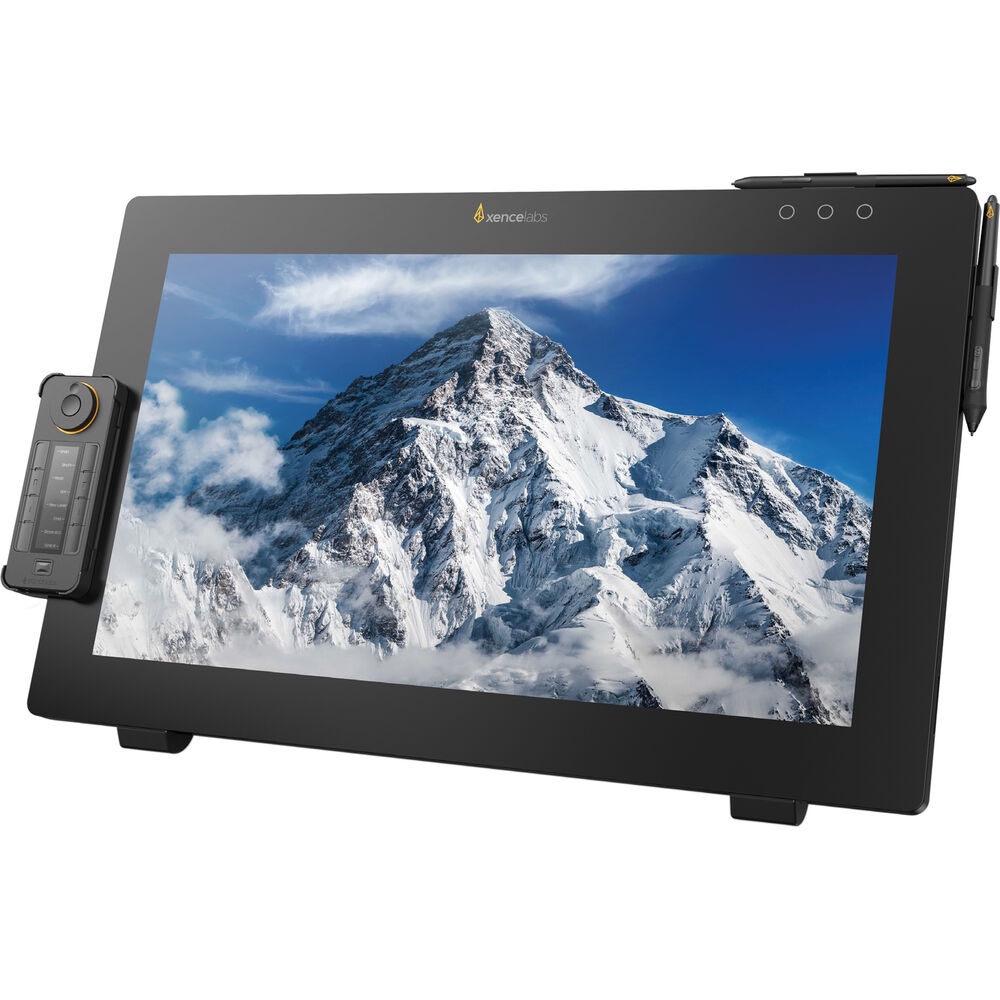
Every other display here asks you to trust a factory calibration report. The Pen Display 24+ lets you stop trusting and start verifying. It is the first pen display with Calman Ready built in, so you can point Calman and a supported colorimeter at it and write a corrected LUT into the display's own hardware, targeting Adobe RGB, DCI-P3, Rec. 709, Rec. 2020, or sRGB. The Kamvas Pro 27 above also takes a 3D LUT, but the Xencelabs is the one that plugs straight into the calibration software a color-managed studio already runs. For a retoucher whose files go to a client or a printer, that is the difference between a drawing surface and a working display.
The rest is built to the same standard. Coverage runs to 99% Adobe RGB on a 4K panel, and the Super AG etched glass is optically bonded, so parallax is minimal and the anti-glare finish stays clean rather than sparkly. Two pens ship in the box, a fat three-button pen and a thin one that handles like a mechanical pencil, and both wake at 3 g. The stand tilts from 16 to 72 degrees, which matters more than it sounds when you are working a long session at a fixed angle. The Quick Keys remote carries a 3.12-inch OLED screen that labels each button, so you always know which shortcut you are hitting in Capture One versus Photoshop.
The price is the obvious objection, and it is a serious one. This is the most expensive pick in the guide by a wide margin, and its 8,192 pressure levels look modest next to the 16,384 that Huion and XPPen quote. Neither number will affect your work, but you will notice the invoice. It is also heavy, at 6.0 kg bare and 6.9 kg once the tilt stand and rubber feet are on, and its 93% DCI-P3 coverage trails the OLED panels if you also grade video. One caveat our reviewer hit is worth knowing before you spend the money: the Calman calibration workflow runs on Windows only, so Mac users cannot use the feature that most justifies the price. He also found the pen essentially lag-free with minimal parallax, praised the etched glass for shrugging off glare and fingerprints, and called 330 nits too dim for a sunlit room.
Buy it if color accuracy is a professional obligation rather than a preference. If it is not, the Kamvas Pro 27 above gets you most of the way for a lot less. For everyone whose retouching has to survive a print proof, check the current price of the Xencelabs Pen Display 24+ at B&H. Also consider the standard Xencelabs Pen Display 24 if you want the same panel and pens without the Calman hardware calibration.
What We Like
- Calman Ready hardware calibration built into the display
- 99% Adobe RGB on a 4K panel with minimal parallax
- Two pens plus an OLED-labeled shortcut remote
- Tilt stand adjusts from 16 to 72 degrees one-handed
What Could Be Better
- By far the most expensive pick here
- Calman calibration is Windows-only, and Calman Studio plus a colorimeter are extra purchases
- Heavy at 6.9 kg with the stand
- 93% DCI-P3 trails the OLED panels for video work
Related posts
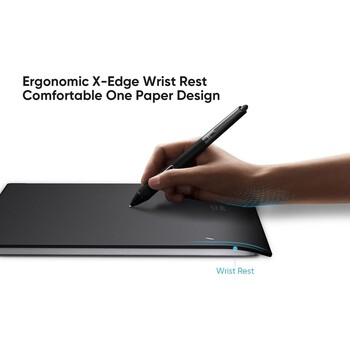
Best for Beginners: XPPen Deco Pro MW (Gen 2)
Cheapest low-risk way to test pen-based retouching, it carries the same flagship X3 Pro stylus as the Artist Ultra 16 and bundles a wireless shortcut remote in the B&H SKU.
Almost everyone who buys their first tablet buys too much tablet. They spend a month's rent on a pen display, discover they either love or hate the hand-eye separation, and learn for a lot of money something they could have learned for very little. The Deco Pro MW (Gen 2) is the cheap way to find out. It is a slim slate with a 9 x 6-inch active area, which suits a single monitor and is small enough to leave in front of a keyboard.
What makes it a serious recommendation rather than a toy is the pen. The X3 Pro Smart Chip stylus is the same battery-free unit XPPen ships with the far pricier Artist Ultra 16, with 16,384 pressure levels and 60-degree tilt. XPPen stripped the express keys and the roller off the tablet body in this generation, and the SKU B&H sells (MT0962B_ACK05) pairs the tablet with the ACK05 wireless remote, so a beginner still gets a programmable dial and 10 shortcut keys. Buy the Deco Pro MW anywhere else and check the box contents, because XPPen also sells the tablet without the remote. It runs over USB-C or Bluetooth 5.0 on a 3,030 mAh battery rated at 10 hours or more.
What you should know going in: the surface is smoother than Wacom's, which some people prefer and others find slippery, and XPPen's drivers remain the weakest part of the company's offering. The tablet body has no controls at all, so if you forget the remote you are back to keyboard shortcuts. Expect to feel clumsy for a week while you adjust to a screenless tablet. Everything here comes from XPPen's current specification page and the B&H listing.
For a photographer who wants to try pen-based retouching without committing, this is the right first purchase, and the savings can go toward a proper display later. Pair it with Fstoppers' Master Dodge and Burn course and you will feel the difference in a weekend. Check the current price of the XPPen Deco Pro MW (Gen 2) at B&H.
What We Like
- The flagship X3 Pro stylus in an entry-priced tablet
- Wireless shortcut remote with a dial included in the B&H bundle
- Bluetooth 5.0 with a 10-hour battery rating
- The cheapest low-risk way to test pen-based retouching
What Could Be Better
- No controls at all on the tablet body
- Slippery surface compared to Wacom's
- XPPen's drivers still trail Wacom's for stability
- Weight is not published
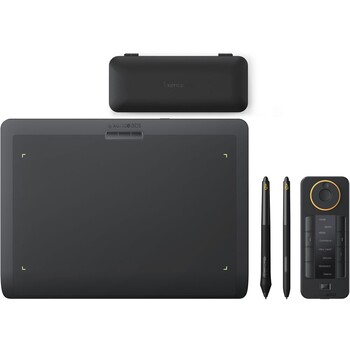
Best for Precision Masking: Xencelabs Pen Tablet Medium Bundle
Two pens ship as standard, a pencil-thin one for masking flyaway hair and a fatter three-button pen for broad dodge-and-burn passes, paired with an OLED-labeled shortcut remote.
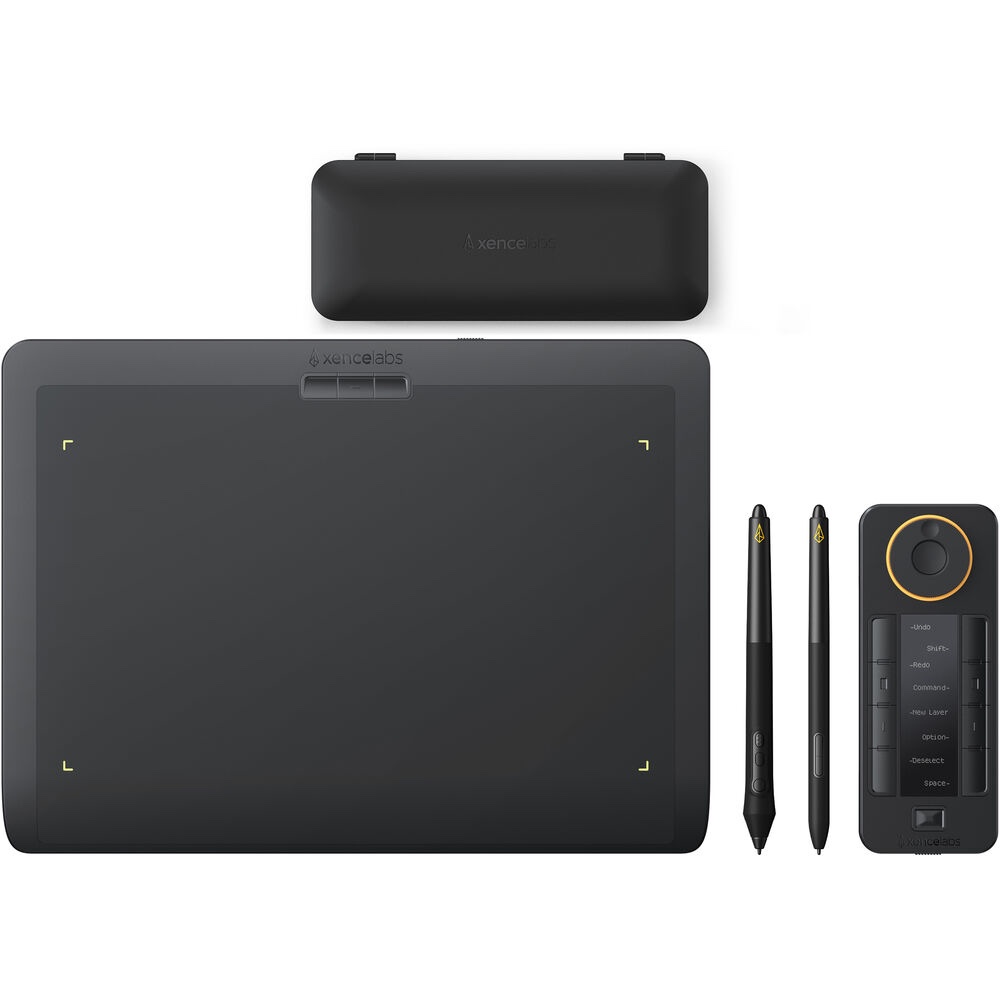
Two pens sounds like a gimmick until you have spent an afternoon painting a luminosity mask around flyaway hair. The thin pen in the Xencelabs Pen Tablet Medium Bundle is barrel-thin like a mechanical pencil and encourages a fingertip grip, which is exactly the grip you want for small, deliberate strokes at high zoom. The three-button pen is fatter and better balanced for broad dodge-and-burn passes. Switching between them mid-edit is a small thing that compounds over a long session, and no other manufacturer puts both in the box as standard.
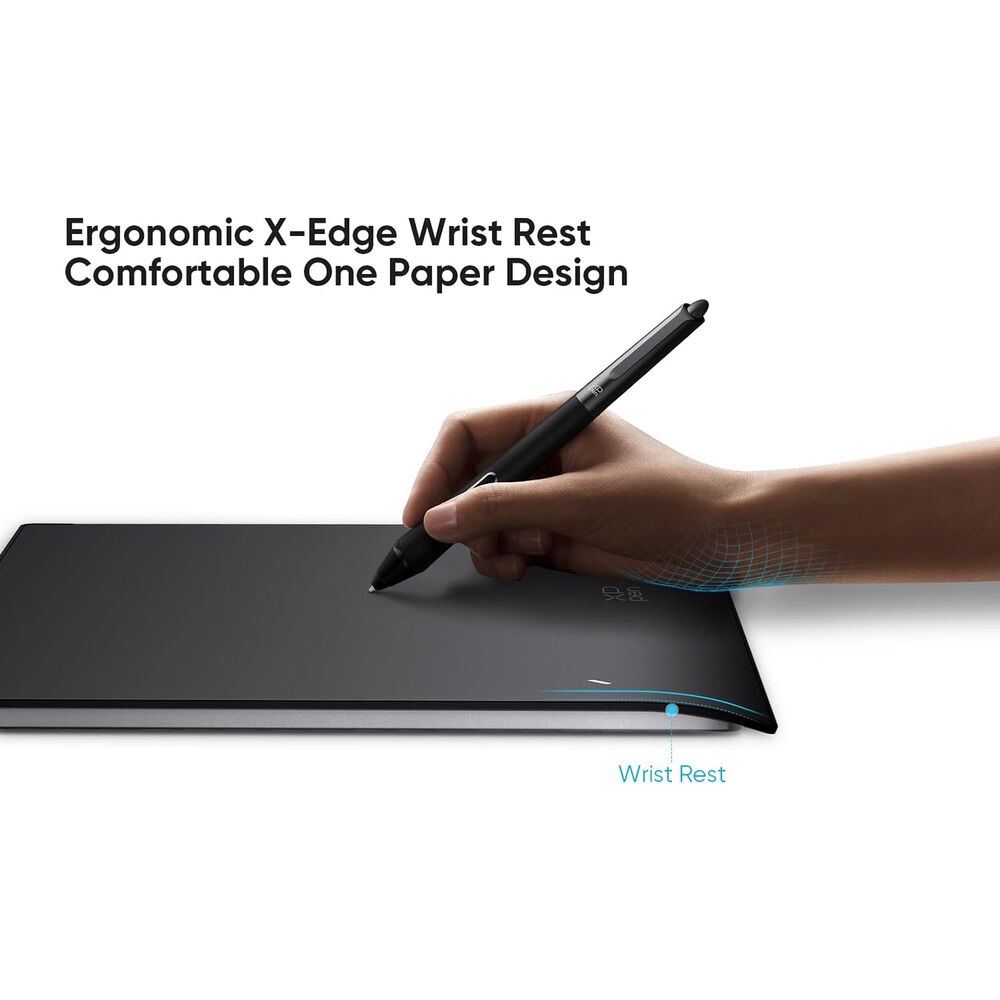
The tablet under them is deliberately plain: a thin slate with a curved palm rest, adjustable LED lights that outline the active area so you always know where the edges are, and no buttons at all. Everything moves to the Quick Keys remote, whose small OLED display shows what each of its eight buttons currently does, with five switchable sets and four dial modes giving 44 shortcuts per application. That is the reason retouchers who move between Photoshop, Capture One, and a culling app tend to stay with Xencelabs.
The catch is that this is not a cheap screenless tablet, and its 10.33 x 5.8-inch active area is fractionally smaller than the Wacom medium. The pens are rated at 8,192 pressure levels, half what XPPen and Huion advertise, and the tablet is 710.5 g, heavier than the 411 g Intuos Pro it competes with. Xencelabs is also a smaller company than Wacom, so long-term driver support for a future operating system is a legitimate thing to weigh. The figures above are Xencelabs' published specifications. When we tested the Medium Bundle SE, the white special edition of this kit, our reviewer found little to improve.
If your retouching is mask-heavy, high-zoom, and fussy, the pen options alone justify the premium over the Deco Pro above. Check the current price of the Xencelabs Pen Tablet Medium Bundle at B&H.
What We Like
- Two pens with genuinely different grips, both included
- Quick Keys remote with an OLED display that labels every button
- LED-outlined active area removes edge guesswork
- Curved palm rest and an 8 mm profile make for a comfortable slate
What Could Be Better
- Costs more than most screenless tablets
- No controls on the tablet body itself
- Slightly smaller active area than Wacom's medium
- 710.5 g, well over the 411 g Intuos Pro
How to Choose a Pen Display or Drawing Tablet
Start with the screen question, because everything else follows from it. A pen display puts the image under your hand, which is fast and intuitive for anything that involves drawing: cloning, painting masks, liquify work, hand-drawn dodge and burn. A screenless pen tablet keeps your eyes on the monitor you already own and calibrated, costs a fraction as much, and adds nothing to your desk but a slate. For photographers, the screenless option is underrated, since a pen tablet upgrades your input device without asking you to trust a second panel's color. Our monitors guide covers what that primary display should be.
If you do want a screen, color coverage is the spec to obsess over, and Adobe RGB is the number that counts for print delivery. Anything claiming 98% to 99% Adobe RGB with a factory calibration report is a real working surface. Anything in the high 80s or low 90s, like the budget Kamvas above at 90%, is an input device with a picture on it, useful but not something to judge skin tone against. Then there is hardware calibration, where you write a corrected LUT into the display itself rather than into the operating system: the Kamvas Pro 27 takes a 3D LUT, and the Xencelabs 24+ goes further with Calman Ready built in. That is the difference between a display you trust today and one you can keep trusting in two years.
Now the spec everyone leads with and nobody should. Pressure levels are a vanity number in 2026. Huion and XPPen advertise 16,384; Wacom and Xencelabs advertise 8,192. Photoshop's brush parameters resolve to a far coarser scale than either figure, and the difference between 8,192 and 16,384 discrete steps is not something a human hand can produce or a human eye can see. What actually determines how a pen feels is initial activation force, the pressure required before a stroke registers at all, along with the shape of the driver's pressure curve and the tooth in the surface. If a manufacturer is shouting about pressure levels and quiet about activation force, that tells you something.
Size is the last axis. A medium screenless tablet, around 10 inches across the active area, suits a single monitor and lets you draw from the wrist. A large one suits dual monitors and forces you to draw from the elbow, which is more ergonomic over long sessions but eats desk. For pen displays, 15 to 16 inches is the practical minimum, since you need room for the Photoshop panels plus a working image. Beyond 24 inches, budget for a VESA arm. The integrated stands on big displays are worse than a good arm, and your neck pays the difference.
What We're Looking For
Our picks weigh color accuracy, pen behavior at low pressure, the quality of the shortcut hardware, driver stability, and whether the device suits a retoucher rather than an illustrator, which are different jobs with different priorities. Every specification here was verified against the manufacturer's current specification page and a live retailer listing at the time of writing, and where a figure is not published, the entry says so instead of guessing. Most picks across our buying guides come from gear our writers have used and reviewed hands-on. Where an entry's claims rest on published specifications and documented design rather than on our own hours with the device, we label it that way in the entry.
Frequently Asked Questions
Do Pressure Levels Actually Matter for Photo Retouching?
Barely. The jump from 8,192 to 16,384 levels is a marketing figure, not something a hand can produce or an eye can see, and Photoshop's brush engine resolves pressure to a much coarser scale than either. Initial activation force, the weight needed before a stroke registers, matters far more, and 2 g to 3 g is the current standard to look for.
Should a Photographer Buy a Pen Display or a Screenless Tablet?
A screenless tablet is the better first buy for most photographers. You have already calibrated a monitor you trust, and a slate simply replaces the mouse for a quarter of the price of a display. Buy a pen display if you spend hours a day painting masks or doing hand-drawn dodge and burn, where drawing directly on the image is genuinely faster.
Is Wacom Still Worth the Premium?
For screenless tablets, often yes, because Wacom's drivers remain the most stable and the Pro Pen 3 is the most configurable stylus available. For pen displays, the case is much weaker in 2026. Huion, XPPen, and Xencelabs now match or beat Wacom on color coverage and resolution at meaningfully lower prices.
Can I Just Use an iPad for Retouching?
You can, and for culling and light edits it is excellent, but a tablet running mobile software is not a substitute for a full Photoshop or Capture One workstation on serious files. Many retouchers use an iPad as a portable pen display through Sidecar instead, which works, though the color and the pen feel trail a dedicated display. Our photo editing software guide covers what runs where.
What Size Drawing Tablet Should I Get?
Medium, in almost every case. A roughly 10-inch active area maps well to a single monitor and lets you work from the wrist. Go large only if you run dual monitors or want to draw from the elbow, and go small only if desk space is genuinely scarce, because a cramped active area makes long, smooth strokes harder.
Fstoppers may earn a commission from purchases made through links in this article. Our picks are made independently by our editorial team.