The economics of photo editing changed more in the last 18 months than in the decade before it. Adobe raised the price of the Photography Plan and kept raising the ceiling on what its AI can do. Canva bought Affinity, rebuilt it as a single app, and gave it away for nothing. darktable, the volunteer-built open-source raw editor, shipped an optional neural denoise and upscale engine in June. The gap between what you pay and what you get has never been stranger, and the old advice, just buy Lightroom, is no longer automatic.
Three questions decide this purchase, and only three. First, how do you want to pay: a monthly subscription that never ends, a one-time license you own, or nothing at all. Second, do you need a catalog, meaning software that tracks tens of thousands of files, keywords, and versions across drives, or do you just open folders. Third, do you need pixel-level compositing with layers and masks, or is a raw processor with local adjustments enough for the work you actually deliver.
This guide is organized around those answers. Every pick below currently ships and is being actively updated in 2026, and each entry names the person it suits and the person it does not. We have not run a formal, controlled test of these applications against each other, and we say so plainly in the methodology section rather than implying a lab we do not have. Where we have put a program through a hands-on review, we link that review in its entry. If you want the full argument for leaving Adobe entirely, our Adobe alternatives guide takes that further than this one does.
At a Glance
- Best Overall: Adobe Creative Cloud Photography Plan
- Best Raw Processor: Capture One Pro
- Best for Retouching: Adobe Photoshop
- Best Subscription-Free: DxO PhotoLab 10 Elite
- Best Budget: ON1 Photo RAW 2026
- Best AI-Assisted: Luminar Neo
- Best Free Photoshop Alternative: Affinity by Canva
- Best Free Raw Editor: darktable
Best Overall: Adobe Creative Cloud Photography Plan

- Platforms: Windows, macOS, iPad, iPhone, Android, web
- License: subscription only; new subscribers get the 1 TB plan, as the 20 GB tier closed to new customers on January 15, 2025
- Cataloging: Lightroom Classic local catalog plus cloud-synced Lightroom
- Layers and retouching: full Photoshop, including layers, masks, and compositing
- Standout tools: Assisted Culling, Generative Remove, Reflection Removal, Harmonize, Generative Upscale
- Plugin support: the largest third-party plugin ecosystem in photography
- Current version: Photoshop 27.8 (June 2026), Lightroom Classic 15.4.1 (June 2026)
- Price: See vendor pricing
Nobody enjoys recommending the subscription, and the Adobe Creative Cloud Photography Plan still wins, because the bundle is the point. For one monthly fee you get Lightroom Classic for cataloging and raw development, the cloud-native Lightroom for phone and tablet editing, and Photoshop for everything a raw processor cannot do. Shoot a wedding on Saturday, cull 3,000 frames, develop the keepers, then remove a fire exit sign from the one shot the couple loves, and that whole chain lives inside one plan.
The 2026 releases sharpened the part of the workflow that eats your evenings. Assisted Culling in Lightroom Classic 15.4 came out of early access and into general availability, and it now isolates each face in a frame to check for open eyes and eye sharpness, flags duplicates automatically, and ranks the shots it thinks are strongest, with a sensitivity control. Reflection Removal separates the reflection onto its own layer instead of simply erasing it, so you can dial opacity rather than accept the algorithm's guess. Photoshop 27.7 introduced an on-device option for the Remove tool that runs locally instead of round-tripping to Adobe's servers, though Adobe gates it behind serious hardware: an M1 Max or better with 24 GB of memory on the Mac side, or an RTX 30-series class GPU on Windows, plus a 5 GB model download.
The costs are real. The price has gone up twice in recent memory, and the cheap 20 GB tier that used to be the photographer's entry point is gone, closed to new subscribers in January 2025, so the plan you can actually buy today is the 1 TB one. The generative credit allowance means the AI features can meter out mid-project. You cannot own any of it. Stop paying and the software stops opening, which for a photographer with a 15-year archive of catalogs and edit histories is a hostage situation, not a purchase. If that bothers you on principle, buy a perpetual license below and accept a slightly worse toolset in exchange for keys to your own house.
For most working photographers, the calculation still lands on Adobe. The raw processing is excellent rather than best in class, the cataloging is the industry default, and Photoshop remains the only program here that can do genuinely hard compositing. Fstoppers' Mastering Adobe Lightroom course is the fastest way to get the cataloging half of it under control. Check the current price of the Adobe Creative Cloud Photography Plan at Adobe, and price the annual prepaid option against paying month to month before you commit.
What We Like
- The only plan that covers cataloging, raw development, mobile, and compositing
- Assisted Culling shortens the worst part of the job
- Model choice and on-device processing in Photoshop's AI tools
- Every plugin and collaborator in the industry assumes it
What Could Be Better
- Subscription only, with no perpetual option at any price
- Prices have risen, and the cheap 20 GB entry tier is closed to new subscribers
- Generative credits can run out mid-edit
- On-device AI processing demands high-end hardware
- Raw rendering is good, not the best available
Best Raw Processor: Capture One Pro
- Platforms: Windows, macOS; iPad and iPhone through separate Capture One Mobile plans
- License: subscription (Pro, All in One, Studio) or one-time perpetual license
- Cataloging: both Catalogs and Sessions, the latter built for per-job folders
- Layers and retouching: layers with masks, healing, and cloning; no full compositing
- Standout tools: tethered capture, the Color Editor, Enhanced Denoise, Assisted Review (beta)
- Plugin support: limited, with an Affinity round-trip added in the 16.7 series
- Current version: 16.8.3 (July 2, 2026)
- Price: See vendor pricing
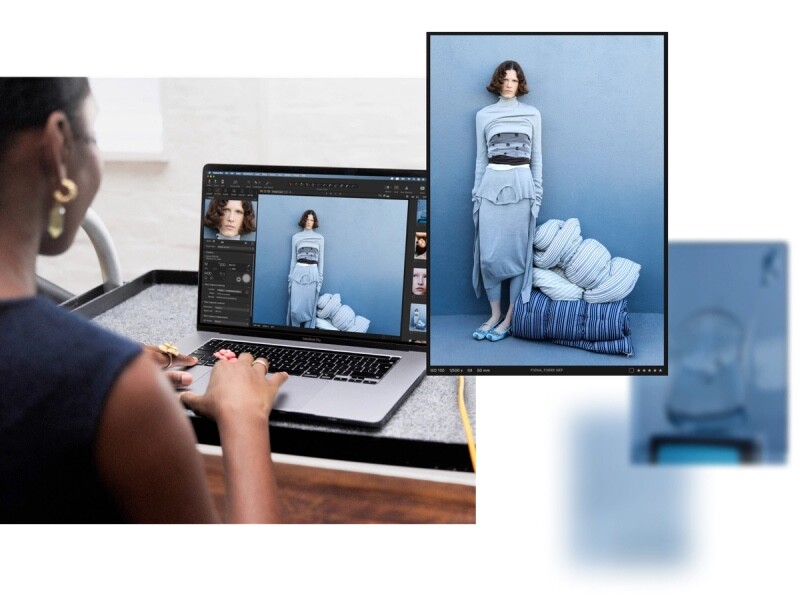
Ask a studio photographer what they run and the answer is usually Capture One Pro, for two reasons. The first is tethering. Capture One's tethered capture is faster and more reliable than anything Adobe ships, it covers the current Canon, Fujifilm, Nikon, Phase One, and Sony bodies most studios shoot, and the 16.8 release added second-generation wireless tethering that delivers an editable raw preview in under a second, currently only on the Canon EOS R5 Mark II and EOS R1. When a client is standing behind you watching frames land on a 27-inch display, that reliability is the whole job. The second is color. The Color Editor, with its skin-tone tab and its ability to grab a narrow slice of hue and shift it without wrecking everything adjacent, is a better instrument than Lightroom's HSL panel, and the per-camera profiles give files a starting point most photographers prefer.
Development through 2026 has been steady rather than flashy. Version 16.8, released on May 28, 2026, brought Enhanced Denoise for high-ISO files, with an Impact slider and background processing, and Assisted Review in beta, which flags closed eyes, missed focus, and exposure problems before you start culling. The 16.7 series added negative film conversion in March and, in April, an Affinity file round-trip that is a quiet acknowledgment of where the subscription-free crowd is going. Sessions remain the feature Lightroom users covet most: a self-contained folder per job you can archive, hand off, or delete without touching a master catalog.
What you give up is everything past the raw file. There is no compositing, the retouching layers are for cleanup rather than beauty work, the plugin ecosystem is thin, and asset management is slower to search a very large archive than Lightroom Classic. Pricing is also a mess, with subscription tiers, a separate mobile plan, and a perpetual license whose price changed again in June 2026. Capture One is the pick for the studio, product, and portrait shooter whose income depends on tethered sessions and precise color, and a poor pick for a hobbyist who wants one program to do everything. Fstoppers' Complete Capture One Editing Guide is the shortcut through its learning curve, and you can check the current price of Capture One Pro at Capture One, where a trial is offered before you commit.
What We Like
- The best tethered capture in the business, now with faster wireless
- Color Editor and camera profiles beat Lightroom's for skin tones
- Sessions keep per-job file management portable
- Perpetual license still available
What Could Be Better
- No real compositing, so you will still need a pixel editor
- Confusing tier structure across Pro, All in One, Studio, and Mobile
- Thin plugin ecosystem compared to Adobe
- Search and asset management lag Lightroom Classic on huge archives
Best for Retouching: Adobe Photoshop
- Platforms: Windows, macOS, iPad, iPhone, Android, web
- License: subscription, as a single app or inside the Photography Plan
- Cataloging: none; it opens files, it does not manage them
- Layers and retouching: the reference standard for layers, masks, and frequency separation
- Standout tools: Harmonize, Generative Upscale, Generative Fill with reference images, on-device Remove
- Plugin support: the deepest plugin market of any creative application
- Current version: 27.8 (June 2026)
- Price: See vendor pricing
Yes, Adobe takes two slots, and pretending otherwise would be dishonest. Nothing else does what Photoshop does. Beauty retouching, commercial composites, and product work depend on a specific stack of capabilities, dodging and burning on empty layers, frequency separation, luminosity masks, precise selections, and 32-bit compositing, and Photoshop is where all of it runs best. If retouching is how you make your money, this is not a debate.
The 2026 version earned its upgrade for one feature in particular. Harmonize, now out of beta, analyzes the lighting, color, and shadows of a scene and blends a pasted element into it automatically, collapsing the tedious color-matching step of compositing into one operation. Generative Upscale lets you pick the engine, either Adobe's own model or Topaz Labs' Gigapixel, and enlarges files to as much as 56 MP while holding onto texture, which matters when a client asks for a billboard crop from a frame you shot at 24 MP. Generative Fill now accepts reference images, so you can point the model at the look you want rather than describing it.
The weaknesses are structural. Photoshop has no cataloging, so it needs Lightroom Classic or Bridge alongside it. It is heavy, it is complicated, and the AI features are increasingly the flagship items while the underlying pixel tools get smaller improvements each year. The best generative tools have a meter attached. And you never own it.
Buy the single-app plan only if you already have a raw workflow you like in Capture One or DxO and need a pixel editor bolted onto it. If you need both halves, the Photography Plan above is cheaper. Check the current price of Adobe Photoshop at Adobe and compare it against the bundle. Also consider Affinity below if your retouching is occasional rather than professional.
What We Like
- The only real option for professional retouching and compositing
- Harmonize removes the worst chore in compositing
- Generative Upscale pulls usable resolution out of small files
- Every retouching plugin and action targets it
What Could Be Better
- No cataloging, so it cannot be your only program
- Generative features are metered by credits
- Recent updates have leaned heavily on AI over core tooling
- Single-app pricing is poor value next to the Photography Plan
Best Subscription-Free: DxO PhotoLab 10 Elite
- Platforms: Windows 10 and 11 (64-bit), macOS 15.7 or later
- License: one-time perpetual license, Elite activates on three computers
- Cataloging: a folder-based browser with keywords and projects, not a full catalog
- Layers and retouching: local adjustments and AI masks; no compositing layers
- Standout tools: DeepPRIME XD3, DxO Optics Modules, ClearView Plus, high-fidelity compressed DNG
- Plugin support: round-trips into Lightroom Classic as a plugin, exporting a processed DNG
- Current version: 10 (September 2026)
- Price: See vendor pricing
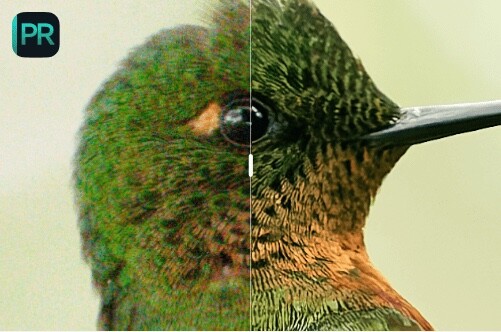
Buy this one for the demosaicing engine and stay for the fact that nobody can turn it off. DxO PhotoLab 10 Elite is a perpetual license with no subscription attached, and its DeepPRIME XD3 noise reduction is why photographers who shoot at ISO 12,800 keep it installed next to whatever else they use. XD3 launched as a Fujifilm X-Trans exclusive, and version 9.6, in March 2026, brought it to Bayer sensors, which is to say to almost everyone else. That release also added diffusion controls to the AI masks, so you can feather a selection rather than accept a hard edge, and a high-fidelity DNG compression that produces files up to four times smaller. Version 10 arrived in September 2026 with a color grading wheel, Depth Masks that use AI to select by distance from the camera, and AI masks that can now isolate individual people and facial features.
The other half of DxO's case is the Optics Modules. DxO measures individual camera and lens combinations in a lab and ships a correction profile for each pairing, so the sharpening is calibrated to that lens' optical behavior rather than a generic radius. On a soft corner from an older zoom, the difference is visible at 100 percent. A wildlife or astro photographer working at the far end of the ISO dial gets more usable files out of PhotoLab than out of anything else here.
Its limits are just as clear. There is no catalog in the Lightroom Classic sense, so a photographer with a 200,000-image archive and a keywording habit will find the folder-based browser cramped, and there are no compositing layers. Many photographers run it as a front end instead, processing raws in PhotoLab and sending a DNG back into Lightroom Classic through the plugin, which works well but means paying for two programs.
The right buyer shoots in the dark, hates subscriptions, and already has a filing system they trust. The wrong buyer hopes to replace Lightroom outright with one purchase, because the cataloging is not there. Fstoppers' Mastering DxO PhotoLab course covers the workflow, and DxO offers a trial, so check the current price of DxO PhotoLab 10 Elite at DxO after running your own worst high-ISO file through it. The cheaper Essential edition exists, but do not buy it expecting this pick: it drops DeepPRIME, ClearView Plus, and the perspective and local-adjustment tools, which is most of the reason to be here.
Read our first look at version 10: DXO Releases PhotoLab 10 with Depth Masks, Advanced Color Grading, and New AI Tools
What We Like
- DeepPRIME XD3 rescues high-ISO files the built-in denoisers cannot
- Lab-measured Optics Modules sharpen to the exact lens you shot
- One-time purchase, three activations, no subscription pressure
- Compressed DNG export keeps round-trips manageable
What Could Be Better
- No real catalog for large archives
- No compositing layers at all
- Dense, dated interface with a steep learning curve
- Most users end up pairing it with a second program
Best Budget: ON1 Photo RAW 2026
- Platforms: Windows 11 (x86 and ARM), macOS 13 or later; mobile app included
- License: one-time purchase, standard on two computers and MAX on three
- Cataloging: browses files in place, with tags, albums, and stacks, no import step
- Layers and retouching: real layers, Generative Eraser, and Portrait AI
- Standout tools: Super Select AI, AI depth masks, NoNoise AI, Sky Swap AI, built-in Resize AI
- Plugin support: MAX edition works as a Photoshop and Lightroom plugin
- Current version: 2026.4
- Price: See vendor pricing
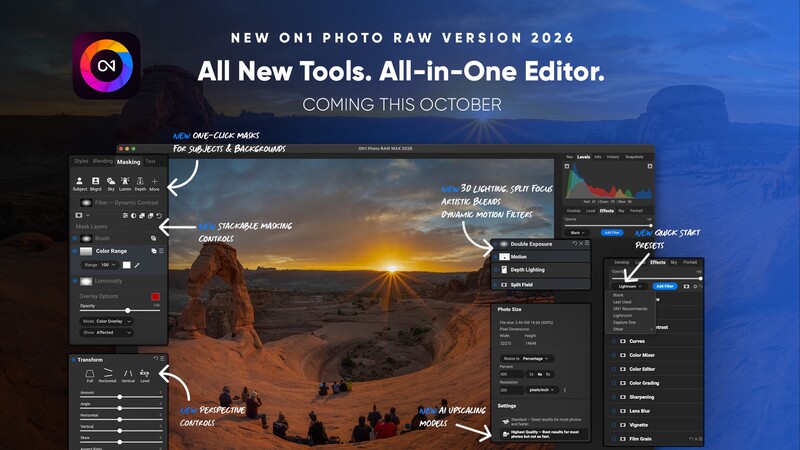
Photographers who want one program, one payment, and no ongoing relationship with a software company keep landing on ON1 Photo RAW 2026. It is the most complete package here for the least money: raw development, a file browser that reads your folders where they already sit, layers, effects, portrait retouching, sky replacement, a generative eraser, noise reduction, and a super-resolution engine, in one window and one purchase. The 2026.4 release added AI depth masks that let you relight a scene by distance from the camera through a Depth Lighting filter, one-click subject and background masking, and perspective correction that fixes leaning buildings without black corners.
The no-import browser deserves credit. If your photos live in a folder tree on a NAS or an external drive, ON1 simply looks at them, and you can tag, album, and stack without waiting for a catalog build. For photographers who have resisted Lightroom precisely because they do not want their library abstracted into a database, that is the whole pitch.
The tradeoff is polish. ON1 has a long history of performance wobbles and interface bugs, and while the 2026 cycle has been the most stable in years, it does not feel as solid as Capture One or Lightroom on a big shoot. Its noise reduction is a step behind DeepPRIME, and the licensing has an asterisk: your one-time purchase includes free updates within the 2026 line, but next year's major version is a paid upgrade. Plugin support and the Restore AI module are MAX-only.
For an enthusiast editing a few hundred frames a month who wants everything in one place without a monthly bill, the value is hard to argue with. Anyone whose income depends on the software being rock solid under deadline should spend more elsewhere. Check the current price of ON1 Photo RAW 2026 at ON1, and compare the standard and MAX editions, because MAX's plugin support matters if you still run Photoshop alongside it.
What We Like
- Raw processing, layers, effects, and masking in one purchase
- Browses your existing folders with no import or catalog wait
- AI depth masks and one-click subject selection work well
- Deep effects, preset, and LUT library
What Could Be Better
- Less stable and less polished than the pricier competition
- Raw rendering and denoise trail DxO
- Next year's major version is a paid upgrade
- Plugin support and Restore AI are locked to the MAX edition
Best AI-Assisted: Luminar Neo
- Platforms: Windows, macOS; iOS, Android, and ChromeOS through the Luminar mobile app
- License: one-time perpetual licenses in three tiers, Desktop, Cross-Device, and Max
- Cataloging: a lightweight catalog, adequate for a shoot, not for an archive
- Layers and retouching: layers, masks, and portrait tools, plus generative erase, swap, and expand
- Standout tools: AI Assistant, SkyAI, GenErase, GenSwap, GenExpand, UpscaleAI, photo restoration
- Plugin support: runs as a plugin for Lightroom Classic and Photoshop
- Current version: 1.27, the Spring 2026 release (April 2026)
- Price: See vendor pricing
Every editor on this list has AI in it now. What separates Luminar Neo is that the AI is the interface rather than a menu item buried three panels deep. Skylum's AI Assistant analyzes the open image in real time and answers plain-language prompts, so "enhance this photo" returns three adjustment sets with live previews. For a photographer who wants a finished-looking image in 90 seconds and does not want to learn what a parametric curve is, no other program here gets there faster.
The rest of the toolset is built the same way. SkyAI replaces a blown-out sky and relights the foreground to match. GenErase, GenSwap, and GenExpand handle removal, replacement, and canvas extension. The photo restoration module detects cracks, stains, and fading in a scanned print and reconstructs the missing detail, an underserved use case if you have a shoebox of family photographs. Luminar also installs as a plugin for Lightroom Classic and Photoshop, which is how a lot of people actually use it.
When we reviewed Luminar Neo in 2023, our reviewer, who had used most of the other editors on the market, found it relatively simple to use and especially good for beginners. It was not a smooth ride, though. The program crashed the first time our reviewer opened the catalog and had to be reinstalled, the AI crop and horizon tools made strange choices, AI masking was hit-and-miss, and the Noiseless AI extension left colored blotches across the image. The review still found that great results are possible and called the program okay overall, with its value depending on your editing skills and the software you already own.
The catch is the licensing, and it is the reason to read Skylum's plan table slowly. The perpetual license really is perpetual for the core AI tools, sky replacement, relighting, object removal. The generative tools, GenErase, GenSwap, and GenExpand, are a different story: they come with the license for one year from purchase, after which keeping them current costs money again. The cheapest Desktop tier leaves out the mobile app and cross-device editing, and the Max tier's Creative Library of presets and skies renews annually. Beyond the pricing, the catalog is thin next to Lightroom's or Capture One's, performance on large libraries can be uneven, and results carry the over-processed signature AI editing produces if you do not pull the sliders back. Our reviewer hit two of those walls, finding the catalog's sorting tools limited and the automated results too processed.
This is the pick for the hobbyist, the real estate shooter, and the creator who values speed over control, and not the pick for anyone whose clients scrutinize skin texture. Check the current price of Luminar Neo at Skylum, work out which of the three tiers actually includes the tools you came for, and take the trial first.
Read our full review: We Review Luminar Neo: Is It Worth Your Investment?
What We Like
- AI Assistant makes a strong edit accessible to a beginner
- Sky replacement and generative tools are well implemented
- Photo restoration handles scanned prints better than most
- Works as a plugin inside Lightroom Classic and Photoshop
What Could Be Better
- Three-tier licensing, with generative tools included for only a year
- Weak cataloging and uneven performance on large libraries
- Results tend toward over-processing unless you restrain them
- Not precise enough for professional retouching
Best Free Photoshop Alternative: Affinity by Canva
- Platforms: Windows and macOS; iPad version announced and not yet shipped
- License: free, with a free Canva account required to download and use it
- Cataloging: none
- Layers and retouching: full non-destructive layers, masks, and adjustment layers in the Pixel studio
- Standout tools: Pixel, Vector, and Layout studios in one app; PSD support; Tone Brush and Live Tone Blend Group
- Plugin support: limited; generative AI tools require a paid Canva subscription
- Current version: 3.2 (April 2026)
- Price: See vendor pricing
The most disruptive thing that happened to photo editing in the last year was not an AI feature. It was Canva taking Affinity Photo, Designer, and Publisher, merging them into one application, and making the whole thing free in October 2025. Affinity by Canva gives you a professional pixel editor, a vector tool, and a page layout program in a single window, for nothing beyond a free Canva account. The March 2026 update, version 3.1 and the first major one since the relaunch, added a Tone Brush and Live Tone Blend Groups for compositing, and version 3.2 followed a month later with a texture filter and reworked raw processing. The free product is being developed, not parked.
The Pixel studio is where photographers live, and it is a real Photoshop alternative rather than a toy. Non-destructive adjustment layers, live filters, layer masks, blend modes, frequency separation, focus merging, and 32-bit editing are all there, and it opens and saves PSD files, so you can hand work to a client or a retoucher who is still on Adobe. It is fast, notably so on Apple silicon, and Capture One's decision to add an Affinity round-trip in April 2026 tells you the industry now takes it seriously.
Be honest about the gaps. There is no cataloging, so it needs a raw processor in front of it. Generative fill, expand, and background removal live behind a paid Canva subscription, which is how the free app is monetized, so "free" has an asterisk on the AI. The iPad version of the unified app is in development with no announced date, and the old iPad apps only open files in the legacy format. Plugin support is thin, and the raw development module is not competitive with any dedicated raw processor here. This is not the program for a photographer who wants one application to catalog, develop, and retouch.
Pair it with darktable below and you have a complete, capable, no-cost editing pipeline that would have cost several hundred dollars two years ago. Anyone paying for Photoshop who opens it twice a month owes themselves a weekend with it. Check the current price of Affinity by Canva at Affinity, which at the moment is nothing, and note that the AI extras carry the fee.
What We Like
- A professional pixel editor, vector tool, and layout app, free
- Full non-destructive layers, masks, and PSD compatibility
- Very fast, particularly on Apple silicon
- Actively developed, with a major update already shipped
What Could Be Better
- Generative AI tools require a paid Canva subscription
- No cataloging, and a raw module that is not competitive
- The new unified app has not reached iPad yet
- Requires a Canva account, which not everyone will want
Best Free Raw Editor: darktable
- Platforms: Linux, macOS (Intel and Apple silicon), Windows (x86_64 and ARM64)
- License: free and open source, released under the GPL 3.0
- Cataloging: a full local database with the lighttable view, collections, and tags
- Layers and retouching: non-destructive masked modules; no compositing layers
- Standout tools: scene-referred workflow, filmic and sigmoid tone mapping, optional neural denoise and upscale
- Plugin support: Lua scripting, plus an open community of scripts and styles
- Current version: 5.6.0, released June 21, 2026
- Price: See vendor pricing
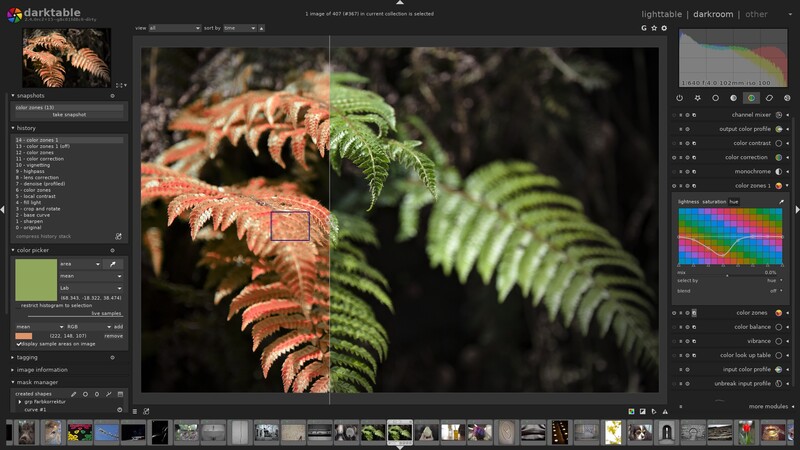
There is a persistent myth that free raw software is a compromise. darktable has quietly stopped being one. It is a full non-destructive raw workflow with a real cataloging database, a color pipeline arguably more modern than Lightroom's, and a module set that gives you more control over tone mapping than anything else here. Version 5.6.0, released on June 21, 2026, added an optional AI subsystem with an object mask tool and a neural restore module covering raw denoise, denoise, and upscale, plus a color harmonizer and HEIF export.
The AI implementation deserves a note, because the project handled it in a way the commercial vendors did not. The neural features ship switched off, and with them off the software loads no machine-learning runtime and does nothing AI-related whatsoever. Nothing is uploaded, nothing is metered, and nothing is on unless you choose it.
The price of all this is the learning curve, and it is steep. darktable's scene-referred workflow is technically the right approach and will feel alien if you learned on Lightroom's sliders, and the module list is long, overlapping, and full of names like filmic rgb that explain themselves to nobody. Performance depends heavily on having a GPU that OpenCL likes. There is no phone app, no cloud sync, and no support line to call.
If you are technically curious, patient, and unwilling to pay a subscription, darktable will do everything Lightroom Classic does for your money back. If you want to open a program and get a good result in five minutes, buy something else. Our monitors guide matters more to your color accuracy than which of these editors you pick. You can check the current price of darktable at darktable.org, which is a joke, because it is free. Also consider RawTherapee, the other serious open-source raw processor, which trades an even harsher interface for finer control over demosaicing.
What We Like
- A complete raw workflow, cataloging included, for nothing
- Modern scene-referred pipeline with excellent highlight handling
- Neural denoise and upscale are opt-in, and run locally
- Native ARM builds on Windows and macOS
What Could Be Better
- The steepest learning curve of anything here
- Dense interface with confusingly named modules
- Performance depends heavily on GPU support
- No mobile app, no cloud sync, no official support
How to Choose Photo Editing Software
Start with the money, because it is the axis people rationalize away and then regret. A subscription is not automatically bad, and for a professional who needs Photoshop anyway, the Photography Plan is the cheapest way to get it. But subscription software is rented, and the day you stop paying, a decade of catalogs and edit histories become files you can no longer open the way you made them. A perpetual license from DxO, ON1, or Capture One costs more up front and less over five years, and it keeps working after you stop paying.
Then decide whether you need a catalog, the spec that matters more than people think. If you shoot events or weddings, or anything that produces thousands of frames per job, the cataloging and culling half of the software is where your hours go, and Lightroom Classic and Capture One are the only two here that handle a very large archive without complaint. If your library is a few thousand images in folders you organize yourself, a catalog is overhead, and ON1's browse-in-place approach or darktable's lighttable will serve you better.
The spec that matters less than people think is raw rendering quality. Every program here produces excellent files from a modern camera, and the differences at base ISO are smaller than a single well-chosen exposure adjustment makes. DxO leads at high ISO and Capture One leads on skin tones out of the box, but if you are picking between two programs on the basis of who renders a raw file 3 percent better, you are optimizing the wrong variable. Choose on how the program feels after 400 images, and on whether the tools you reach for daily are one click away or four.
Finally, be realistic about AI. Assisted Culling, Harmonize, and DeepPRIME each save real hours. But most AI tools are metered, cloud-based, or both, and a program that sends your unreleased client work to a server is a business decision, not just a technical one. Read the terms. No editor runs faster than the machine under it either, and DeepPRIME, Enhanced Denoise, and Photoshop's on-device models all want a real GPU, so our computers for photo editing guide is a better place to spend your next upgrade budget than a fifth raw processor.
What We're Looking For
We picked on workflow, honesty about cost, and whether the program does the job it claims without a catch. Every version number, feature, and platform requirement above was verified against the vendor's current documentation, release notes, or product page at the time of writing, and prices are the vendor's current published figures. On testing, we are being straight with you: Fstoppers has not run a formal, controlled comparison of these eight programs against a common set of files. Two picks here have had hands-on time from our writers, Luminar Neo in a full review and DxO PhotoLab 10 in a first look, and both pieces are linked in their entries so you can read the testing behind them. For the rest, where the text describes how a program behaves, it comes from the vendor's documentation and release notes, and no entry above claims testing we have not done. Most picks across our buying guides come from gear our writers have used hands-on. Where we have not, we say so.
Frequently Asked Questions
Is Lightroom Still Worth It in 2026?
Yes, for most working photographers, because the Photography Plan bundles cataloging, raw development, mobile editing, and Photoshop for one fee, and nothing else covers all four. If you never need Photoshop and hate subscriptions, a perpetual license from DxO or Capture One is the better long-term value.
What Is the Best Free Photo Editing Software?
darktable for raw processing and Affinity by Canva for pixel editing, used together. darktable gives you a full non-destructive raw workflow with cataloging, and Affinity gives you layers, masks, and PSD compatibility. GIMP, now on version 3.2 with non-destructive layers, is a third option for pixel work, though most photographers will prefer Affinity's interface.
Which Photo Editor Has the Best Noise Reduction?
DxO's DeepPRIME XD3, found in the Elite edition of DxO PhotoLab 10, is a deep-learning demosaic-and-denoise engine that pulls more clean detail out of high-ISO raw files than the noise reduction built into Lightroom and Capture One. It started as a Fujifilm X-Trans exclusive and reached Bayer sensors in version 9.6. Many photographers who otherwise live in Lightroom keep PhotoLab installed purely to process their high-ISO files and send a DNG back.
Can I Replace Photoshop With Affinity?
For most photography work, yes. Affinity handles layers, masks, adjustment layers, frequency separation, and PSD files, and it costs nothing. What you give up is the plugin and action ecosystem, some automation, and generative AI, which requires a paid Canva subscription. Professional retouchers with established Photoshop workflows will not switch, and should not.
Do I Need Both a Raw Processor and a Pixel Editor?
Most photographers do. Raw processors handle exposure, color, and global corrections across many images efficiently, while pixel editors handle compositing, complex retouching, and anything requiring layers. The common setups are Lightroom Classic with Photoshop, or Capture One or DxO paired with Affinity. ON1 Photo RAW and Luminar Neo try to do both jobs in one program, with mixed results.
Fstoppers may earn a commission from purchases made through links in this article. Our picks are made independently by our editorial team.