
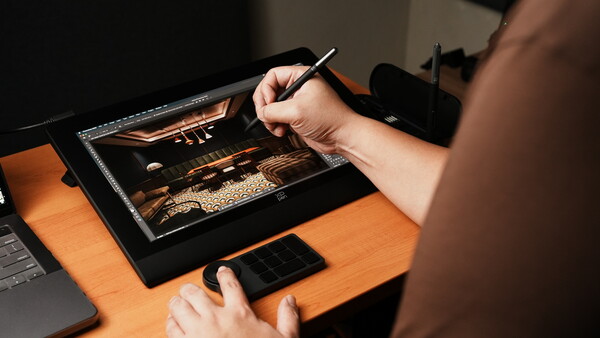
If you’ve dreamt about editing and retouching on a large screen with a pen, this might be the perfect time to achieve that because new-generation pen displays have arrived, and they’re now as good as, or probably even better than, your computer monitor.
Not too long ago, pen displays were pretty rare and usually offered subpar displays for editing use. They were able to show the images on their screens, but for the sake of clarity and color accuracy, one would usually have to mirror it onto a higher-quality screen. They provided an irreplaceable experience of letting you make local adjustments with the use of a pen, but often just as a reference for another screen. That has certainly changed with how exceptional displays are now being used on even larger tablets, and the XPPen Artist Ultra 16 aims to solidify that as the industry’s first 16-inch OLED pen display.
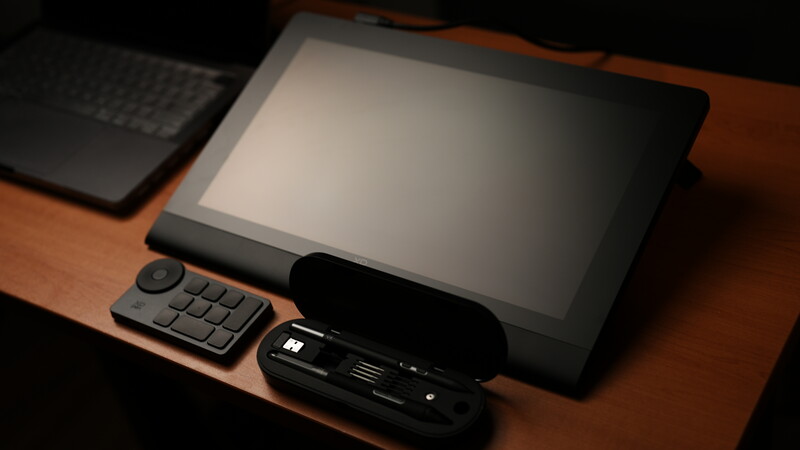
The XPPen Artist Ultra 16
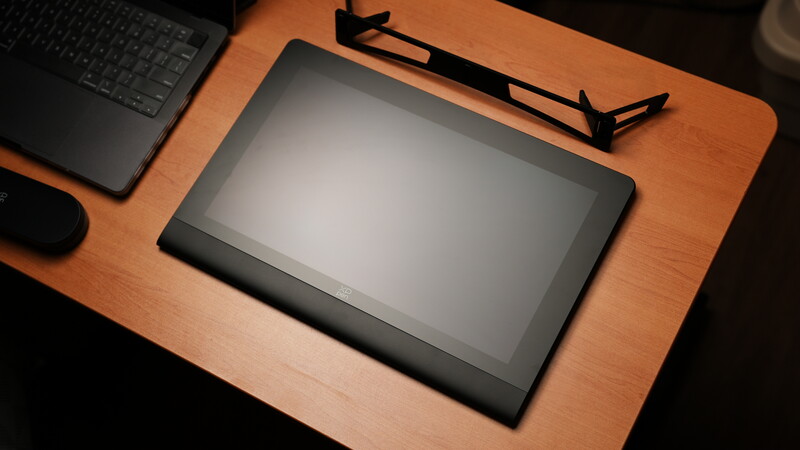
The Artist Ultra 16 is basically a much slimmer form of XPPen’s pen displays, such as the Artist Pro 24 that we reviewed last year. However, this seemingly minor change in appearance is, in fact, because of a much more impactful change in hardware and functionality. This may be a smaller screen altogether, but it is the first OLED pen display to come as big as 16 inches. Because of that, it offers way better color performance and, along with it, more efficient functionality.
What’s in the Box
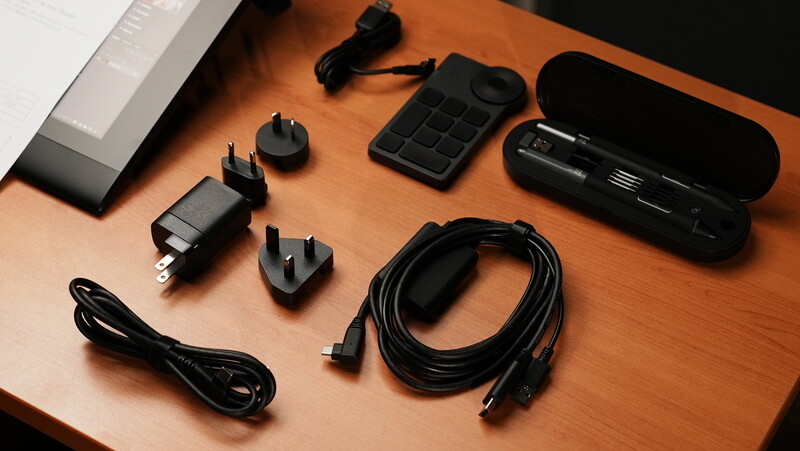
- XPPen Artist Ultra 16 pen display
- Dual-pen set in a case
- Wireless shortcut remote
- Dual-stage slim stand
- Cleaning cloth and gloves
- Two USB-C to USB-C cables
- 3-in-1 cable
- AC adapter and region-specific plugs
- Calibration report
Build and Design
The Artist Ultra 16 comes in as a 405 x 273 mm slate with a maximum thickness of 13.5 mm without the stand installed and weighs 1.53 kg. The top surface is mainly comprised of the 344.2 x 193.6 mm screen that provides the 15.6-inch workspace and display, surrounded by a 30 mm frame on the top and the sides, along with a 50 mm tapered edge on the bottom.
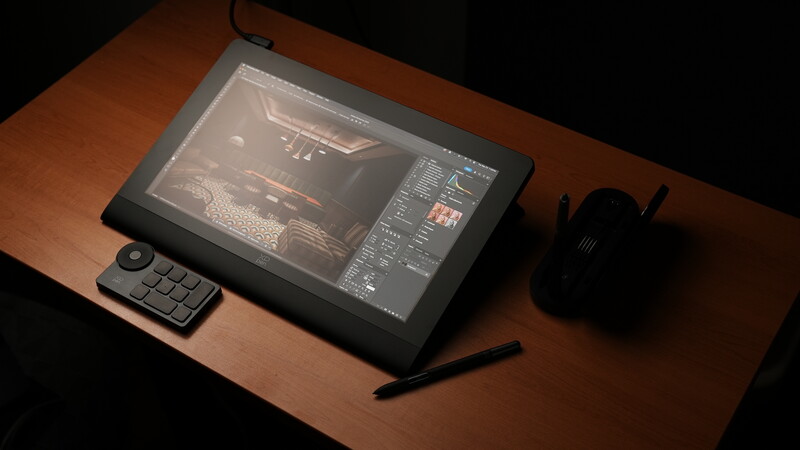
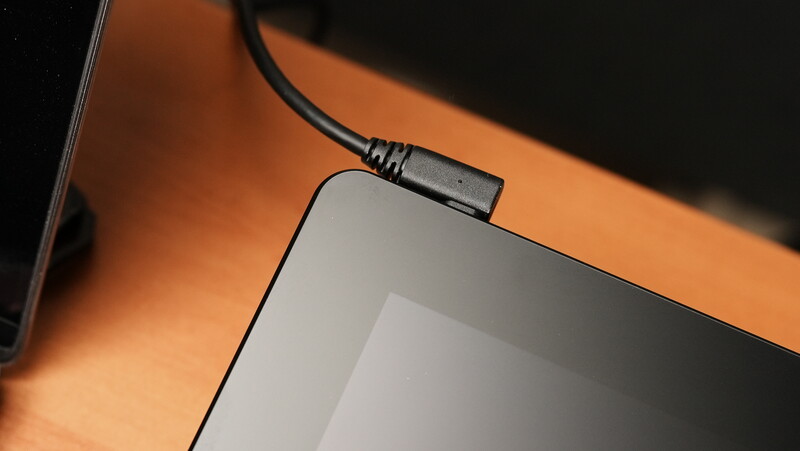
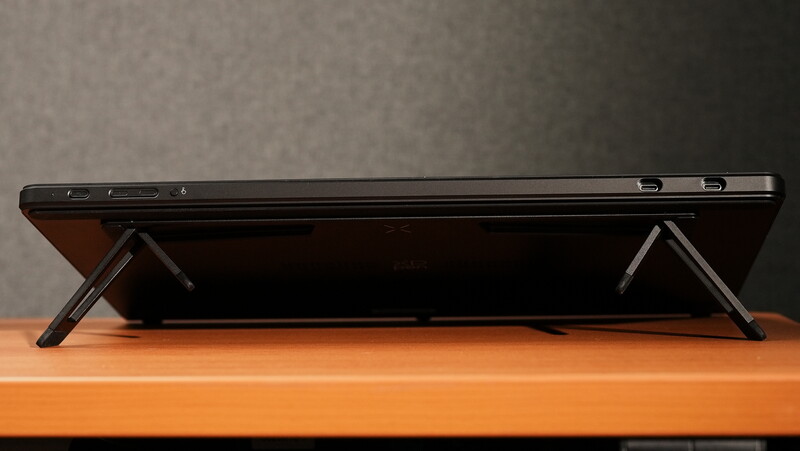
On the top edge is a pair of USB-C ports for display input, pen/touch output, and power supply. These ports are compatible with the supplied cables that can function either with a single USB-C to USB-C cable to the host computer or with a combination of the 3-in-1 cable and the AC power supply.
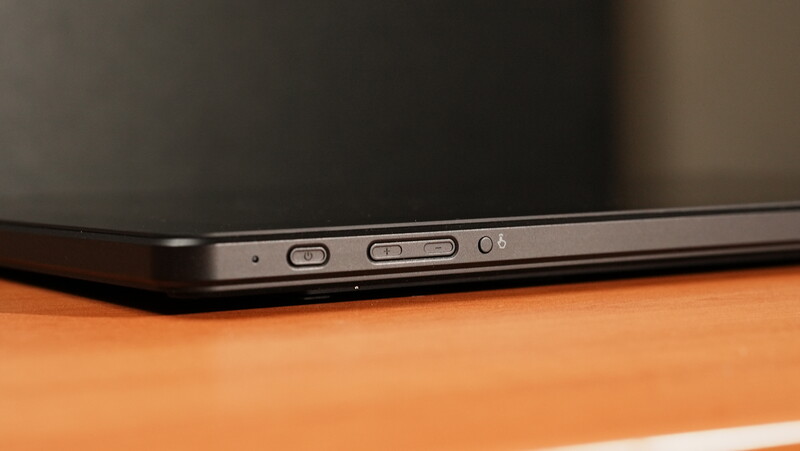
On the same edge is a set of control buttons. The rightmost is the power button, next to it is a pair of directional buttons for adjusting the screen brightness, and the leftmost button is a quick shortcut to enable/disable multi-touch sensitivity, depending on the user’s preference.
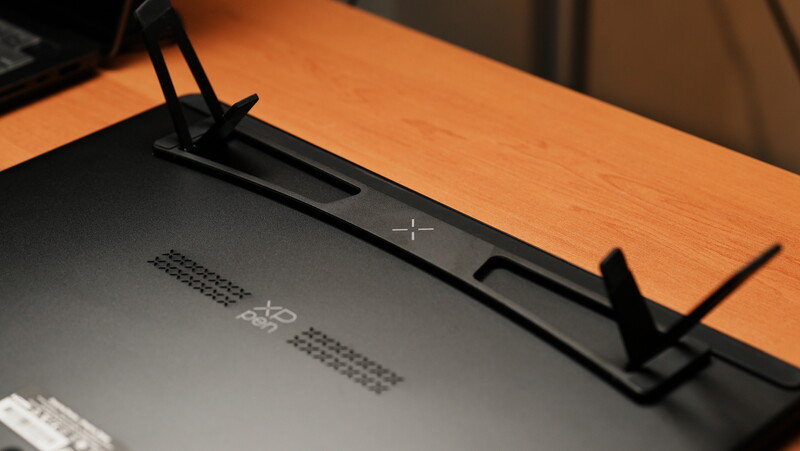
The bottom of the panel is a bare surface with a couple of rubber pads for friction. This can generally suffice if using the display flat on a desk with the appropriate height and viewing angle. Otherwise, the included stand has pre-installed adhesives that will stick onto the marked spots, providing more options for height and viewing angles. This stand can be switched between a 1-inch or a 2-inch set of feet, which tilts the display for different angles. Aside from that, there are now VESA mounting screws on the back, which may also come in handy for more modular use.
Display
The display takes up the entire 344.2 x 193.6 mm active area and comes in the shape of a 16:9 aspect ratio AMOLED panel. This is mainly what sets this display apart from other larger pen displays in the market because, as of its release, it is the first and only OLED pen display bigger than 13 inches (the Wacom Movink 13). Alongside that, it also opens up capabilities a whole lot more.
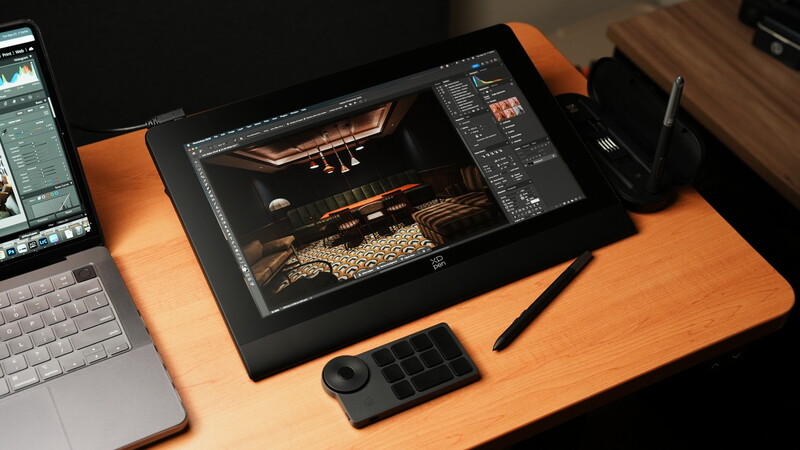
The 15.6-inch workspace has a maximum resolution of 3840 x 2160 pixels (4K), a refresh rate of 60 Hz, and a maximum brightness of 350 nits. It’s able to display native 10-bit (1.07 billion) colors and achieve a contrast ratio of 100,000:1. The resolution is, of course, flexible and can be adjusted depending on the user’s requirements.
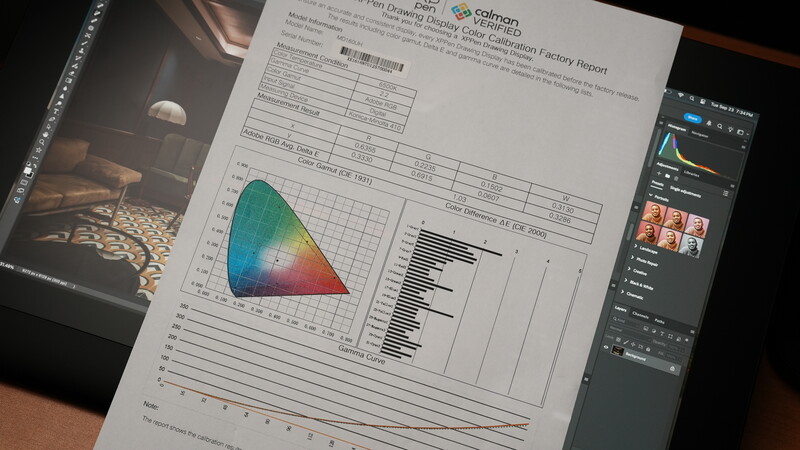
Another impressive feature of this pen display, attributed to the kind of panel that it uses, is the fact that the display is Calman Verified with an average delta E rating of <1.1. This rating signifies very low and mainly incomprehensible differences in color across the entire panel. The display covers 99% of Adobe RGB, 99% of sRGB, and 98% of DCI-P3. With proper calibration, it can be a stand-alone color-accurate workspace or a secondary screen that matches the colors of the main display. In addition to the resolution and color, the entire active area is also touch sensitive when the feature is enabled.
Pen Functions
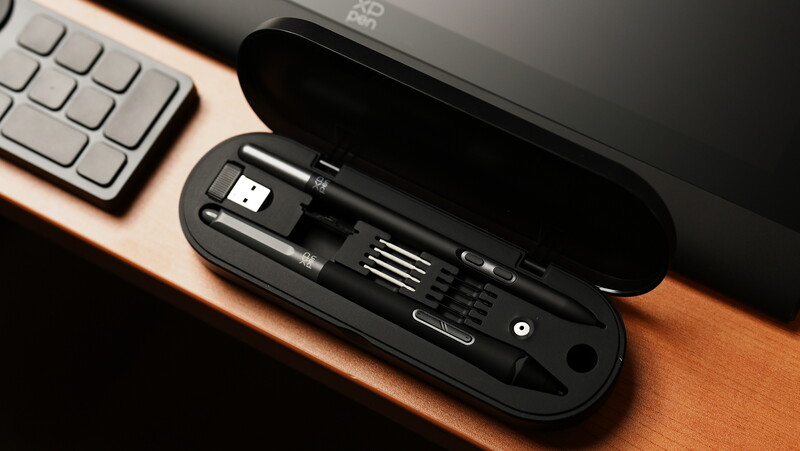
The XPPen Artist Ultra 16 automatically comes with two pens: a standard (thicker) pen with a more pen-like contour and a slim, lighter pen as another option. Both pens are equipped with the X3 Pro smart chip that provides a sensitivity of up to 16,384 pressure levels and a resolution of 5080 LPI. It requires just 3 grams of initial activation force, is sensed by the display within 10 mm of the surface, and can be used with up to 60 degrees of tilt.
Setting Up
Setting up the display is pretty much plug-and-play for most devices. For any recent-model desktop or laptop computer, a single USB-C can provide both the input and power to the pen display. However, for some others, it will require using a 3-in-1 cable for the HDMI input and the pen/touch inputs. Once the driver is installed and the appropriate cables are plugged in, the display will automatically mirror the main display (if using multiple), and the touch functions should already work.

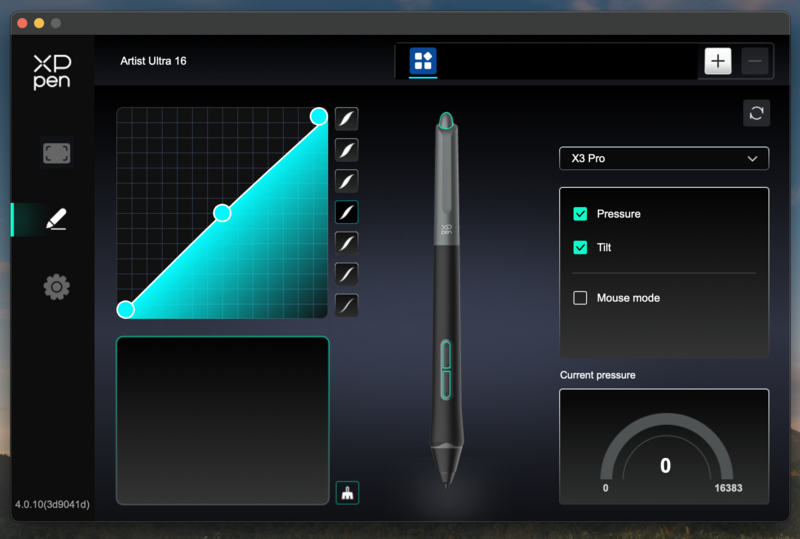
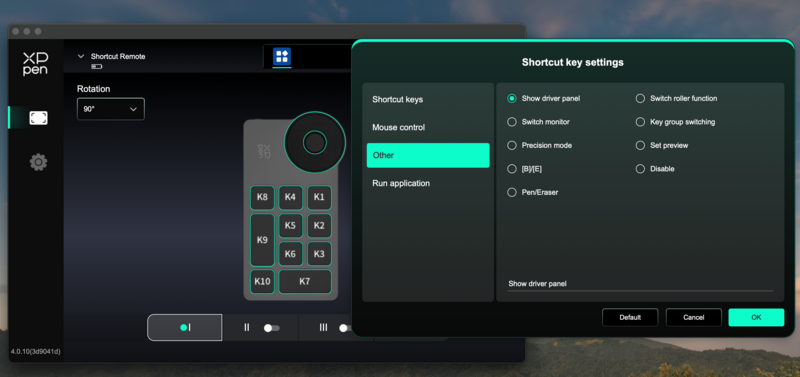
Further customization will involve adjusting the pen pressure curve as well as assigning the keys on the shortcut remote for more efficient use. The user can also either deactivate the touch function or select a specific area on the screen that will be touch sensitive to avoid unintentional inputs.
Application and User Experience
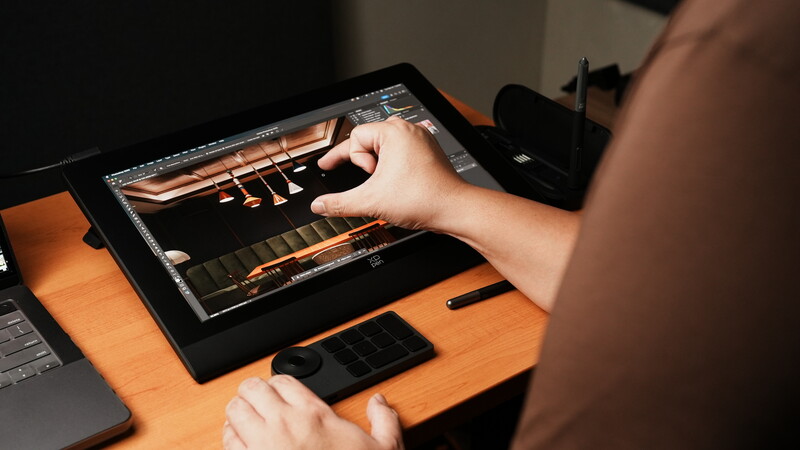
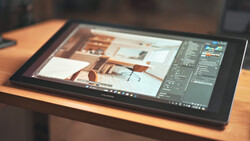
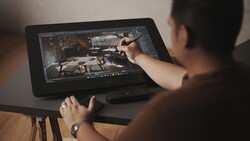
What sets apart the experience of using this 16-inch OLED multi-touch pen display is the combination of its features and even the small details. It’s an embodiment of the fact that pen display technology has caught up with the tech on the screens we use only for viewing. Having a large functional area (in my case, larger because I use a 14-inch MacBook Pro) lets you immerse yourself in the images you’re working on, and using simple pinch gestures allows you to zoom further.
However, using this pen display is still highly sensitive to positional factors. While it has a pretty wide viewing angle, it’s important to keep it relatively perpendicular, especially when there are strong light sources around. The two-stage stand technically offers three viewing angles, but the experience can definitely be enhanced if more options were available (most likely using other separately sold stands).
As a photographer, my use of a pen display is definitely less extensive than what illustrators and designers would do, but I can’t deny the convenience this and updated software tools offer. For retouching my real estate photography work, the task is often as simple as encircling the unwanted clutter and removing it. Of course, this comes with the assurance that your colors are exactly what you intend them to be and that you’re seeing everything clearly, as you would on a regular high-resolution, color-accurate monitor.
What I Liked
- 15.6-inch OLED touchscreen
- 4K resolution
- Delta E <1.1 color accuracy rating
- Customizable touch-sensitive areas
What Can Be Improved
- Limited stand heights
- No VESA mounting points

Join the Fstoppers community for free
-
Post comments and join in the discussions
-
Browse the site ad-free
-
Share your work and get featured in the community
-
Compete in the photo contests for fun and prizes
2 Comments
The trouble with pen display tablets is you are having to stare down at them which is very bad for the neck, especially over long periods of time and especially as people are already spending far too much time staring down at smartphones.
Looks great with everything and maybe perfect for some. What I see is most all my friends are editing on those big screen TV's may not have the pixels of a monitor made for photography but many like to sit back and edit.