Most photographers spend more hours at the desk than behind the camera, and almost none of us budget for it that way. We agonize for weeks over a lens we use on twelve shoots a year, then cull five thousand frames on a kitchen chair, under a ceiling light that turns the monitor into a mirror, plugging a card reader into the one laptop port that still works. The desk deserves the same scrutiny as the camera bag.
Three axes decide almost every purchase here. The first is bandwidth: how fast a card, a drive, and a display can all talk to one laptop through a single cable. The second is color, because a screen you have not profiled is a screen that lies to you, and a room lit by a warm bulb behind your head will make you edit against a false neutral. The third is your body, the component with the worst warranty and the highest replacement cost.
This guide builds the desk piece by piece, from the dock that anchors it to the colorimeter that keeps it honest. We have not put these products through Fstoppers hands-on reviews, and we say so in each entry. Every specification below was verified against the manufacturer's current spec sheet and a live retailer listing, and we flag where a pick has a newer, pricier sibling worth knowing about.
Our Picks
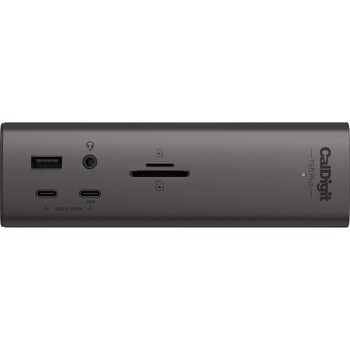 Best Dock CalDigit TS5 Plus
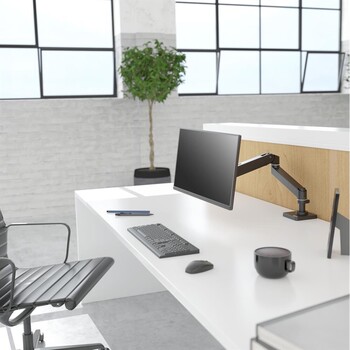 Best Monitor Arm Ergotron LX Desk Monitor Arm
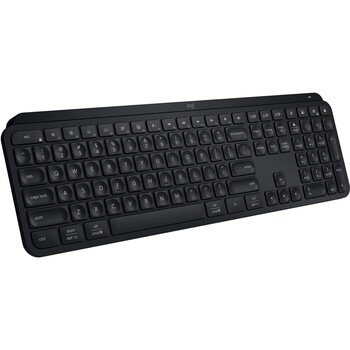 Best Keyboard Logitech MX Keys S
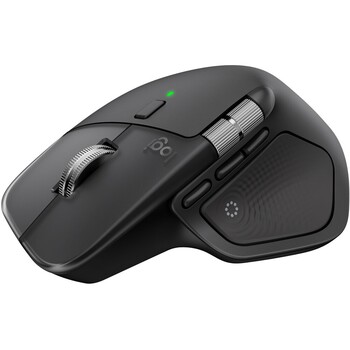 Best Mouse Logitech MX Master 4
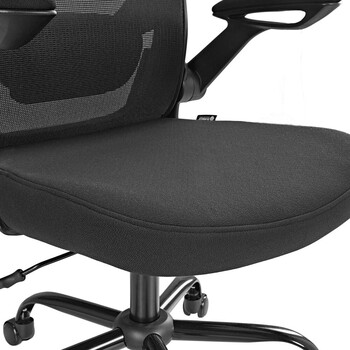 Best Chair Eureka Aion Ergonomic Office Chair
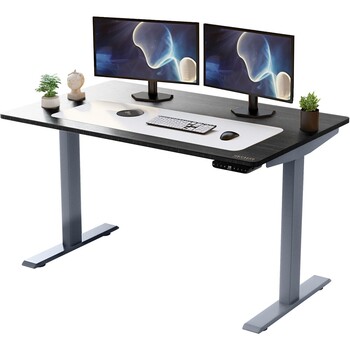 Best Desk Uncaged Ergonomics Rise Up Standing Desk
Best Desk Lighting BenQ ScreenBar Pro
Best Desk Uncaged Ergonomics Rise Up Standing Desk
Best Desk Lighting BenQ ScreenBar Pro
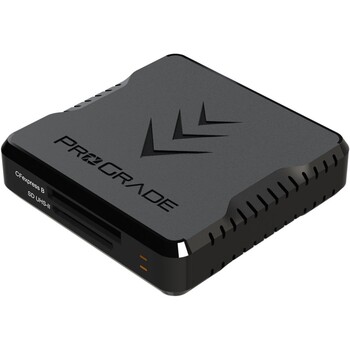 Best Card Reader ProGrade Digital CFexpress Type B and SDXC Dual-Slot Reader
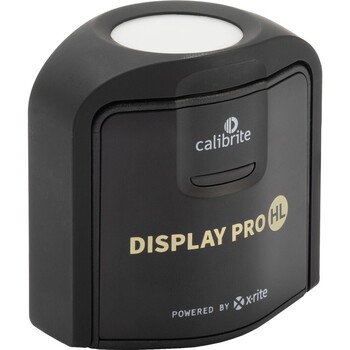 Best Calibrator Calibrite Display Pro HL
Best Dock: CalDigit TS5 Plus
Twenty Thunderbolt 5 ports split across dual USB controllers keep a busy card reader from starving an external SSD, and the 10 Gigabit Ethernet port turns NAS editing near-local.
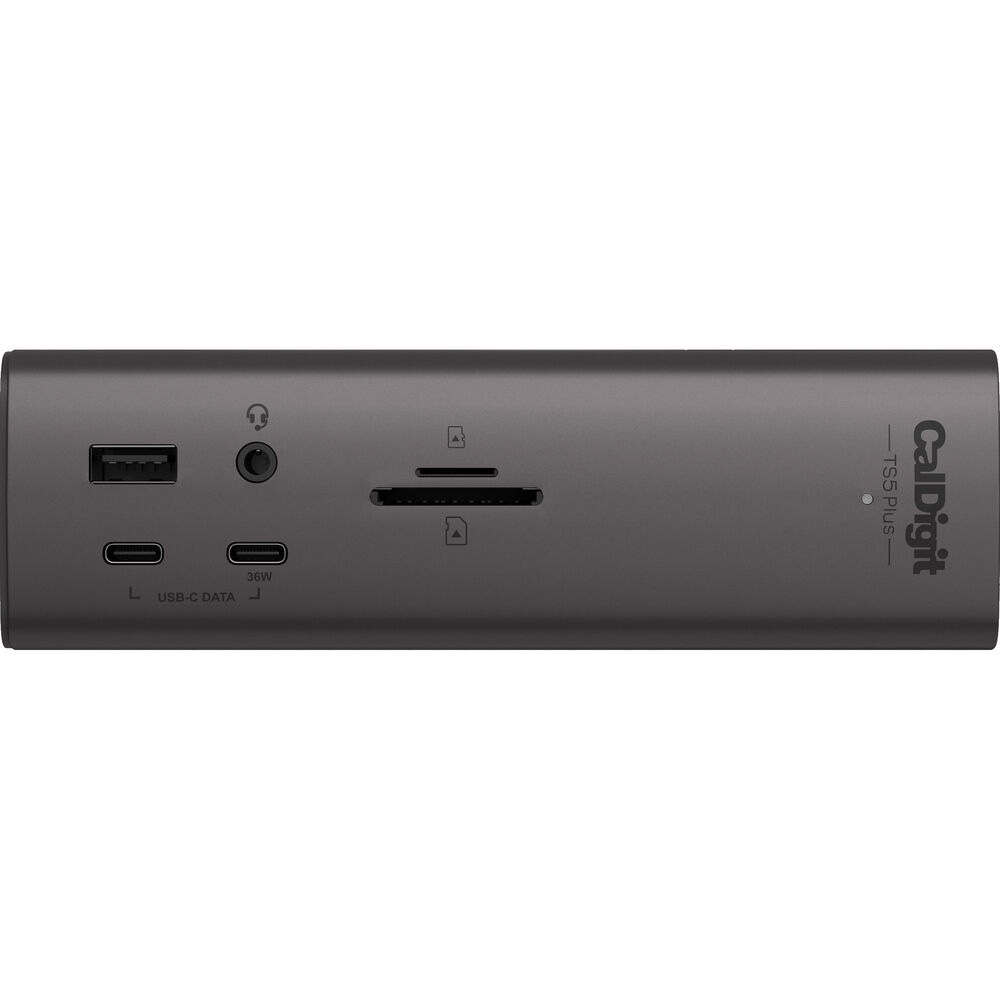
A dock is the least glamorous thing on this list and the one that fails you most visibly. The CalDigit TS5 Plus is the rare dock that does not make you choose. Twenty ports, all usable at once, and CalDigit splits them across dual USB controllers so a card reader hammering a CFexpress card does not starve the external SSD on the next port over. Cheap hubs cram everything behind one controller, so a busy card reader and an external SSD end up fighting for the same lane during an ingest.
For photographers, the standout is the 10 Gigabit Ethernet port. If you keep your library on a NAS, that is four times the throughput of the 2.5 Gigabit ports most rivals fit, including the Anker and UGREEN docks below, and it turns network editing from a compromise into something close to local. The SD and microSD slots are UHS-II rather than the UHS-I readers bolted onto most docks, so a card of stills lands at full speed without a separate reader. The 140 W host charging keeps a 16-inch laptop topped up under an export load rather than slowly draining it, unlike the 90 W and 100 W docks.
We have not tested this one in house, and the price is not defensible for everyone. It sits at the top of the Thunderbolt 5 dock market, it ships with a 330 W external brick that has to live somewhere, and it needs a Thunderbolt 5 or USB4 v2 host to hit full speed. If you have no NAS and mostly need a few ports and a charge, you are paying for headroom you will never touch. If your machine is Thunderbolt 5 and you keep a working library off the internal drive, check the current price of the CalDigit TS5 Plus at B&H. Also consider the UGREEN Revodok Maxidok 17-in-1 for its built-in M.2 NVMe slot, which takes a PCIe 4.0 drive up to 8 TB, or the Anker Prime Thunderbolt 5 Docking Station, a 14-port dock with the same 140 W host charging for less money if you can live without 10 Gigabit Ethernet.
What We Like
- Dual USB controllers keep simultaneous transfers from choking each other
- 10 Gigabit Ethernet is a genuine upgrade for NAS-based libraries
- UHS-II SD and microSD slots, not the UHS-I readers most docks fit
- 140 W host charging holds a big laptop's charge under load
What Could Be Better
- Priced at the top of the Thunderbolt 5 dock market
- Large 330 W external power brick to hide
- Needs a Thunderbolt 5 or USB4 v2 host to hit full speed
Best Monitor Arm: Ergotron LX Desk Monitor Arm
Ergotron's Constant Force gas spring holds a screen wherever you nudge it without the overnight droop of friction arms, carrying panels to 34 inches and 25 pounds under a 10-year warranty.
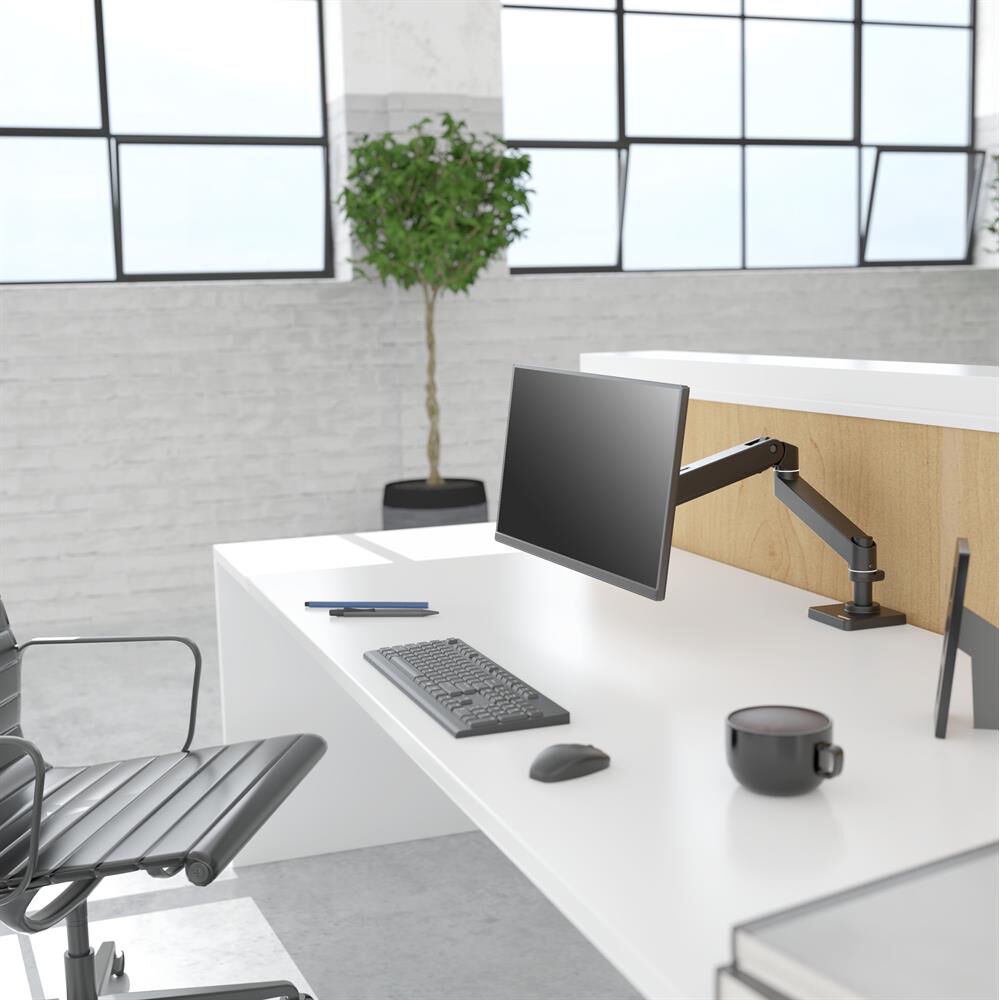
Take the monitor off its factory stand and two things happen. You get back roughly a foot of desk depth, where the card reader and the calibrator go, and you can put the screen at the height your neck wants rather than the height the stand allows. The Ergotron LX has been the default answer for years. The Constant Force gas-spring mechanism is why: nudge the screen with one hand and it stays exactly where you left it, without the slow overnight droop that afflicts cheaper friction arms.
It handles displays up to 34 inches and 25 lb, which covers essentially every panel a photographer would put on a desk, including the 32-inch 6K monitors. The arm folds nearly flat against its base when you push the screen back, and the 10-year warranty is not marketing garnish; these things outlive the monitors bolted to them.
What you do not get is elegance. The finish is industrial, the routing clips are basic plastic, and the tension calibration needs an Allen key: set it for a light monitor, bolt on a heavy one later, and you are back under the desk with the hex wrench. We have not reviewed it in house. Ergotron's newer LX Pro tidies the cable channels, but it is rated for a lighter 4 to 22 lb, so a heavy 32-inch panel can exceed it. Check the current price of the Ergotron LX Desk Monitor Arm at B&H, and if your display is heavier than 25 lb, step up to an Ergotron HX Desk Monitor Arm.
What We Like
- Constant Force spring holds position for years without sagging
- Reclaims about a foot of usable desk depth
- Ten-year warranty and a long track record
What Could Be Better
- Tension calibration needs an Allen key and re-doing if you change monitors
- Basic cable management compared with newer arms
- Tops out at 34 inches and 25 lb
Best Keyboard: Logitech MX Keys S
Spherically dished, quiet, low-profile keys suit long editing sessions, and a proximity backlight lights before your fingers land, running about 10 days lit or five months with the light off.
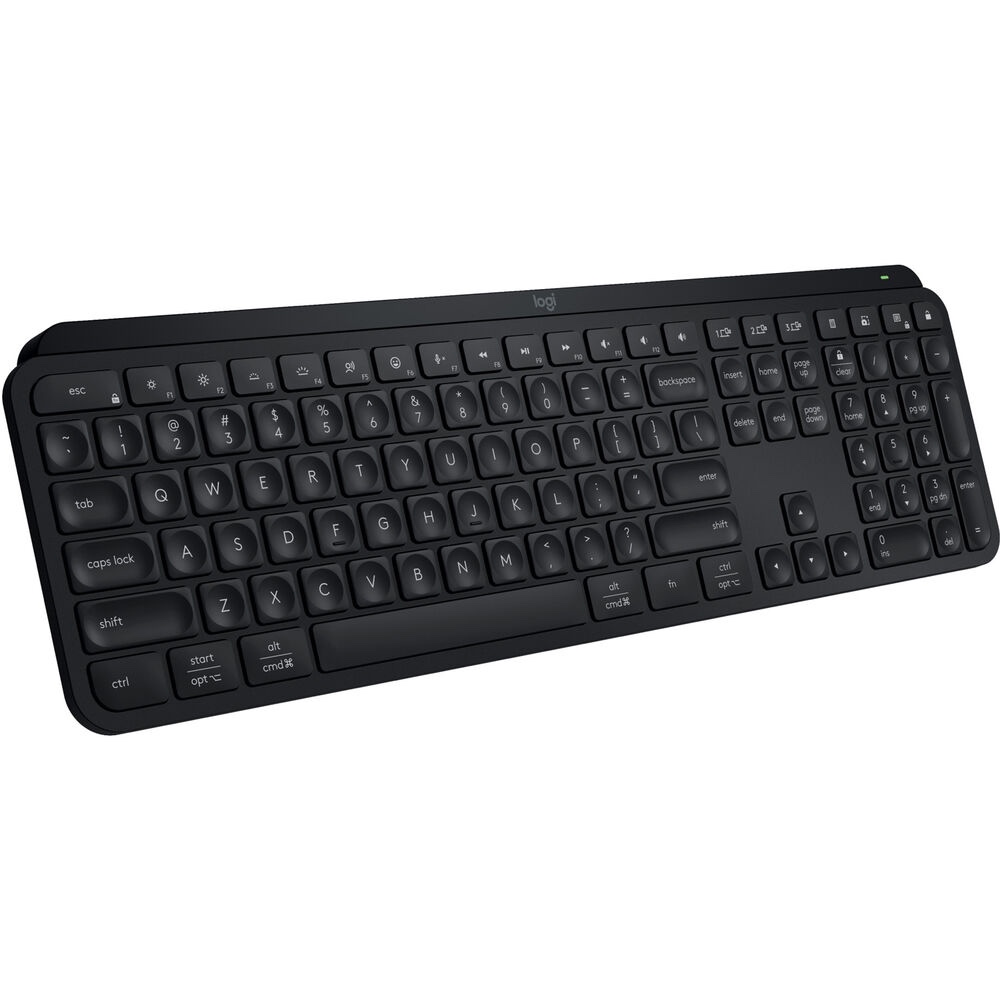
Editing is not typing. You spend a session with your left hand parked on a cluster of single-key shortcuts while your right hand drives the cursor, and the keyboard's job is to be quiet, low, and predictable under a hand that never looks down at it. The MX Keys S is built for that posture. The keys are spherically dished, so your fingertip finds the center of the cap without hunting, and the travel is short and damped rather than clacky, which matters if you take client calls at the same desk.
The backlight is the standout feature. It senses your hands approaching and lights up before you touch a key, then dims itself in a bright room, which explains why the battery claim splits so widely: about 10 days with the lights on, up to 5 months with them off. Three-device pairing over Bluetooth Low Energy or the bundled Logi Bolt receiver lets one keyboard cover a desktop, a laptop, and a tablet with a keypress. We have not run this board through an Fstoppers review, and the assessment rests on the spec sheet and the board's documented design.
It is not for everyone. There is no firmware-level key remapping, so shortcuts you set in Options+ do not travel to a machine without the software installed. The chassis is aluminum-topped but plastic-bottomed and flexes if you lift it by a corner. If you love a mechanical keyboard's feel, this will read as flat and dead, which is precisely the point on a desk where the keyboard should disappear. Check the current price of the Logitech MX Keys S at B&H, or consider the Keychron Q1 Ultra 8K if you want a hot-swappable board with remapping that lives on the keyboard rather than in an app.
What We Like
- Quiet, low-profile keys that suit long editing sessions
- Proximity backlight that lights before your fingers land
- Pairs with three machines and switches with one key
What Could Be Better
- No onboard remapping, so customizations need Logi Options+ installed
- Plastic underside flexes slightly
- Backlit battery life drops to about 10 days
Best Mouse: Logitech MX Master 4
A new haptic motor buzzes under the palm when you cross a slider detent, while the MagSpeed wheel free-spins through a long folder then ratchets for frame-by-frame precision.
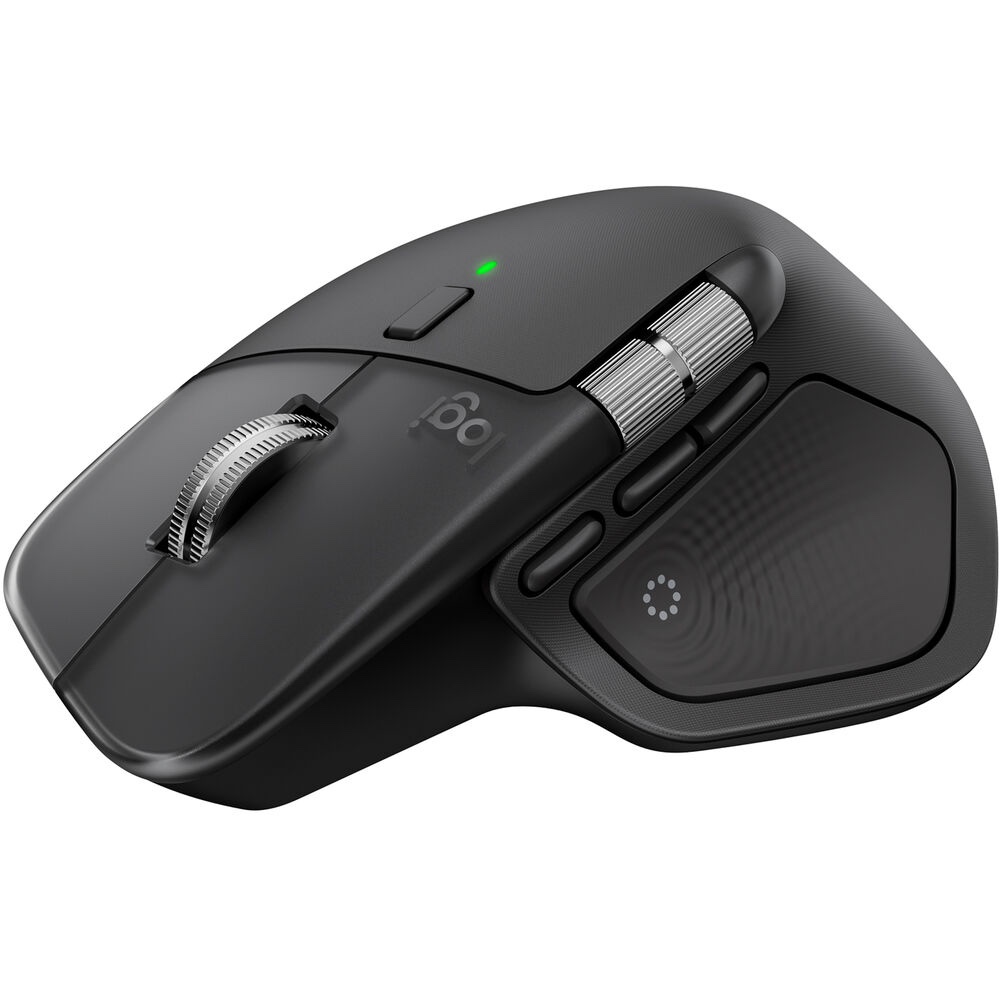
Culling is a numbers game played with your right hand, and the mouse is the tool you touch more than any other on this desk. Logitech's fourth-generation MX Master keeps the sculpted shape that made the line the default for creative work and adds a haptic motor in the body that buzzes under your palm when you cross a slider detent or trigger a shortcut. It reads as a gimmick on a features list. In practice it restores the confirmation a physical detent used to give, on controls that are now entirely virtual.
The rest refines a formula that worked. The MagSpeed wheel free-spins at up to 1,000 lines per second for a flick through a long folder, then ratchets when you need frame-by-frame precision. The thumb wheel handles horizontal scrolling, which is what you actually want when dragging along a Lightroom filmstrip. The Darkfield sensor runs from 200 to 8,000 dpi and tracks on glass, and Logitech quotes up to 70 days from the 650 mAh cell.
The Actions Ring is the feature to evaluate before you buy. Press a button and a radial menu of context-aware tools appears at the cursor. Configured well, it anchors an editing workflow; left at defaults, it interrupts more than it helps and ends up switched off. We have not reviewed this mouse ourselves, so map it to your own workflow and judge it there before paying for it.
The hard limits are physical. At 150 g it is heavy, and the tall right-handed shape rules it out entirely if you are left-handed. The 125 Hz polling rate is fine for editing and unremarkable for anything else, and it is expensive for a productivity mouse. For a photographer who spends hours a day in Lightroom or Capture One, this is the one input device where the upgrade registers every session, so check the current price of the Logitech MX Master 4 at B&H. Also consider the Logitech MX Vertical if wrist pain is part of your day.
What We Like
- MagSpeed wheel switches between free-spin and precision automatically
- Thumb wheel makes horizontal scrolling effortless in editors
- Haptics give real feedback on virtual sliders and shortcuts
What Could Be Better
- Right-hand only, with no left-handed version
- Heavy at 150 g
- The Actions Ring divides people sharply
Best Chair: Eureka Aion Ergonomic Office Chair
A high mesh back stays cool through a six-hour cull, a slidable lumbar block meets the actual curve of your spine, and 5D armrests reach true keyboard height.
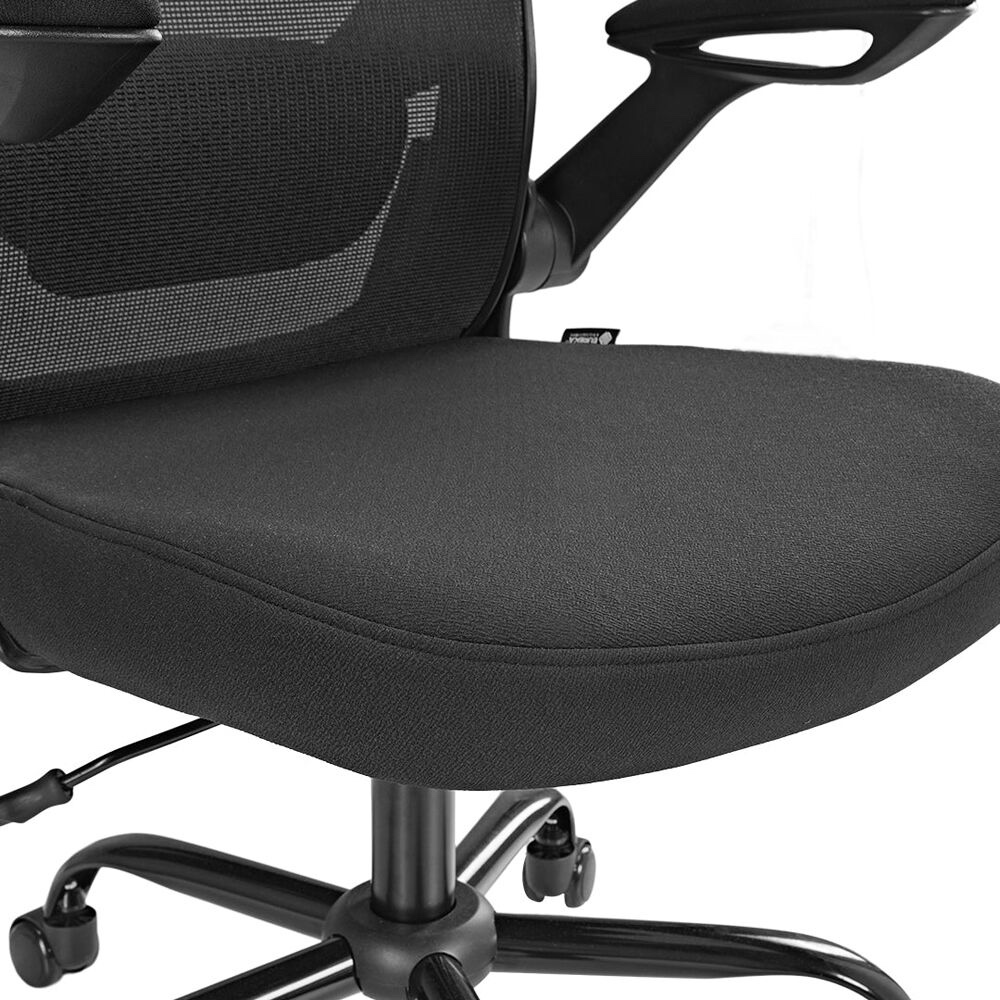
Nobody photographs their chair for a desk-setup post, and it is the item that will hurt you first. The Eureka Aion is the mid-priced mesh chair we would put a working photographer in: a high mesh back that keeps you cool through a six-hour cull, a lumbar block you can slide to meet the actual curve of your spine rather than the curve a designer assumed, and armrests with five axes of adjustment so they support your forearms at keyboard height instead of jamming into the desk edge.
The details that matter for long sessions are the ones people skip in the store. The 2D headrest moves 3.9 inches vertically and tilts 35°, which lets you rest your head without craning at the screen. The recline runs to 115°, far enough to open the hip angle and take load off the lower back, and it locks where you leave it.
We have not sat in one for an Fstoppers review, and two caveats are worth stating. Fit is the first: Eureka recommends it for people between 5'1" and 6'1", and outside that band the fixed geometry of the back and headrest works against you. The second is that this is a mid-market chair in a category with royalty at the top. A Herman Miller Aeron or a Steelcase Gesture costs roughly triple, carries a twelve-year warranty, and has decades of field data behind it. If you sit for a living and can absorb that, buy one. For everyone else, the Aion delivers real adjustability without the icon tax, so check the current price of the Eureka Aion Ergonomic Office Chair at B&H.
What We Like
- Adjustable lumbar block you can position, not just tighten
- 5D armrests that actually reach keyboard height
- Mesh back stays cool through long sessions
What Could Be Better
- Fit band of 5'1" to 6'1" leaves out a lot of people
- Does not match the build or warranty of the premium icons
- Requires assembly and is heavy to move
Best Desk: Uncaged Ergonomics Rise Up Standing Desk
Dual motors lift the 60-by-30-inch top smoothly even when a monitor arm loads one corner, and the 250-pound capacity carries a display, dock, drives, and speakers with margin.
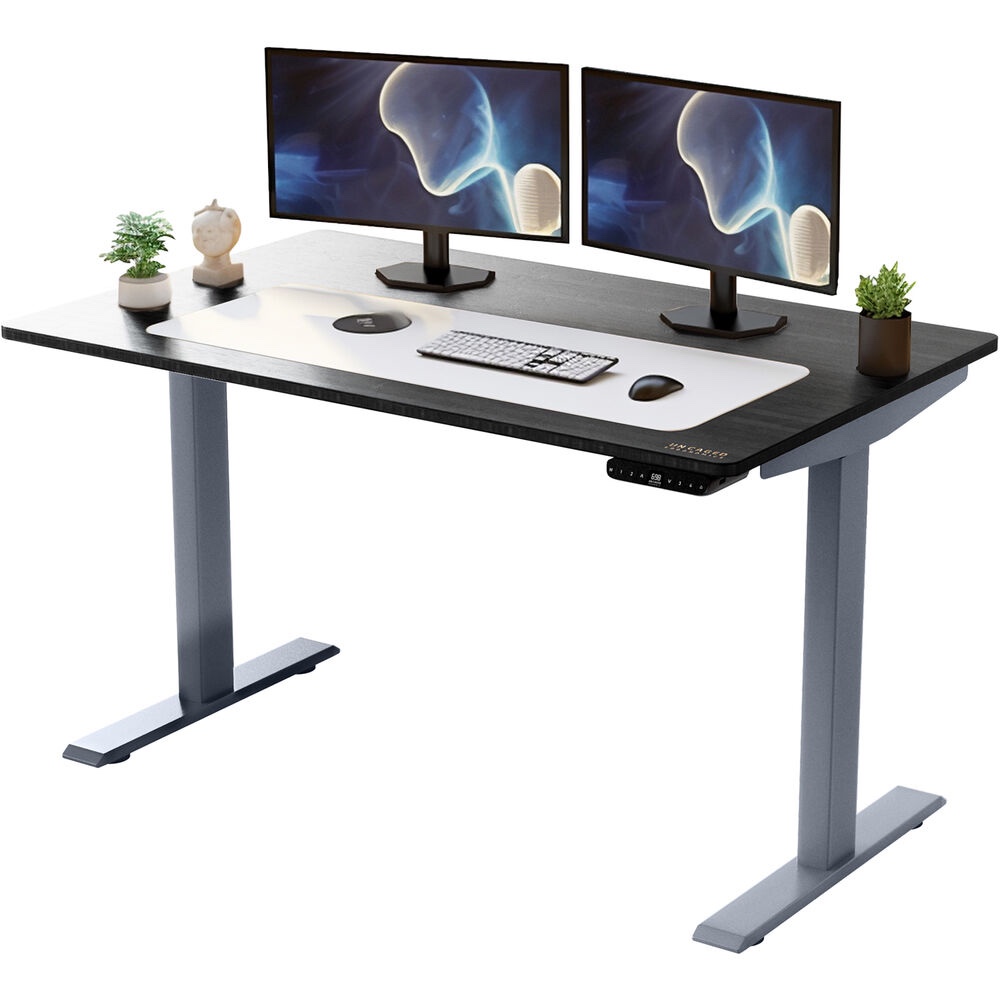
Height-adjustable desks were sold to us as a health product, which was mostly nonsense, and then justified themselves on a different argument: a desk you can raise is a desk that fits you, and a desk that fits you is one you can sit at for eight hours without your shoulders creeping toward your ears. The Rise Up is the version we would buy: dual motors, four memory presets, and a 60 by 30-inch top with room for a 32-inch display, a keyboard, a tablet, and a printer proof.
Dual motors are the specification to insist on. Two motors lift more smoothly and more evenly under an off-center load, which is exactly what a desk carries when a monitor arm clamps to one edge and pulls the whole assembly toward the back left corner. The 250 lb capacity handles a heavy display, a dock, drives, and speakers with margin, and anti-collision stops the top if it meets a filing cabinet on the way down.
We have not built one for an Fstoppers review. The honest limitation of a 2-stage column is range: 27.2 inches at the bottom, 45.3 inches at the top. Much under 5'4" and the lowest sitting position may still be a touch high; above about 6'3" the top feels short when standing. Three-stage desks solve both and cost more, and the enthusiast desks from Uplift and Vari carry higher capacities and longer warranties. What you need is a stable, deep surface with programmable heights and a top that will not bow under a monitor arm, so check the current price of the Uncaged Ergonomics Rise Up Standing Desk at B&H. Also consider the FlexiSpot M4B sit-to-stand riser if you already own a desk you like and only want height adjustment.
What We Like
- Dual motors lift smoothly under an off-center monitor arm load
- Four memory presets and anti-collision as standard
- 60 by 30-inch top fits a big display plus real working space
What Could Be Better
- Two-stage columns limit the height range at both ends
- Capacity and warranty trail the enthusiast desk brands
- Assembly is a two-person job
Best Desk Lighting: BenQ ScreenBar Pro
- Light source: dual color LED, 2,700 K to 6,500 K across 8 presets
- Brightness: 16 levels, over 1,000 lux at center measured at 50 cm
- Color accuracy: Ra ≥95, Rf ≥96
- Sensors: ambient light sensor plus an ultrasonic presence sensor
- Power: USB-C bus powered, 8.5 W maximum
- Fit: monitor thickness 0.43 to 6.5 cm, flat or curved
- Price: $139 (B&H)
Here is the part of the desk that photographers get wrong more than any other. You buy a calibrated display, then edit under a ceiling light behind your head that throws a reflection across the panel and a warm cast across everything you look at. A monitor light bar fixes both problems by putting an asymmetric beam in front of the screen instead of behind you, aimed down at the desk, out of the panel's reflection.
The ScreenBar Pro is the one to buy, and the reason is not brightness. It is color quality: Ra ≥95 and Rf ≥96 mean the light falling on your desk, your prints, and your color checker renders hues close to how a reference source would. Cheap bars sit in the 80s and turn a print proof into a guess. It clips over the top edge of the monitor with a counterweighted clamp that fits panels 0.43 to 6.5 cm thick, curved ones included, and draws power over USB-C from the monitor or the dock.
Eight color temperature presets run from 2,700 K to 6,500 K, and if you want the room to sit near the D65 white point your monitor is profiled to, that top end is where you set it and leave it. The ambient light sensor holds the desk at 500 lux, the level office lighting standards ask for at a work surface, and an ultrasonic presence sensor wakes the bar when you sit down.
We have not reviewed it in house. Controls are capacitive touch buttons on top of the bar, which is the main functional complaint: you reach over the screen to change anything and smudge the bar doing it. The step-up ScreenBar Halo 2 fixes that with a wireless controller and adds a rear backlight, and it costs more, so the Pro is the value pick rather than the flagship. Note also that 8.5 W of draw over a shared USB-C hub can matter on a power-tight setup. For a desk where color decisions get made, this is still the cheapest meaningful accuracy upgrade available, so check the current price of the BenQ ScreenBar Pro at B&H. Also consider the BenQ ScreenBar Halo 2 if you want that wireless puck controller and a backlight that softens the wall behind the screen.
What We Like
- Ra ≥95 and Rf ≥96 color rendering for proofing prints at the desk
- Asymmetric beam keeps light off the screen and reflections out of it
- Auto-brightness to 500 lux and a presence sensor that just works
What Could Be Better
- Touch controls sit on top of the bar, so you reach over the screen
- No wireless controller and no rear backlight, both of which the Halo 2 has
- 8.5 W of draw can strain a busy USB-C hub
Best Card Reader: ProGrade Digital CFexpress Type B and SDXC Dual-Slot Reader
Both the CFexpress Type B and UHS-II SD slots offload simultaneously over USB 3.2 Gen 2 at up to 1.25 GB/s, several times quicker than a generic reader.
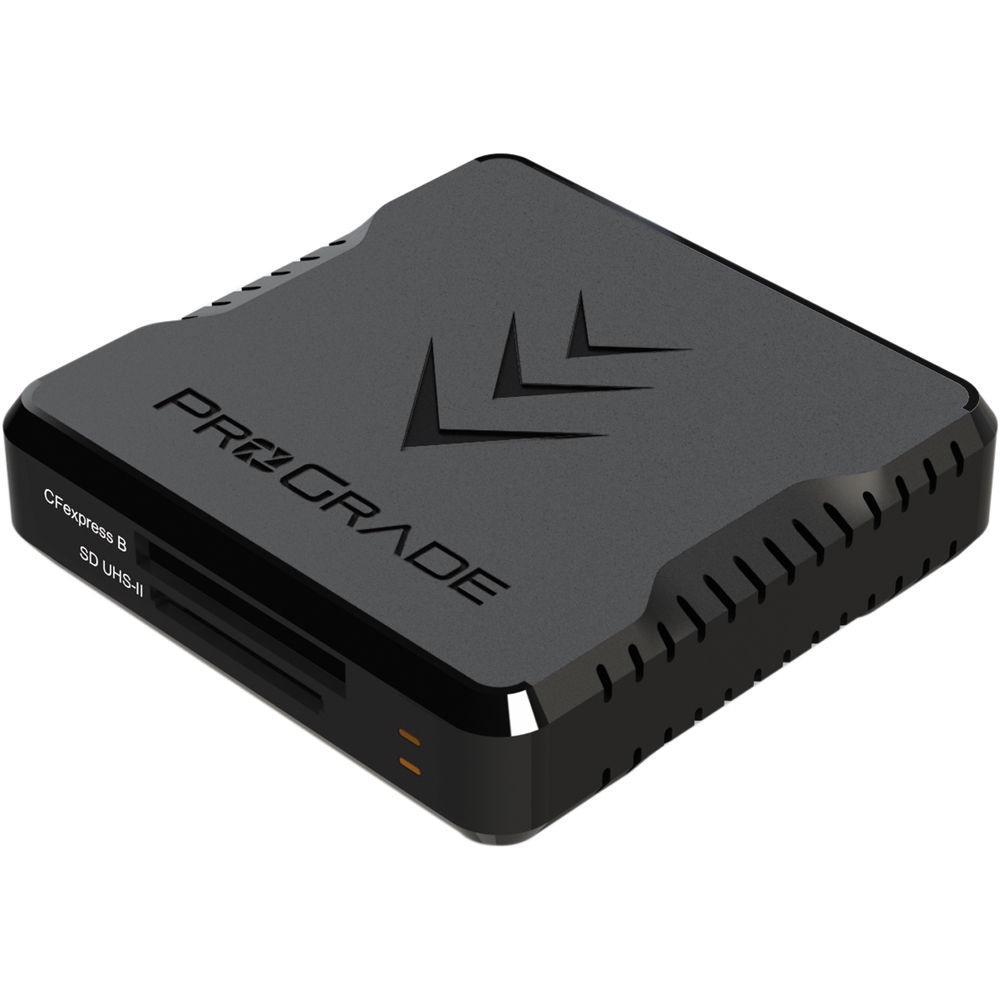
The reader is the component people cheap out on hardest, and it is the bottleneck that costs the most hours. A generic USB reader will pull a 512 GB CFexpress card at a fraction of its rated speed while you watch a progress bar and wonder why your expensive card is slow. It is not the card. ProGrade's dual-slot reader removes that excuse: USB 3.2 Gen 2 at 10 Gb/s, moving data at up to 1.25 GB/s, with both slots offloading simultaneously rather than taking turns.
Simultaneous is the word that earns the purchase. Most hybrid shooters come home with a CFexpress card of stills and an SD card of video or backup frames, and dropping both in for one ingest is not a marginal convenience. The shell is machined metal with a magnetic base, and an adhesive plate for a laptop lid lets the reader travel attached to the machine rather than rolling around a bag.
We have not reviewed this reader ourselves, and the specification to be clear-eyed about is that 10 Gb/s interface. The bus tops out around 1.25 GB/s, and a quick CFexpress 2.0 Type B card already reads faster than that: ProGrade's own Cobalt cards are rated to 1,700 MB/s, and Lexar's Diamond series claims 1,900 MB/s. The reader is the ceiling in those cases, not the card. It is still several times quicker than a generic USB reader and it fully feeds a UHS-II SD card, which caps out around 300 MB/s, but anyone chasing the last of a fast card's speed should look at ProGrade's newer USB 4.0 version, rated to 40 Gb/s, which also has the headroom for CFexpress 4.0 media. There is no XQD support, so older Nikon shooters need to look elsewhere, and no Type A slot for Sony's cards. Match the reader to the format you actually carry, then check the current price of the ProGrade Digital CFexpress Type B and SDXC Dual-Slot Reader at B&H. Also consider the USB 4.0 version if you run the fastest cards on the market, and our memory cards guide covers which cards are worth feeding it.
What We Like
- Both slots offload at the same time, not in sequence
- Comfortably outruns a generic reader and fully feeds a UHS-II SD card
- Magnetic base and adhesive laptop plate for travel
What Could Be Better
- The 1.25 GB/s bus caps the fastest CFexpress 2.0 cards and rules out CFexpress 4.0 speeds
- No XQD and no CFexpress Type A support
- Costs several times what a generic reader does
Best Calibrator: Calibrite Display Pro HL
Calibrite's high-luminance sensor reads up to 3,000 nits, so mini-LED, OLED, and Apple XDR panels are measured rather than clipped, while PROFILER adds validation and a uniformity check.
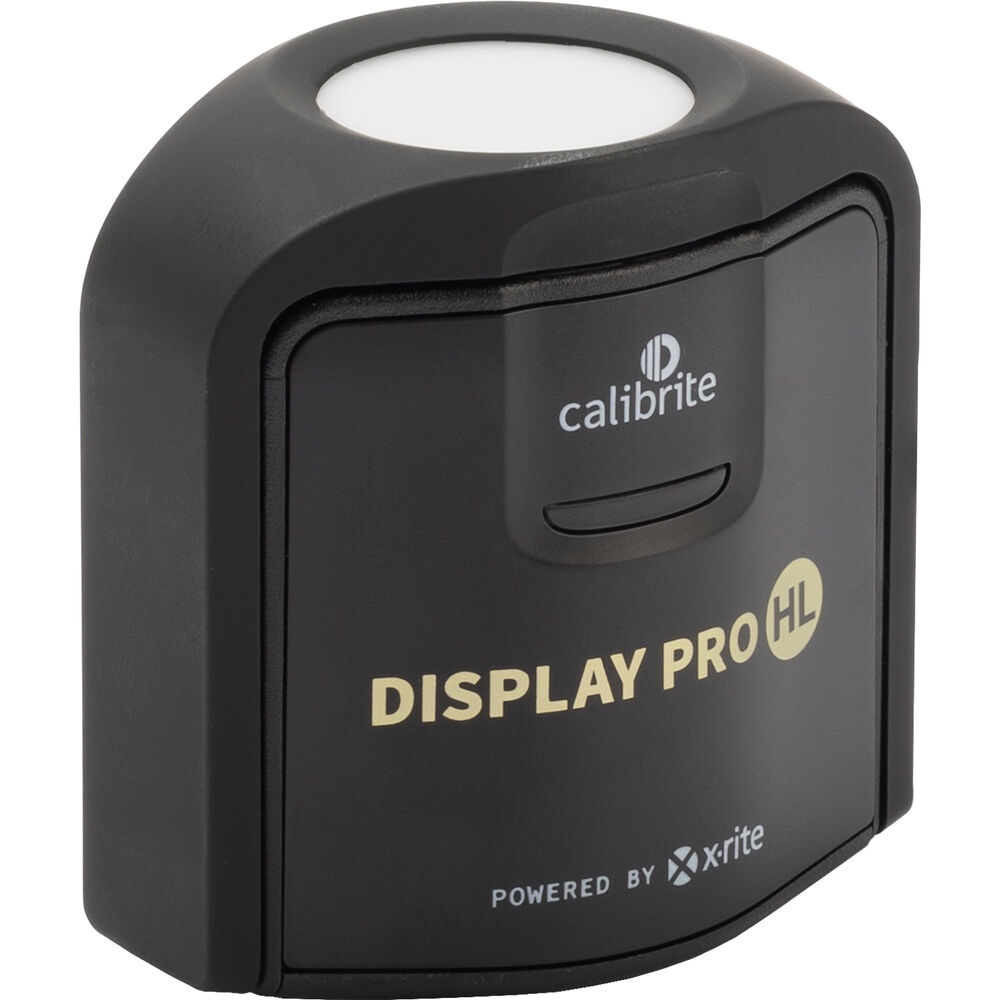
Everything else on this desk is comfort. This one is correctness. An uncalibrated display drifts over its life, and it drifts differently from every other display in the world, which means the print that comes back magenta and the client who says the skin tones look green are both telling you something true about your screen. The Calibrite Display Pro HL ends that argument, and it is the piece of gear here most photographers should have bought years ago.
The HL in the name is the reason to buy this generation rather than a used older unit. Calibrite's high-luminance sensor reads up to 3,000 nits, and the displays photographers now actually own, mini-LED and OLED panels and Apple's XDR screens, run far brighter than the colorimeters of a few years ago were built to measure. Point an older sensor at a 1,600-nit highlight and it clips. The Pro HL also connects over USB-C rather than USB-A, so it plugs straight into a modern laptop or dock, with a USB-A adapter in the box if you still need one.
The bundled PROFILER software is the part people underrate. It sets white point and gamma targets, but it also runs profile validation, which measures how close your freshly calibrated display actually got to its target, and a uniformity check that maps brightness and color across the panel. That second tool justifies the purchase on its own, because a display with a corner that is 8% dim will quietly bias every vignette decision you make.
Two caveats, neither confirmed in our own testing. The first is a tradeoff built into the HL sensor: stretching the ceiling to 3,000 nits costs sensitivity at the bottom, so the HL units read very dark patches less reliably than the older non-HL models did. If you calibrate an OLED to near-black in a dim room, that is the one place a previous-generation meter still has the edge. The second is the warranty, which is 12 months in the US. If you own a truly extreme display, step up to the Calibrite Display Plus HL, which reads to 10,000 nits. For a color-critical photo desk, check the current price of the Calibrite Display Pro HL at B&H. Also consider the Datacolor SpyderPro if you want a simpler, faster workflow and no uniformity mapping. Our monitors guide covers which displays are worth profiling in the first place.
What We Like
- Reads to 3,000 nits, so mini-LED and OLED panels are measured, not clipped
- Uniformity check maps brightness across nine zones of the panel
- Profile validation tells you how close the calibration actually landed
What Could Be Better
- Slightly less precise in very low light than the older non-HL sensors
- US warranty is only 12 months
- Overkill if you edit on a conventional 350-nit LCD
How to Choose a Photographer's Desk Setup
Build in the order things bite you. The chair and the monitor height come first, because they are the two decisions your body pays for daily. Set the top of your screen roughly at eye level and your forearms parallel to the floor, and if your current desk cannot do both at once, that is the desk telling you to replace it. Everything else on this page is an efficiency gain. Those two are a health decision.
Then buy bandwidth from the outside in. The dock is the chokepoint, and the specification that matters is not port count but how those ports are wired: dual USB controllers and a 10 Gigabit Ethernet port separate a dock that holds up during a heavy ingest from one that stutters. The card reader is next, and the rule is to match the interface to the cards you actually shoot. A 10 Gb/s reader tops out near 1.25 GB/s, which is more than a UHS-II SD card can use and less than the quickest CFexpress Type B cards can deliver, so the format in your camera decides whether the extra money for a USB 4.0 reader buys you anything.
The item everyone overrates is the keyboard. The one almost everyone underrates is the room light. A light bar with a high color rendering index costs less than a decent filter and does more for your color judgment than another 20% of screen brightness will, because it fixes the reference your eye adapts to. Pair it with a calibrator and you have a display you can trust in a room that does not sabotage it. Skip either and you have an expensive monitor showing you a confident lie.
Finally, plan for what plugs into what. A dock with 20 ports is useless if the desk has no grommet and the cables loop over the front edge, and a monitor arm rated to 25 lb is useless if your display weighs 28 lb. Measure your panel's weight, count the cables you actually run, and buy a top deep enough that the monitor sits at arm's length. Our computers for photo editing guide covers the machine that anchors all of it.
What We're Looking For
Our picks weigh how a product behaves under a real photographic workload rather than how it scores on a features list: whether a dock holds throughput with three devices hammering it, whether a light source renders color accurately enough to proof a print under, whether an arm still holds position in year five. Every specification was verified against the manufacturer's current spec sheet and a live retailer listing, and prices are current B&H figures, which will move. On testing, we are being straight with you: none of these nine products has come through Fstoppers for a hands-on review, and we say so in each entry. Where the text describes how something behaves, it comes from the published specification.
Frequently Asked Questions
Do I Really Need a Monitor Calibrator?
Yes, if you print, deliver to clients, or care that your edits look the same on someone else's screen. Displays drift measurably within months of leaving the factory, and no two panels drift the same way. A colorimeter takes five minutes to run and removes the largest source of unexplained color problems in a photography workflow.
Is Thunderbolt 5 Worth It Over Thunderbolt 4?
Only if your laptop supports it and you move large volumes of data. Thunderbolt 5 doubles the available bandwidth to 80 Gb/s bidirectional, which shows up when you run a 6K display, a fast external SSD, and a card reader through one cable at once. On a Thunderbolt 4 machine, a Thunderbolt 5 dock runs at Thunderbolt 4 speed, so buy for the computer you have.
What Color Temperature Should My Desk Lamp Be for Photo Editing?
Set your room lighting near the 6,500 K white point your monitor is calibrated to, which usually means the top setting on a light bar. Matching ambient light to the display's white point stops your eye adapting to a warm room and reading neutral tones on screen as cool. Color rendering matters as much as temperature; look for Ra of 95 or higher.
Should I Buy a Standing Desk or Just a Better Chair?
Buy the chair first. A properly adjusted chair fixes more problems than standing does, and most people who buy a standing desk end up sitting at it anyway. The real argument for a height-adjustable desk is fit: it sets the surface to the exact height where your forearms are level, which a fixed desk almost never does.
How Much Should a Photographer's Desk Setup Cost?
Prioritize rather than budgeting a total. If money is tight, a colorimeter and a monitor arm are the two cheapest purchases that change your work immediately, and a light bar is close behind. The dock and the desk are the expensive items, and the ones you replace least often, so they reward buying once at the level you will grow into.
Fstoppers may earn a commission from purchases made through links in this article. Our picks are made independently by our editorial team.