Blending texture into a photo can turn an ordinary image into something that feels handcrafted and imaginative, giving new life to the photos that never quite clicked, the ones sitting in your library that felt flat but had potential waiting just beneath the surface.
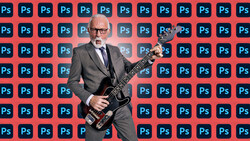
Coming to you from Matt Kloskowski, this engaging video walks through how to merge textures with your subject in Photoshop to create depth and mood. Kloskowski starts with a simple setup: two textures layered beneath the main subject photo. The process uses layers and masks to control how the subject blends with the background. The first major move is using Photoshop’s contextual taskbar to “Remove Background,” which automatically builds a mask. That saves time and sets the stage for clean, controlled edits. He then adjusts brush settings, keeping hardness at zero for a soft, feathered edge and managing the flow for gradual transitions. Using a pen tablet can help add subtle pressure control, though even a trackpad works fine.
As Kloskowski demonstrates, the creative part begins when you start bringing back original elements from the photo, like branches or ground details that help anchor the subject. The idea is to make the texture look integrated rather than pasted on. He shows how to use the Object Selection Tool to isolate parts of the image that make sense to keep visible: branches, surfaces, or other details. Then, by painting white on the mask, those areas reappear through the texture. This technique keeps compositions grounded, avoiding that awkward “floating subject” look.
Kloskowski then moves into the part that gives texture blending its signature feel. Using a low flow brush, he paints on the mask to gradually merge edges between the texture and the subject. This is the key to avoiding hard cutouts. Feathers, fur, or even metallic surfaces gain depth when gently worked into the layer beneath. He mentions using the “Overlay” blend mode to control how colors from the texture influence the photo, especially when layering complementary tones like blue and green. It’s not about precision but about play, watching how the edges dissolve and reappear until something clicks.
Once the blending looks natural, Kloskowski adds finishing touches using the Camera Raw Filter. Here he explores creative profiles such as “Modern 8,” “9,” or “10,” each giving a distinct matte or stylized finish. A touch of texture or clarity adjustments refines the look further. Then comes one of his favorite steps: duplicating the final layer, switching its blend mode to Multiply, and masking it to create a natural vignette. Instead of darkening edges artificially, this method deepens colors by using the photo’s own tones. It subtly guides the viewer’s attention toward the center without looking forced. Check out the video above for the full rundown from Kloskowski.


Join the Fstoppers community for free
-
Post comments and join in the discussions
-
Browse the site ad-free
-
Share your work and get featured in the community
-
Compete in the photo contests for fun and prizes
No comments yet