AI in Photoshop and Lightroom now comes with a meter running in the background, and it is easy to burn through credits without realizing which button did it. If you shoot and edit photos for clients or personal work, that uncertainty can change how you plan edits, what you try first, and what you avoid touching at all.
Coming to you from Aaron Nace with Phlearn, this practical video lays out a simple rule you can use to predict credit use before you click: if a tool creates brand-new pixels, expect credits, and if it only analyzes what is already there, expect none. That sounds clean until you hit real workflows, where you bounce between selection, masking, blur, cleanup, and generative tools in the same session. The video walks through the zero-credit side first, starting with AI-powered selections like Select Subject and Remove Background, then expanding to tools that can target specific people or parts of a person. It also points out that similar AI masking exists in Adobe Camera Raw and Lightroom, and it behaves the same way in terms of credits. If you have been avoiding these features because “AI equals credits,” this part alone can change how you start most edits.
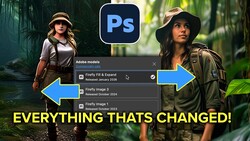
The second half gets more tactical, because it moves into the actions that actually drain your balance, and the costs are not always intuitive. Generative Expand is presented as a border-growth tool that feels harmless until you generate, then you get multiple variations and each one counts against your monthly pool. Generative Fill is shown in the common “remove something” use case, where leaving the prompt blank tells Photoshop to erase the selected object, but it still produces several options and you pay for each. The detail that matters is choice architecture: some tools default to three variations, while others can produce a single result, and the difference shows up in credits even when the edit goal is identical. That leads into a comparison that you should not skip if you do frequent cleanup, because it can save credits on every job while still keeping a high success rate.
A key segment focuses on the Remove tool, because it can behave like two different tools depending on a small setting. With generative AI turned off, it relies on classic content-aware approaches, which can be acceptable on simple textures but can also repeat patterns and soften detail in ways that look wrong at normal viewing sizes. Flip generative AI on, and the output improves, but the credit hit changes too, and the video highlights that it can be cheaper than Generative Fill for the same removal because it may generate only one result instead of three. You also get a workflow tip that is easy to adopt: start with the no-credit version, then escalate only if you see obvious artifacts, while keeping the result on a new layer so you can compare and mask. That single habit can reduce waste without turning you into someone who second-guesses every click.
Where the video gets tense is in the section on adding objects, because the cost-to-quality ratio can swing wildly. You see a real example of trying to add a rabbit, starting with Adobe’s own Firefly model, then moving to partner models, and the credit prices jump fast while the output still might not blend well. The video shows where Photoshop hides the per-generation credit cost for each model, so you can check before you commit, and you see why that matters when one model can be 10 credits for a single attempt and another can be 20 or 40. You also get a sober reminder that credits reset monthly and do not roll over, and that you cannot “undo” the spend even if the result is unusable. There is also a quick walkthrough of how to check your balance in your Adobe account, using a real starting number and a real end number from the session, which makes the tradeoffs feel less abstract. The most useful takeaway is not “never use premium models,” but knowing when you are gambling on an insert that may not match lighting, focus, and grain, even if the subject looks decent. Check out the video above for the full rundown from Nace.




Join the Fstoppers community for free
-
Post comments and join in the discussions
-
Browse the site ad-free
-
Share your work and get featured in the community
-
Compete in the photo contests for fun and prizes
6 Comments
This is absolutely insane. Headache shortly after the video started discussing Generative AI. Migraine by the 15 minute mark. Doesn't seem so long since the layers feature in Photoshop was introduced. Come to think of it, that may have been the last software update that really made a big difference in my photo editing and, gosh, that was 30 years ago. Different world we live in today, I suppose, but the concept of light and exposure in photography should be the same no matter whether we're talking 50 years ago, today, or 50 years in the future.
Yet while suffering through this video I'm realizing that photography means something new, more along the lines of computer graphics. I sincerely wish Adobe had moved forward with this technology under a new and different application and name - I admit there's a place for it - but left Photoshop as a basic photo editor. Makes a person feel very old to watch the foundations of photography crumble and dissolve into artificial intelligence.
It's much like Microsoft Office. That ceased needing anything new adding to it years ago but MS wanted to keep selling it so kept adding more and more useless bloat. Photoshop has gone the same way. Instead of creating a separate program for AI stuff they just want to add bloat to an already perfectly functional piece of software. Are people editing photos in Photoshop now or turning their photos into computer graphics?
Perhaps they could do a basic, perpetual licence version of Photoshop, with the essential features for photo editing, then offer the AI stuff as an optional extra. Those who wanted to use AI tools could choose to pay an additional subscription, while those of us who don’t use them could stick with a one time purchase of the basic version. A bit like what Canva have done. If I could have a perpetual licence of Photoshop while accepting that it’s only a basic version, I would vote for that.
It used to be called Photoshop Elements, but even that has apparently become bloated with AI features, and it's no longer a perpetual license. From what I see now, PSE is a three year license for a hundred bucks.
I suspect the chances of Adobe reverting to anything with a perpetual license are zero and none. They make a ton of money with the subscription licensing model, it serves the needs of businesses and professionals, and probably decided that those who remember the change in 2013 (and were mad as hell about it), will eventually die off or get too old to care... kind of like the Dodgers and Giants moving to Los Angeles.
Yep, that would be a fantastic option, but you know, shareholders...
Also... Windows and Mac software come with basic photo editing apps, which are free. So I'm guessing that factors into the decision by Adobe to not offer a cheap basic editor, and stick to the more advanced features which appeal to professionals.