AI dust removal just became a one-click step inside the Adobe apps you already use, and it changes how you handle every sky, studio backdrop, and clean wall. If you’ve ever exported a “finished” set and then spotted sensor grime in the exact same place across 30 files, you know how quickly that turns into a late-night repair session.
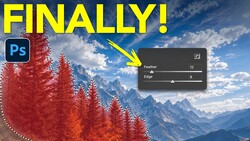
Coming to you from Aaron Nace with Phlearn, this practical video walks through the new Dust option inside the Distraction Removal tools, starting in Lightroom Classic. You see it run right from the Develop module using the Remove tool, where Dust sits alongside the other cleanup choices. One click applies an automatic pass, and the result is not just the obvious blobs you already knew about. It also catches faint spots that hide until you deliver a large print or a tight crop. You get a clear way to confirm what was affected, which matters when you’re trying to keep skin texture, gradients, or soft backgrounds intact.
The bigger win is how this scales across a set, and the video shows that without turning it into a complicated workflow lecture. In Lightroom Classic, you can sync just the dust removal setting across selected images, which is the real time-saver when the dust pattern repeats. The video also answers the question you’re already asking: yes, you can do it in Photoshop, and it happens through Adobe Camera Raw rather than a separate retouching routine.
In Photoshop 2026, the files open into Camera Raw 18, and Dust removal lives in the same Distraction Removal area, so you’re not hunting for a new command buried in menus. That consistency across Lightroom Classic, Lightroom desktop, and Camera Raw is the point, since you can move between apps without changing your habits. You also get flexibility depending on how you deliver: keep everything as a raw workflow, open into Photoshop when you need layers, or finish out with quick exports after cleanup. The video includes a few small checks that help you confirm the change before you commit it to a whole shoot, especially when the frame has smooth tones where mistakes show fastest. Check out the video above for the full rundown from Nace.




Join the Fstoppers community for free
-
Post comments and join in the discussions
-
Browse the site ad-free
-
Share your work and get featured in the community
-
Compete in the photo contests for fun and prizes
2 Comments
Does this work with stuck/hot pixels as well?
Having to upgrade my copy of Capture one for compatibility with my A7CII, the one click dust removal feature is a blessing.