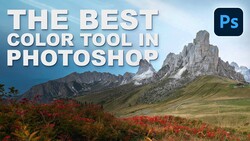
Photoshop 2026 added a Clarity and Dehaze adjustment layer, and if you shoot landscapes or anything with atmospheric haze, it's worth knowing how to use it properly. The catch is that throwing dehaze on an entire image can look heavy-handed, so selecting only the hazy area before applying it makes a real difference.
Coming to you from Aaron Nace of PHLEARN, this practical video walks through exactly how to pull off a targeted dehaze edit in Photoshop. Nace starts with a tropical landscape where the mountain background sits behind noticeable haze, and the first problem he tackles isn't the dehaze slider itself but the selection. The Object Selection tool has a built-in hover mode that lights up individual elements in a scene as you move over them, including background objects like mountains that no preset selection command covers. Hover over the mountain, click, and Photoshop builds a clean selection of just that area.
Once you have that selection, you create the new Clarity and Dehaze adjustment layer, and Photoshop automatically loads your selection into the layer mask. That means the effect is constrained to the mountain from the start, without any manual masking work afterward. Nace shows what dragging the Dehaze slider to the right actually does to the background, and the difference between a hazy background and the result is significant enough that it reads as a different weather condition entirely. He also points out that dragging the slider left adds haze, which is useful if you're going for a more atmospheric look intentionally.
There's also a layer mask trick in the video that's easy to miss but saves real time. After applying Clarity and Dehaze to the mountain, Nace adds a Color and Vibrance adjustment layer to push saturation in the same area. Since the new layer starts with a white mask covering the full image, he shows how to copy the mountain mask from the first adjustment layer directly onto the second one by holding Alt (Windows) or Option (Mac) and dragging the mask thumbnail. This works across any mask type in Photoshop, not just adjustment layers. Nace also makes a case for using Vibrance over Saturation when boosting color, since Vibrance tends to protect already-saturated tones and produces a more natural result. The before-and-after at the end of the video shows how much the combination of all three adjustments changes the image.
Check out the video above for the full walkthrough from Nace, including the live slider adjustments and exactly how the final before-and-after stacks up.




Join the Fstoppers community for free
-
Post comments and join in the discussions
-
Browse the site ad-free
-
Share your work and get featured in the community
-
Compete in the photo contests for fun and prizes
No comments yet