A two-photographer wedding team comes home with 4,000 frames and delivers 700. The shooting took eight hours. The sorting, the color, the skin, the stray hairs, and the exit-sign glare on someone's glasses take three days, and nobody pays extra for any of it. That gap between what a photographer is paid for and what a photographer actually does is why this software category exists, and in 2026 it has stopped being an experiment. The good tools now cull faster than you can hold down an arrow key and clean skin better than most people can by hand at speed.
Three questions decide which one you buy, and none of them is "which AI is smartest." The first is what you want automated: picking the keepers, applying your look, or the pixel-level cleanup on faces. Those are three different jobs and almost nobody does all three equally well. The second is where your files go. Some of these tools never send a byte off your machine. Others upload your clients' faces to a server in Oregon. The third is how you pay, because this category has split into perpetual licenses, flat subscriptions, and per-image credits, and the cheapest headline price is often the most expensive way to work.
Every pick below states whether it processes locally or in the cloud, what it actually charges you for, and where it stops being useful. If you are shopping for the editor these plug into, our photo editing software guide covers that decision, and the Adobe alternatives guide covers the subscription-free route out. The ethics here are also unsettled, and EU disclosure rules land in August 2026, so a section near the end deals with both.
At a Glance
- Best Overall AI Retoucher: Evoto
- Best Culling Tool: Aftershoot
- Best Skin Retouching: Retouch4me
- Best Masking and Selection: Adobe Photoshop
- Best Assisted Culling: Narrative Select
- Best for Weddings and High Volume: Imagen
- Best Budget: Luminar Neo
- Best for Noise, Detail, and Upscaling: Topaz Photo
Best Overall AI Retoucher: Evoto
- Type: standalone AI portrait retoucher and batch editor
- Runs on: macOS, Windows, iPad, plus browser and mobile companions
- Where it processes: cloud, images uploaded and deleted after processing
- Works with: raw and JPEG files, tethered capture, export to your own folders
- Free trial: yes, free credits on signup
- Price: See vendor pricing
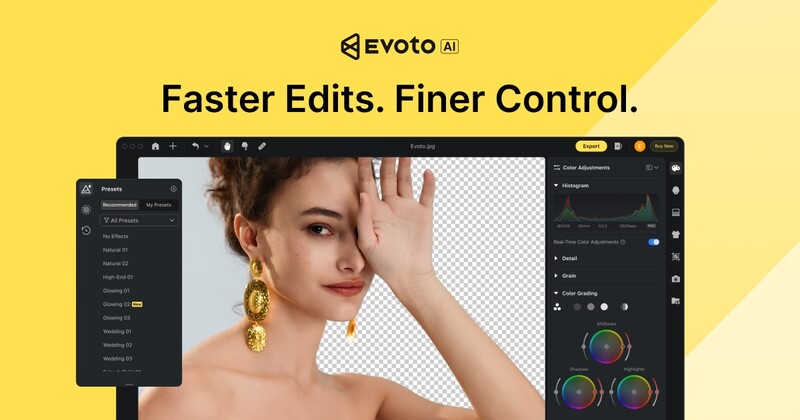
Evoto wins this slot because it is the only tool here that takes a folder of unedited portraits and hands back finished images without asking you to open Photoshop once. Skin, teeth, eyes, flyaway hair, background cleanup, body reshaping, relighting, and color all sit behind sliders in one window, and once you have dialed a look you can push it across an entire shoot. Its batch pipeline pushes a finished look across an entire shoot in one pass, fast enough to send a session of 100-plus headshots out the door in an afternoon.
When we tested Evoto against Retouch4me in 2024, our reviewer judged its results a bit better but kept it for problem images, because the credits add up fast across a whole wedding. The pricing model is unusual: you edit for free and pay on export, one credit per image. For a photographer with lumpy seasonal volume that is fair. For anyone who re-exports the same job three times because the client changed their mind, it is a tax. Evoto's own documentation also says most features require uploading your images to its servers, with files deleted after processing, and its stated server location is Oregon. That is a sentence to read twice if you photograph minors or anyone under an NDA.
Quality is the other honest limit. At default strength the skin work is heavy, and left where the sliders land it produces the plastic look that gives AI retouching its bad name. Pull them back to roughly half and results hold up in print, though high-end beauty work still wants a human on frequency separation. For the photographer whose problem is 400 faces and a Tuesday deadline, none of that outweighs what it saves, so check the current price of Evoto at its own store. Also consider Aftershoot if uploading client faces is a dealbreaker.
What We Like
- The fastest path from unedited portraits to delivered files
- Batch application of a finished look across a whole shoot
- Edit for free, pay only on export
- Deep toolset: skin, hair, teeth, background, relight, reshape
What Could Be Better
- Cloud processing means client images leave your machine
- Credits are spent on every export, including re-exports
- Default retouching strength is far too aggressive
- The skin tools cannot be masked away from an area you want left alone
Best Culling Tool: Aftershoot
- Type: AI culling, editing, and retouching platform with client galleries
- Runs on: macOS and Windows desktop
- Where it processes: locally, no upload required
- Works with: Lightroom Classic and Capture One handoff, plus its own raw editor
- Free trial: yes, 30 days with no credit card
- Price: See vendor pricing
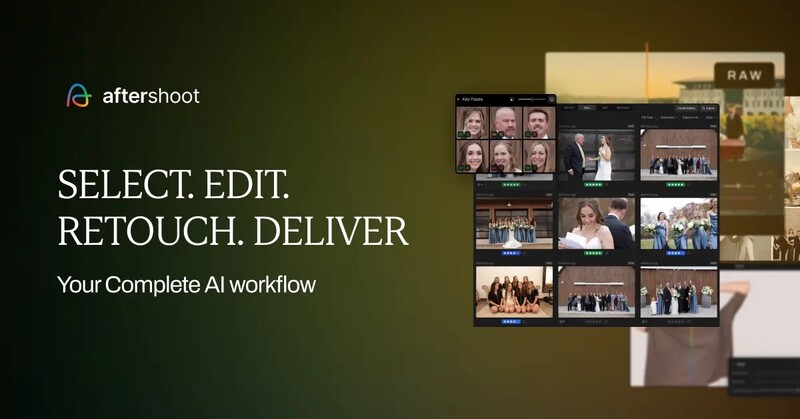
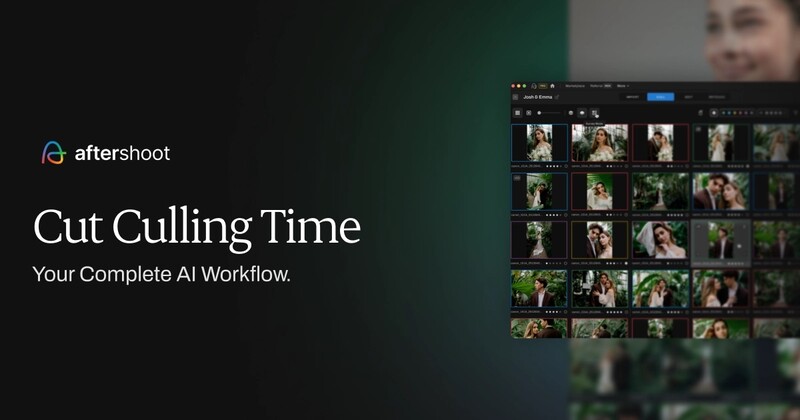
Culling is the job photographers hate most and the one AI is genuinely best at, because deciding whether an eye is open and in focus is exactly the narrow, repeatable judgment a model can make. Aftershoot does it better than anything else on the market, and it does it on your own hardware. Point it at a wedding, walk away, and it returns having discarded the blinks, the misfocused frames, and the duplicates where you fired six times at the same first kiss, with a rating structure Lightroom Classic reads straight out of the box.
In June 2026 the company shipped Aftershoot Complete, turning a culling app into a pipeline: Select for culling, Edit for applying an AI profile trained on your past edits or existing Lightroom presets, Retouch for one-click skin cleanup and flyaway hair removal, and Aftershoot Galleries for client delivery. Select is mature. Retouch and Galleries are new, and new modules earn trust over a season rather than a launch week.
What makes it the pick is verifiable from the vendor's own documentation: the AI runs locally, without an internet connection, and your raw files never leave your drive. For anyone under an NDA, photographing children, or operating under GDPR, that settles the argument against every cloud rival here. Pricing is flat rather than per image, so a 6,000-frame wedding costs the same to cull as a 600-frame portrait session. The costs are real, though. Your cull is only as fast as your machine, and an older laptop with a weak GPU will grind, which our laptops guide can help with. The AI is also confidently wrong often enough that you should review its rejects on a job that matters. It cannot tell that the slightly soft frame is the one where the father of the bride finally cried. Check the current price of Aftershoot at its own store, and use the trial on a real job first.
What We Like
- Fully local processing, so client files never leave your machine
- Best-in-class duplicate, blink, and focus detection
- Flat pricing regardless of how many frames you shoot
- Clean handoff to Lightroom Classic and Capture One
What Could Be Better
- Cull speed is bound to your computer's GPU
- Retouch and Galleries modules are new and unproven
- It cannot recognize the emotionally important frame
- The full bundle is one of the pricier subscriptions here
Best Skin Retouching: Retouch4me
- Type: suite of single-purpose AI retouching plugins
- Runs on: macOS and Windows
- Where it processes: locally by default, with an optional cloud mode
- Works with: Adobe Photoshop, via individual plugins and a control panel
- Free trial: yes, plus two permanently free plugins
- Price: See vendor pricing
Everything else in this guide smooths skin. Retouch4me repairs it, and that difference is the whole argument for buying it. The Heal plugin finds blemishes, post-acne marks, and enlarged pores and removes them while leaving the pore structure and fine lines that make a face look like a face. Dodge and Burn does the tonal evening-out a high-end retoucher would spend 40 minutes on with a soft brush at 3% flow. That is not a filter laid over an image, and it survives being printed large.
The suite is modular, a long list of photo plugins that each do one job, among them Heal, Skin Tone, Skin Mask, Portrait Volumes, White Teeth, Stray Hairs, Mattifier, Fabric, Dust, and Clean Backdrop, with a separate set for video. Buy the ones you need or subscribe to the lot. Two are free forever, Frequency Separation and Color Match Free, an unusually honest way to let people evaluate the engine before spending anything. In 2026 the company added Apex, a cloud plugin that puts most of the tools behind one real-time preview, to go with Arams, its standalone culling and batch-processing app.
The plugins run on your own hardware, the second reason retouchers under NDA gravitate to them, and that demands something of your machine: the stated requirement is a GPU with 4 GB of memory or an Intel CPU with OpenCL 1.1 support on Windows, and a 2015-or-newer Mac. On a thin laptop, Heal on a 50 MP file is a coffee break. Apex moves the work to the cloud, which is faster and undoes the privacy advantage. The real weakness is that this is a set of scalpels, not a workflow. Retouch4me will not cull, will not color your wedding, and will not deliver anything to a client, and its a la carte pricing gets expensive once you need six plugins. If your reputation rests on skin that still looks like skin, check the current price of Retouch4me at its own store and start with the free plugins. Fstoppers' Skin Retouching Course for Beauty, Fashion, and Portrait Photography teaches the manual version of what these plugins automate.
When we put Heal, Dodge and Burn, and the fabric plugin through a fashion and e-commerce workload, the restraint was the surprise: the engine holds itself back slightly rather than overdoing the effect, and it will batch a large catalog overnight. Our reviewer also found the edges where it misbehaves. Lace loses definition and its pattern can distort, tattoos get partially erased, freckles are wiped out almost entirely when you almost always want them kept, and black-and-white files come back oversmoothed, which is why he converts to color, retouches, and applies the black-and-white treatment afterward. His verdict was that the quirks were worth living with.
Read our full review: Is Retouching As We Know It Over? Retouch4Me Tested
What We Like
- Preserves real skin texture instead of blurring it away
- Dodge and Burn output holds up against manual work
- Runs locally, so files stay on your machine
- Two genuinely free plugins let you test the engine first
What Could Be Better
- A la carte pricing adds up quickly across several plugins
- Needs a capable GPU or you will wait
- No culling, cataloging, or delivery: it is a Photoshop add-on
- The new cloud tools give back the privacy advantage
- Removes freckles, softens lace, and can eat into a tattoo
Best Masking and Selection: Adobe Photoshop
- Type: full pixel editor with AI selection, removal, and generative tools
- Runs on: macOS, Windows, iPad, and web
- Where it processes: mixed, local for masks, cloud for generative tools
- Works with: everything, including most plugins in this guide
- Free trial: yes, 7 days
- Price: See vendor pricing
Ask any of the automated tools above to fix the skin on the bride but not the flower girl and they will shrug. That is a selection problem, and Adobe Photoshop still solves selection problems better than anything else, by a margin that has widened since the AI wave began. Select Subject and Remove Background now hold onto hair, fur, and thin branches, the three things that used to force a manual pen-tool session. The Remove tool erases a bystander and rebuilds what was behind them. Both produce an editable layer mask you can refine, feather, and undo, which is what every one-click competitor gives up.
The 2026 release pushed further into compositing. Harmonize takes an element you have dropped into a frame and matches its lighting, color temperature, and shadow direction to the scene, the part of a composite that separates convincing work from obvious work. Generative Fill now accepts a reference image, so the model matches a specific object rather than inventing a plausible one, and Photoshop is no longer locked to one engine: you can run Adobe's Firefly or choose third-party models.
The cost model is the problem. Photoshop is subscription-only, and its generative features are metered in credits. The standalone Photoshop plan carries a small monthly credit allowance, while the photography plan that bundles Lightroom and cloud storage carries a far larger one for less money per month, which is strange pricing and the reason most photographers should ignore the standalone tier. Photoshop is also the slowest way to retouch in volume, a scalpel with no batch instinct, which is why the rest of this guide exists and why most working portrait photographers now use it on the last 5% of images rather than the first 95%. What no rival matches is control, so check the current price of Adobe Photoshop at Adobe and take the photography plan.
What We Like
- The best AI selections and masks in the business, especially on hair
- Harmonize makes composites look like they belong
- Every result is an editable layer, not a baked-in change
- Writes Content Credentials automatically when AI tools are used
What Could Be Better
- Subscription-only with no perpetual option
- Generative features are metered by credit
- The standalone Photoshop plan is worse value than the photography plan
- Painfully slow for high-volume retouching
Best Assisted Culling: Narrative Select
- Type: AI-assisted culling with an optional editing module
- Runs on: macOS and Windows desktop
- Where it processes: locally for culling
- Works with: Lightroom Classic handoff on macOS and Windows; Lightroom, Photoshop, and Capture One handoff on macOS
- Free trial: yes, a full-feature trial of the top tier, no credit card
- Price: See vendor pricing
Some photographers will never let software decide which of their photographs a client sees, and that instinct is defensible. Narrative Select is built for that person. Rather than returning a finished selection, it does the tedious inspection work and puts the answer in front of you: it zooms automatically to the nearest face, tells you whether the eyes are open and sharp, flags near-duplicates, and lets you fly through a shoot at a speed Lightroom cannot match on the same hardware. You still press the key. The machine spares you from pixel-peeping 3,000 times before you press it.
That Close-Up view is the feature people stay for, because checking focus on an eye at 100% is the slowest step of a manual cull and Narrative reduces it to a glance. Fatigue, not judgment, is what degrades a long event cull, and this is the tool that attacks fatigue. Selections ship into Lightroom Classic on either platform, and into Lightroom, Photoshop, or Capture One on a Mac, with ratings and color labels intact. Culling and image assessment run on your own GPU, so the files stay on your drive. Narrative has also grown an editing side, with AI presets trained on your own work and a marketplace of profiles from other photographers. Pricing is four subscription tiers, Lite through Ultra, and the way in is a no-credit-card trial of the top tier with unlimited images and projects, which makes this the least risky tool here to evaluate.
The case for it rests on the published feature set and an inspection interface engineered for speed, the fastest cull cockpit of its kind. The tradeoff is that you are still culling. Where Aftershoot hands back keepers from a folder you never opened, Narrative hands you a much better cockpit and expects you to fly it, and on a 6,000-frame wedding that is measurably more of your evening. The editing module is the weaker half of the product, and anyone who wants a serious AI edit is better served by Imagen. If you want the speed without surrendering the decision, check the current price of Narrative Select at its own store, and run the trial before you pick a tier.
What We Like
- Fastest manual culling interface available, by a wide margin
- Close-Up view kills the slowest part of a cull
- You keep every selection decision
- Culling runs on your own machine, so files stay put
- The trial opens the top tier with no credit card
What Could Be Better
- Still slower than fully automated culling on huge shoots
- The editing module trails dedicated AI editors
- Tier structure gates features behind higher plans
- Subscription-only, with no permanent free plan once the trial ends
Best for Weddings and High Volume: Imagen
- Type: AI editing and culling service trained on your own catalog
- Runs on: macOS and Windows desktop app
- Where it processes: cloud
- Works with: Lightroom Classic catalogs, with XMP sidecars for other editors
- Free trial: yes, a block of free edits, no credit card
- Price: See vendor pricing
The pitch for Imagen is not that it edits well. It is that it edits like you. Feed it a Lightroom Classic catalog of your finished work and it builds a Personal AI Profile that reproduces your exposure, white balance, tone, and color decisions on new images, then applies them across a whole wedding at a per-photo price. The output lands back in Lightroom as adjustments you can override frame by frame, so a bad call on a backlit ceremony shot is one slider away from fixed rather than baked into a JPEG.
The catch nobody advertises is the training requirement. Imagen sets the floor for a Personal AI Profile at 2,000 previously edited photos and recommends 3,000 or more, and it wants them consistent. A photographer three years into their career whose style changed twice will get a profile that averages those styles into mush. Without that history, Imagen offers Talent AI Profiles built by established photographers, which work well and cost the same, at the price of your images looking like someone else's.
Culling runs in the cloud rather than on your CPU, the mirror image of Aftershoot's bargain: you do not need a fast computer, but you do need to upload the wedding, which is a lot of data on a slow connection and a real question for your client contract. On the pay-as-you-go plan the optional AI tools, subject masking, cropping, straightening, and skin smoothing among them, are priced per photo on top of the base rate, and the effective cost climbs substantially with all of them on. Volume shooters can escape that arithmetic on an annual or unlimited plan, which is the version of Imagen worth pricing if you shoot every weekend. The entry rests on Imagen's published mechanics and its documented profile-training workflow. For a wedding photographer who already edits in Lightroom Classic and wants to give back a two-day post-production block, nothing else here is aimed as precisely at that person, so check the current price of Imagen at its own store.
What We Like
- Reproduces your own editing style, not a generic preset
- Edits come back as adjustable Lightroom settings
- Culling runs in the cloud, so a slow computer is no bottleneck
- Talent profiles are a real option if you lack an edit history
What Could Be Better
- Needs a big, consistent catalog of past edits to work well
- Add-on AI tools are priced per photo and stack up fast
- Cloud-only, so client images are uploaded
- Uploading a full wedding punishes a slow connection
Best Budget: Luminar Neo

- Type: full AI photo editor, sold with a perpetual license option
- Runs on: macOS and Windows, plus mobile on the cross-device license
- Where it processes: locally, except the generative tools
- Works with: standalone, or as a plugin for Photoshop and Lightroom Classic
- Free trial: yes, 7 days, plus a 30-day money-back guarantee
- Price: See vendor pricing
Nearly everything in this category now bills you monthly, forever. Luminar Neo is the significant exception, and that alone earns it a place. Skylum still sells a perpetual desktop license, with a cross-device tier that adds mobile apps and a Max tier that adds presets, skies, and LUTs. Buy it once and the AI tools keep working whether or not you ever pay Skylum again, a proposition nobody else here will make.
The toolset is broad rather than deep. Portrait tools handle skin, eyes, and face structure. Structure AI and Enhance AI do the local-contrast and tonal lifting that would otherwise take a stack of masks. Sky replacement is the feature it is famous for, and the relight and atmosphere tools are why landscape photographers keep it around even when they edit elsewhere. It works standalone or as a plugin, so you can drop it into an existing Lightroom Classic workflow, and it runs on macOS 12 or later and Windows 10 or later, with mobile apps on the cross-device tier.
Read the license terms before you celebrate. The perpetual license includes the generative tools, GenErase, GenExpand, and GenSwap, for one year from purchase, after which those specific features require a renewal. Everything else keeps running. That is a defensible split, since generative tools cost Skylum money on every use, but it is not what most buyers hear in the word "lifetime." The other limit is that this is not a professional volume tool. There is no real culling, batch processing is basic next to Evoto or Imagen, and its skin retouching smooths rather than performing the texture-preserving repair Retouch4me does. Hobbyists and part-time shooters who want a capable AI editor for the price of two months of a rival's subscription will not, so check the current price of Luminar Neo at Skylum, and buy during one of the frequent sales rather than at list.
Our reviewer, a landscape photographer who came to it from Lightroom, found the AI tools genuinely useful rather than decorative, singling out Composition AI for crop suggestions, Enhance AI and Sky Enhancer for clarity that does not tip into oversaturation, and Noiseless AI and Supersharp AI for cleanup. He went looking for something to dislike, could not find much beyond ghosting artifacts when Structure AI is pushed hard, and ended up calling it a welcome addition to his toolkit.
Read our full review: We Review Luminar Neo: Is It Worth Your Investment?
What We Like
- A real perpetual license in a subscription-only category
- Broad AI toolset covering portraits, landscapes, and skies
- Works standalone or as a Lightroom Classic and Photoshop plugin
- Processing is local except for the generative features
What Could Be Better
- Generative tools stop after one year unless you renew
- Skin retouching smooths rather than repairs texture
- No culling and only basic batch processing
- List pricing is a poor deal given how often it goes on sale
Best for Noise, Detail, and Upscaling: Topaz Photo

- Type: AI image repair, denoise, sharpen, and upscale
- Runs on: macOS and Windows
- Where it processes: locally, with optional cloud rendering
- Works with: Lightroom Classic, Photoshop, Capture One, Apple Photos, Affinity Photo
- Free trial: no, Topaz offers a 7-day money-back guarantee instead
- Price: See vendor pricing
Retouching a portrait is pointless if the file underneath it is a mess, and that is the gap Topaz Photo fills. It is what photographers reach for when a reception frame was made at ISO 12,800, when a client wants a 40-inch print from a 24 MP crop, or when a once-in-a-lifetime shot is slightly out of focus and there is no reshoot. Its denoise models remain the reference in this space, its upscaling invents plausible detail rather than interpolating mush, and Recover Faces salvages small faces in group shots.
Note the name. The product is now called Topaz Photo, not Topaz Photo AI, and the current version bundles models for raw denoise, denoise, sharpen, upscale, Recover Faces, Super Focus, Remove, Preserve Text, and dust and scratch removal for scanned film. It renders locally, so nothing is uploaded unless you choose the cloud option, which both plans include. Topaz then made itself unpopular in late 2025 by ending perpetual licenses across its lineup, taking new perpetual sales off the table that October. Existing owners keep the version they bought, frozen at the models they had. New buyers subscribe, and the annual price for the photo app alone is meaningful money for a tool most people use on a handful of images per shoot. Note also that Topaz no longer offers a working demo of the current app. You either buy it and lean on the 7-day refund window or download the last of the old Photo AI builds to get a feel for the engine, and neither is the same as a real trial.
The results demand a skeptical eye. Every one of these models is inventing information that was not in the original file, and at high strength that shows up as waxy skin, hallucinated eyelashes, and text that turns into gibberish. Recover Faces in particular can produce a face that is sharp, clean, and subtly not the person you photographed, which matters enormously in documentary work and not at all in a family portrait. Use it at half the strength you think you need. For the salvage jobs nothing else can touch, check the current price of Topaz Photo at Topaz Labs. Photoshop's Generative Upscale covers some of the same ground if you already subscribe to Adobe, which completed its purchase of Topaz Labs on September 23, 2026. Adobe says the Topaz apps will stay on sale as standalone products.
What We Like
- The best denoise models available, especially on raw files
- Upscaling that holds up in large prints
- Recovers faces and detail that were previously unrecoverable
- Runs locally and plugs into every major editor
What Could Be Better
- Perpetual licenses were discontinued in favor of subscriptions
- No free trial of the current app, only a 7-day refund window
- Expensive for a tool used on a minority of images
- High settings hallucinate detail that was never there
- Recover Faces can subtly change who a person looks like
The Consent Question Nobody Wants to Answer
Two things here deserve more scrutiny than the marketing gives them, and neither is a reason to avoid the software.
The first is disclosure. Article 50 of the EU AI Act, the transparency provision, applies from August 2, 2026, and it reaches image manipulation, not only image generation. The line it draws runs between conventional retouching and generative editing: exposure, cropping, color grading, and non-generative cleanup fall outside it, while adding, removing, or replacing meaningful content with a generative model does not. If you serve EU clients, the erase-that-tourist button and the sky replacement now carry a labeling obligation, and machine-readable provenance through C2PA Content Credentials is the mechanism regulators expect. The one piece with slack in it is the vendors' side: under the compromise agreed in 2026, the machine-readable marking duty that falls on AI systems already on the market before August 2 pushes back to December 2, 2026. The disclosure duty on you, the person delivering the manipulated image, does not. Adobe writes Content Credentials automatically when its AI features run. Most of the tools here do not.
The second is consent, and it is the one photographers get wrong. Every tool in this guide will slim a jaw, shrink a waist, or lift a brow, several of them with a slider that is on by default in a preset. A subject who sat for a headshot did not agree to be reshaped, and a bride who sees a version of herself she does not recognize will remember that longer than your color grade. Leave the reshaping tools off unless a client asks. The same applies to uploading, because a cloud retoucher moves your client's face onto someone else's server, which your contract should have said out loud if you shoot minors, medical work, or anything under NDA. The local tools here exist partly because that conversation is easier when the files never left your desk.
How to Choose an AI Retouching or Culling Tool
Start by naming the bottleneck, because these tools overlap less than their marketing suggests. If the pain is the four hours spent deciding which frames to keep, buy a culler. If the pain is that every wedding takes two days to color, buy a style-learning editor. If the pain is 90 minutes per face on a beauty job, buy a retoucher. Photographers waste more money here by buying an all-in-one platform for a single-point problem than by buying the wrong brand.
Next, decide where you stand on processing location, the axis with the fewest workarounds. Local tools keep client files on your drive at the cost of leaning on your GPU. Cloud tools free you from hardware but require you to upload someone else's face, which is a business decision more than a technical one, and it belongs in your client agreement.
Then look hard at the pricing model rather than the sticker. Per-image credits look cheap and behave expensively the moment a client asks for a re-export or you switch on optional AI tools that bill separately. Flat subscriptions look expensive and behave cheaply the moment you shoot a 6,000-frame wedding. Perpetual licenses look like a bargain until the generative features expire a year in. Run the math on your actual annual volume, then use the trial on a real job rather than on a folder of your best frames.
One spec matters more than people think, and it is not model quality. It is the handoff. A culler that ships ratings cleanly into Lightroom Classic or Capture One saves more of your evening than a culler with a 2% better hit rate, and an editor that returns adjustable sliders rather than flattened JPEGs is the difference between a tool you can correct and a tool you have to fight. One spec matters less: the number of AI features on the box.
What We're Looking For
We weighed how well each tool does the one job it is built for, what it costs across a realistic year of work rather than at its headline rate, whether client files stay on your machine, and how cleanly the results hand off to the editor you already use. Every price, plan structure, feature list, and system requirement in this guide was verified against the vendor's current pages at the time of writing, and where a vendor's marketing and its own support documentation disagreed, the support documentation won. Most picks in our buying guides come from gear and software our writers have used and reviewed hands-on, and where an entry is written from published specs and documented design rather than from our own testing, we say so in the entry. One disclosure matters more than the rest here: Fstoppers' 2025 Evoto article was sponsored, which is why that pick was corroborated independently and why the sponsored material carries no weight in it.
Frequently Asked Questions
Is AI Culling Accurate Enough to Trust on a Paid Job?
Yes for technical rejects, no for emotional keepers. Modern cullers reliably catch blinks, missed focus, and duplicates, and they clear the obvious junk from a wedding faster than you can. They cannot tell that the slightly soft frame is the one where the groom's father started crying. Review the rejects on any job that matters.
Do I Have to Tell Clients I Used AI Retouching?
Increasingly yes, if the edit was generative. Article 50 of the EU AI Act applies from August 2, 2026 and treats adding, removing, or replacing meaningful content with a generative model as something that must be disclosed and marked, typically through C2PA Content Credentials. Conventional retouching, color, and exposure work fall outside it.
Which AI Retoucher Preserves Skin Texture Best?
Retouch4me, and it is not close. Its Heal and Dodge and Burn plugins repair skin while leaving pore structure intact, which is why beauty and fashion retouchers use it. Evoto is faster for volume, but its defaults smooth aggressively, and you have to pull them back to keep a face looking real.
Can AI Replace a Professional Retoucher?
Not for high-end work. AI handles the repetitive 80%, the blemishes, the stray hairs, the tonal evening-out, at a speed no human matches. The remaining 20%, the judgment about which imperfections define a face and which distract from it, is still a person's job. A retoucher who ignores these tools now competes on price with one who uses them.
Is Photoshop Still Necessary in 2026?
For most working photographers, yes, but for less of the day. The dedicated tools in this guide have taken over culling, batch color, and routine skin work, which is where the hours used to go. Photoshop remains the only place to do precise masking, compositing, and the fix a batch tool cannot express, and it hosts most of these plugins.
Fstoppers may earn a commission from purchases made through links in this article. Our picks are made independently by our editorial team.