If you've never opened Photoshop before, the interface can feel like a wall of buttons with no clear entry point. Knowing where to start, what to ignore, and how the core pieces fit together makes the difference between actually learning the software and giving up in the first ten minutes.
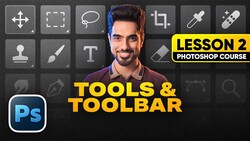
Coming to you from Ummesh Dinda with PiXimperfect, this thorough beginner's guide walks you through Photoshop from the ground up, starting with what a pixel actually is and building to real, practical skills. The video opens with a clear breakdown of the workspace: every Photoshop session lives inside one of three components, the canvas, the tools, and the panels. Dinda uses the mnemonic "cake tastes perfect" to make that stick. He also shows you how to set up a clean, minimal workspace you can save and reset at any time, which is genuinely useful because Photoshop's default layout is cluttered with panels most beginners will never touch.
From there, the video covers what Dinda calls the OCS of any software: how to open a file, create a file, and save a file. The saving section alone is worth your time. He explains the difference between Save, Save As, and Export, and why it matters which one you reach for depending on whether your document has layers and where you plan to use the final image. For example, if you try to save a layered file as a JPEG, Photoshop will stop you because JPEG doesn't support layers. Understanding that one detail prevents a lot of confusion early on.
The video also covers the three main bars: the options bar, the status bar, and the menu bar. The options bar is particularly important to understand because it changes based on whichever tool you have active. Select the brush tool and you get brush settings. Select the text tool and you get font controls. That single concept reframes how the entire interface works and makes it feel far less random. Dinda also spends time on navigation shortcuts, including how to zoom and pan efficiently using the spacebar combined with the Command or Control key, and the H key trick for jumping across a zoomed-in image instantly. He also recommends turning off flick panning in Photoshop's preferences, a small setting that causes the canvas to keep drifting after you stop moving, which gets disorienting fast.
Check out the video above for the full rundown from Dinda, including a hands-on walkthrough of the contextual taskbar and a practical retouching exercise that puts all these tools to work together.




Join the Fstoppers community for free
-
Post comments and join in the discussions
-
Browse the site ad-free
-
Share your work and get featured in the community
-
Compete in the photo contests for fun and prizes