
Pen tablets are probably the only precision tools shared by photographers and illustrators, and they play a key role in the creative process. However, they could never really be that functional without a keyboard or mini keyboard on the side. This aims to change that.
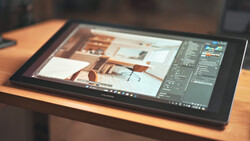
Pen tablets come in all shapes and sizes. Some have screens, but many photographers still prefer using a blank surface while looking straight at a monitor, mainly because pen displays require specific viewing angles. Some have screens, some have a couple of buttons, but most have always needed the help of a keyboard or shortcut remote for an efficient and ergonomic workflow. The Huion Inspiroy 2, however, aims to change that by giving you everything within reach.
The Huion Inspiroy 2
The Inspiroy 2 comes in three different size variants that all aim to provide three times the functionality despite the relatively similar form and size to its predecessor. The smallest version, the Inspiroy 2 S is a 246 x 152 x 9.5 mm slate with an active area of 160 x 100 mm and weighs just 257 grams. The Inspiroy 2 M comes in at 306 x 180 x 9.5 mm with a 221 x 138 mm active area that weighs 420 grams. While the biggest one, the Inspiroy 2 L, comes in at 352.5 x 208.7 x 9.5 mm with a 266.7 x 166.7 mm active area and weighs 600 grams.
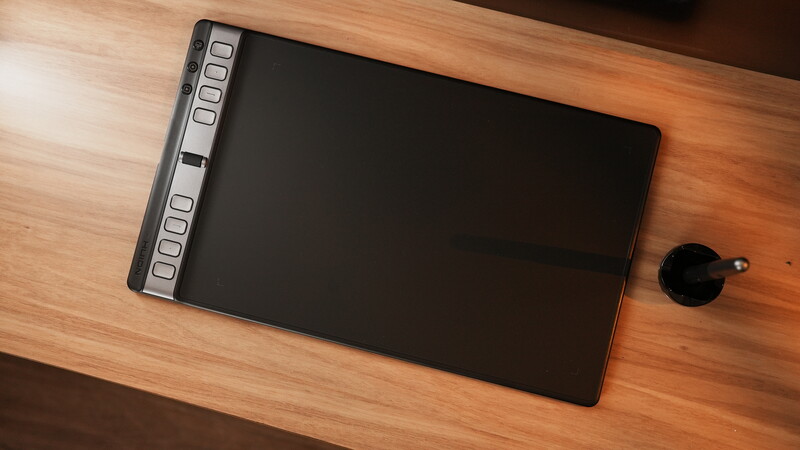
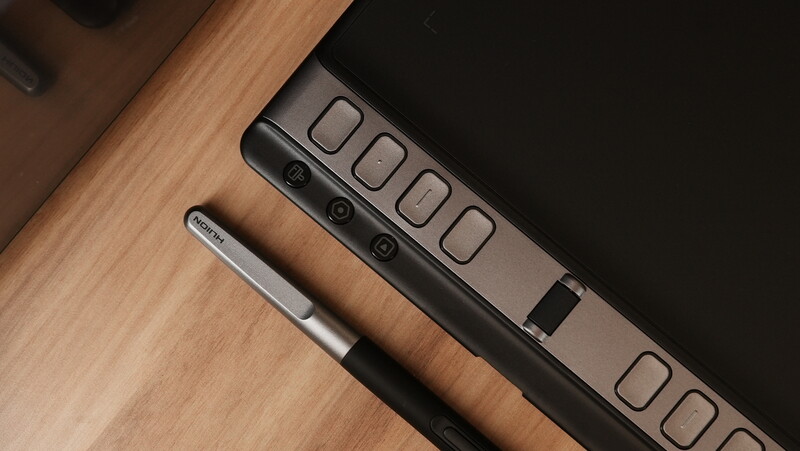
On one side is a dual-column panel of keys that work in combination to offer more functionality. There are six customizable buttons on the small version and eight customizable buttons on the medium and large versions. In the middle is a customizable wheel that can be adjusted in terms of scroll speed and can be assigned for adjustments such as zoom, brush size, and opacity. Each customizable button can be assigned either to a keyboard key, a combination of keys, or even a navigation gesture. Compared to other pen tablets on the market, this offers significantly more customizable buttons altogether since most tablets only have two to four. However, what makes this tablet even more functional is the addition of three group keys on the side of the panel that basically multiplies the functionality of the tool.
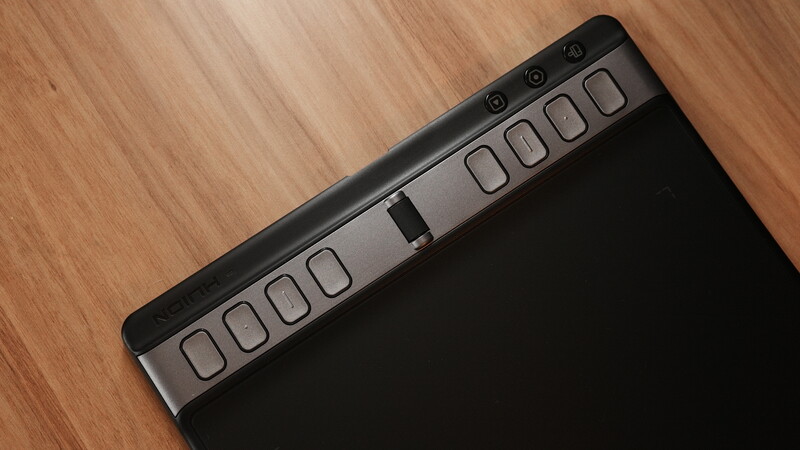
Each key represents a set of functions for the entire array of customizable buttons. Each set has eight buttons assigned, and pressing one of the group keys switches each button to a different assigned function. This means that, all in all, there are virtually 24 functions divided into three modes, which is more than what most users would need in a single workflow. The group keys can be arranged per app or per activity, depending on the user’s preferences.
On the side is a single USB-C port that works with the supplied USB-C cable. The rest of the surface is the active area and the minimal frame around it. It would, of course, be much nicer if it could work wirelessly or even with a dongle, but maybe that’s for a different line of tablets instead.
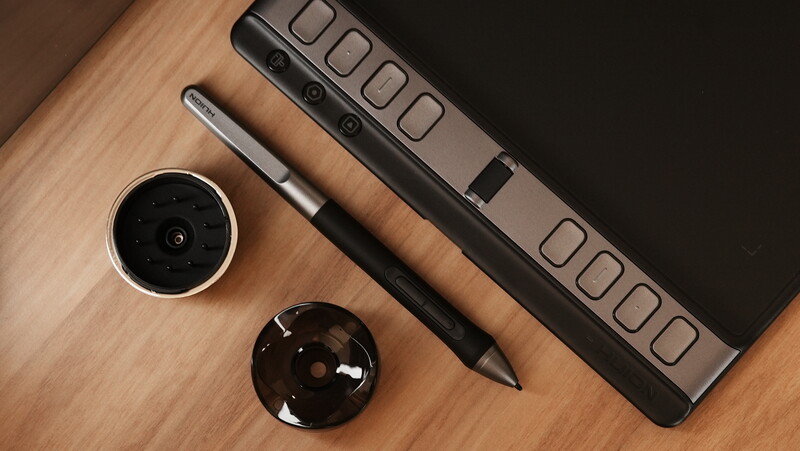
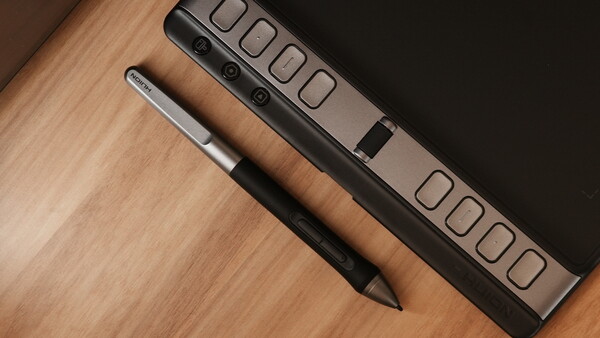
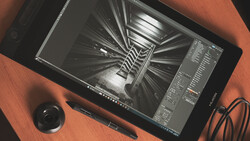
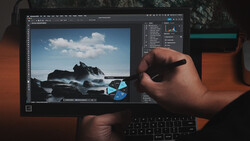
The Inspiroy 2 utilizes PenTech 3.0, which offers a battery-free EMR pen with a resolution of 5,080 LPI and 8,192 different pressure levels that give a more realistic input. The pen works even when tilted up to 60 degrees on any side and is detected within 10 mm away from the surface. The pen itself comes with two additional function buttons and has a realistic, pen-like contour with a comfortable silicone grip on the proximal end. It comes with a circular pen stand that houses 10 additional tips for switching.
Setting Up
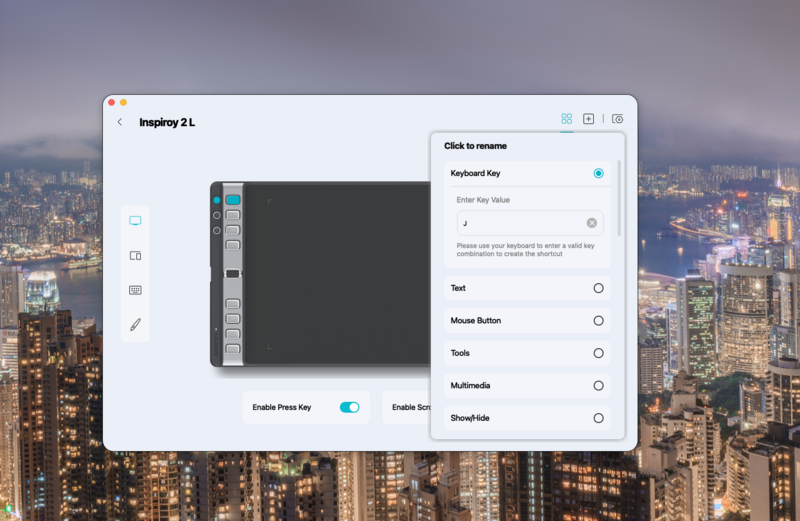
The setup process is straightforward but can be quite long if the user aims to utilize all 24 virtual functions across the three modes/groups. On the tablet’s driver, you can set each key to a specific keyboard key, shortcut combination, navigation function, or even control media player apps. While the groups are pre-programmed for three different activities, the user can program all 24 functions for one specific app or activity.
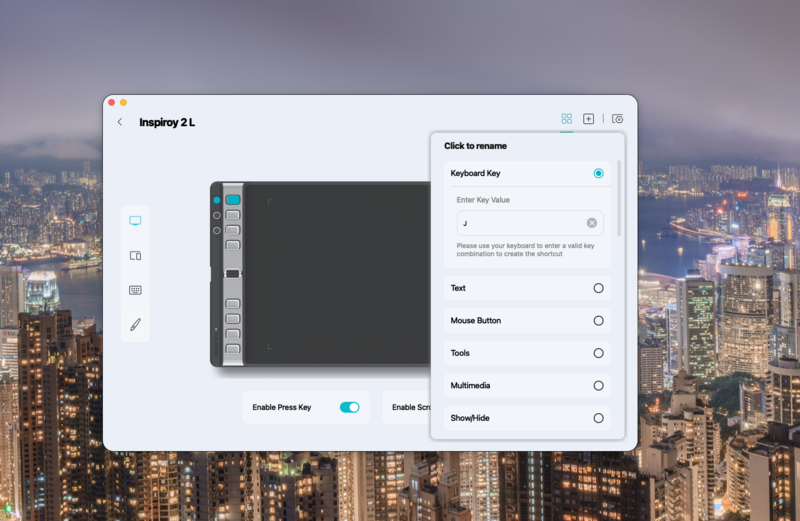
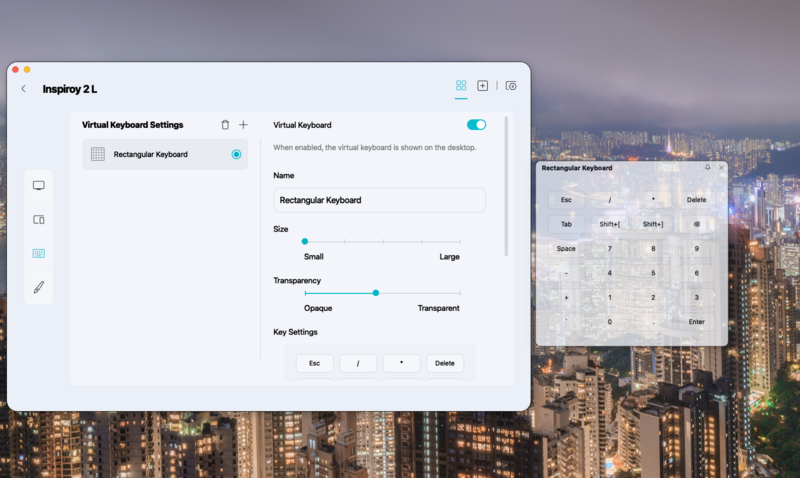
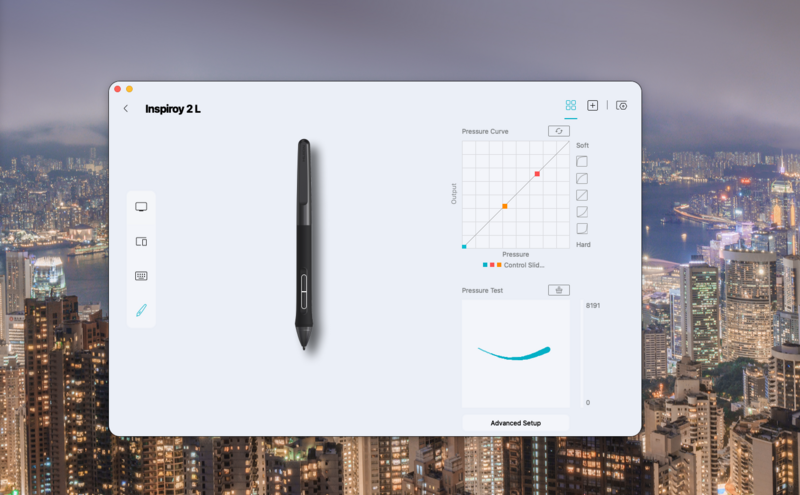
By default, the orientation of the active area is set for right-handed users, with the buttons on the left. However, the user can also rotate this to either a more vertical orientation or for left-handed operation. The active area can also be reassigned to a smaller patch of the desktop if preferred. In addition, a virtual keyboard can be set up and made to appear on one side of the desktop, which can either give additional shortcuts or be used when text input is involved in the workflow.
Lastly, the pen’s buttons can also be assigned like the other shortcut buttons, and the pressure sensitivity curve can be adjusted depending on the user’s preference.
User Experience
Pen tablets are always subject to the user’s unique set of preferences when it comes to their workflow. Some users prefer large functional surfaces for precision, while some prefer smaller tablets that don’t require too much motion. Regardless, most users of pen tablets surely appreciate when everything they need is on one tool instead of having to move over to a keyboard on the side.
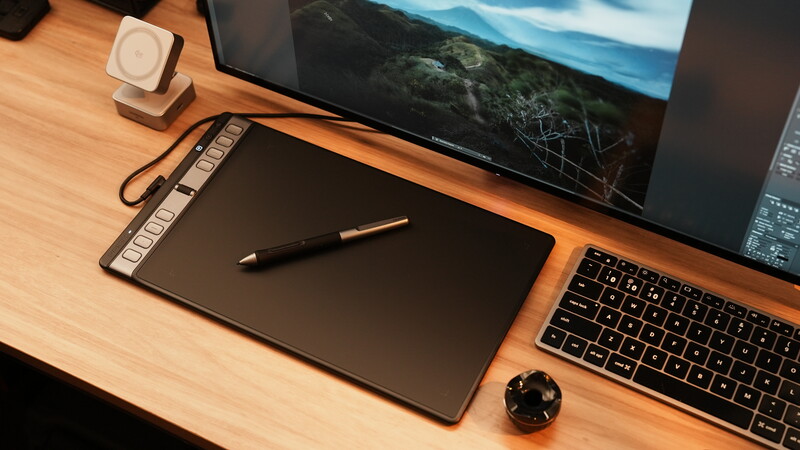
The fact that the Inspiroy 2 tablets generally have more physical shortcut buttons is already a significant upgrade. However, with the addition of three group buttons, the functionality is exponentially increased and eliminates the need to reach over to other tools. This makes the tablet functional not just for one specific application but also for more general use. While not every kind of activity on a computer will be more efficient with a pen tablet, having the shortcuts within reach can still improve other functions as well.
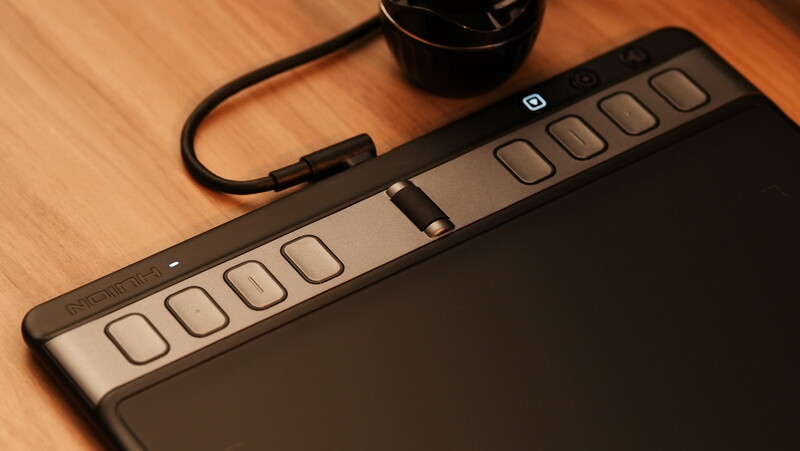
This new generation of Huion’s well-trusted pen tablets has surely been designed to offer far more functionality than the older versions could offer. While they come in three different sizes, they all provide a much more efficient editing or illustration workflow that makes the keyboard less necessary and takes away the need for an additional gadget for switching between tools.
What I Liked
- Multiple size options
- 6-8 programmable buttons
- Customizable scroll wheel
- Exponentially more functions with the group keys
What Can Be Improved
- No wireless connectivity
- No carrying sleeve included
Join the Fstoppers community for free
-
Post comments and join in the discussions
-
Browse the site ad-free
-
Share your work and get featured in the community
-
Compete in the photo contests for fun and prizes
1 Comment
very bad quality control, just cough up the money and buy Wacom. These chinese tablets will just stop working in less than a year and have very bad quality control.