Lightroom's masking tools are the single biggest gap between a flat edit and one that looks professionally dialed in. Most people skip them entirely, and their edits suffer for it.
Coming to you from Sean Dalton, this practical video breaks down every masking tool in Lightroom, from the AI-powered selections to the manual brush and gradient options, and shows you exactly how to use them on real photos. Dalton starts with the basics: masking lets you isolate a specific part of an image and edit it independently, so an exposure or color adjustment doesn't blow out everything else in the frame. He walks through the subject, sky, background, people, and landscape AI selections, then covers the manual tools including the brush, linear gradient, radial gradient, color range, and luminance range. The Lightroom interface gets a proper tour here, and if you've always found the masking panel confusing, Dalton makes it click fast.
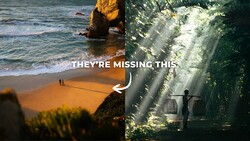
Where the video gets genuinely useful is in the real-world editing examples. Dalton uses a foggy forest shot from Madeira, Portugal to demonstrate light shaping: stacking linear gradients at the top and bottom of the frame to push exposure down, then using an intersect mask that combines a luminance range selection with a radial gradient to brighten only the highlights in the center of the frame. The intersect tool is one of the less obvious features in Lightroom's masking panel, and seeing it used this way makes its value obvious. He also works through a beach portrait from Bali, using a subject mask with a duplicate-and-invert to simultaneously sharpen the subject and soften the background, then adds separate sky and vegetation masks to add clarity and controlled haze.
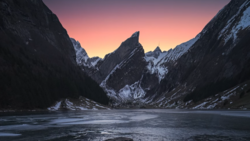
The color editing section covers two more photos: a blue-hour coastal shot from Morro Bay, California, where Dalton uses a linear gradient on the sand and an AI sky selection to push the image toward warm-cool color contrast, and a drone photo from Tuscany where he builds out separate masks for buildings, vegetation, sky, and architecture to add warmth and saturation selectively. He also shows a fast fix for oversaturated skin tones using the color range selector combined with an intersect-with-subject refinement. One of the more creative techniques involves using radial gradients to simulate headlights being switched on in a car photo shot at dusk, an effect subtle enough that, as Dalton notes, nobody noticed in the final posted image. Check out the video above for the full rundown from Dalton.
Join the Fstoppers community for free
-
Post comments and join in the discussions
-
Browse the site ad-free
-
Share your work and get featured in the community
-
Compete in the photo contests for fun and prizes
No comments yet