Lightroom can rescue a raw file that looks unusably dark, but only if you approach the recovery in the right order. When you lift a file like this the wrong way, the shadows turn noisy fast and the highlights fall apart.
Coming to you from Christian Möhrle, this focused video starts with a histogram crushed into the left side and visible clipping in the deepest tones. Möhrle’s first move is not exposure, and that choice is the point. He treats noise as the first constraint, since the moment you pull real detail out of near-black areas, the grain you could ignore at normal brightness becomes the main subject. He uses Lightroom’s AI Denoise early so the later tonal moves do not amplify problems he could have prevented. After that, he changes the profile away from Adobe Color to Adobe Standard to ease contrast before doing any heavy lifting in the basic panel.
The exposure move is deliberately limited, because the sky becomes the immediate penalty for being too aggressive. Möhrle raises exposure only until the brighter areas start to look fragile, then leans on the shadows and blacks sliders to open the darker structure without pushing the whole frame into a blown-out look. He also works the highlights slider to pull back detail at the edge of the waterfall and in the brighter sky, where clipping looks especially harsh. Then he brings whites up to reintroduce contrast, but not so much that it undoes the highlight recovery he just fought for. The sequence matters: if you have ever pushed exposure first and tried to “fix it later,” you know how quickly you end up chasing your own adjustments.
Once the tonal range is usable, Möhrle moves into choices that change the feel of the scene, not just its brightness. White balance is handled with a practical target, getting snow to read as snow instead of blue-gray, and he does it by eye rather than turning it into a ceremony. Color is boosted with vibrance and then saturation, which is a reminder that blanket rules rarely survive contact with a real file. He adds texture for bite, then reduces clarity and dehaze slightly to keep the look soft instead of brittle. If you tend to crank clarity to make a recovered file feel “detailed,” this section is a useful counterexample because it shows how easy it is to make rock and snow look harsh.
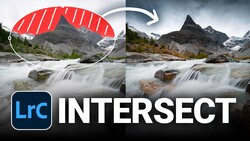
The masking work is where the edit stops being global damage control and becomes selective rebuilding. Möhrle uses a landscape-style mask to target the cave walls and lifts exposure there further, because those areas can take it without risking blown highlights. He adds structure with clarity and texture inside the mask, aiming for definition in the rock without making it look etched. For the sky, he starts with a broad sky selection, then subtracts with a linear gradient so only the top portion carries the darkening effect, which avoids the heavy-handed “painted sky” look. He stacks radial gradients to create a controlled glow behind the cliffs, then balances it by darkening specific distant rock using a color range mask that he tightens with an intersected brush, so the glow does not spill where it should not. Check out the video above for the full rundown from Möhrle.




Join the Fstoppers community for free
-
Post comments and join in the discussions
-
Browse the site ad-free
-
Share your work and get featured in the community
-
Compete in the photo contests for fun and prizes
4 Comments
Oh look it’s another utterly pointless exposition of a YouTube video which we could all do ourselves by simply asking GPT to summarise it. Ever considered writing some original content instead of sponging off the work of real content creators?
Why would you even need AI of this "tutorial". Literally just push "auto" on the Lr develop console.
Yes! I write an original long-form article literally every single day. You can find them here: https://fstoppers.com/originals
First where ever is ISO 1600 high? I have been capturing with Sony cameras starting in 2015 with the A7S and advancing to the A7M3 that brought ISO Invariance where yes you could capture an image and a very low ISO like 640 (first stage noise reduction) and just increasing exposure in post get an image noise free and looking as bright as day with stars.
Images as dark as this today is more a plaything in Lrc where playing with sliders is the fun of exploring Lrc abilities of an images of any camera even the Very Old telephoto point and shoots that no one will ever know how low they have of noise and their ability to capture in the night time for as long as there was some light it could be captured and seen in post.
Play time with old images brig forth knowledge to know what you will get in try to capture some light both close and far day or night.
Image 1 Out on a beach capturing Milky Ways a Sea Turtle came up to my location to lay its eggs I captured it all hand held yes a hotel lit up the beach behind me but in camera NR as well as in editing was a big help but I knew my dim images would be great because I like to play with editing programs.
image 2 where there is light no matter how bright or dim the A7SM1 in Aperture mode will capture both.
Image 3 I found a group of army families fishing at night while tiring to hide them and their lights behind driftwood while I captured many Milky Way images upon leaving they let me capture them and they did not move (the kids loved it) for the 30sec capture but a couple of runs through Lrc got me a bright as day and with bright stars and white clouds with sharp background with a 16-35mm f/4 with the A7SM1.
Image 4 was a very dark image using a 10mm f/5.8 lens on the A7SM1 BUT going three times through Lrc and at the time Topaz denoise (before available in Lrc and most other editors) it just lets you play and learn and may not be a seller but a place on your wall for you as a photographer you know the story of the image and the processing and in writing on the back for when you are gone.
Playtime is a great education no school will ever show you. Photographers all are Mad Scientist playing with light!!!