Photoshop has picked up a run of new AI features and reworked adjustment layers over the past year, and each one arrives with the promise of a faster, simpler workflow. When a tool you use every day changes how it behaves, you need to know whether the new version saves you time or costs you image quality, responsiveness, and generative credits.
Nathan Cool walks through what happens when you click over to Photoshop's AI-first view: Photoshop makes a copy of your document, flattens every layer, and loads an interface that looks almost identical to Firefly on the web. He runs a simple removal on a kitchen still life. Back in the Pro Editor view, the edited area is noticeably soft at 100%, while the rest of the frame stays sharp enough to read the text on a cookbook. The trip between views is slow, and sometimes it fails outright with an error. If you'd rather not see the toggle at all, go to Preferences, choose Interface, and uncheck the option to show the AI Assisted editor.
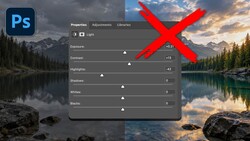
Brightness/Contrast no longer appears in the new adjustment layer menu. In its place is a Light layer that borrows exposure, contrast, highlights, and the rest of the tonal sliders from Lightroom Classic and Camera Raw. You can still get the old version through the panel menu by selecting the legacy pre-2026 option, though nobody knows how long Adobe will keep it. Cool finds that the two versions don't line up. A quarter-stop boost in the new layer converts to a value of 13 in the legacy one, yet the image visibly brightens when he flips between them. That mismatch can trip you up when you reopen older files or try to hold a consistent look across a set. He also reminds you that a dedicated Exposure adjustment layer has been in Photoshop for years, complete with offset and gamma controls.
A stamped layer converted to a smart object has long been one of the most flexible ways to finish an image in Photoshop, and it's the approach Cool leans on. Press Ctrl+Alt+Shift+E on Windows or Cmd+Option+Shift+E on a Mac to merge everything visible onto a new layer while keeping the stack below intact. Right-click that layer, convert it to a smart object, then open Camera Raw Filter with Ctrl+Shift+A or Cmd+Shift+A. You get the entire Camera Raw panel, including color grading, optics, geometry, and effects, and every slider stays editable whenever you double-click the filter in the Layers panel. Smart filters carry their own mask, so you can paint the grade in or out exactly as you would with any adjustment layer. You can also stamp more than once, keeping a global grade on one smart object and a targeted fix on another. The method suits anyone who already thinks in Lightroom's sliders and wants those controls at the end of a layered Photoshop edit. It also keeps working no matter which adjustment layers Adobe adds or retires in the next update.
The new layers get messier when they sit above a traditional one. Cool stacks Light, Color and Vibrance, and Clarity and Dehaze over a Levels layer, and as he drags the white slider, Photoshop displays a notice that some adjustments are paused while editing layers below. The preview shifts while the mouse is down and only settles once he lets go, so what you see mid-drag isn't the result you get. His list moves on from there to the contextual taskbar, the Generate Image command, and the partner AI models, where the credit math adds up fast. A Firefly Fill & Expand pass costs one credit, Firefly Image 5 costs 10, and a partner model such as Google's Gemini, better known as Nano Banana, can cost as much as 40. He tests this on a real commercial job: two Porsches still wrapped in plastic inside a warehouse turned private garage. Firefly either swapped the plastic for different plastic or produced cars that stopped looking like Porsches. His workaround uses a fixed-size 1,024 x 1,024 pixel marquee selection, Gemini on the web, and a layer mask back in Photoshop.
The full Gemini workflow and his thoughts on the remaining tools play out step by step in the video above.


Join the Fstoppers community for free
-
Post comments and join in the discussions
-
Browse the site ad-free
-
Share your work and get featured in the community
-
Compete in the photo contests for fun and prizes
1 Comment
I agree with Nathan regarding the new tools that have been added into Photoshop. They are annoying, don't provide what you ask and when I tried using them, just gave up, removed that portion of my photo that had thing added in that I did not want and moved on using LRC...