
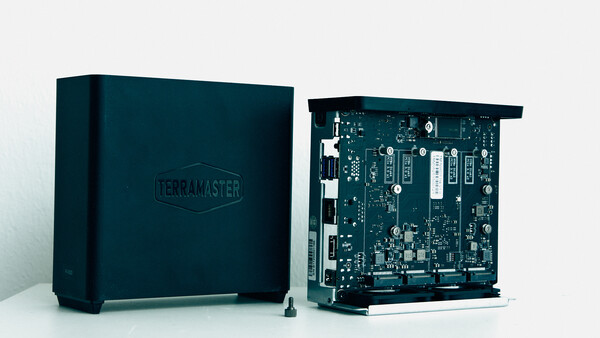
For most of us, storage is an unavoidable part of the workflow. Many creatives don’t see having a NAS as a luxury, but rather as a necessity. Small studios and teams rely on having a server to be able to access shared files fast and on the go. Having an SSD-powered NAS can be the heart of a small production, but can it handle what is needed from a modern team? I tested it out.
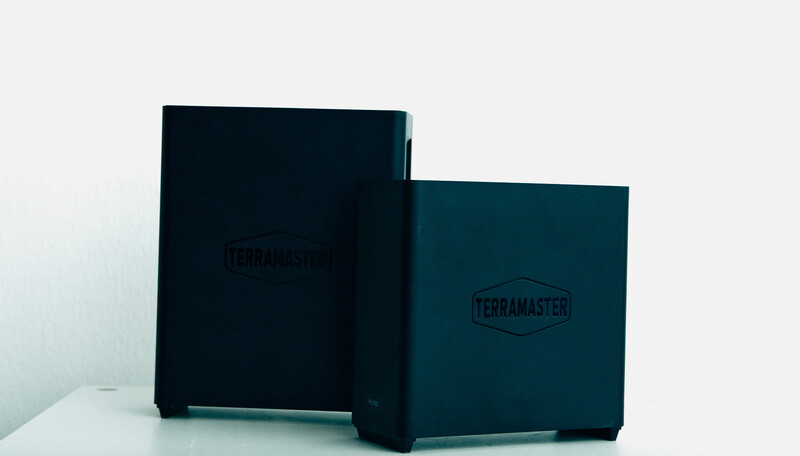
When choosing a NAS, there seem to be more options than you can ever need. Some offer performance, while others offer affordability. The TerraMaster F4 SSD NAS is somewhere in between. It’s quite affordable, but then again, it doesn’t offer the highest performance when compared to the F8 NAS. At the same time, it’s smaller, quieter, and cheaper.
Build Quality
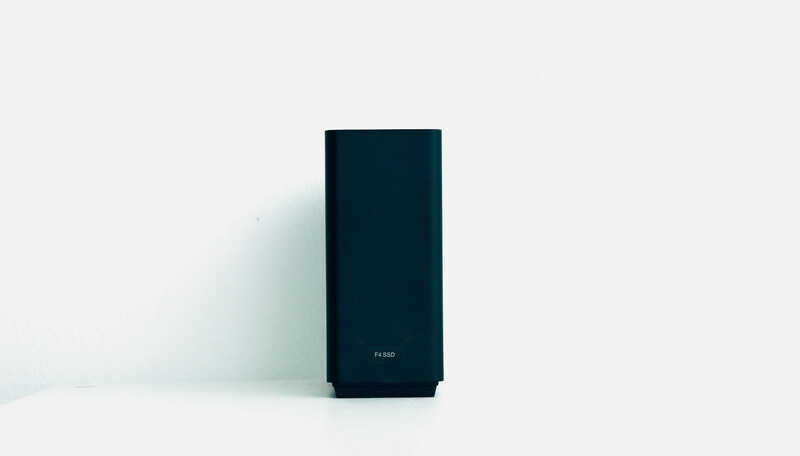
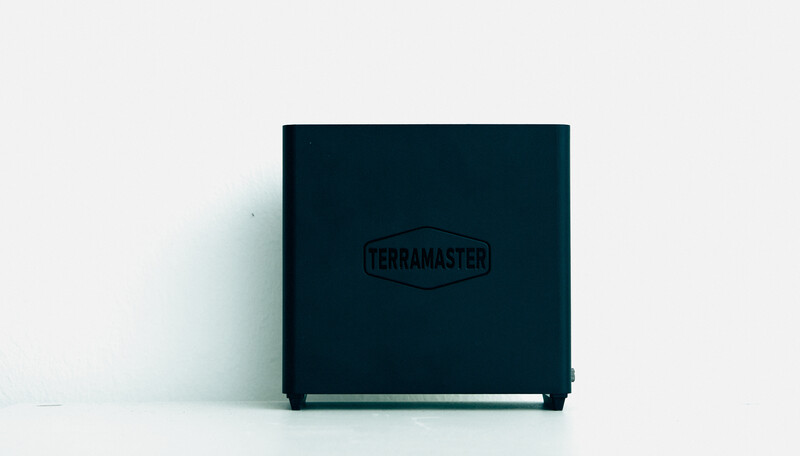
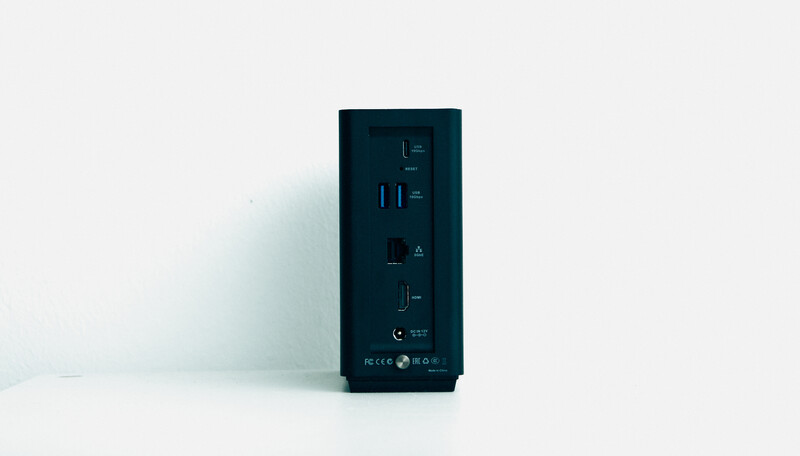
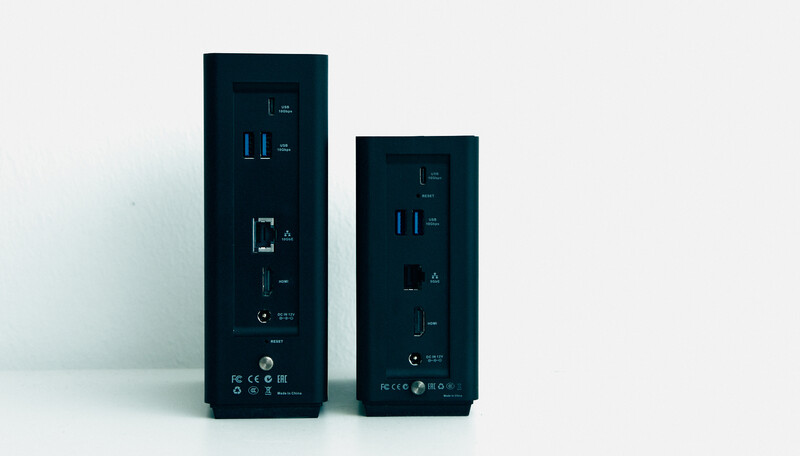
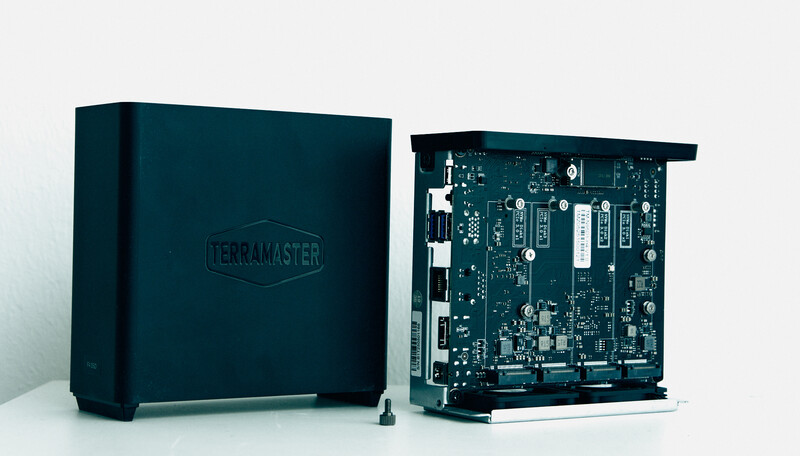
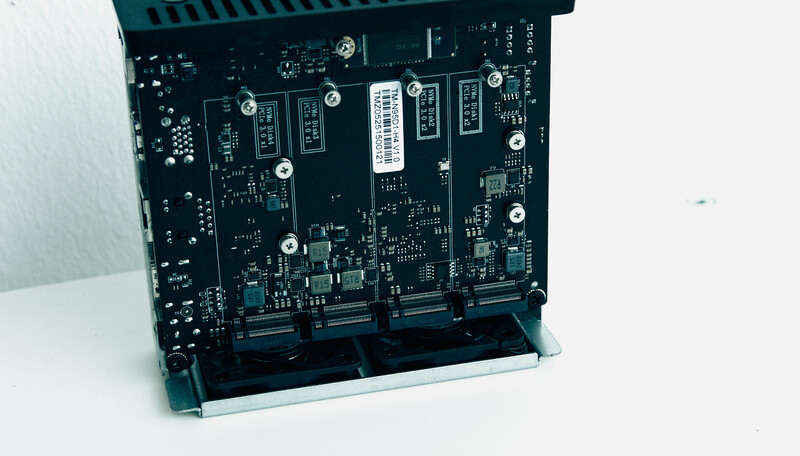
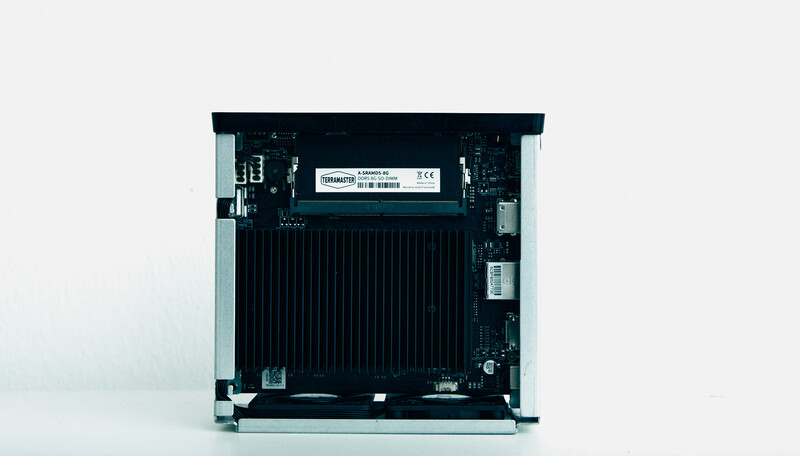
On the back of the NAS, you will find several ports: DC input, HDMI, 5 Gb Ethernet, USB-A, and USB-C. Both USB ports are capable of 10 Gbps transfer speeds. Another curious feature on the back is the screw that keeps the NAS closed. Unscrew it, and you get access to the internals of the NAS. Inside, you find a fairly simple and common motherboard. It features 4 x M.2 NVMe SSD slots, just like in the big brother F8 (which, however, has 8 of them). Each one is able to house an 8 TB drive, making the entire unit capable of having 32 TB of storage.
Installing the SSDs is a straightforward process. Attach the included heatsink, unscrew a screw on the motherboard, slot the drive in, and secure it with a single screw. This is a very user-friendly approach to the SSD installation process, which is always good to see. This is a fairly standard mounting procedure for an SSD, meaning that most users will likely be familiar with it.
 Performance and Ease of Use
I want to preface this section by describing what kind of user I am. I am as far as you can possibly get from an IT specialist. As such, I will happily trade custom functionality for ease of use. What I care about the most is efficiency, speed, and ease of use. Tech I love is tech that allows me to not notice it’s there. In my opinion, tech is supposed to make your life easier, not harder. My opinions are based on what I found using the device, not on what benchmarks show. But at the same time, I think most users are like this.
The F4 SSD NAS is powered by an Intel N95 quad-core processor and has 8 GB of DDR5 RAM, which can be extended to 32 GB. This is all great, but what does it mean? This setup will be suitable for those of us who need to run simultaneous photo backups, share files over the network, etc. The CPU power is adequate but modest for demanding workflows. It’s simply not fit for heavy workflows, for example, when running multiple applications.
That said, the real bottleneck is the 5 GbE port, which may slow down your workflow. While the internals are more than enough for fast workflows, it’s the connection that is a bottleneck here, as you won’t be able to take full advantage of the SSDs inside your NAS. Having upgraded my network to 10 GbE standards, I definitely noticed that the NAS is simply not able to keep up with the speeds I was trying to push through it. That said, it sustained the advertised 5 GbE speed reasonably well.
What this means for me is that this NAS is best suited for lighter usage, for example, if you have a moderate internet connection and don’t need to push for high speeds in your editing workflow. It’s absolutely fine for photo editing, but as for video, I can’t say the same. Video workflows are where you need the best performance, which you will find in the F8, as it comes with a 10 GbE port and more powerful internals.
What I Liked
- Price
- Design
- Ease of setup
What Could Be Improved
- Speed
Closing Thoughts
So who is the Terramaster F4 SSD NAS for? In short, it’s for a solo creative or a small studio that needs a reasonably quick and quiet NAS to store and work on files without spending too much. It won’t break any speed records, but it doesn’t need to if you are editing photos or doing light video work. The 5 GbE port is the biggest drawback for me, which is why I would opt for the F8 NAS, seeing as my workloads are heavier than usual these days. The best way to sum up this NAS is by calling it a practical performer. It has a good balance of performance and speed, making it a good choice for a lot of creatives. It proves that an SSD NAS doesn’t have to be expensive or intimidating to fit into a professional workflow.




Join the Fstoppers community for free
-
Post comments and join in the discussions
-
Browse the site ad-free
-
Share your work and get featured in the community
-
Compete in the photo contests for fun and prizes
5 Comments
The problems with this device start with the motherboard not being able to support two PCIe lanes for all four M.2 slots. Reading the tech specs shows that the M.2 slots are PCIe 3, not 4 or 5 and two of the M.2 slots supports PCIe 3 x 2 (for two data lanes) and the other two support PCIe 3 x 1 (data lane). This mismatch will cause a major performance hit if you attempt to create a volume that uses all four drives. I would use the slower slots as a stripe set (RAID 0) and make a mirror (RAID 1) of the faster slots to compensate for the write performance penalty you will take writing to two devices.
The memory installed is sufficient for light work, if I was going to use it for large jobs, I would increase it to 32 GB so that there would be plenty of memory to improve caching performance.
Which filesystem and RAID layout also determines the performance of the device. If you purchase this, you might want to play with configurations before settling on a final, usable array to use. This will also affect network performance since the filesystem and drive configuration are determining factors in throughput.
As far as drives go, I wouldn't use anything PCIe 4 or 5 because of the performance hit you would take regardless of drive capacity. If I wanted one of these, either the 4 or 8 drive model I would use PCIe 3 2 TB SSD's and while reducing the potential capacity of either device, using 2 TB SSD's keeps the cost down.
Your review is bang on the money. The thing is cool. The price is right. But it's just too slow. You will be filling this thing with drives capable of running at 40 Gbps+, and the device is limited to 5 because they couldn't be bothered to include faster networking? Its not like 10gbe is new expensive tech, its been around since 2002.
Personally, I run my editing workflow off a Thunderbolt drive that does about 30 GB/s. 5 seems too slow.
Thanks Ryan!!! The processors used have limits on the PCIe lanes that are available, which limits the performance of the devices. To get more PCIe lanes means using a workstation/server class CPU like a Xeon or Threadripper, which would make it way more expensive, but support for 10 GbE would be standard and full support (PCIe 3/4/5? at x3 or x4 would be more realistic.
Talked to my boss at work, he's the storage guy and neither one of us were impressed with the filesystem options. ext4 is OK for general use and btrfs has taken its share of knocks by RedHat and Veritas. I would not store anything I would want to keep long term on them.
I figure in a couple of years we will see devices worth spending money on.
Yeah but that would more be a limiting factor on having a large number of drives but speed wise, PCIe is far from the bottleneck.
a PCIE 3 drive can do over 30gbps on a single lane.
a PCIe 4 drive can do 40gbps on a single lane.
Through a Thunderbolt 4 interface a hub like this can easily do in the range of 40gbps, the only difference with this device is that it is managing the raid locally which has a compute load and its trying to push that data through a bottleneck of a 5gbps ethernet port. The compute load can't be fixed without increasing cost, but they certainly could have stuck a faster ethernet interface into it and I just can't see that the onboard compute is so hamstrung that it can't handle more than 5gbps of throughput.
Furthermore, whats the point of an NVME enclosure that can only do 5gbps? An older, cheaper SATA ssd can do 8gbps. An old spinning HDD that is 7200 RPM is at about 2gbps. NVME storage is the most expensive type of storage, and you pay that because it directly accesses the PCIe lanes to get PCIE transfer speeds. But this thing doesn't realize any of that speed so it defeats the purpose, might as well cut the cost per gb in half.
There is a huge difference in CPU between the 4-bay and the 8-bay that accounts for what can be supported in terms of network interfaces. The 4-bay uses an Intel N95, which is a low power CPU for laptops. The 8-bay uses an Intel i3, which brings a lot more horsepower to the table, even in a mobile version. The number of PCIe lanes supported matter as well, the N95 has a maximum of 9, in which 6 of them are used for the M.2 slots. There isn't enough PCIe lanes to support 10 GbE. The 8-bay with the i3 has a maximum of 20 PCIe lanes, in which 8 of them are used for the M.2 slots, leaving anywhere up to 12 lanes for the 10 GbE interface and other uses. This is why the CPU and motherboard matters when it comes to storage devices and what they will support.
The actual speed of the devices will ultimately come down to filesystem used, RAID level, number of devices and the amount and size of the data being read or written to and from the device.