
Many of today's advanced AI software features require extra subscriptions. This is also true for Photoshop's premium AI models in Generative Fill. But what if you could access the powerful Nano Banana AI for retouching without committing to another subscription? In this article, I reveal a pay-as-you-go method for using cutting-edge AI in Photoshop.
A few months ago, I wrote an article showcasing the power of Google’s Nano Banana AI when used for retouching in Photoshop. In the same article, I also complained that using it would require yet another subscription.
Thankfully, better options for AI-supported retouching in Photoshop exist. Adobe simply forwards your request in the Generative Fill tool to Google's Gemini API when Nano Banana is selected, and anyone with a credit card and a Google Account can use it directly.
I’m quite aware that not everybody is a software developer who knows how to use such an API. Thankfully, there are Photoshop plugins that do the hard lifting for you. All you have to do is install such a plugin, create an API key, set up billing in either Google Studio or a tool like OpenRouter, and you are ready to go: No additional subscription; you pay the raw price for the AI usage directly to the source.
AI Retouching Plugin
I’m very focused on delivering high-quality results with my editing, which is why I wanted to control the entire AI retouching pipeline rather than rely on a plugin I hadn’t developed myself. Developing my own plugin let me customize features to achieve better results and improve usability.
Things I wanted to ensure were proper resampling of the image areas you send to an AI. Nano Banana, in particular, supports only specific aspect ratios and resolutions, and interpolation is required to work with any rectangular selection. It's why Photoshop only properly supported 1x1 selections when I wrote my last article. My plugin supports any selection between 1x2 and 2x1 with resolutions up to 4K, while keeping the resampling to a minimum.
In addition, I wanted a lossless encoding-decoding path between Photoshop and the AI, and I did extensive pixel peeping to achieve the best possible quality. You'll always get some loss once the AI regenerates the pixels, but at least with Nano Banana, the difference is usually negligible.
In the feature video, I show you in detail how to set up an API key for Google Gemini, and in the video below, I walk you through setting one up with OpenRouter. It provides a more flexible solution for people without a Google Account and allows one-stop access to many more AI models.
I recently added GPT Image 2 to the plugin after hearing buzz about it. In my tests, it was slower and more costly than Nano Banana, so I still prefer Google’s AI.
If you want to test Nano Banana, and you’ve already used up the few free credits you get in Photoshop, you can give the lite version of my Plugin a try. It allows you to use Nano Banana v1.0 with selections up to 1,024 x 1,024 px. This version is free if you subscribe to my newsletter, and you only pay Google for the amount you use the AI, which is four cents per retouching request at the time of this writing.
How to Make the Best Use of AI
I've tested Nano Banana extensively in the last few months; it excels at retouching architecture and cityscape photos. In the past, cars and people in the frame could become a big annoyance if they didn't move during a photo shoot. While I could easily remove moving objects by capturing multiple photos and applying some masks in Photoshop, static objects were always a pain.
These times are gone now. An image cleanup that could have taken me half an hour, or a retouching I wouldn't have attempted manually, has now become a simple prompt. Because the AI can take 10 seconds to several minutes to finish its job, I've added 5 retouching instances to my plugin so you can work on multiple areas in parallel. This eases the wait, and it feels like having five retouching experts at your side, waiting for your instructions.
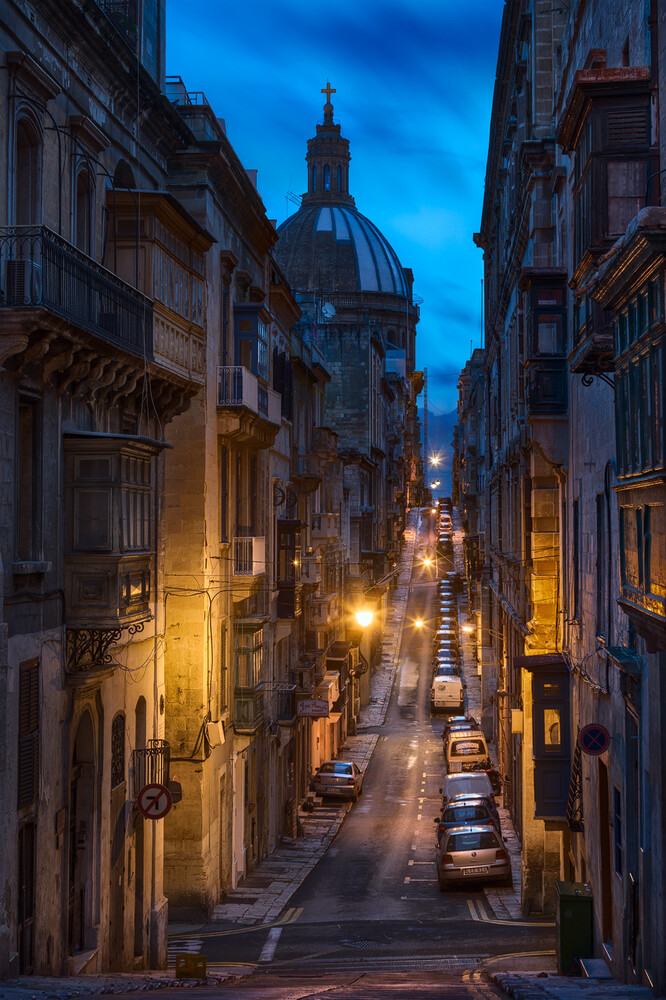
In the example from Valletta, I cleared the entire street of cars in less than two minutes, and the result even holds up to my pixel peeping. I admit that this is an extreme example and something I normally don't do to my photos. But it highlights the power of modern AI.
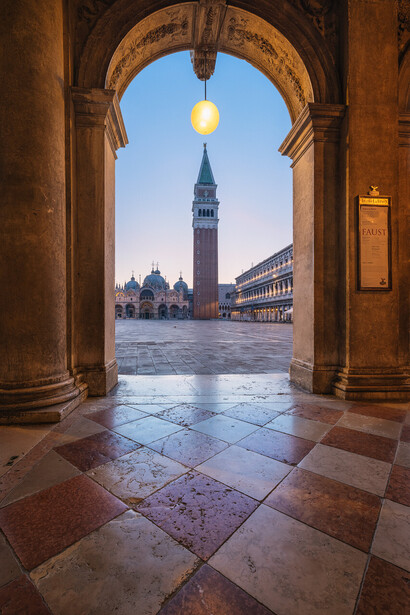
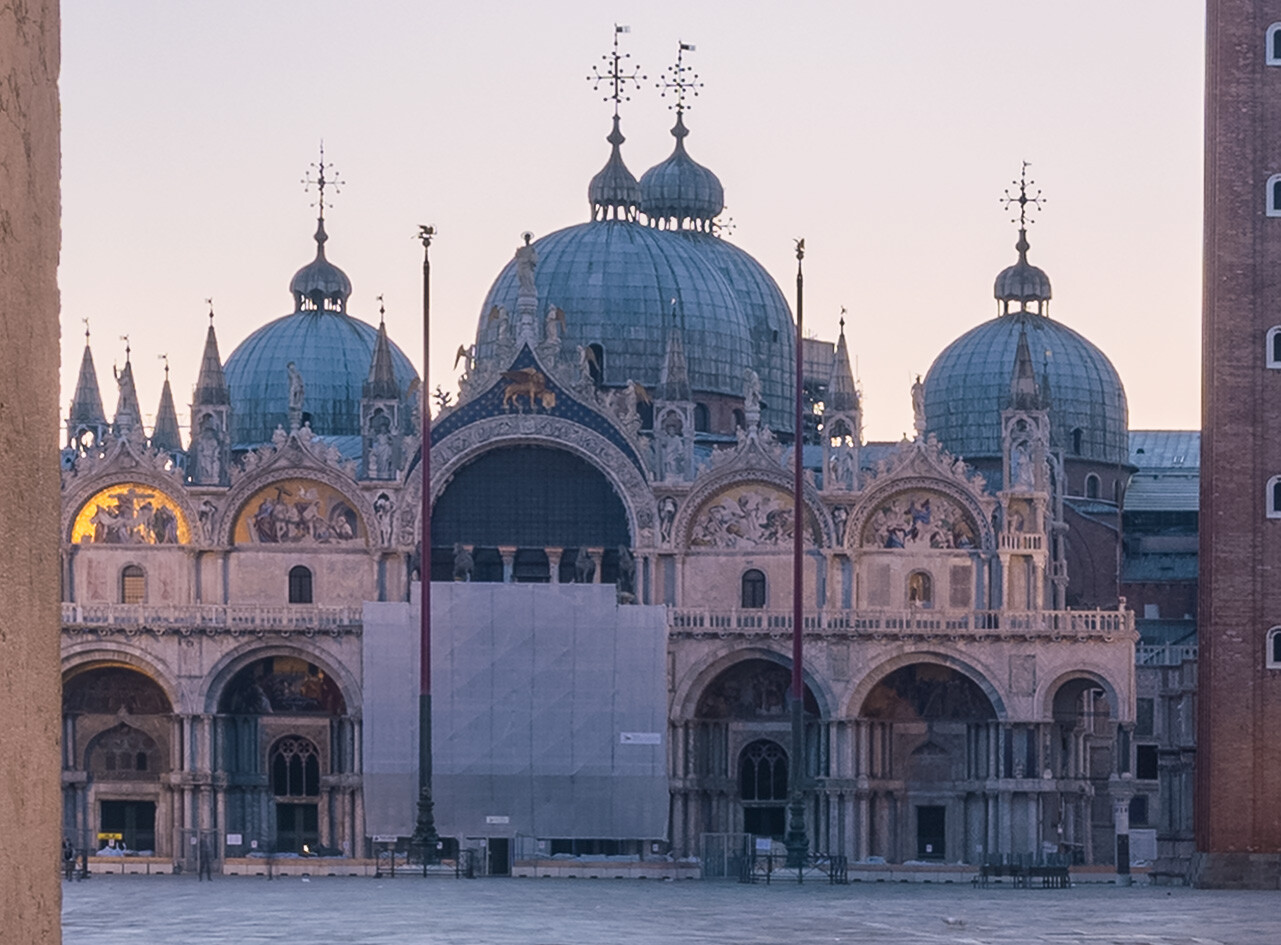
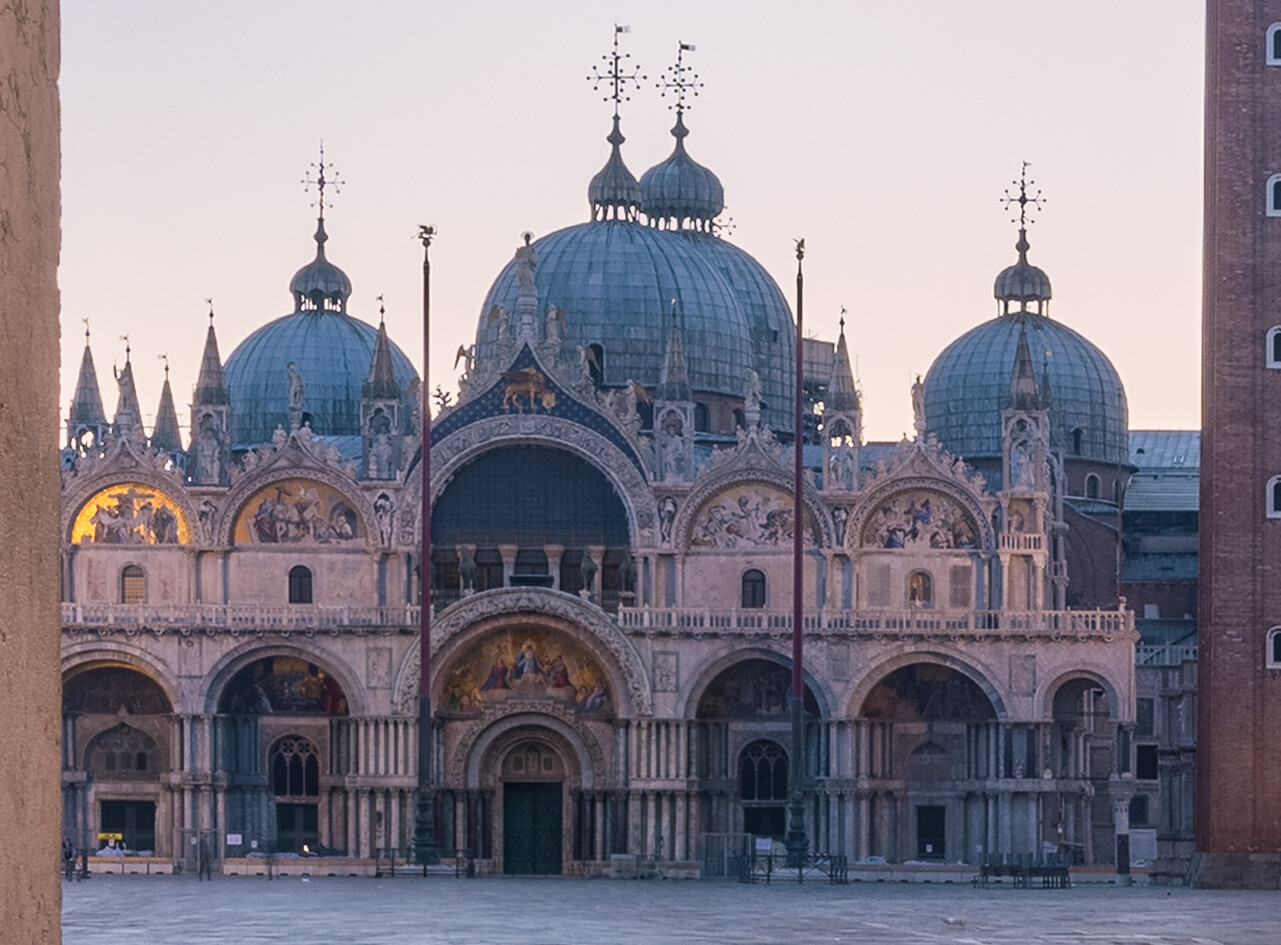
Another retouching job that was previously impossible was the removal of scaffolding. Reconstructing a building's facade through simple cloning rarely worked, and manually drawing fine details can be tedious. It's why I kept the scaffolding in front of the St. Mark's Basilica in Venice in the photo for several years, even though it always distracted me. I would have never thought that AI would be able to reveal the view toward the main gate in all its proper detail.
Images where AI still struggles a bit are very detailed landscape scenes. Especially with 4K selections, I sometimes notice quality degradation. And those depend a lot on when you use the AI. It appears that during high load, Google reduces the quality for some customers to handle the volume of requests. It's the only way I can explain the sometimes dramatic differences in quality I get. It's also why, although you can send 4K images to the AI, it's better to make small and specific changes. Those are easier to prompt and often produce more detail.
Where to Draw the Line
AI can do a lot more than what I showed in my examples, and it's important to find out for yourself where you want to draw the line when using it, or not using it at all. Personally, removing distractions from a photo is something I've always done, and since AI can save me a lot of time for a few cents, it is a perfect tool to have in my toolbox.
If the distractions are temporary, like scaffolding and cars, and make up smaller parts of the photo, it's always a yes for me. The scene from Valletta is an extreme example, and I hesitated for a long time before applying the edit. To be honest, in the end, a major reason was to have a good showcase for my plugin.
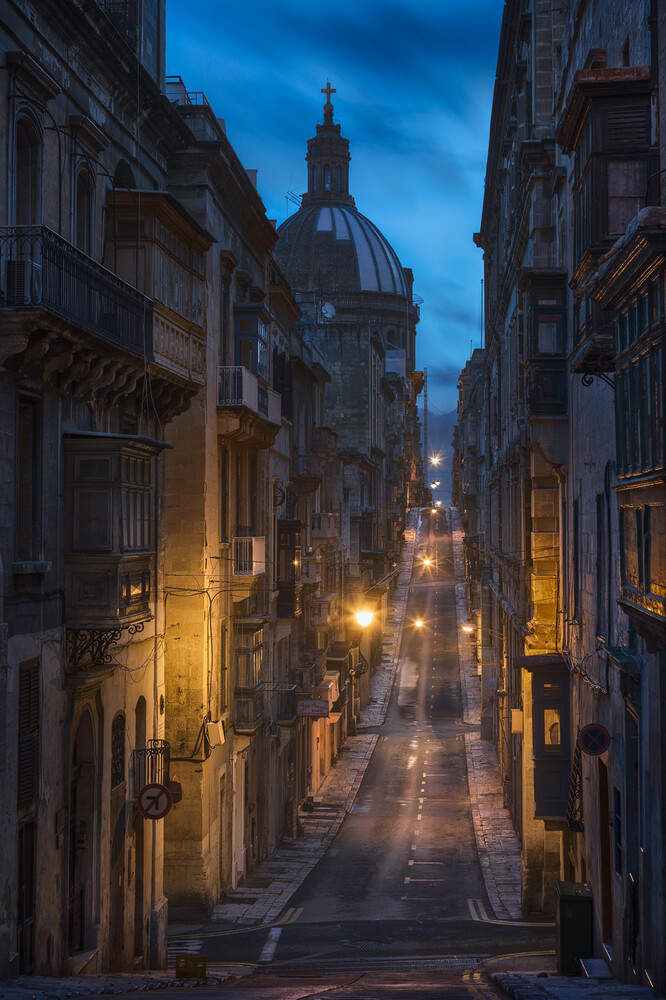
With landscape photos, I usually practice more restraint. But with man-made objects that I cannot hide through clever composition, I also don't hesitate to remove them.
If you’re a real estate photographer, using AI for similar cleanup might also be a great use case, but you should also be aware of the legal risks when using AI in this photography field.
Conclusion
Models like Nano Banana have become scarily good in the past six months. Photos I thought I'd never edit because of cars parked in front of buildings, scaffolding, or other distractions can now be dusted off and finally brought back to life.
Such retouching is one of the uses where AI has a similar impact for me as advanced denoising and sharpening through tools like DxO PureRAW or upscaling with something like AiArty. If you've been manually removing objects using the Clone Stamp tool before, AI can become a huge time-saver. And as you've learned in this article, there are low-cost ways to use it.

Join the Fstoppers community for free
-
Post comments and join in the discussions
-
Browse the site ad-free
-
Share your work and get featured in the community
-
Compete in the photo contests for fun and prizes
1 Comment
This looks good, but....I have concerns about "trusting Google"