Nobody buys an editing console because their photos are bad. They buy one because the third hour of culling a wedding has turned their right hand into a claw, and because dragging an exposure slider with a mouse is a slow, imprecise way to do something you do four hundred times a day. That is the honest case for this category, and it is narrower than the marketing suggests. A console does not make you a better editor. It makes repetitive editing physically easier and, once your muscle memory catches up, meaningfully faster. If you edit ten photos a month, you will not get that time back. If you edit ten thousand, you will.
Two things decide which one you should buy. The first is whether you need dials or buttons. Photo editing is mostly continuous adjustment, exposure, temperature, brush size, so a rotating control that maps to a slider is worth more than a grid of macro keys. The second is software support, which is where most of these devices live or die. The hardware is the easy part. The plugin that talks to Lightroom Classic, and whether it still works after the next Adobe update, is the hard part, and it is why this category has a graveyard.
That graveyard matters to your decision, so we will name it. Logitech bought Loupedeck in 2023 and stopped selling Loupedeck hardware in 2025. Monogram, formerly Palette, has effectively gone dark: no software updates, unfulfilled orders, and owners resorting to MIDI workarounds to keep their modules alive. Buy with an eye on which company will still be shipping plugins in three years. In every pick below we say plainly whether the speed gain is real for stills or whether the device is fundamentally a video tool wearing a photo badge.
At a Glance
- Best Overall: TourBox Elite
- Best Budget: Ulanzi D100H Dial Creative Controller
- Best for Lightroom: Logitech MX Creative Console
- Best Customizable: Elgato Stream Deck +
- Best Compact: Elgato Stream Deck Neo
- Best Wired Value: TourBox NEO
- Best All-in-One Desk Hub: Ulanzi D200X Creative Deck
- Best for Color Grading: Blackmagic Design DaVinci Resolve Micro Color Panel
Best Overall: TourBox Elite
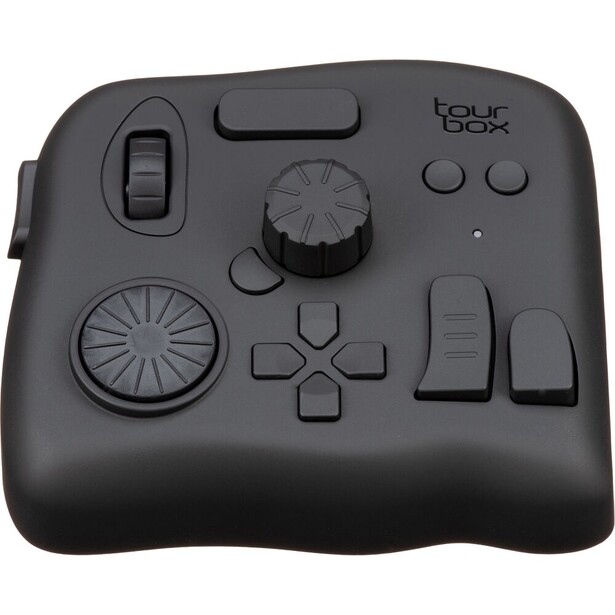
- Controls: 11 buttons plus a clickable knob, scroll wheel, and dial, with haptic feedback on the rotating controls
- Connectivity: dual-channel Bluetooth 5.0 or wired USB-C
- Power: two AA batteries (included), or bus power over USB-C
- Software: TourBox Console for Windows and macOS, with presets for Lightroom Classic, Photoshop, and Capture One
- Dimensions: 116 x 101 x 44 mm
- Weight: 376 g without batteries
- Compatibility: Windows and macOS
- Price: $268 (B&H)
The TourBox Elite wins because it is the only device here designed around the shape of a hand rather than the shape of a keyboard. Everything sits under one palm: a big dial on the outer edge, a knob at the top, a scroll wheel between them, and a cluster of differently shaped buttons you can identify by feel without looking. That last detail is the whole argument. A Stream Deck asks you to glance down at a screen; the TourBox asks you to learn a shape. After a week you stop looking, and your eyes stay on the image, which is the only place a photographer's eyes should be.
For stills the gain is real. Rotate the knob to step brush size in Photoshop while a modifier button switches it to hardness. Push the dial to jump the Lightroom Classic Develop panel from exposure to shadows without hunting for the slider, then rotate to set the value in defined increments instead of chasing a mouse pixel. Press-and-hold combinations layer a second and third function onto every control, which sounds like a recipe for confusion and, for the first few days, is. TourBox counts 150 button combinations across the device, and nobody sane uses more than a dozen.
The haptic feedback on the rotating controls is the reason to pay the premium over the wired NEO below. Turning the knob, scroll wheel, or dial fires a wide-band vibration motor, so each detent lands with a small click and a five-step exposure nudge feels like five steps rather than a vague sweep. The strength is adjustable in software, including off. Dual-channel Bluetooth 5.0 pairs it to two machines, which suits anyone who edits on a desktop and travels with a laptop.
Its faults are ergonomic and organizational. The device is genuinely awkward for left-handed users who want it under their dominant hand while a pen or mouse works the other. AA batteries in a premium 2026 accessory feel dated, and the TourBox Console software, while stable, is dense and asks for real setup time before it pays you back. Budget an evening to configure it and a week to stop resenting it. If you edit stills for a living and want the fastest tactile route through Lightroom Classic or Capture One, check the current price of the TourBox Elite at B&H. TourBox also sells an Elite Plus with iPad support, though it is a direct purchase rather than a B&H item.
Read our full review of the TourBox Elite.
What We Like
- Every control is identifiable by feel, so your eyes stay on the photo
- Haptic detents make slider adjustments feel measured rather than vague
- Bluetooth pairing to two computers, plus a wired fallback
- Mature plugin support for Lightroom Classic, Photoshop, and Capture One
What Could Be Better
- Awkward for left-handed editors
- AA batteries rather than a rechargeable cell
- Configuration software is dense and takes real time to learn
- Costs meaningfully more than the wired NEO for haptics and Bluetooth
Best Budget: Ulanzi D100H Dial Creative Controller
- Controls: one haptic dial with a linear motor, plus seven programmable RGB keys
- Connectivity: Bluetooth 5.0 LE, paired to up to three devices; USB-C charges the battery and does not carry data
- Power: 1,000 mAh lithium battery, rated at 2.5 hours of continuous dial rotation and up to 60 days of standby
- Software: Ulanzi Studio for Windows and macOS
- Dimensions: 96.5 x 84 x 35.5 mm
- Weight: 265 g
- Compatibility: Windows 10 or later; macOS 11 or later on Intel Macs, macOS 10.13 or later on Apple silicon
- Price: $39.99 (B&H)
Most people who are curious about consoles should start here rather than spending four times as much to find out they hate the idea. The D100H is a single aluminum dial with a linear motor behind it and seven backlit keys alongside it, and that is the entire proposition. Set the dial to your most-adjusted parameter, put brush size, undo, and a few local-adjustment tools on the keys, and you have covered the ninety percent case of a retouching session for the price of a memory card.
The dial is better than it has any right to be at this price. The haptic clicks are crisp rather than mushy, and holding the dial while rotating shifts every key to a second layer, which doubles the shortcut count without adding hardware. Ulanzi Studio carries ready-made profiles for Lightroom and other editing apps, so the dial can move a slider value rather than only firing keyboard macros, and a switch on the underside hops between three paired devices over Bluetooth 5.0.
What you give up is breadth, polish, and a cable. This one is Bluetooth only: the USB-C port charges the 1,000 mAh cell and passes no data, so if a wireless controller is a dealbreaker for you, buy the TourBox NEO below instead. Seven keys plus one dial cannot carry a full Photoshop workflow, and there is no way to expand the device, so heavy retouchers will outgrow it. Ulanzi Studio is younger and thinner than Adobe's or Elgato's plugin ecosystems, and Ulanzi is a smaller company than Logitech or Blackmagic, which matters in a category where the software outliving the hardware is the whole game.
None of that undermines what it is for. This is the honest entry point to the category, cheap enough that a wasted purchase costs you a nice lunch rather than a lens rental, and good enough that plenty of people will never need more. If you want to find out whether a dial changes how you edit, check the current price of the Ulanzi D100H Dial Creative Controller at B&H.
What We Like
- The cheapest way to find out if a console suits you
- Genuinely good haptic dial with crisp detents
- Hold-and-turn layering doubles the shortcuts on seven keys
- Bluetooth switching across three paired machines
What Could Be Better
- Bluetooth only, with no wired data mode over USB-C
- Seven keys will not carry a full Photoshop workflow
- Ulanzi Studio's plugin library is thinner than Adobe's or Elgato's
- No way to expand as your needs grow
- Long-term software support from a smaller company is an open question
Best for Lightroom: Logitech MX Creative Console
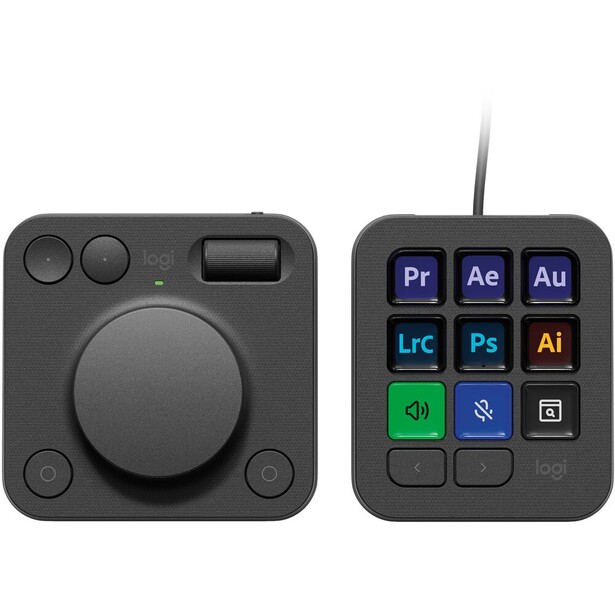
- Controls: keypad with nine LCD keys and two paging buttons, up to 15 pages per profile; dialpad with a contextual dial, roller, and four buttons
- Connectivity: keypad wired USB-C; dialpad Bluetooth Low Energy or Logi Bolt receiver
- Power: keypad bus-powered; dialpad runs on two AAA batteries, rated up to 18 months
- Software: Logi Options+ with a plugin marketplace covering Lightroom Classic, Lightroom, Photoshop, Affinity Photo, Final Cut Pro, and DaVinci Resolve
- Dimensions: keypad 91.7 x 77.9 x 25.5 mm; dialpad 92.1 x 93.7 x 33.8 mm
- Weight: keypad 96 g; dialpad 128 g
- Compatibility: Windows and macOS
- Price: $199.99 (B&H)
Loupedeck's whole identity was Lightroom, and when Logitech folded that team into the MX Creative Console, the Lightroom plugin came with it. That inheritance is why this is the pick for anyone who lives in the Develop module. The dial is contextual: click any slider in Lightroom Classic with the mouse, spin the dial, and the dial adjusts that slider. You are not memorizing which knob is temperature, because there is only one knob and it is always the one you just touched. For photographers, that single behavior does more work than nine keys ever will.
The keypad handles everything the dial cannot. Nine LCD keys, each showing its assigned action, page up to 15 deep per profile, so presets, flags, ratings, virtual copies, and export actions all sit within a button press. Logitech's 2026 software update added a plugin for the cloud version of Lightroom, alongside Affinity Photo, Final Cut Pro, Figma, and DaVinci Resolve, a signal that Logitech is still investing here rather than letting the platform coast. The console ships with a three-month Adobe Creative Cloud All Apps membership, which absorbs a good chunk of the purchase price for anyone about to subscribe anyway. If you would rather learn the software properly before optimizing it, our Mastering Adobe Lightroom course covers the workflow the console is speeding up.
Two complaints keep it out of the top slot. The dialpad runs on AAA batteries over Bluetooth, and Logi Options+ is the weak link, with occasional profile-switching glitches and a dial that sometimes loses track of context. The keypad's nine keys are also fewer than a Stream Deck's, and it has one dial where the Stream Deck + gives you four, though a photographer rarely wants four dials, since they adjust one slider at a time.
This is the console for the working photographer whose day is Lightroom Classic culling and grading, who wants a dial that follows their attention rather than one they have to program. It is not the choice for a heavy Photoshop compositor, who will want more keys and more knobs. Check the current price of the Logitech MX Creative Console at B&H.
What We Like
- The contextual dial follows whichever Lightroom slider you select
- Nine LCD keys with 15 pages per profile cover a full culling workflow
- Actively developed, with new Lightroom, Affinity Photo, Final Cut Pro, and Resolve plugins in 2026
- Includes a three-month Adobe Creative Cloud All Apps membership
What Could Be Better
- Logi Options+ software is the weak point and can be glitchy
- Dialpad runs on AAA batteries over Bluetooth
- Only one dial, and fewer keys than a Stream Deck
- Two-piece design takes more desk space than a single unit
Best Customizable: Elgato Stream Deck +
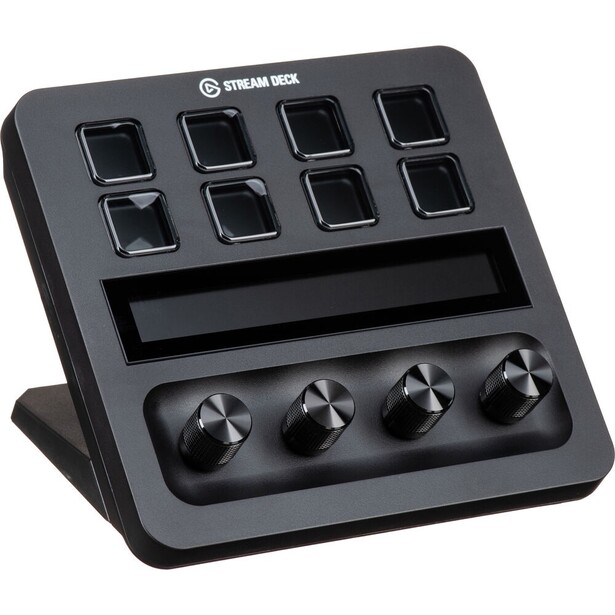
- Controls: eight LCD keys, four push-encoder dials, and a 108 x 14 mm touch strip
- Connectivity: wired USB-C
- Power: bus-powered
- Software: Stream Deck app plus the Elgato Marketplace, including Adobe's official Photoshop plugin and Lightroom Classic profiles with dial support
- Dimensions: 140 x 138 x 110 mm
- Weight: 465 g
- Compatibility: Windows 11 or later, macOS 13 or later (current Stream Deck software)
- Price: $179.99 (B&H)
Ecosystems win, and the Stream Deck + has the only one in this category that a photographer can count on. Adobe publishes a free, official Photoshop plugin for it, and the Elgato Marketplace carries Lightroom Classic profiles with dial mappings, alongside third-party packs from developers like SideshowFX, whose Lightroom Classic set lists more than 240 programmed shortcuts and 106 rotary dial controls. When a new version of Photoshop breaks something, this is the platform most likely to be fixed within a week, because the audience extends far beyond photographers.
The hardware earns its keep for stills, mostly because of the four dials. Assign them to exposure, contrast, highlights, and shadows and you can grade with all four fingers at once, which is faster than any single-dial device for a heavy corrective pass. Each dial pushes in for a second function, the touch strip beneath the keys can scrub or show live values, and the LCD keys change their icons per application. The reconfiguration is drag and drop, and it is the only setup software in this guide that a beginner will not resent.
The compromises are real. This is fundamentally a streaming device that photographers adopted, and it shows: much of the marketplace content is oriented toward OBS and Twitch, and the photo profiles are community work rather than first-party. It is also the bulkiest desktop unit here except for the Blackmagic panel, it must stay tethered by USB-C, and the LCD keys glow, which some editors find distracting in a dark grading room. Nothing about it is shaped for a hand the way a TourBox is; it is a control panel you look at.
If you want the device with the deepest plugin library, the widest software support, and the best odds of still working in 2029, this is it. Elgato also sells the Elgato Stream Deck + XL, which stretches the same idea to 36 keys and six dials for anyone running several applications at once, so check the current price of the Elgato Stream Deck + at B&H and price the larger model against it.
What We Like
- Four dials let you work several tone sliders at once
- Adobe publishes an official Photoshop plugin for it
- Largest plugin marketplace in the category, with active Lightroom profiles
- Drag-and-drop setup that does not require a manual
What Could Be Better
- Photo profiles are mostly community-made, not first-party
- Bulky, and tethered by USB-C
- Bright keys can be distracting when grading in a dark room
- Designed for streamers first, editors second
Best Compact: Elgato Stream Deck Neo
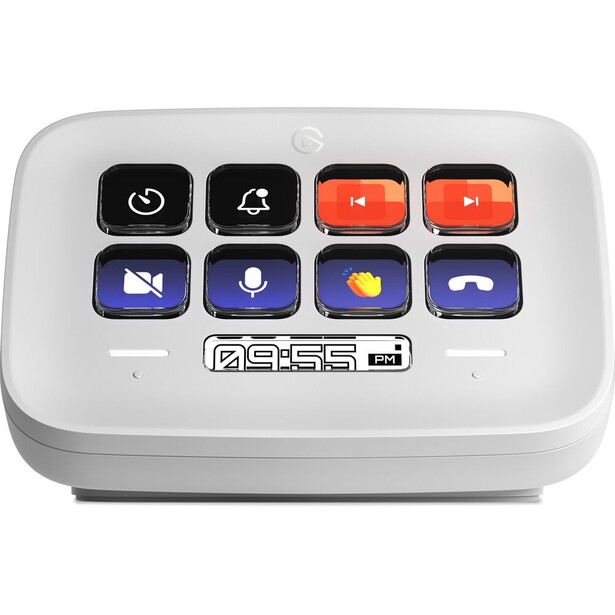
- Controls: eight LCD keys, two touch points, and an info bar; no dials
- Connectivity: wired USB-C, with a 0.9 m cable
- Power: bus-powered
- Software: Stream Deck app plus the Elgato Marketplace
- Dimensions: 107 x 78 x 26 mm
- Weight: 210 g
- Compatibility: Windows 11 or later, macOS 13 or later (current Stream Deck software)
- Price: $85.99 (B&H)
Desk space is a real constraint, especially for anyone editing on a laptop at a hotel desk between shooting days. The Stream Deck Neo is the smallest device here that still gives you the full Elgato software stack: eight LCD keys, 210 g, an integrated stand, and a footprint smaller than a paperback. It slides into the same bag pocket as a card reader.
Be clear about what it does for photographers, because this is where honesty is more useful than enthusiasm. It has no dial. That means it cannot drive a Lightroom slider by feel, and everything it does is a macro: apply a preset, set a star rating, flag a pick, run an export, jump between Develop and Library, trigger an action in Photoshop. For culling, that is a genuinely large win, because culling is almost entirely discrete keystrokes and a bank of labeled, illuminated keys beats memorizing a keyboard. For grading, it does almost nothing that a keyboard shortcut does not already do.
The two touch points and the info bar between them page through key layouts, so eight keys become as many as your patience allows, and the icons update per application. Because it runs the same Stream Deck software as the rest of the line, the same Lightroom Classic and Photoshop plugins apply, minus anything mapped to a dial. If you later decide you want dials, everything you configured carries over to a larger deck.
The limits are the point of the product. Eight keys will not hold a complex retouching workflow, the keys illuminate brightly in a dark room, and there is no wireless option. For the traveling photographer culling on a laptop, or anyone who wants one-touch presets without surrendering half their desk, check the current price of the Elgato Stream Deck Neo at B&H. Also consider the Elgato Stream Deck MK.2 if you want 15 keys in a still-modest footprint and do not need the touch points.
What We Like
- Smallest full deck here, and easy to travel with
- Runs the same mature Elgato software as its bigger siblings
- Excellent for culling, rating, and preset application
- Configurations transfer if you upgrade to a larger deck
What Could Be Better
- No dial, so it cannot drive sliders
- Eight keys are limiting for retouching
- Wired only
- Bright keys in a dark editing room
Best Wired Value: TourBox NEO
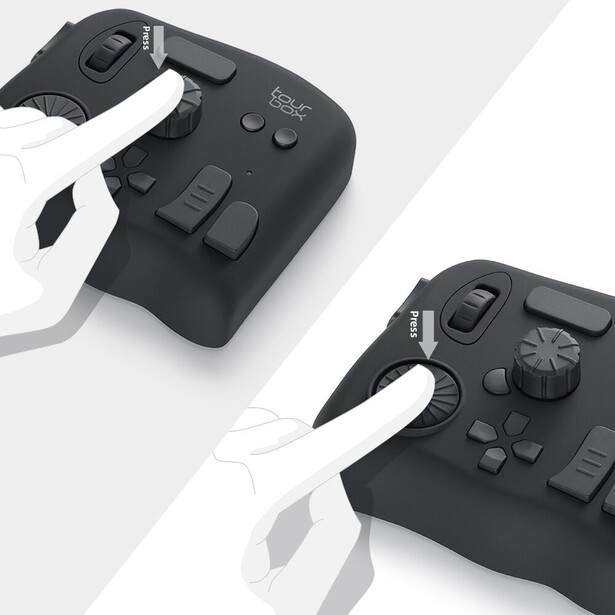
- Controls: 11 buttons plus a clickable knob, scroll wheel, and dial, with no haptic feedback
- Connectivity: wired USB-C only
- Power: bus-powered
- Software: TourBox Console for Windows and macOS
- Dimensions: 116 x 101 x 44 mm
- Weight: 370 g
- Compatibility: Windows and macOS
- Price: $169 (B&H)
Strip the Bluetooth radio, the haptic motor, and the battery bay out of the Elite and you get the TourBox NEO, which is the same chassis, the same control layout, and the same TourBox Console software for less money. At 116 x 101 x 44 mm and 370 g, it is the same size as its expensive sibling and 6 g lighter, and the ergonomic argument that makes the Elite our overall winner applies here unchanged: shaped controls under one palm, a big dial for slider work, and no reason to look away from your image.
For a desktop editor who never moves the device, this is the smarter buy. The USB-C tether means zero latency, no dropouts, and no batteries to think about. The speed benefit for stills is identical to the Elite's, because the software driving it is identical, and the Lightroom Classic and Photoshop presets carry across the line.
What you lose is the haptics, and it is a bigger loss than the spec sheet implies. Without the motorized detents, the knob and dial feel smoother and less quantized, so stepping exposure in defined increments becomes a vaguer act. Someone who has never used the Elite will not notice. Someone who has will. The NEO also cannot pair to a second machine, which rules it out as a laptop travel companion, and it inherits the same steep configuration curve and the same left-handed awkwardness as the rest of the family.
Buy this if your editing happens at one desk and you would rather put the difference toward a calibration tool or storage, both of which our photo editing computers guide gets into. It is the least glamorous pick in this guide and one of the easiest to justify, so check the current price of the TourBox NEO at B&H.
What We Like
- Same shape, layout, and software as the Elite for less money
- Wired USB-C means no latency, dropouts, or batteries
- Strong Lightroom Classic, Photoshop, and Capture One presets
- Ideal for a single fixed desk setup
What Could Be Better
- No haptic feedback, so dial steps feel less defined
- No Bluetooth, so it will not travel with a laptop
- Same steep learning curve as the Elite
- Still awkward for left-handed editors
Best All-in-One Desk Hub: Ulanzi D200X Creative Deck
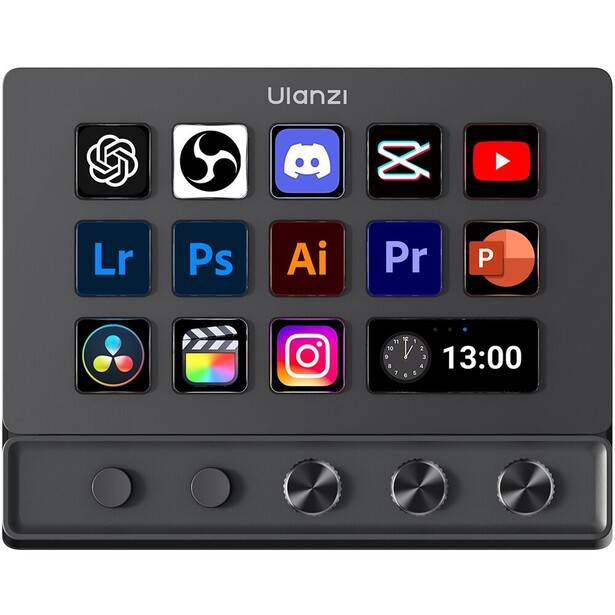
- Controls: 14 LCD touch keys on a 5.5-inch display, three rotary knobs, and two customizable side buttons
- Connectivity: USB-C to the computer, HDMI out to 4096 x 2160 at 60 Hz, 10 Gb/s USB-A and USB-C hosts, SD and microSD readers, 3.5 mm audio, USB-C power delivery in to 100 W
- Power: bus-powered, with up to 85 W of power delivery passed through to the laptop
- Software: Ulanzi Studio for Windows and macOS
- Dimensions: 153 x 113.5 x 98 mm
- Weight: 480 g
- Compatibility: Windows 10 or later, macOS 12 or later
- Price: $109.99 (B&H)
Photographers who work from a laptop end up with a docking station, a card reader, and a control surface all fighting for the same two ports. The D200X collapses all three into one object. It is a 14-key deck with three knobs on top and a dock underneath: SD and microSD slots, 10 Gb/s USB-A and USB-C, 4K HDMI out at 60 Hz, a headphone jack, and up to 100 W of power delivery in, of which as much as 85 W goes back out to charge the laptop over the same cable that carries data and display.
The card slots are the part that matters to photographers, and they change the desk. Come home from a shoot, drop the card into the deck you are already using to control Lightroom, and ingest starts without a dongle. The three knobs are stepless encoders that map to Lightroom sliders directly, with a press to reset a value to zero, so the speed gain for stills is real rather than macro-only, and 14 keys across paged profiles handle ratings, presets, and exports. The card readers are SD 3.0 and TF 3.0, meaning UHS-I speeds, so a fast CFexpress workflow still wants its own reader.
The catch is the software, and it is the same catch as the D100H. Ulanzi Studio is a younger platform than Elgato's, its plugin library is thinner, and it is not compatible with Elgato's app, so the enormous Stream Deck marketplace is closed to you. A community-built Bitfocus Companion surface plugin exists, which gives power users an escape hatch, but that is a workaround rather than a feature.
If you value one cable, one dock, and one control surface over having the deepest plugin ecosystem, the tradeoff is worth taking, and the price is remarkably low for what it consolidates. Anyone building out a laptop editing desk should read this pick alongside our pen displays and drawing tablets guide, since a tablet and a console solve different halves of the same problem. Check the current price of the Ulanzi D200X Creative Deck at B&H.
Read our full review of the Ulanzi D200X Creative Deck.
What We Like
- Built-in SD and microSD readers put ingest on the same device as your controls
- Three knobs plus 14 keys covers both slider work and macros
- 4K HDMI at 60 Hz, 10 Gb/s ports, and 85 W of laptop charging replace a separate dock
- Excellent value for what it consolidates
What Could Be Better
- Ulanzi Studio's plugin library trails Elgato's badly
- Not compatible with Elgato's Stream Deck software
- Card readers are limited to UHS-I speeds
- Long-term software support is unproven
- Largest footprint of the key-based decks here
Best for Color Grading: Blackmagic Design DaVinci Resolve Micro Color Panel
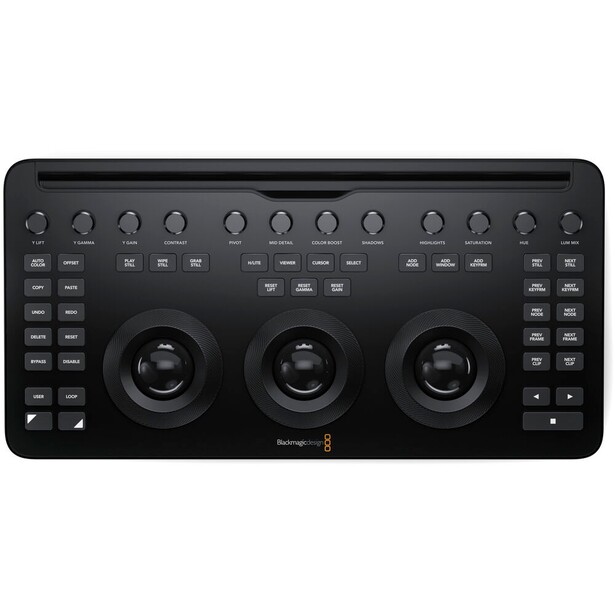
- Controls: three trackballs with surrounding rings, 12 primary correction knobs, and dedicated grading buttons
- Connectivity: Bluetooth 5.1 LE or USB-C
- Power: internal battery or USB-C
- Software: DaVinci Resolve, including the free version
- Dimensions: 364 x 182 x 48 mm
- Weight: 1.18 kg
- Compatibility: Windows, macOS, and iPad
- Price: $559 (B&H)
This one has a specific reason to appear in a photography guide in 2026, and it is not the reason it had a year ago. DaVinci Resolve 21 came out of beta on June 3, 2026 with a Photo page: raw support for Canon, Fujifilm, Nikon, Sony, and iPhone ProRAW files, tethered shooting with Canon and Sony bodies, node-based grading, album management, and Lightroom catalog import, most of it in the free version. Only AI Magic Mask and Film Look Creator sit behind the paid Studio upgrade. Resolve became a plausible stills editor, and the Micro Color Panel is the hardware that has always made grading in Resolve feel like an instrument rather than a spreadsheet.
Three trackballs handle lift, gamma, and gain, with a ring around each one for the matching luminance value, and 12 knobs cover Y lift, Y gamma, Y gain, contrast, pivot, midtone detail, color boost, shadow, highlight, saturation, hue rotation, and luminance mix. You grade with both hands, adjusting shadow tint and midtone contrast at once, which no dial-and-key device in this guide can do. For anyone who has only ever pushed color with a mouse, the first hour on trackballs is a small revelation. Note what is not among those 12: there is no dedicated temperature or tint knob, so white balance is not a one-turn control the way it is on a Lightroom-focused dial.
Here is the caveat no product page will tell you. Panel corrections in Resolve happen on the Color page, not on the new Photo page itself, so a stills workflow means routing images through the color timeline rather than working straight from the Photo page's interface. Verify that this matches how you want to work before you spend the money. It is also the largest and heaviest thing here at 364 mm wide and 1.18 kg, it does nothing at all in Lightroom or Capture One, and its price sits above every other pick in this guide.
The buyer is clear: a hybrid shooter already grading video in Resolve, or a photographer willing to move stills work into Resolve to get trackballs. Everyone else should buy a dial. If that is you, check the current price of the Blackmagic Design DaVinci Resolve Micro Color Panel at B&H. Also consider the Blackmagic Design DaVinci Resolve Speed Editor if your bottleneck is cutting footage rather than grading it.
What We Like
- Three trackballs and 12 knobs let you grade with both hands at once
- Works with the free version of DaVinci Resolve
- Resolve 21's Photo page makes it relevant to stills for the first time
- Battery power and Bluetooth, so it can work away from the desk
What Could Be Better
- Panel grading happens on the Color page, not the new Photo page
- No dedicated temperature or tint knob among the 12
- Useless outside DaVinci Resolve
- Biggest, heaviest, and most expensive pick here
- Overkill for a photographer who mostly culls and applies presets
How to Choose an Editing Console
Start with an unglamorous question: what do you actually do a thousand times a week? If the answer is rate, flag, reject, and apply presets, you want keys, and a Stream Deck Neo will pay for itself in a couple of wedding culls. If the answer is push sliders, you want a dial, and no number of keys will substitute. If the answer is both, which it is for most working photographers, you want a device that has at least one good dial and enough keys to hold your top ten actions, which is exactly the middle of this market.
Then look at the software, because the software is the product. Hardware here is commodity: knobs, keys, and screens. What separates a console you still use in 2029 from a paperweight is whether the company keeps shipping plugins when Adobe changes something. Elgato has the deepest ecosystem and an official Adobe plugin behind it. Logitech inherited Loupedeck's Lightroom expertise and is still adding plugins. TourBox has maintained its own console software for years. Ulanzi is cheap and promising but unproven. Monogram, formerly Palette, is the cautionary tale: the modules still exist, the servers do not, and owners are keeping them alive with MIDI hacks.
The specification people overweight is button count. Twenty keys sounds like twenty shortcuts and behaves like clutter, because you will never build muscle memory for more than about a dozen actions. The specification people underrate is haptic feedback on the dials, which turns a slider adjustment from an analog smear into a countable number of steps. Left-handedness is worth a thought too, since almost every device in this category assumes your non-mouse hand is your left.
Finally, be realistic about the payback period. Every console in this guide costs you an evening of setup and about a week of feeling slower before you feel faster. That is a fair trade for a full-time retoucher and a bad trade for someone editing a folder of vacation photos twice a year. Buy one because your hands hurt or your volume is high, not because your editing feels slow. If the editing itself is the bottleneck, the software is where to spend the money, and our photo editing software guide is the better place to start.
What We're Looking For
We weighed four things: whether the device has a dial that can drive a real slider value rather than only firing keyboard macros, the depth and current health of its plugin ecosystem for photography applications, how much of the workflow you can run without looking down at the device, and whether the company behind it is still actively shipping software. Every specification here was verified against the manufacturer's current documentation and a live retailer listing at the time of writing, and prices are the current B&H figures, which move. Most picks across our buying guides come from gear our writers have used and reviewed hands-on. This category is thinner than most on that front, so where a pick has not passed through our hands, the description of how it behaves is drawn from the manufacturer's published specifications and the product's documented design, and we say so in the entry.
Frequently Asked Questions
Does an Editing Console Actually Speed Up Photo Editing?
Yes, but only for repetitive, high-volume work. A dial that steps an exposure slider is genuinely faster and more precise than a mouse drag, and a labeled key that applies a preset beats a memorized shortcut. The gain shows up over hundreds of images. For a photographer editing a few frames at a time, a console mostly adds a device to configure.
Is the Loupedeck CT Still Worth Buying in 2026?
No, not new. Logitech ended Loupedeck hardware sales in 2025 and moved development to the MX Creative Console, and while existing Loupedeck units still receive software support through the shared backend, you would be buying into a discontinued platform. Remaining stock turns up at retailers, but the MX Creative Console inherits the Lightroom plugin work and is the safer purchase.
Do I Need a Dial, or Are Buttons Enough?
You need a dial if you grade, and buttons are enough if you mostly cull. Photo adjustments are continuous values, so a rotating control maps to them naturally while a key can only jump to a preset amount. Culling, rating, flagging, and exporting are discrete actions, and a key-only deck like the Stream Deck Neo handles all of them well.
Can I Use a Stream Deck With Lightroom Classic?
Yes. The Elgato Marketplace carries Lightroom Classic profiles, including versions with dial mappings for the Stream Deck +, and third-party developers sell much deeper packs with hundreds of shortcuts. Adobe also publishes an official Photoshop plugin for Stream Deck. The integration is not first-party for Lightroom, so expect occasional breakage after major Adobe updates.
What Happened to Monogram and Palette?
Monogram, the modular console company formerly known as Palette, has effectively stopped operating. There are no software updates, no support responses, unfulfilled orders, and offline authentication servers, and some owners are keeping their modules working by switching them to MIDI mode. Do not buy Monogram modules on the used market expecting them to keep functioning.
Fstoppers may earn a commission from purchases made through links in this article. Our picks are made independently by our editorial team.