Basic retouching changes how your subject looks and how your photo feels. Small distractions like blemishes, redness, or uneven exposure can pull attention away from the person in front of your lens. Learning how to correct them without going overboard makes the difference between an amateur edit and a professional finish.
Coming to you from Aaron Nace with Phlearn, this detailed video walks through a Photoshop workflow that handles common skin distractions. Nace begins with the updated Remove tool, which now includes an auto mode that can use generative AI when needed. Working on a new layer, you paint over blemishes, scars, lint, or flyaway hairs, and the tool removes them cleanly. Because it’s on a separate layer, you can toggle it on and off to check the results without committing permanently. Nace points out that you should confirm with your subject before removing permanent features like moles, keeping the adjustments focused on temporary or distracting elements.
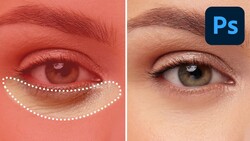
The tutorial continues with redness correction. Instead of brushing color manually, Nace uses a hue/saturation adjustment layer targeted specifically at the reds in the skin. He demonstrates how to crank hue and saturation temporarily to isolate the right tones, then refine the range using the sliders. Once the selection is accurate, resetting the values lets you nudge the reds into more natural skin tones. A simple mask prevents lips from being affected, keeping them true to the original color. This method is both controlled and reversible, and it gives you a lot more precision than blanket color adjustments.
Light adjustments come next, focusing on the eyes and surrounding areas. Nace uses brightness and contrast adjustment layers with inverted masks, painting white only where he wants more light. Keeping the brush flow around 10% allows for subtle buildup, avoiding the common mistake of making eyes glow unnaturally. He applies the same technique twice: once for the area around the eyes and once more for the pupils themselves, adding a touch of sharpness and life to the subject’s expression.
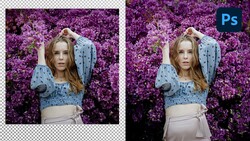
Nace finishes by grouping the layers and showing the before-and-after difference. The result is subtle but powerful: skin looks clean, redness is reduced, and the eyes stand out naturally. The edit is built on three simple steps: remove distractions, fix color, and refine light. More advanced retouching techniques come in the next lesson, but this one provides the essential foundation. Check out the video above for the full rundown from Nace.




Join the Fstoppers community for free
-
Post comments and join in the discussions
-
Browse the site ad-free
-
Share your work and get featured in the community
-
Compete in the photo contests for fun and prizes
No comments yet