When you edit a photo, your main job is to guide the eye. You’re choosing what deserves attention and what should quietly step back. Cameras don’t see light and color the way you do, so the edit is where you bring that vision back to life.
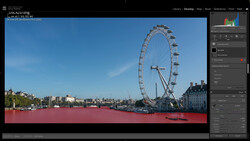
Coming to you from Matt Kloskowski, this practical video shows how to use masking tools in Lightroom Classic and Adobe Camera Raw to control focus in a scene. Kloskowski demonstrates a fast way to isolate parts of an image with landscape masking, then refine that mask with brushes and intersect functions. By combining these tools with a radial gradient, he shows how to mimic the natural falloff of light and guide attention to the subject. This approach gives you more control than a simple vignette and keeps edits flexible. What makes it stand out is the balance between simplicity and precision: the steps are easy to follow but the result looks polished.
The video also highlights how intersecting masks changes your control over light. Instead of manually brushing and feathering, you can intersect two masks so they work together. That makes it possible to add texture, warmth, or contrast exactly where you want it while leaving other areas untouched. For example, Kloskowski shows how to brighten a section of rocks while holding back the water around them, which would be difficult to do with one mask alone. This selective editing creates separation in the frame and makes light feel more natural.
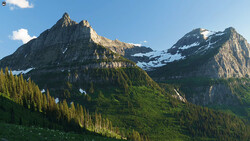
What’s worth noting here is how new Adobe features change the speed of this process. Landscape masking automatically detects elements like mountains, sky, and ground, which used to take careful manual selection. By pairing these automatic masks with intersect and invert, you can push the look of your images in subtle or dramatic ways. The technique works best with photos that already have strong light, since it amplifies what’s there rather than inventing it. Kloskowski also shows how to avoid common problems like halos at the edge of selections and offers small fixes to keep edits clean. Check out the video above for the full rundown.



Join the Fstoppers community for free
-
Post comments and join in the discussions
-
Browse the site ad-free
-
Share your work and get featured in the community
-
Compete in the photo contests for fun and prizes
No comments yet