
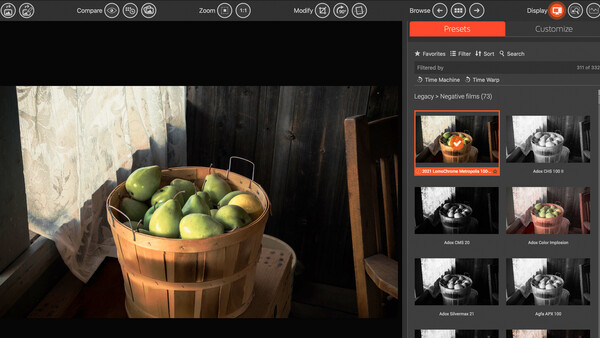
DxO has updated its film emulation package to version 8, and it's a major update. This latest version introduces two standout features: Time Warp Mode, a new interactive way to explore photography’s past, and full integration with Adobe Photoshop, giving photographers direct access to FilmPack’s creative palette.
Alongside these innovations, DxO FilmPack 8 adds 15 new analog films — including CineStill 800T and Harman Phoenix 200 — bringing the total number of renderings to 153. The update also introduces a new Film Scan Optimizer with negative inversion and tone curve presets, 19 new Time Machine images, themed webview browsing, four digital camera-inspired profiles, and high-resolution upgrades for all creative effects.
Here’s what DxO has to say about it:
DxO FilmPack 8 continues our mission to unite photographic history with modern digital creativity,” says Jean-Marc Alexia, VP Product Strategy at DxO. “By allowing photographers to navigate time visually and apply faithfully recreated film looks inside their favorite editing tools, we’re giving them new ways to create with authenticity and emotion.
Time Warp and Ageify Modes
DxO FilmPack already features Time Machine, an in-depth archive of photographic history that presents iconic images and the cameras and film types used to create them. Building on this, version 8 introduces the new Time Warp Mode, featuring two unique tools that let users dive deeper into the past.
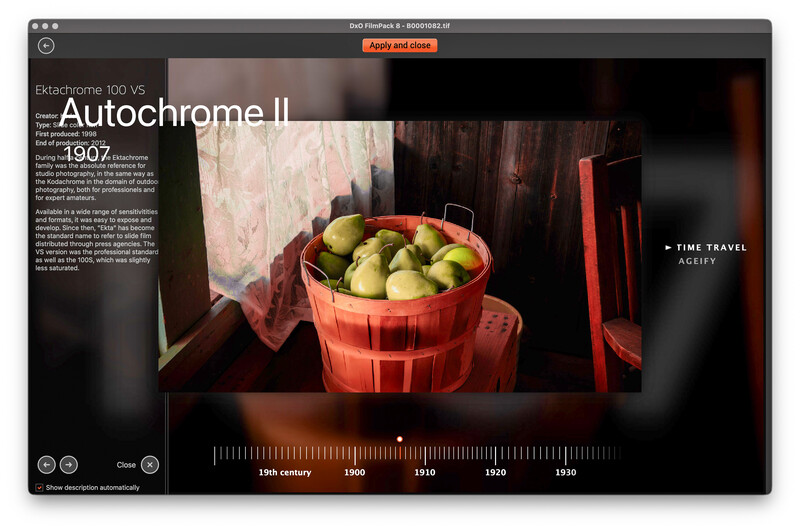
The first is Time Travel, a slider that allows photographers to take one of their images through all the eras, film stocks, and cameras spanning 200 years of photographic history, discovering how their image would look had it been created using the same tools and chemical processes as those used by Nicéphore Niépce and Louis Daguerre in the early 1800s, through to the 35mm film stocks introduced by Fujifilm and Kodak in the late 20th century. With each move of the slider, photographers can apply period-authentic looks that include film grain, color shifts, and realistic degradation — all based on the film types that defined each era. It’s an intuitive way to bring historical storytelling into the editing process.
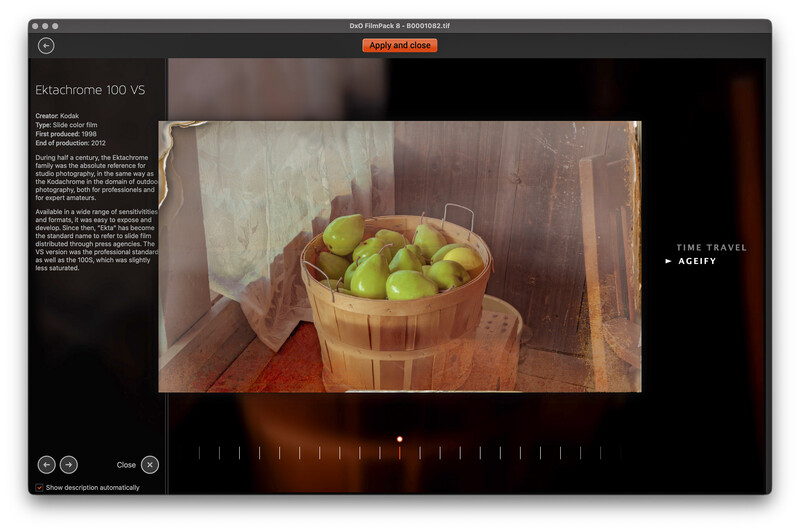
The second tool is the Ageify slider, which lets you progressively age and distress your images, drawing on authentically recreated film stocks and a diverse range of effects.
Photoshop Integration
With DxO FilmPack 8, the entire rendering library is now available as an integrated palette in Adobe Photoshop. This seamless access means photographers can instantly apply DxO’s scientifically developed film looks to layers or flattened images — without switching software or interrupting the workflow. Of course, you can run FilmPack 8 standalone if you wish.
Scanned Film Optimization Tool
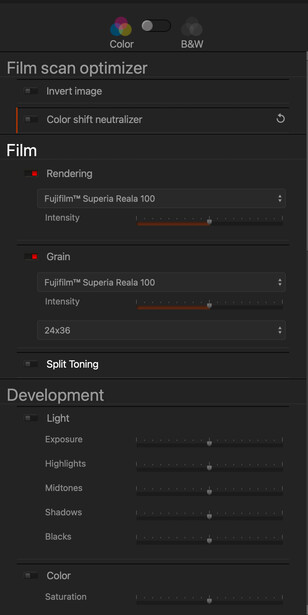
A new Scanned Film Optimization tool enables photographers to work with home-scanned film. With a single click, photographers can invert the tonal values of color or black-and-white negatives and apply precise corrections using more than 10 dedicated tone curve presets. These include targeted solutions for common color shifts and density issues, helping users restore and enhance scanned film with accuracy and ease.
My Look at Film Pack 8
I’m not usually a big user of presets, preferring to get the look I want on my own to match my style. Having said that, I find the film emulations in FilmPack 8 useful. It’s interesting to use film styles that I relied on back in the pre-digital days, and to my memory the films I used then are well duplicated here.
For starters, I picked an image, loaded it into Photoshop, and launched FilmPack 8. You’ll find FilmPack 8 under the Filter menu on the DxO submenu.
I immediately could see my image, and to the right, a panel filled with different film emulations.
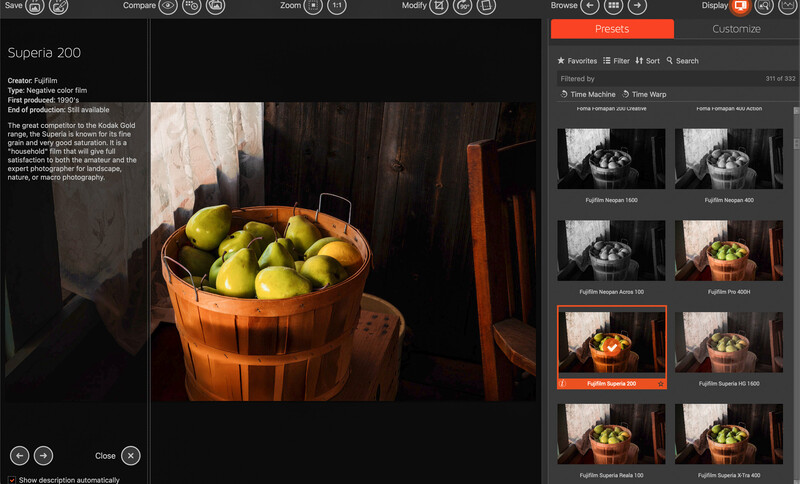
Clicking on any film type in the right panel applied it to my image. In addition, you can modify the new emulated image with a range of tools that will be familiar to Camera Raw users. You can also make changes to your image if it was scanned, and there are lens correction tools as well. All very useful.
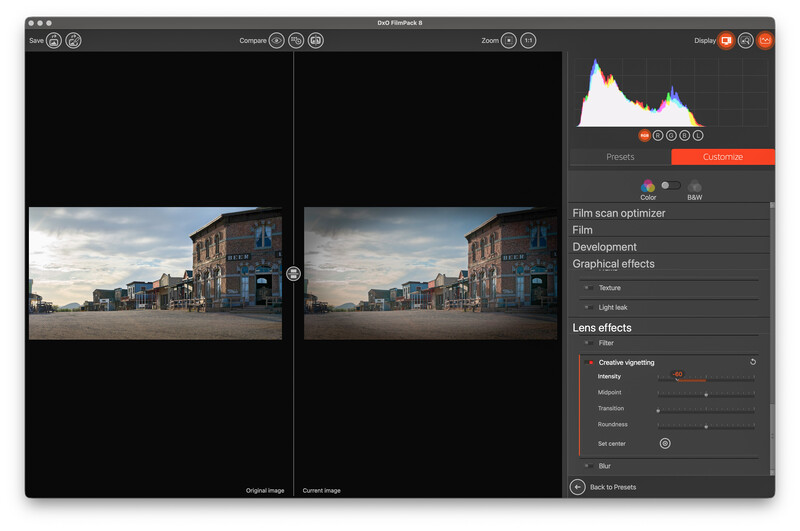
Some photographers will find many uses for the Time Warp feature, and the Ageify tools will give photographers an easy way to create interesting effects. Open an image in FilmPack 8, then you can degrade the image to age it. Probably something I have no use for in my own work, but I can see many photographers wanting a quick way to get this particular look. On my image below, you can see the effect at the edges of the frame and the fading effect on the colors.
It’s like nothing I’ve seen from a Photoshop plug-in, and I’ll bet you’ll spend some time adding to your knowledge. It’s a unique feature.
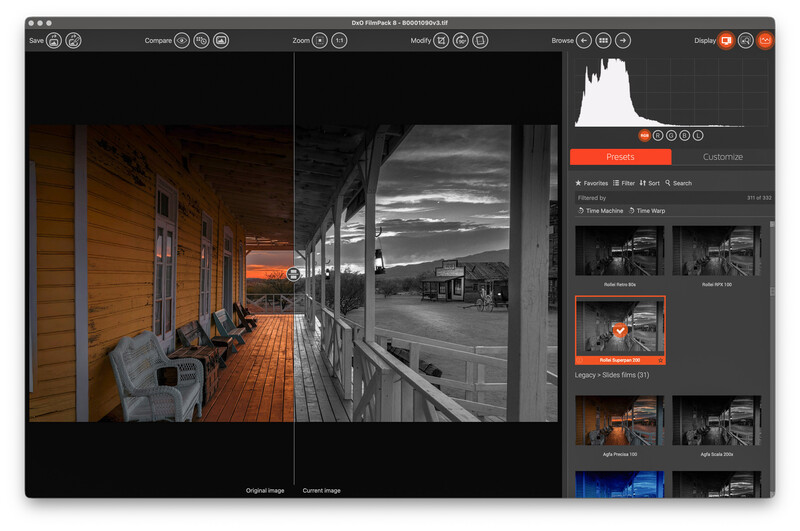
There’s also a wide selection of mono film emulations, and moving through them is a great way to find just the effect you are looking for.
Although I was using a DxO-provided beta to work with the software, it was solid on my M3 MacBook Pro. I didn’t see any anomalies and there were no crashes, whether I used the software standalone or within Photoshop.
Summing Up
All in all, FilmPack 8 is a stunning addition to your editing tools. It’s not a collection of baked-in presets, but it presents a usable history of film emulations that you can adopt or edit further. I think most photographers will find it an important and highly useful addition to their software collection.
Here’s the pricing info:
DxO FilmPack 8 is available today from the DxO website for macOS and Windows machines:
-
New license: $149.99 / 139,99 € / 129,99 £
-
Upgrade from DxO FilmPack 7: $89.99 / 79,99 € / 69,99 £






Join the Fstoppers community for free
-
Post comments and join in the discussions
-
Browse the site ad-free
-
Share your work and get featured in the community
-
Compete in the photo contests for fun and prizes
4 Comments
I have a big problem with DxO's tactics for upgrades. I consider them completely sleazy. I just bought Filmpack 7 10 days ago and they expect me to pay the full price for an upgrade. They did the same thing to me on the Nik Collection a couple of years ago so I never upgraded it.
This is doubly so considering their "upgrades" are usually just new presets that are tweaks of other presets as this one mostly is.
It is ludicrous that someone who bought less than a month ago wasn't even given a heads up and is expected to pay full price. That does not equal very good customer retention.
Agree.. that is a punishing upgrade policy.
Mel
My colleague Andy Day notes this: "DxO offers a free upgrade to anyone who has bought a product in the 7 days before a product is upgraded, and a decent discount to anyone who buys in the month before. That chap should have received an email". Let us know how you do.
I did not get any email. The upgrade offer is $89.99 USD which really is not much of a discount IMO. Like I said they have done this to me twice now so shame on me but never again. They have lost my goodwill.